
Syncing Credit Memos
Credit Memo in Zoey and sync to QuickBooks Online
When a Zoey Credit Memo is created to Add Credit to Account, it will sync to the customer in QuickBooks Online as a Credit Memo.
The credit will be applied automatically to open Invoices by QuickBooks Online, which is then mirrored in Zoey.
This article covers Credit Memos that add credit to the Account. To return money to the customer, see Syncing Refunds to QuickBooks Online.
Credit & Refund
When Credit & Refund is selected, the refund will sync as a QuickBooks Refund Receipt instead of a QuickBooks Credit Memo.
Through Credit & Refund, the original Payment remains applied and the Invoice remains paid. A Credit Memo and a Refund Transaction are created in Zoey. See Syncing Refunds to QuickBooks Online.
You can create a Payment Refund to reverse payments and unapply them from the invoice.
Applying Credit to Invoices
When QuickBooks Credit Memo sync is enabled, Zoey sends new Credit Memos to QuickBooks and then Zoey will apply the credit to the same Invoice as QuickBooks does based own its credit auto-apply logic that Zoey cannot override.
Creating a Credit Memo from an Invoice does not guarantee that QuickBooks will apply the credit to that same invoice. Zoey will wait and check which invoice the credit gets applied to in QuickBooks to mirror it.
To apply the credit to a specific Invoice in Zoey, open the Credit Memo and use Apply Credit.
Check the credit transaction in QuickBooks. If QuickBooks applied the credit to a different Invoice, you may need to manually update the application in QuickBooks to match.
When you apply a credit in Zoey, it automatically shows up in QuickBooks and gets matched against the same Invoice. This means your accounting records stay in sync without any manual work on your part.
QuickBooks uses a Payment to apply the Credit Memo to the Invoice. This Payment has a total of $0.00 because credit is being applied, not a new payment being collected.
Credit Memo Sync Settings
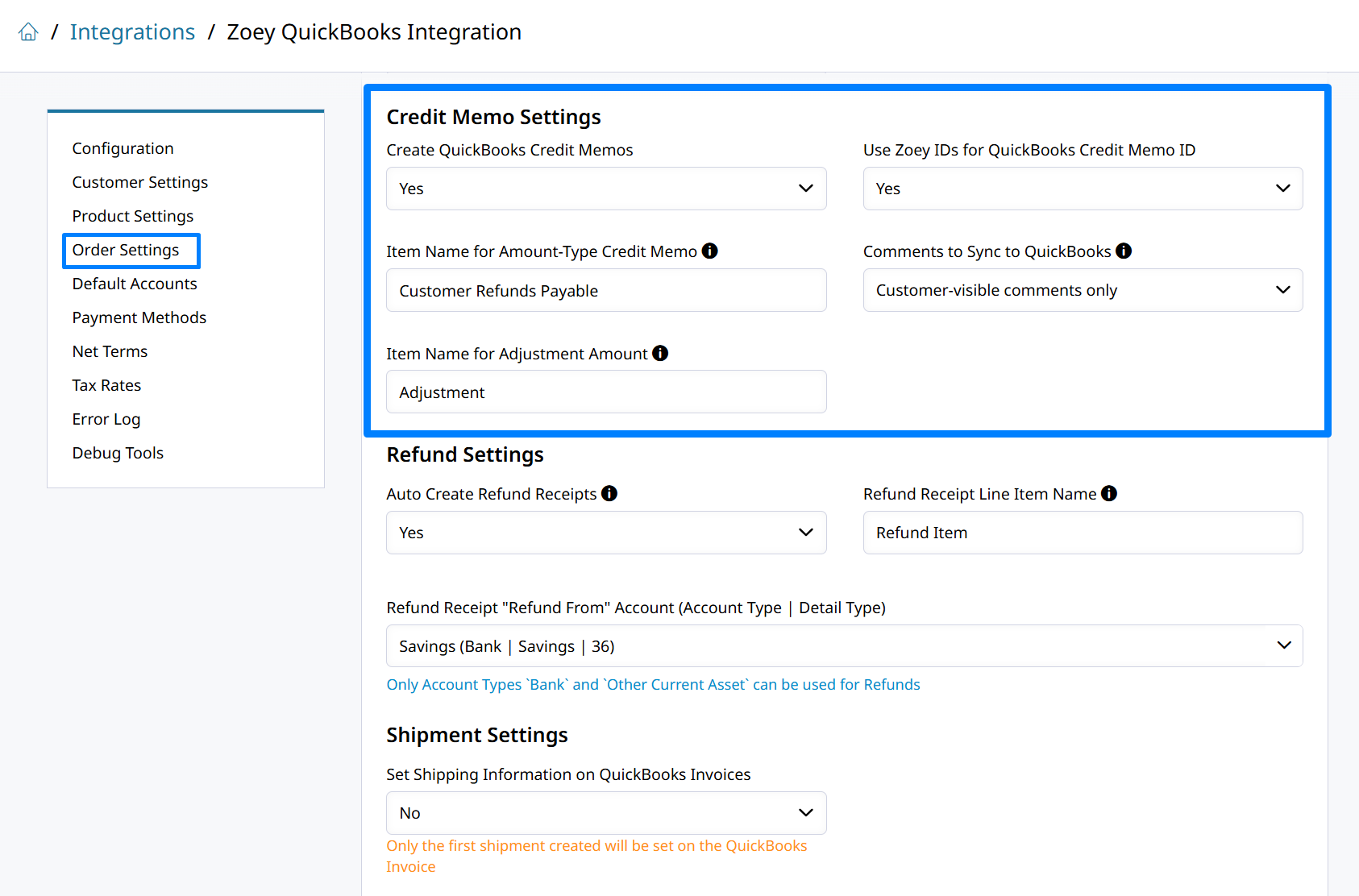
Enable the Credit Memo Sync to QuickBooks
The Credit Memo is sent to QuickBooks immediatley when Create QuickBooks Credit Memos is set to Yes.
- Use Zoey IDs for QuickBooks Credit Memo ID - when set to Yes, the Zoey Credit Memo number will be set on the QuickBooks Credit Memo.
When set to No, QuickBooks will assign its own document number to the Credit Memo.

The Credit Memo can be created for specific items or a general amount. It does not need to be linked to an Order or Invoices to sync to QuickBooks. The Credit Memo will be linked to the account that credit was issued to.
Item Mapping for Credit Memos
Enter a QuickBooks Online non-inventory item to use as a placeholder on the QuickBooks Credit Memo.The item names must exactly match a service or item in QuickBooks so the custom amount memos can be synced succesfully.
- Item Name for Amount-Type Credit Memo - Required for amount-based credit memos. The QuickBooks Item to use for the line item that represents the credit memo's memo amount. Should be a Service Item in QuickBooks mapped to a liability account (e.g. Customer Refunds Payable) and marked as non-taxable.
- Item Name for Adjustment Amount - Required to sync a credit memo's Adjustment amount. The QuickBooks Item to use for the line item that represents the Adjustment. The line's amount carries the same sign as the Adjustment (positive or negative).
Credit Memo Comments
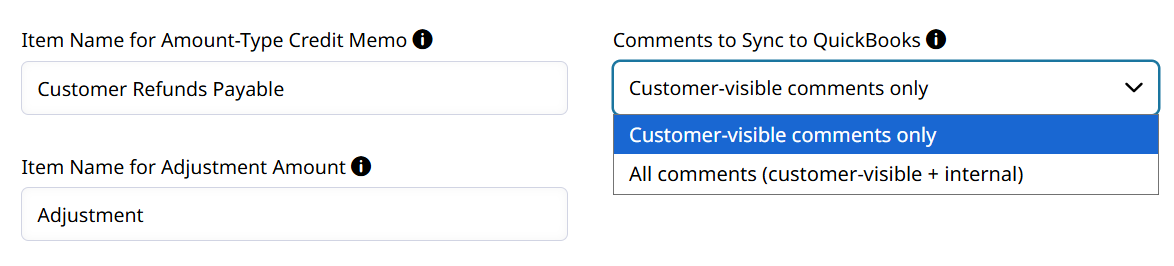
- Comments to Sync to QuickBooks
Credit memo comments are sent to the QuickBooks credit memo. Customer-visible comments populate the "Message displayed on credit memo" the customer sees; internal comments populate the private note when "All comments" is selected.
Adding credit to the Account does not refund the customer's payment method or reverse an existing Payment.
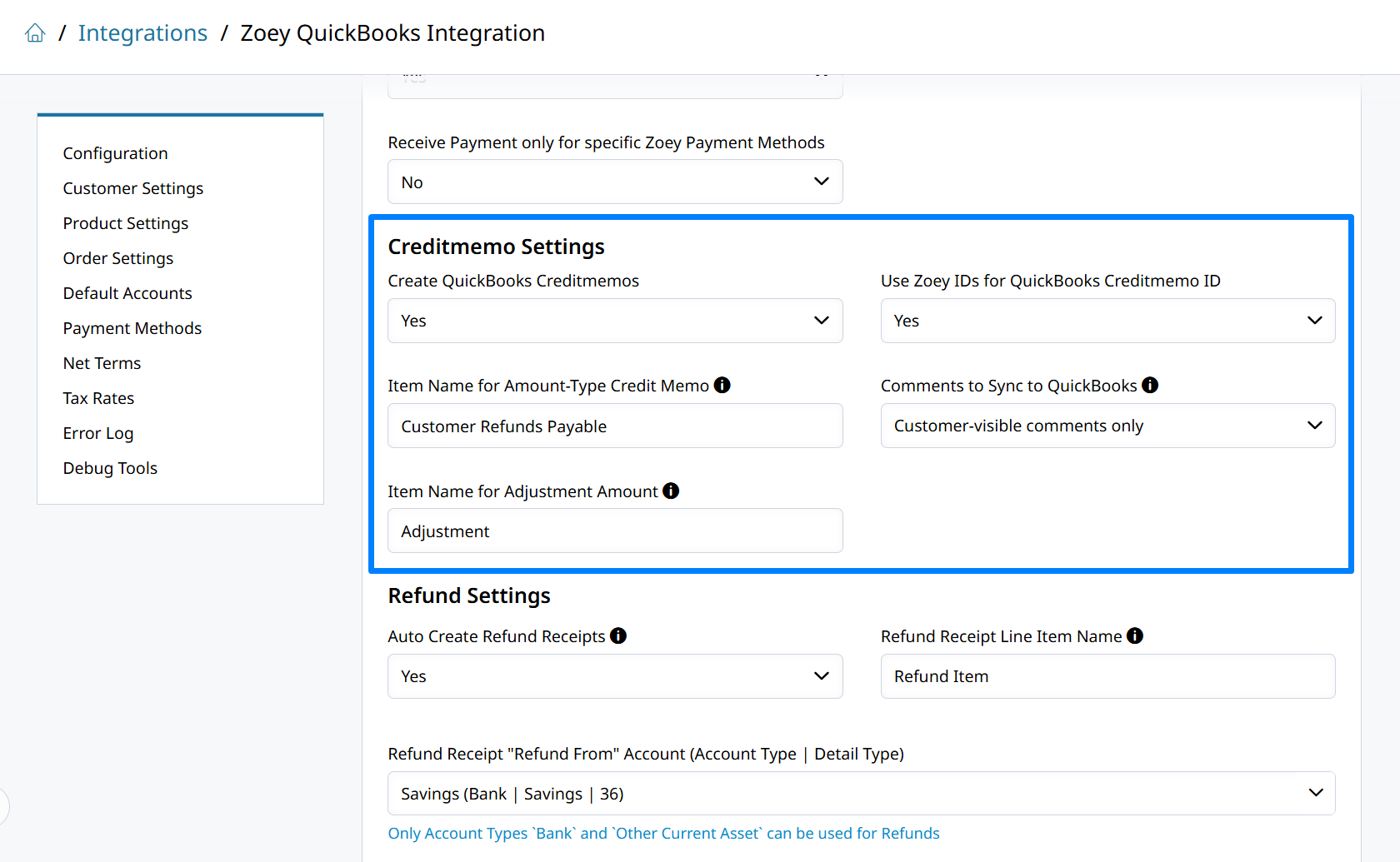
Item-Based
The QuickBooks Credit Memo will list the same Items included in the Zoey Credit Memo. Use the existing QuickBooks item mapping settings to control the details saved to the Credit Memo in QuickBooks.
Amount-Based
An Amount Credit Memo uses the service item configured for Credit Memo amounts in the Zoey QuickBooks integration setting: Item Name for Amount-Type Credit Memo.
Open the Zoey QuickBooks Integration and navigate to Order Settings > Credit Memo Settings.
Create an item in QuickBooks that will be a placeholder for the custom Credit Memo amount and put that item's exact name (case-sensetive) in Item Name for Amount-Type Credit Memo.
That item must exist in QuickBooks. If it is not configured, an amount-based Credit Memo will fail to sync.
Taxes, Shipping, and Discounts
Taxes, shipping, and discounts use the existing integration mappings. Review those mappings in the QuickBooks Online Integration Settings.
Credit Memo Numbers
When Use Zoey IDs for QuickBooks Creditmemo ID is set to Yes, the same Zoey Credit Memo number will be used as the document number in QuickBooks.
If that number already exists, a suffix such as -1 or -2 will be added.
When this option is disabled, QuickBooks assigns its own number automatically.
Canceling an Applied Credit Memo
A fully applied Credit Memo cannot be canceled. Zoey will reject the cancellation and leave the Zoey and QuickBooks records unchanged.
Automatically reversing the credit application and removing the Credit Memo from QuickBooks is not supported by this update.
The Credit Memo will need to be canceled in each system.
Credit Memo Sync to QuickBooks FAQs
-
Why hasn't my Credit Memo applied to an Invoice?
Zoey does not decide which Invoice a credit applies to. When QuickBooks Credit Memo sync is enabled, Zoey sends the Credit Memo to QuickBooks, waits for QuickBooks to auto-apply the credit, and then mirrors that result. Creating a Credit Memo from an Invoice does not guarantee the credit will land on that Invoice in QuickBooks.
Open the Credit Memo in QuickBooks and check which of these applies:
- Applied to a different Invoice — QuickBooks auto-applied the credit to another open Invoice on the Account, and Zoey mirrored it. To move the credit, change the application in QuickBooks.
- Still available — there were no eligible open Invoices when the credit synced. The credit stays on the Account and can be applied once a new eligible Invoice is created.
- Partially applied — the credit was smaller than the Invoice balance, or was split across multiple Invoices. Any unused amount remains available on the Account.
To apply the credit to a specific Invoice in Zoey, open the Credit Memo and use Apply Credit.
In QuickBooks, an applied credit appears as a Payment with a total of $0.00. Use that Payment to confirm which Invoice the credit was applied to. See Applying Credit to Invoices.
Why did my credit apply to a different Invoice in QuickBooks?
QuickBooks has its own auto-apply logic that Zoey cannot override. Credit created for items on one Invoice may be applied to another open Invoice for the same customer.
The Invoice used to create the Credit Memo identifies the items being credited. It does not guarantee which Invoice receives the credit in QuickBooks.
Updated 27 days ago