
Import Invoices from QuickBooks Online
Automatically import new Invoices from QuickBooks Online to the Zoey Order.
Importing Invoices from QuickBooks Online into Zoey
Zoey can import invoices from QuickBooks Online and link them to existing Zoey orders. This is useful when invoices are created in QuickBooks Online by another connected sales platform, and when the invoices need to be tracked in Zoey along with the order.
By importing the QuickBooks Online invoice into Zoey, you can keep invoice records synchronized between both systems, accept customer payments in Zoey, and track invoice details such as payment terms, due dates, and payment status.
First, the QuickBooks Invoice's internal ID is imported, and then the QuickBooks Online Invoice gets imported to create the Zoey Invoice.
| Field | Description |
|---|---|
| QuickBooks Online Invoice ID | The internal QuickBooks Online invoice ID of the invoice that will be imported. |
| Zoey Order Number | The Zoey order number that the invoice should be imported to. |
Setting up the Invoice ID mapper import
Before you start, make sure the import file or connected source provides both fields listed above. Create a Data Mapper connection that can receive import files, such as Dropbox, or SFTP.
Set up the Invoice Import data mapper:
- In the Zoey Admin, go to
Integrations > Zoey Data Mappers > Add Data Mapper. - Enter a Name for the mapper, select the import Connection, and set the schedule you want Zoey to use.
- Set Zoey Object to Invoices and Type to File Import.
- Select the mapper template called QuickBooks Online Invoice Import.
- Enter the File Name and File Import Folder where the mapper should find the import file.
- Save the mapper and run it once to test the import.
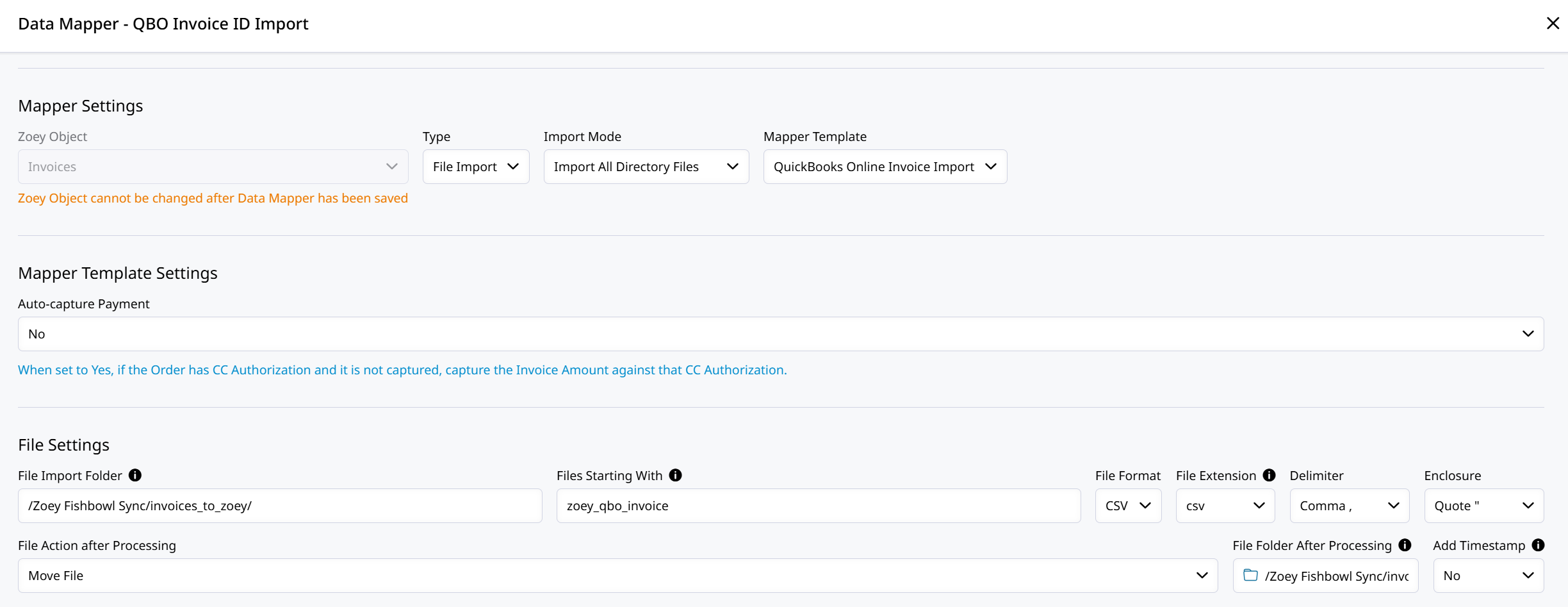
Example Invoice ID Import Mapper
This mapper records the QuickBooks Online invoice ID on the matching Zoey order. If the import fails, review the Data Mapper Audit Log for missing columns, file path issues, or order numbers that do not match an existing Zoey order.
Rows with errors will be skipped and logged.Rows with valid invoice IDs and Zoey order numbers will be processed.
After the internal invoice ID is recorded on the Zoey order, Zoey imports QuickBooks Online invoices on a 10-minute cycle. The first import attempt happens on the next scheduled run, so the Zoey Invoice can take up to 10 minutes to appear. If the invoice is not available yet or the import cannot be completed, Zoey checks again on later scheduled runs while the internal invoice ID remains on the order.
In the Zoey QuickBooks integration Import Invoices via Data Mapper must be set to Yes to activate the invoice import.
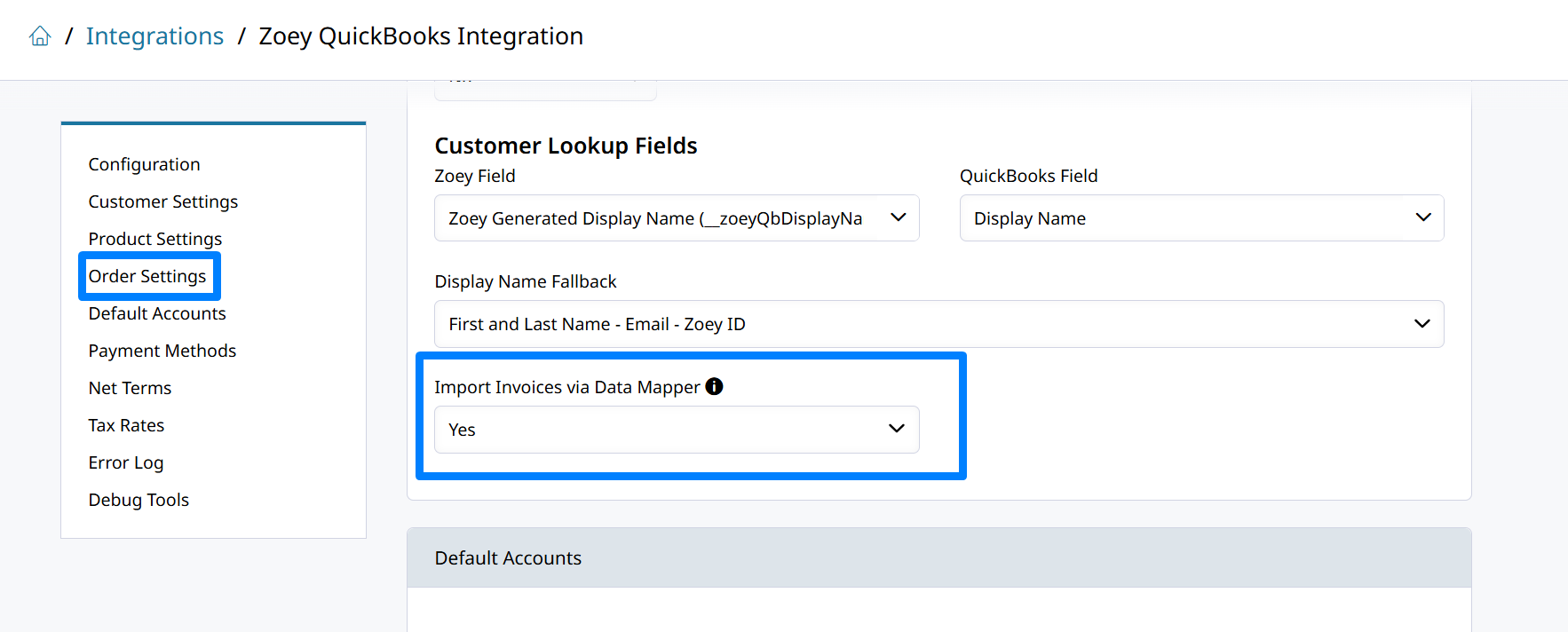
When the import succeeds, Zoey creates the Zoey Invoice and links it to sync with QuickBooks Online.
- Zoey will not import the same QuickBooks Online invoice more than once, unless it has been voided.
- Invoices imported from QuickBooks Online will not be synced back to QuickBooks Online to prevent round-trip duplicates.
- Payments tendered in Zoey will be synced to QuickBooks through the Payment Sync features described here.
Edits made to the Invoice in QuickBooks will not be synced to Zoey.Editing Paying, or Voiding the Invoice in Zoey will sync to QuickBooks Online based on the integration settings.
Import QuickBooks Invoices from Fishbowl
Create a custom data export in Fishbowl using this query. Then configure the Invoice import mapper to process the file in compatible intervals to keep the wait time minimal.
Zoey Invoice Import Settings
Open the Zoey QuickBooks Integration to the bottom of the Order Settings section to find the settings to manage the Zoey Invoice Import from QuickBooks Online settings.
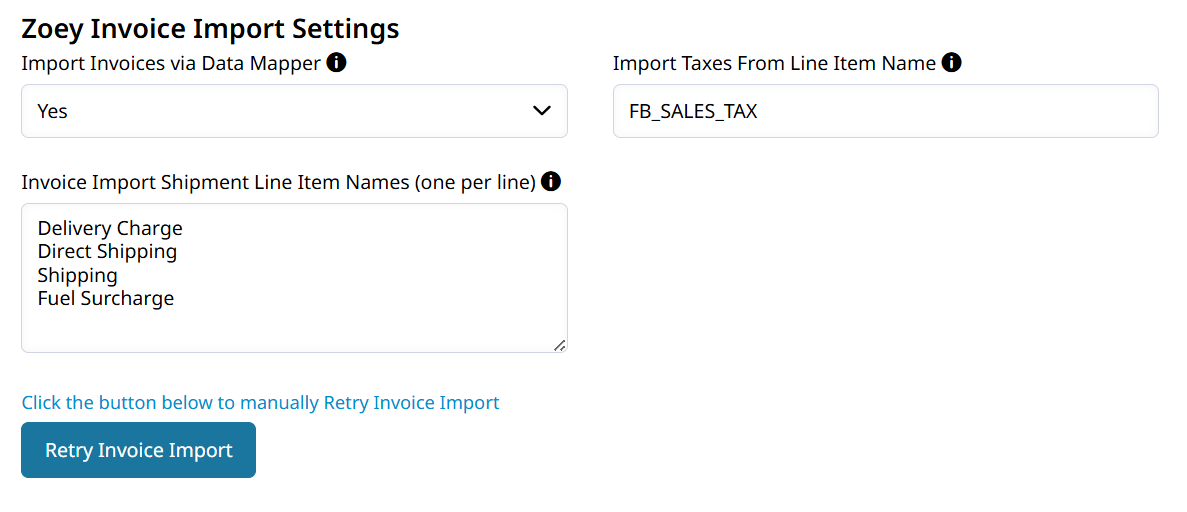
There will be a button to retry failed imports and the following options to map QuickBooks invoice line items to Zoey Invoice totals.
Line Item mappings exist because when importing an invoice to Zoey, the order must have every item that the invoice will have. This causes an issue because in many workflows a line item is added to the invoice in QuickBooks to represent shipping charges or taxes.
For those cases we must map the Line Item so that the import assigns those amounts to their respective Zoey Invoice amount field.
Import Tax from Invoice
To import taxes from a QuickBooks Invoice line item, list the item's name under Import Taxes From Line Item Name.
The QuickBooks Invoice item with that name will have its amount imported to the Tax Total on the Zoey Invoice.
Import Shipping Amounts or Surcharges
Shipping charges may be represented as line items on the QuickBooks Invoice. To import their amounts to the Zoey Invoice we must list the potential shipping line items in Invoice Import Shipment Line Item Names (one per line).
Shipping line item amounts will be summed together to equal the total shipping charge on the Zoey Invoice.
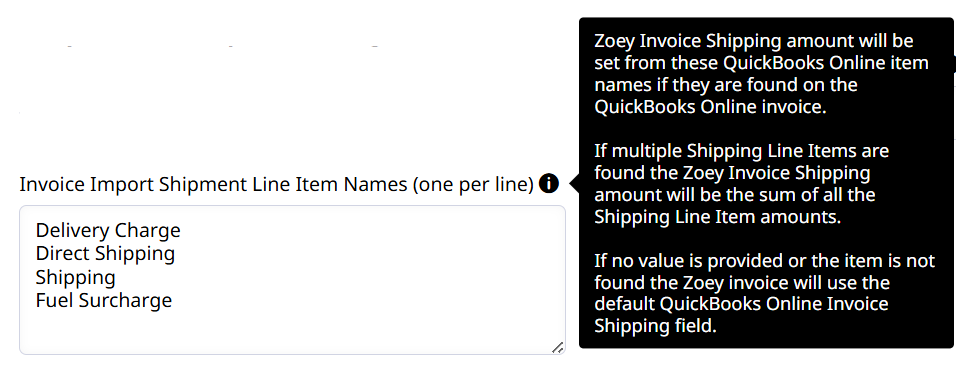
Zoey Invoice Shipping amount will be set from these QuickBooks Online item names if they are found on the QuickBooks Online invoice.
If multiple Shipping Line Items are found the Zoey Invoice Shipping amount will be the sum of all the Shipping Line Item amounts.
If no value is provided or the item is not found the Zoey invoice will use the default QuickBooks Online Invoice Shipping field.
Net Terms Mapping
In the Zoey QuickBooks Online integration go to the Net Terms section to map the Zoey Terms to your QuickBooks Term List.
When invoices are imported Zoey will assign the Net Term that's mapped to the term on your QuickBooks Invoice.
Multiple QuickBooks Terms can be mapped to a single Zoey Term.
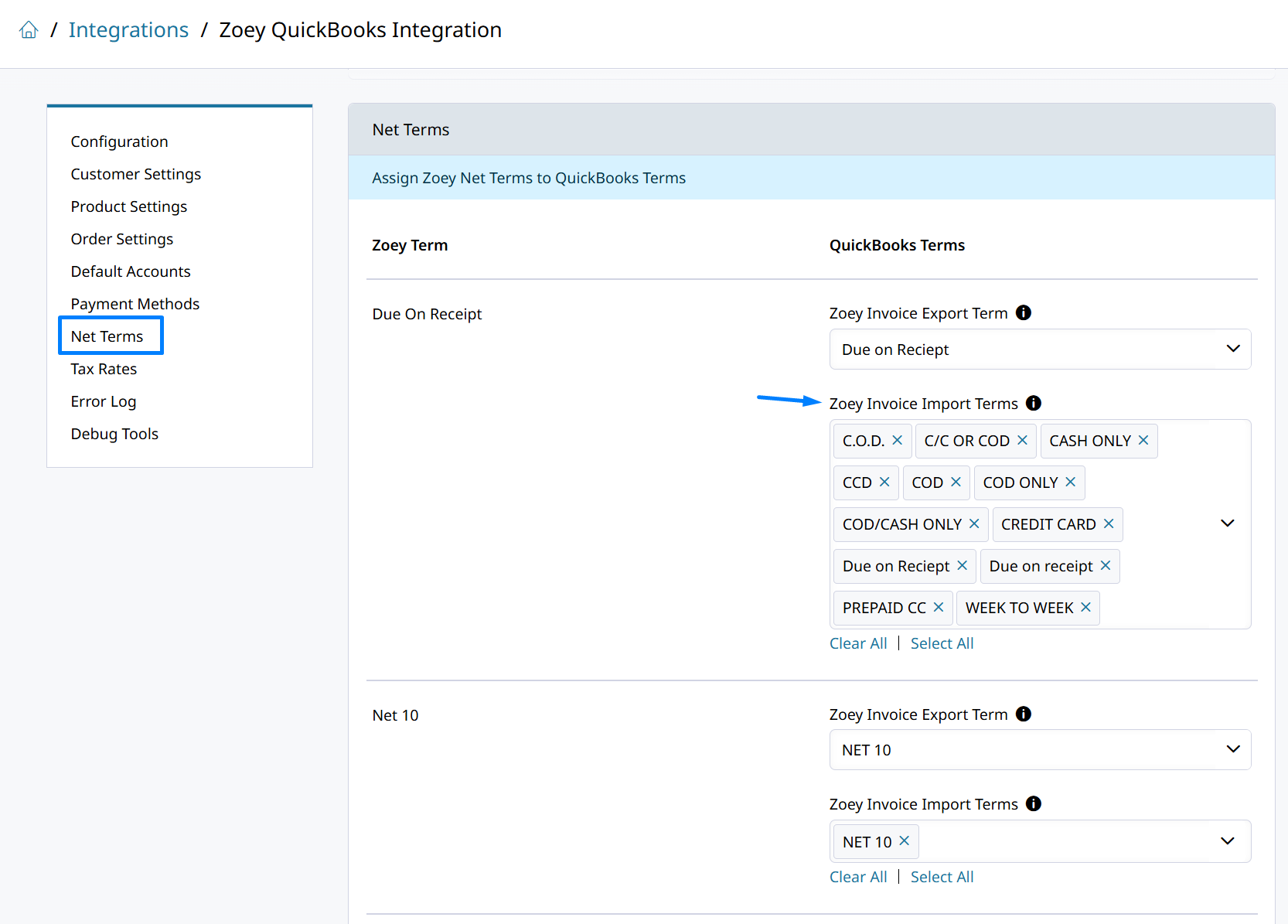
Mapping all the terms that could get listed on a QuickBooks Invoice will resolve, or prevent errors like the one shown below:
Unable to find Zoey Net Term mapped to QuickBooks Term `WEEK TO WEEK` (QuickBooks ID: 19), for QuickBooks Invoice 100000075 (QuickBooks ID: 272504) and Zoey Order 100000075. Zoey and QuickBooks Terms can be mapped from the Zoey QuickBooks Integration page.Updated 3 months ago