
Statements
Send customers Statements to prompt them
Statements consolidate multiple invoices into a single billing period, streamlining the payment process. They provide a comprehensive view of all invoices, payments, credits, and carried-forward balances, allowing both stores and customers to manage billing efficiently and settle accounts in one convenient payment.
Billing by statement offers two ways to collect payment:
- Statement billing: Statements are automatically generated and sent to customers at the end of each billing period. The customer will pay all their open invoices at once through the statement's unified due date.
- Pay-by-invoice: Statements are manually generated by store admins on demand. Customers can pay each invoice individually as they come due, rather than waiting for or paying through a statement.
Each of your customer Accounts can have their own billing and payment terms.
Statement Billing
Statement Billing is available to "Pro" subscription plans.See Zoey pricing for plan details. If you don't see Enable Statements in your Experimental Features settings, open a ticket with Zoey Support to discuss upgrading your subscription to Pro.
To make Statement available as an Account Billing Type, go to Settings > Store Information > Experimental Features and set Enable Statements to Yes. Then select Statement in the Account's Billing Type settings.
With Statement Billing, customers receive a consolidated bill at the end of their billing period that itemizes all credits, payments, and charges, enabling streamlined payment processing and financial record-keeping.
This approach simplifies accounting by consolidating all transactions into a single statement, reducing administrative overhead and making it easier for customers to reconcile their accounts.
Billing Schedule
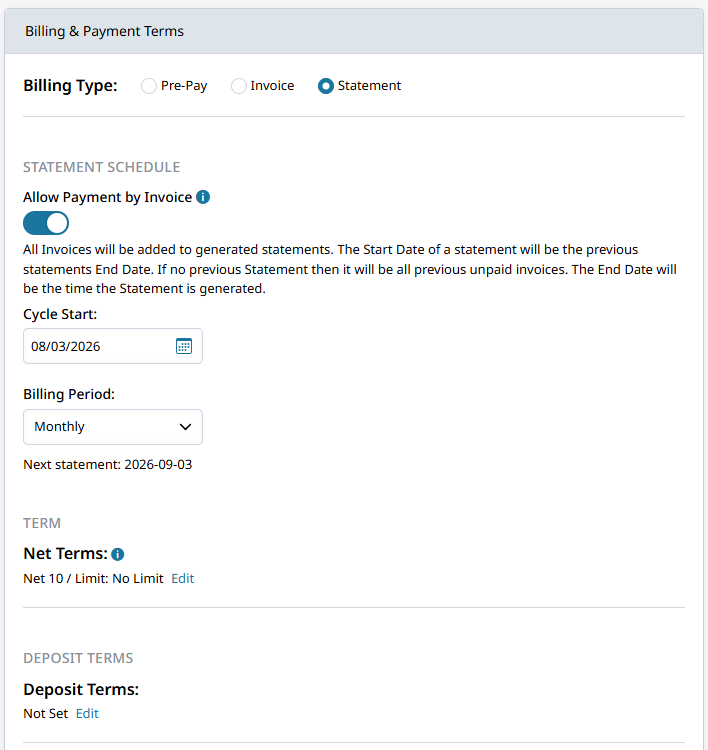
The statement billing cycle start date and period sets when statements are created and the range of invoices included. The end of cycle date will be when the Statement is generated and sent.
Configure the schedule by selecting a billing period and its starting date. Statements can be generated automatically according to this schedule or manually using Create Statement.
Cycle Start
Choose the start date for your customer's Statements. They will be billed for invoices based on their created date falling in the period starting on that date. The statement will be sent automatically as soon as the period ends.
Billing Period
The Billing Period determines how frequently invoices are grouped into a statement. Monthly, Weekly, Bi-Weekly, and Quarterly billing periods are available.
At the end of each billing period, Zoey creates a statement containing eligible invoices and account activity from that period. The statement due date is calculated from the end of the billing period using the customer's configured payment terms.
Customers are currently required to pay the full statement balance from the storefront. Admin users can collect and allocate payments across individual invoices.
Allow Payment By Invoice
The Allow Payment by Invoice option lets the customer pay through individual invoices. Each invoice will have its own due date based on their Net Terms. A statement will be sent automatically at the end of the billing period, but it is only a summary and cannot be paid directly. Each invoice must be paid individually when Allow Payment By Invoice is enabled and the statement only acts as a routine summary.
Generating a Statement
Statements are automatically sent to a customer based on their Account's billing cycle when Billing Type is set to Statement.
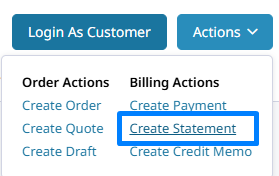
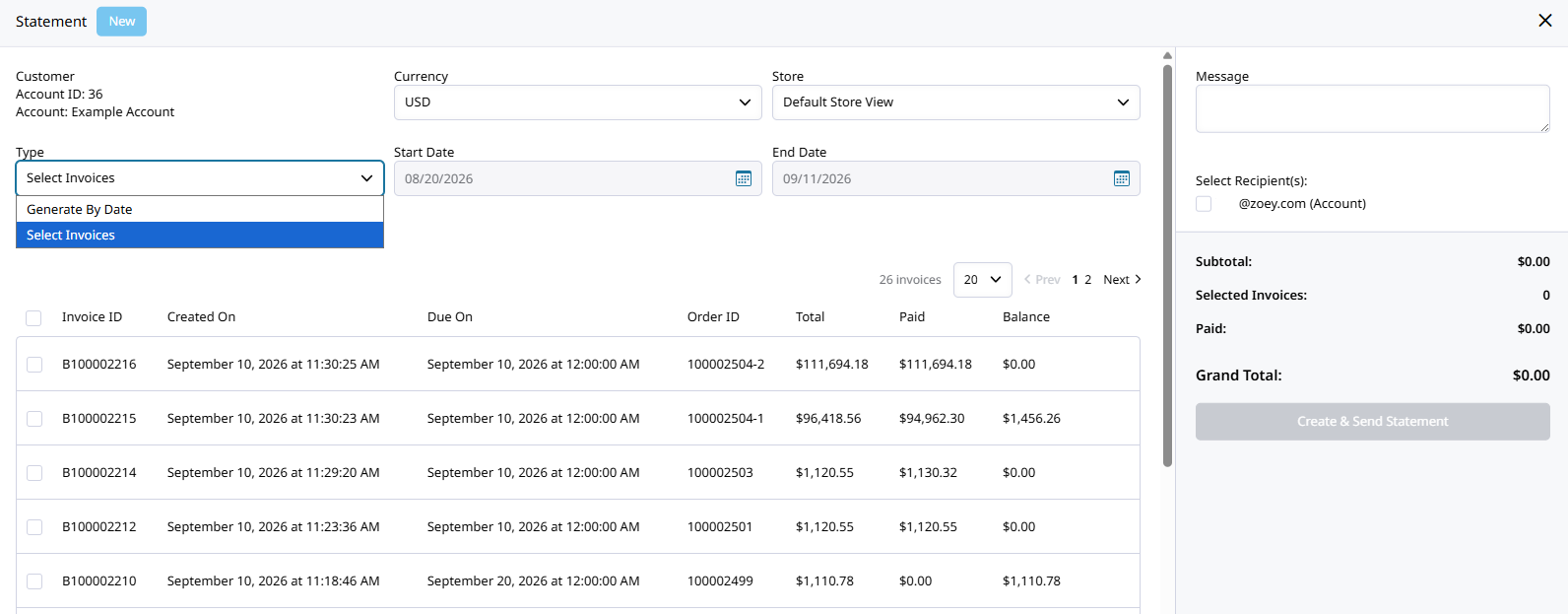
Create a statement manually for a specific date range or set of invoices by opening the Account and clicking Create Statement from in the Actions dropdown.
Updated 2 days ago