
Klaviyo
Getting Connected to Klaviyo
Setup the Zoey Klaviyo Integration
Open your Zoey Admin and click on the puzzle-piece icon for Integrations.
In that list you'll find the Klaviyo Integration. Click on Manage Connection to open the integration's settings.

Click on Connect to Klaviyo and then log into your Klaviyo account and allow the integration permissions to get connected.
Klaviyo Integration Settings
Set Is Enabled to Yes and the integration will have officially connected your Zoey store to Klaviyo for marketing and analytics.
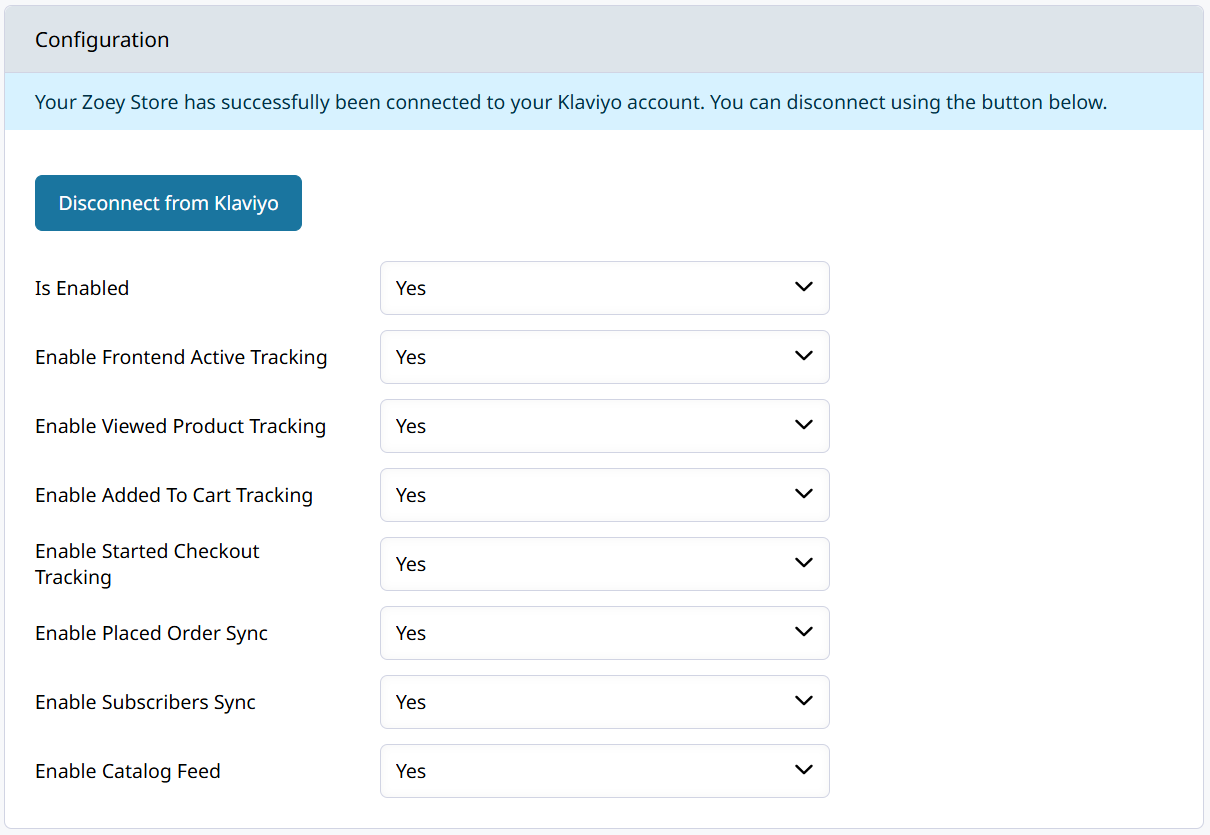
In the Klaviyo Integration settings each function can be enabled. Here you choose which tracking events and catalog data is sent to Klaviyo.
Set everything to Yes to get the most out of our Zoey Klaviyo Integration!
- Enable Admin Tracking on Store
If set to Yes, when a store admin logs into a Customer's account their events will also be sent to Klaviyo.
What's Sent to Klaviyo?
The integration sends the following events and data to Klaviyo:
Events
-
“Active on Site” event is triggered when an identified profile actively browses your site.
-
“Viewed Product” event is triggered when a customer views a product's page, but has not added it to their cart.
-
“Added to Cart” event is triggered when a customer adds a product to their cart.
-
“Started Checkout” event is triggered when a customer has begun checking out.
-
“Placed Order” event is triggered when an order has been placed. This includes details about the order, its items, and the customer.
-
“Ordered Product” event is triggered when the product is ordered.
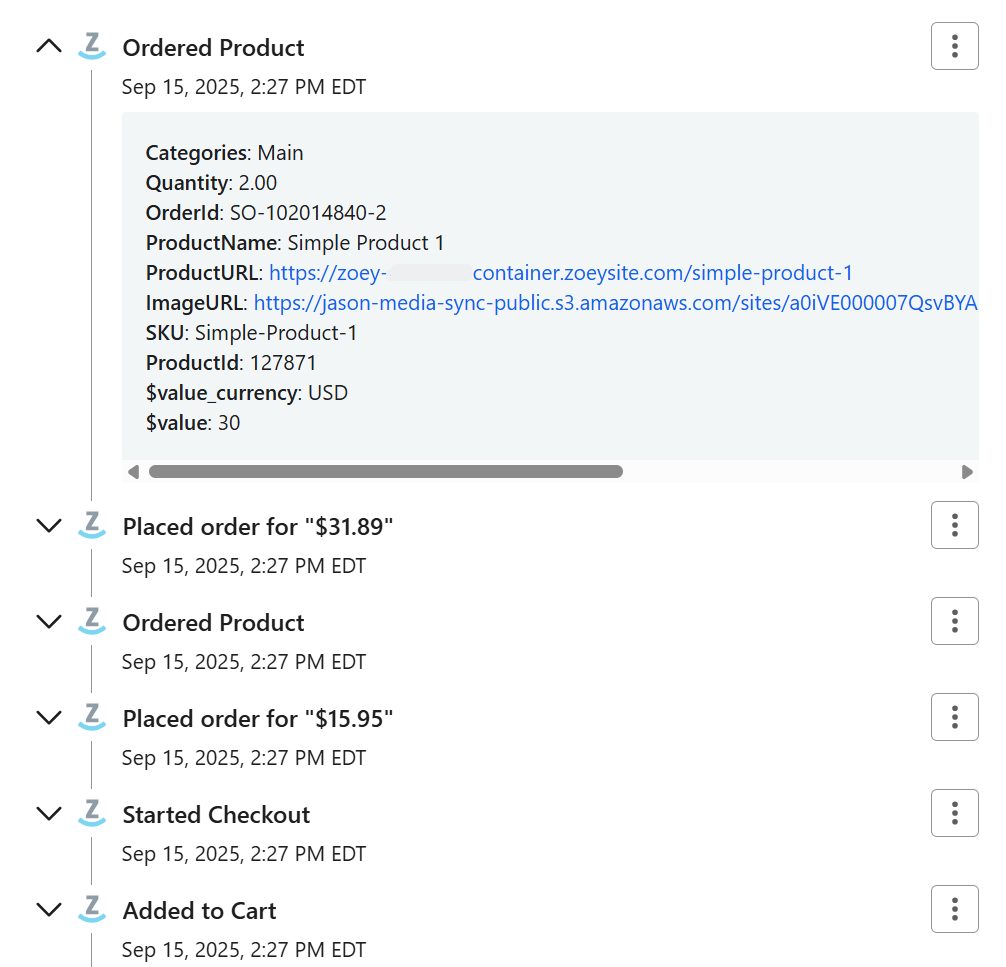
In the image below Zoey store events are logged in Klaviyo! Expand the event to see its details.
Customers
Klaviyo creates a Profile for each new visitor to your Zoey store.
That happens two ways:
- Event tracking:
If a customer is logged in and does not block tracking, Klaviyo will create/update a Profile as soon as they start browsing the site.
If the customer is a guest or has tracking blocked, the Profile is created when they reach checkout and enter their email address. - Newsletter subscribers:
All subscribers to your newsletter are synced daily, and their Profile is created or updated when the customer subscribes, or unsubscribes from the the Zoey Newsletter.
The integration does not automatically import every existing Account or Contact. Only newsletter subscribers are included in the daily sync at 12am UTC. View them in Features > Subscribers in the Zoey Admin. Other customers may still have Profiles created through event tracking.
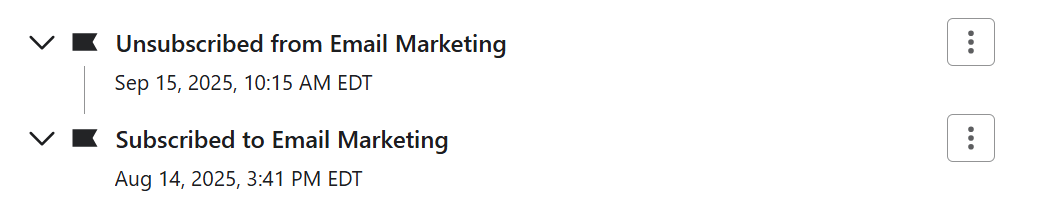
Zoey sends just the customer's email address to Klaviyo. Klaviyo has the ability to collect additional data on its own, such as First Name, Last Name, Location etc. Such is out of Zoey's control at this time.
Products , Variants, and Categories
The following will also be sent daily from Zoey to Klaviyo through their API:
-
New Categories, Category updates and Category deletion
-
New Products, Product updates and Product deletion
-
New Variants, Variant updates and Variant deletion
Send Account Attributes to Klaviyo Profiles
Zoey can sync the subscriber's details by sending their Contact’s Default Account attributes to the Klaviyo Profile as Custom Properties.
- Open the Klaviyo integration settings in Zoey.
- Enable Default Account Attribute Sync.
- List the Account Attributes you want to sync.
- Save the settings.
The listed attributes are added to the Contact’s Klaviyo Profile automatically. You do not need to create the Custom Properties in Klaviyo first.
For example, an Account Attribute named Primary Business Activity with a value of Retail appears as a Custom Property on the Klaviyo Profile.
Only Default Account attributes are syncedContacts without a Default Account do not have Account Attribute values sent to Klaviyo.
This sync runs once per day with the other Klaviyo syncs. See Sync Account Attributes to Klaviyo Profiles for the focused walkthrough.
Send Zoey Abandoned Cart Link
Zoey provides an Abandoned Cart URL to Klaviyo that you can include in customer emails.
- In Klaviyo, review the abandoned cart email template.
- Create an abandoned cart flow.
- Configure the flow to trigger when a customer starts checkout but does not complete it within your selected timeframe.
Follow Klaviyo’s Abandoned Cart Flow setup guide for the flow configuration.
For Zoey-specific guidance, see Send Abandoned Cart Emails through Klaviyo.
Audit Log and Troubleshooting
On the Zoey Klaviyo Integration page you'll find the Audit Log which records all of the syncs to Klaviyo.
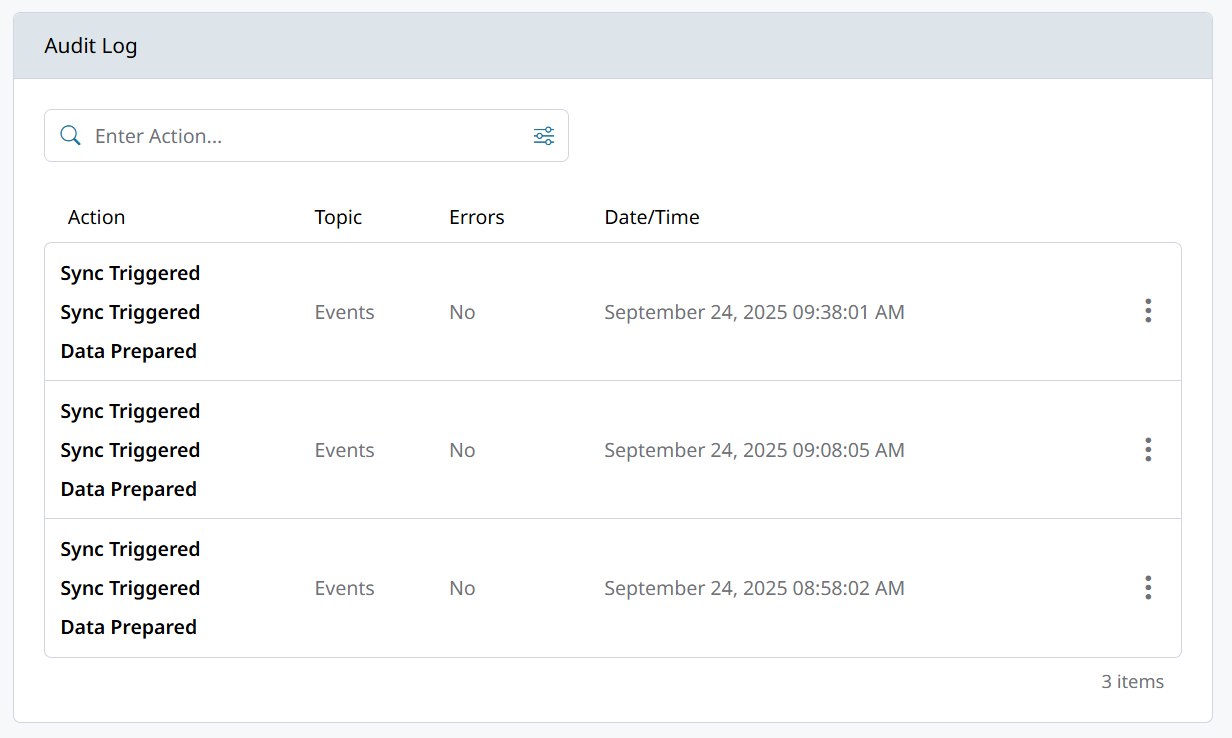
Check the Audit Log for any errors and to see what was synced and when!
Sync Schedules
Schedules are currently set to:
- Every 10 minutes for Events
- Daily at 12am UTC for Subscribers
- Daily at 2am UTC for Catalog Categories
- Daily at 3am UTC for Catalog Products
- Daily at 4am UTC for Catalog Variants
Troubleshooting Data Sync
The sync schedule is currently set to:
- Every 10 minutes for new payloads
- Every 10 hours for retry payloads
If a new payload fails to sync for any reason, it’s set to retry in the next cycle. If it fails in the retry cycle, it’s marked as failed and recorded in the database for analysis.
Zoey Klaviyo Integration FAQs
Why Aren't All My Zoey Customers Showing in Klaviyo?
The daily sync includes newsletter subscribers, not all Accounts or Contacts. Review Features > Subscribers in Zoey, confirm the integration is enabled, and check the Subscribers logs in the integration's Audit Log after the 12am UTC sync. See Newsletter Settings for subscriber management.
Pre-existing Subscribers in Klaviyo must be brought into Zoey before new Profiles can be synced to Klaviyo!
How to Create a Segment of Zoey Subscribers
Zoey syncs newsletter subscribers to Klaviyo as Profiles. Use the $source property to identify these subscribers, then combine it with activity filters to create targeted segments.
- In Klaviyo, go to Audience > Lists & segments.
- Click Create new > Create segment.
- Enter a segment name, such as Active Zoey Subscribers.
- Under Definition, select Properties about someone.
- Select
$sourceas the property. - Set the condition to equals and enter
Zoey Subscriber.
This condition identifies Profiles created through the Zoey Subscriber Sync.
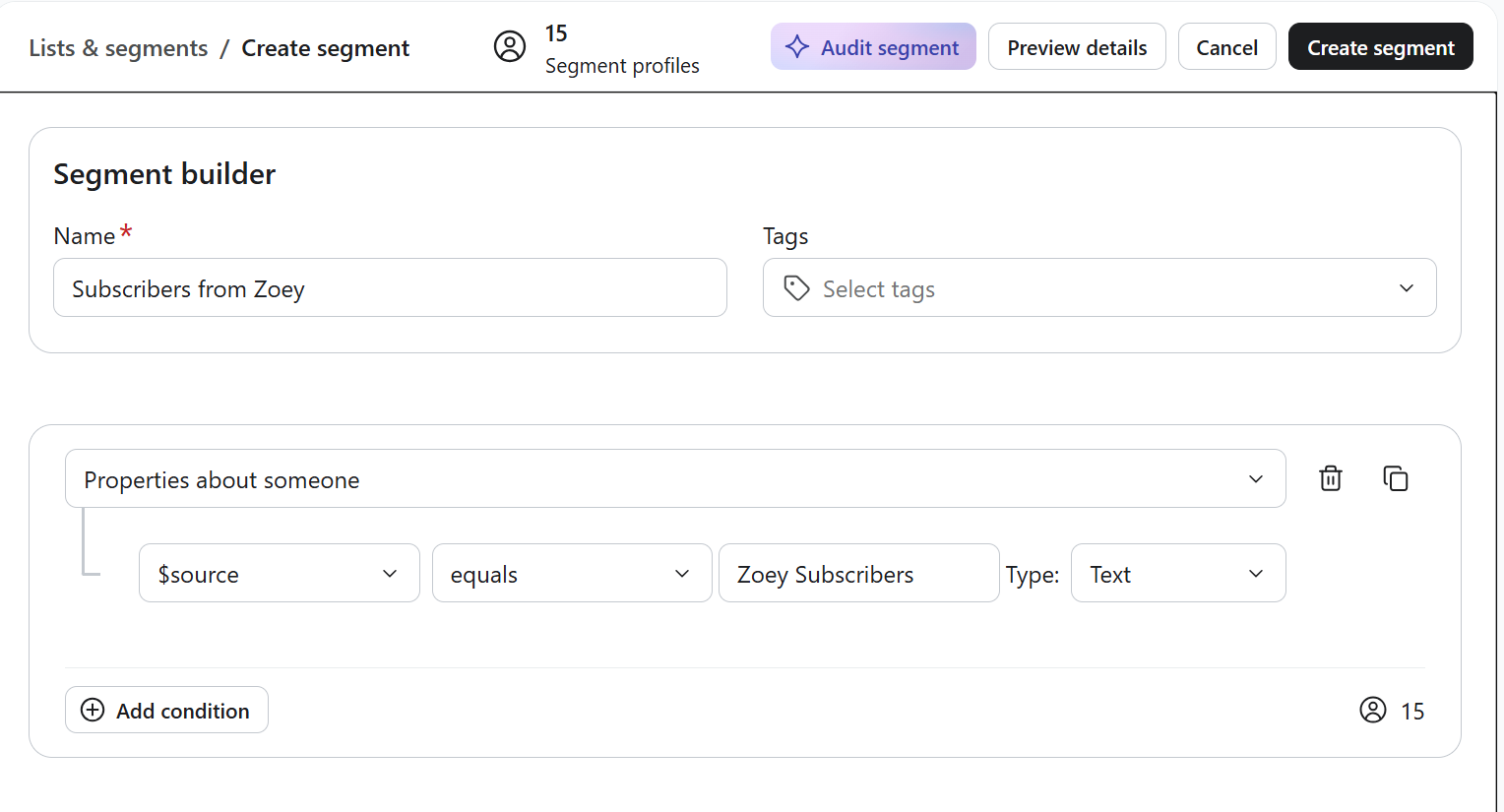
Profiles for Zoey Subscribers may already exist in KlaviyoProfiles that existed in Klaviyo before the Zoey integration was connected may not have
$sourceset toZoey Subscriber. Because those Profiles originated from another source, they are not included when filtering by this property.
Add Store Activity Filters
- Click Add condition.
- Select What someone has done (or not done).
- Choose a Zoey event:
- Active on Site: The subscriber browsed your store.
- Viewed Product: The subscriber viewed a product page.
- Added to Cart: The subscriber added a product to their cart.
- Started Checkout: The subscriber began checking out.
- Placed Order: The subscriber completed an order.
- Ordered Product: The subscriber ordered a specific product.
- Select how often the event must have occurred.
- Set a timeframe, such as at least once in the last 30 days.
Choose AND or OR Logic
Use AND between the $source condition and your activity filters so the segment includes only Zoey Subscribers who meet your activity requirements.
When you add multiple activity filters:
- Use OR to include subscribers who completed any selected action.
- Use AND to require subscribers to complete every selected action.
For example, an active subscriber segment can use these conditions:
$sourceequalsZoey Subscriber- AND Active on Site at least once in the last 30 days
- OR Viewed Product at least once in the last 30 days
- OR Started Checkout at least once in the last 30 days
Preview and Create the Segment
Click Preview details to review how many Profiles match your conditions. Adjust the events or timeframe if the segment is too broad or too restrictive, then click Create segment.
You can use the segment in Klaviyo campaigns, flows, and reports. See How to Build a Klaviyo Segment of Zoey Subscribers for the focused walkthrough.
Can we sync data from the past to get more into Klaviyo?
Events triggered before the integration was connected cannot be sent to Klaviyo.
Subscribers from all-time will be sent in the daily sync and there will be an error if their Subscribed At date is earlier than the Consented At date we're sending.
Subscribers not Syncing to Klaviyo
To view the Subscriber Sync logs and check for errors open the Klaviyo Integration and then scroll down to the Audit Log.
Click to open any of the Subscribers sync logs.
Backdated consent date is after current subscription date error
Invalid input.: backdated consent date [date+time] is after current subscription date [date+time]
Why is this happening?
Zoey is sending a consent date that conflicts with the subscriber’s existing subscription timeline in Klaviyo. This typically happens with existing subscribers, where consent data cannot be updated via the integration unless a valid historical timestamp is provided.
To resolve the error and sync Subscribers successfully:
- Open the Klaviyo integration in Zoey, and set Enable Historical Subscribers Sync to No.
- Update the opt-in settings by logging into Klaviyo and opening the Settings in the bottom right corner, then go to API Keys and set Default opt-in to "Single opt-in".
Subscribers sent into Klaviyo will require a double-opt in via email unless default opt-in settings are set to single opt-in.
Why does this work?
Disabling the historical sync prevents Zoey from sending existing subscribers with conflicting consent dates, which Klaviyo rejects.
When subscribers are sent to Klaviyo, they may be subject to double opt-in and receive a confirmation email. Switching to single opt-in ensures they can be added without requiring additional confirmation.
Updated about 18 hours ago