
Social Media Icons block
Add social media icons with links to your profiles, and change their look and order.
Social Media Icons show a row of icons that link to your social media pages, such as Facebook, Instagram, YouTube or LinkedIn. Add them anywhere in your theme with the Social Links block in the Visual Design Editor (VDE), usually in the header or footer so they show on every page.
Adding Social Media Icons
- In the Zoey Admin, click Theme and open the page you want to edit (for example your homepage) in the VDE.
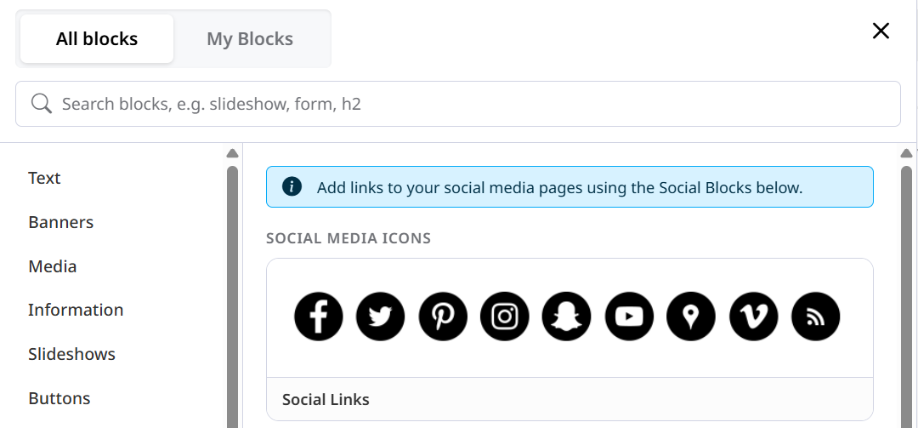
- Click + to open the Add menu and select Social.
- Under Social Media Icons, click or drag Social Links onto the page.
Editing or Adding Icons
- Click the block and click Edit Social Links.
- Click Edit/Update Links.
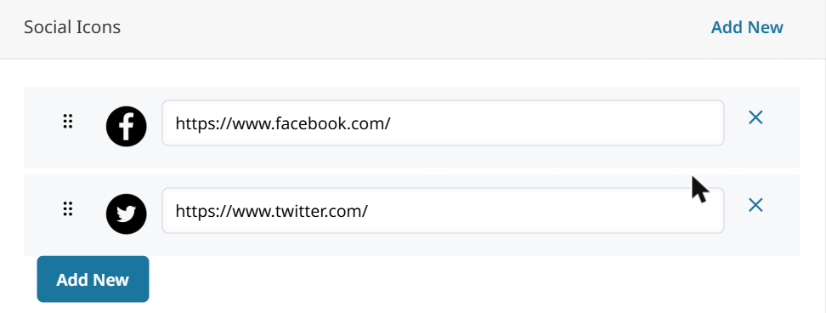
- Enter the link to your page for each icon. Click Add New to add another icon, drag the handle on the left to change the order, or click x to remove an icon.
- Click Update.
- Leave Open Links In A New Window ticked so customers stay on your store, then click Submit.
- Click Save & Publish.
Designing Icons
Click the block and click Design to change how the icons look so they match your theme.
Updated 2 days ago
Did this page help you?