
Products not visible in a category
Why a product shows as NOT VISIBLE in a category, such as being disabled or set to Search only, and how to fix it.
A product can be assigned to a category and still not show on that category page. This happens when the product's own settings hide it from the catalog. Check the category's product count, find the hidden products, then fix each product or remove it from the category.
Check How Many Products Are Visible
- In the Zoey Admin, go to Products > Categories and click the category.
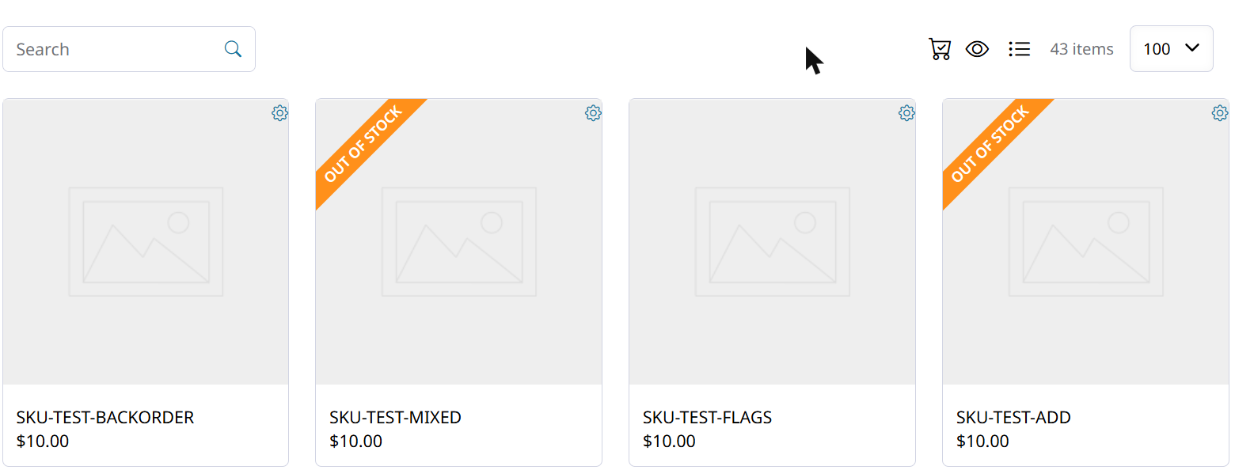
- Click Manage Products.
- Read the line at the top: This category contains 43 products. (39 are visible). When the two numbers differ, some assigned products are hidden.

- To see which products are hidden, click the eye icon (Only Show Visible Products) above the product tiles. The item count drops to the visible products only. Click the icon again (Show All Products) to compare.
Why a Product Is Hidden
| Product setting | Effect on the category page |
|---|---|
| Visibility = 1. Not Visible Individually | Hidden everywhere on its own. Counted as not visible in the line above. Common for the simple products that make up a configurable product. |
| Visibility = 3. Search (Hidden from Catalog) | Shows in search results only, not on category pages. Still counted as visible in the line above. |
| The product is disabled | Hidden from the storefront. Still counted as visible in the line above. |
The count only checks Visibility(39 are visible) leaves out products set to 1. Not Visible Individually only. If the numbers match but a product still doesn't show, check whether it's disabled or set to 3. Search (Hidden from Catalog).
Fix It
Either make the product visible or take it out of the category:
- Make it visible: open the product (Products > Products List, search for it), tick Show this product in my store, set Visibility to 2. Catalog (Hidden from Search) or 4. Visible in Catalog and Search, and click Save.
- Remove it from the category: in Manage Products, click the gear icon on the product's tile, choose Remove From Category, then click Save Category. The same menu has Edit Product to open the product.
Leave the simple products of a configurable product as Not Visible Individually. Customers reach them through the configurable product's options.
Related Articles
Updated 2 days ago