
Reports Page: Find and Run Reports
Search, filter, and run standard reports from the Reports page, and see your store's key numbers at a glance.
Overview
The reports in this section provide standard data about your store. They can't be changed beyond their intended use. For custom reports, use Data Mappers or Exporting Data from the Grids.
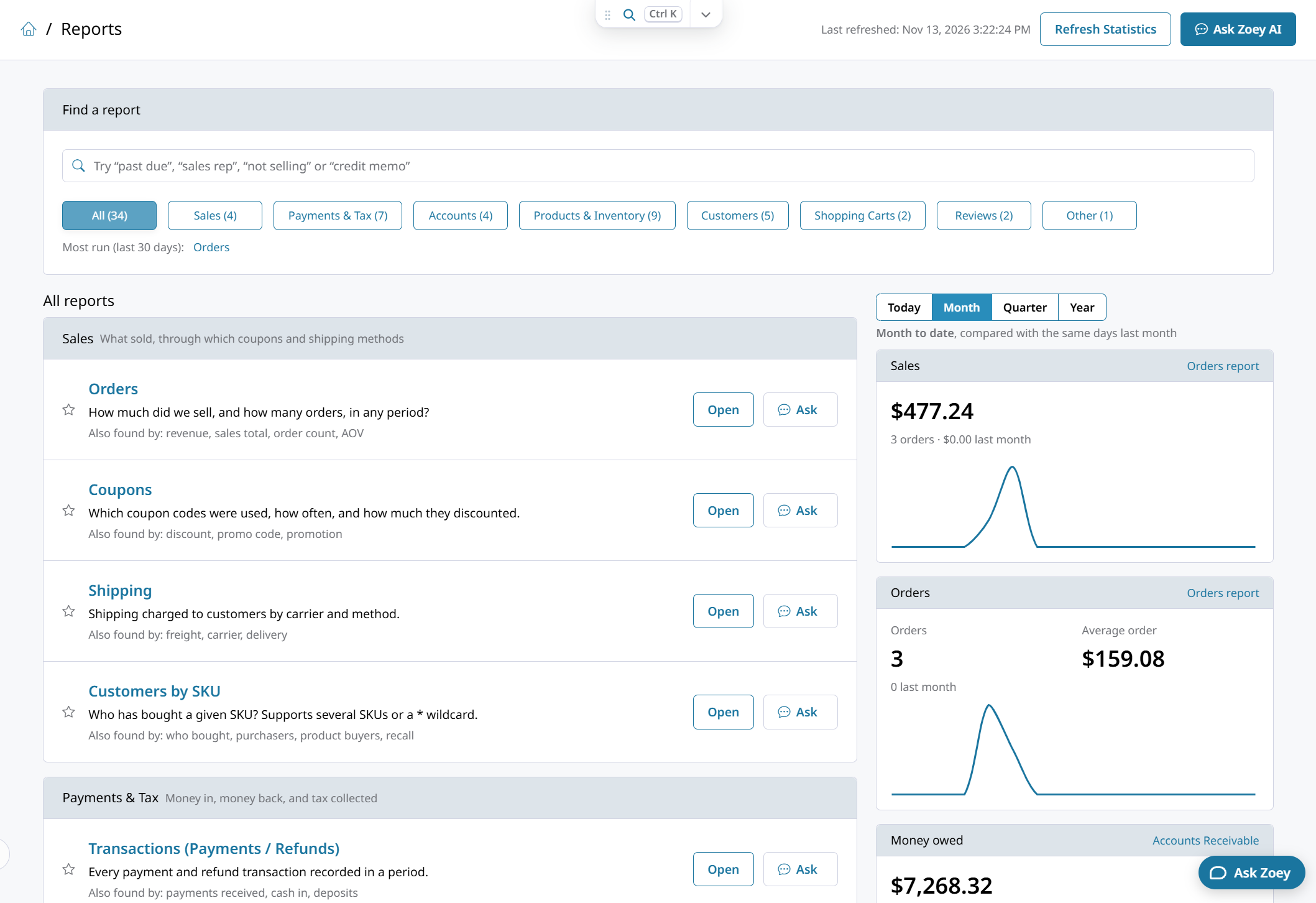
Click Reports to open the Reports page. It lists every report with the question it answers and shows your store's key numbers at a glance.
Find a Report
- Type in Find a report to search by report name or by what you need to know, for example "past due", "sales rep", "not selling" or "credit memo". Each report also lists the other words it's Also found by.
- Click a category to show only its reports: Sales, Payments & Tax, Accounts, Products & Inventory, Customers, Shopping Carts, Reviews or Other. Click All to see every report again.
- Most run (last 30 days) links to the reports your team runs most often.
Run a Report
Click the report's name or Open to run it.
Click the star next to a report you use often. Starred reports are listed under Starred, below the category buttons, so you can open them in one click.
Click Ask next to a report to ask Zoey AI about it, or Ask Zoey AI at the top of the page to ask about any of your store's data. See Running Reports with Zoey AI.
Report Filters
On each report, filters are grouped into Date range, Orders, Customers and Display, and each report shows only the filters that apply to it. Pick a date preset such as Month to date or Last quarter, or enter your own dates. See Running Reports with Zoey AI for what each filter does.
Your Store at a Glance
Next to the report list, the Reports page shows your store's key numbers. Choose Today, Month, Quarter or Year. For example, Month shows month to date, compared with the same days last month.
| Card | What it shows | Click through to |
|---|---|---|
| Sales | Sales total and number of orders, with last period's figure | Orders report |
| Orders | Number of orders and Average order | Orders report |
| Money owed | What your customers owe you | Accounts Receivable report |
The green or red percentage next to a figure shows how much it went up or down from the comparison period.
Reports
Sales
Payments & Tax
Accounts
Products & Inventory
Customers
Shopping Carts
Reviews
Refresh Statistics
Last refreshed at the top of the Reports page shows when report statistics were last updated. If a report looks incomplete, click Refresh Statistics. See Refresh Report Statistics.
Updated about 16 hours ago