
AutoPay
Invoices can be paid automatically! Enable AutoPay and select a payment account to automatically pay invoices customer's invoices.
Collect Payment on Invoices Automatically in Zoey
AutoPay helps you automatically collect payment for eligible invoices when they become due. Once AutoPay is enabled for an Account, Zoey uses the selected saved payment method and the configured grace period to determine when payment should be captured.
With AutoPay, you can:
- Automatically collect payment on open invoices after the invoice due date.
- Give Accounts a configurable grace period before payment is attempted.
- Let admins, sales reps, support staff, and eligible customers manage AutoPay settings from the Admin or My Account.
- Track AutoPay status and payment attempts across Accounts, invoices, orders, and transactions.
This article covers store-level setup, the retry and dunning schedule, and troubleshooting. For Account-level configuration, the customer My Account experience, AutoPay timing, and where AutoPay status appears, see How to configure customer AutoPay details.
Supported Payment Methods
AutoPay is available for saved payment methods connected to supported payment gateways.
Supported payment methods include:
- ✅ Stripe saved cards
- ✅ Authorize.Net saved cards
Authorize.Net requires CIM to be enabled in the merchant’s Authorize.Net control panel before saved cards can be used for AutoPay. - ✅ Braintree saved credit cards
- ✅Stripe ACH saved accounts
ACH accounts must be added by the customer through the storefront before they can be selected for AutoPay. Learn how here.
Setting Up AutoPay
Before AutoPay can run for any Account, it must be enabled at the store level. Find the general AutoPay settings in Orders > Settings → AutoPay.
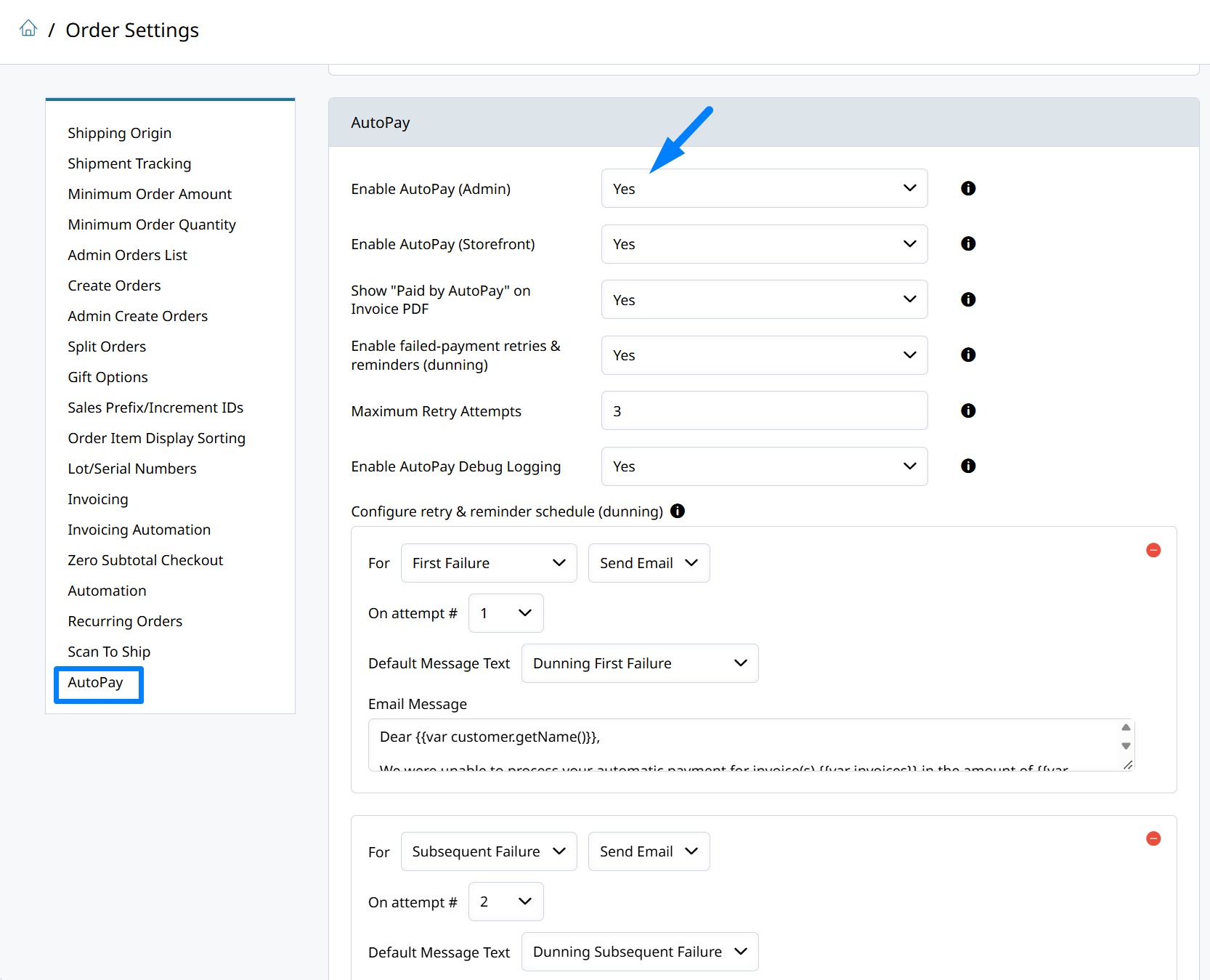
There are settings to enable AutoPay for Admins, and on the Storefront too.
Enabling AutoPay for Admin, and enabling AutoPay for customers through the Storefront are independent!You can collect automatically on Admin-created orders while leaving storefront orders off, or the reverse.
- Enable AutoPay (Admin)
Turns AutoPay on for orders and invoices created in the Admin. When set to No, AutoPay will not collect payment on Admin-created orders even if an Account has AutoPay enabled. - Enable AutoPay (Storefront)
Turns AutoPay on for orders placed through the storefront and for customer self-service AutoPay management in My Account. When set to No, storefront orders are not paid automatically and customers cannot manage AutoPay themselves.
The settings here apply to all customers store-wide. The payment method and grace period are configured for each Account individually. See How to configure customer AutoPay details.
- Enable AutoPay Debug Logging
When set to Yes, Zoey writes verbose AutoPay processing details to the AutoPay log to help diagnose issues. Critical errors are always logged regardless of this setting, so it can
safely be left No for normal operation.
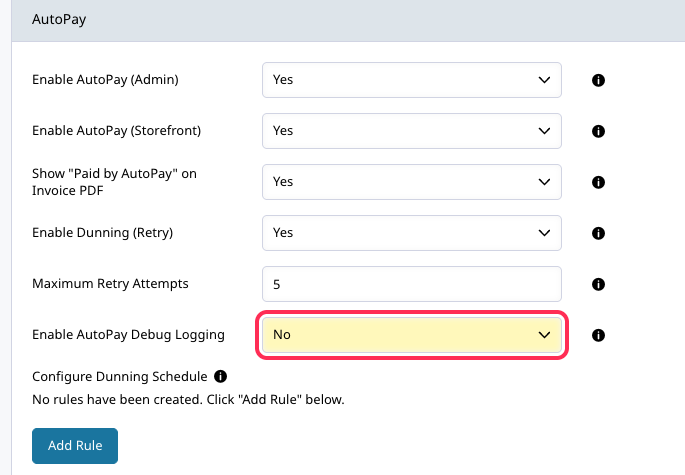
Payment Retry Schedule and Dunning Emails
- Enable Dunning (Retry)
Controls what happens when an AutoPay charge fails. When set to Yes, Zoey automatically retries failed payments and sends dunning (failure) emails according to the rules below.
When set to No, a failed payment charge is not retried automatically.
The Maximum Retry Attempts and Configure Dunning Schedule settings only apply when this is set to Yes.
- Maximum Retry Attempts
Set the number of times AutoPay will retry a failed charge before the invoice is marked as with a final failure to collect payment and AutoPay will be suspended for that Account.
The payment issue will need to be resolved by an Admin or the Customer. For example, by changing the saved card, or updating the billing address.
Handling Payment Failures
Dunning & Retries
What happens after a failed AutoPay capture depends on the Enable Dunning (Retry) setting:
- Set to Yes: Zoey retries the failed payment once per day, up to the configured Maximum Retry Attempts.
- Set to No: the failed charge is not retried automatically. An admin or the customer must resolve the payment issue and collect payment another way.
You can review or configure the dunning schedule from Orders > Settings > Auto-Pay → Dunning Schedule.
Failure emails follow the same rules. A customer receives an AutoPay failure email only when dunning is enabled and a dunning rule with the Send Email action matches that attempt (First Failure, Subsequent Failure, or Final Failure). When a rule matches, the email includes the failure reason and, if another attempt is scheduled, the next attempt date.
A failed AutoPay attempt does not automatically close the invoice. The invoice remains open until payment is successfully captured in retries, or handled another way.
Configure the Dunning Schedule and Emails
When Enable Dunning (Retry) is enabled, failed payments are retried once per day. Configure dunning rules to choose when customers receive failure emails, and what they say.
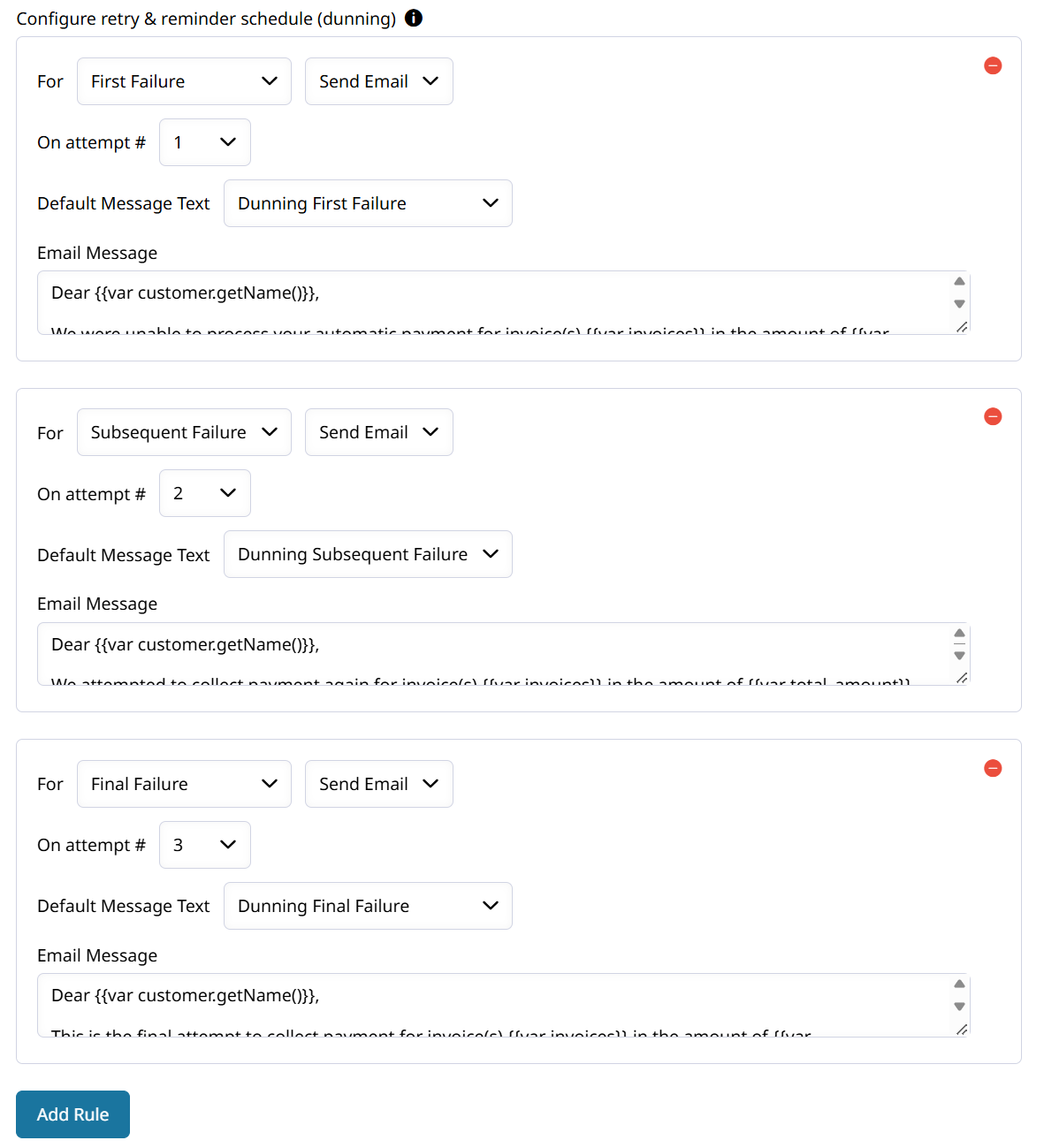
Click Add Rule to configure an email for a First Failure, Subsequent Failure, or Final Failure. An email is sent only when the failed auto-payment attempt matches a configured rule.
- For - which failure the rule targets: First Failure, Subsequent Failure, or Final Failure.
- Action - what the rule does. Currently Send Email.
- Schedule - the rule type. Currently Retry.
Card Update Flow
If the saved card is expired, declined, or no longer valid, the admin or customer can update the saved payment method.
Admins can update saved payment methods from the Account in the Admin. Customers can update eligible saved cards from My Account when your store allows customers to manage saved cards.
For more information about managing stored payment methods, review Saved Cards.
Suspension & Recovery
When Enable Dunning (Retry) is enabled, AutoPay is suspended for the Account after the maximum retry limit is reached.
Once the underlying issue is fixed, such as replacing an expired card or resolving a gateway decline, the next successful capture clears the suspension and resumes AutoPay.
If AutoPay has been suspended, review the failed transaction details and customer payment method and manually reattempt collection.
Enable AutoPay via Import
AutoPay can be enabled or disabled in bulk via CSV import using the autopay_allowed column when importing Accounts.
| account_name | autopay_allowed |
|---|---|
| Example Account | 1 |
| The Customer's Store | 0 |
- To disable AutoPay, the column exists and is empty, or contains a value of 0.
- To enable AutoPay, the column exists and contains a value of 1.
AutoPay Status for Accounts and Invoices
AutoPay status appears in several areas of Zoey so that admins can understand whether AutoPay is enabled for an Account, and what activity is expected on their Invoices.
Where to find AutoPay Details in the Zoey Admin
-
Account Overview: Shows the Account’s AutoPay status and upcoming AutoPay information.
-
Sales tab / Admin Account: Helps internal teams review AutoPay status while managing account activity.
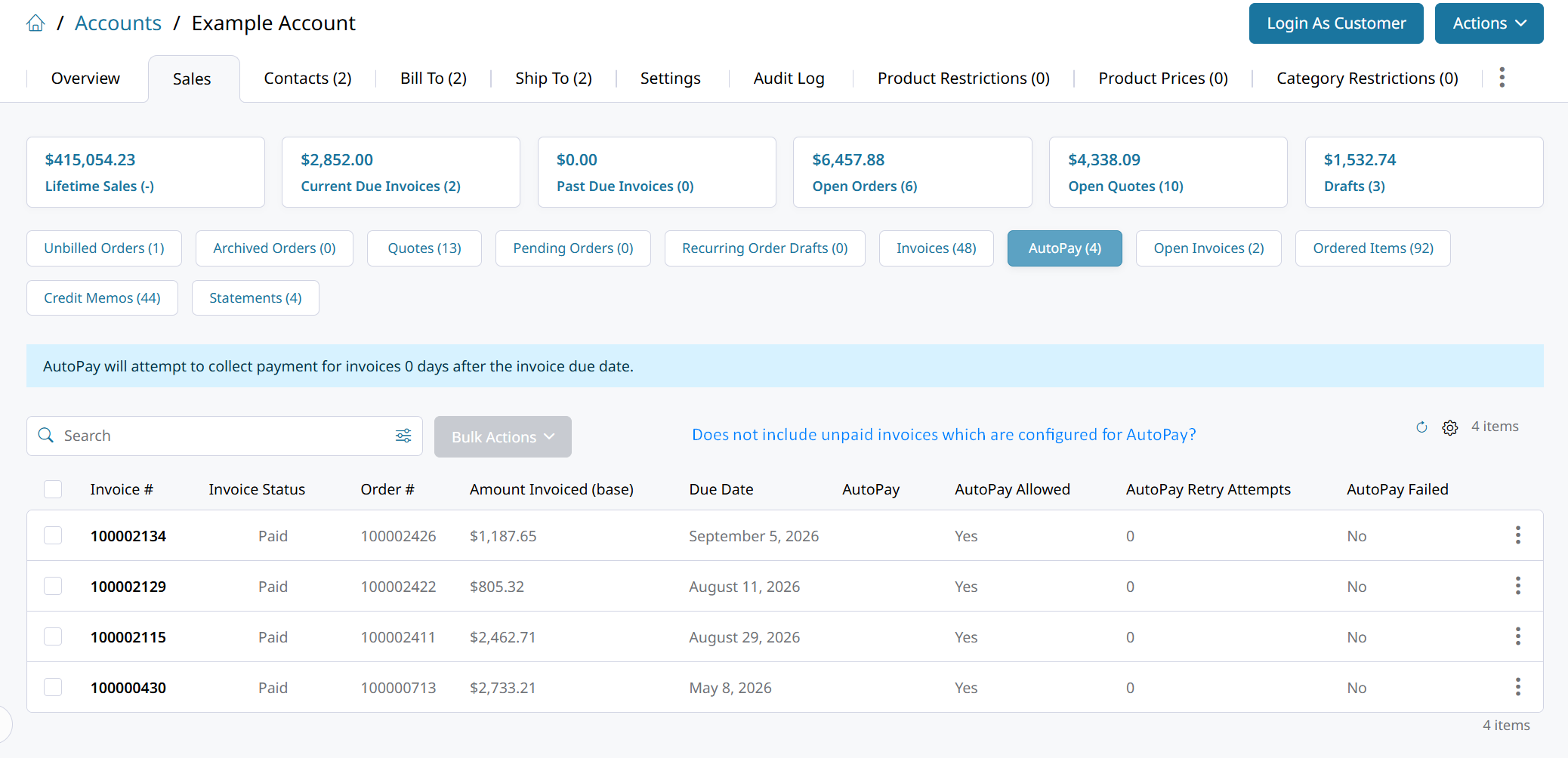
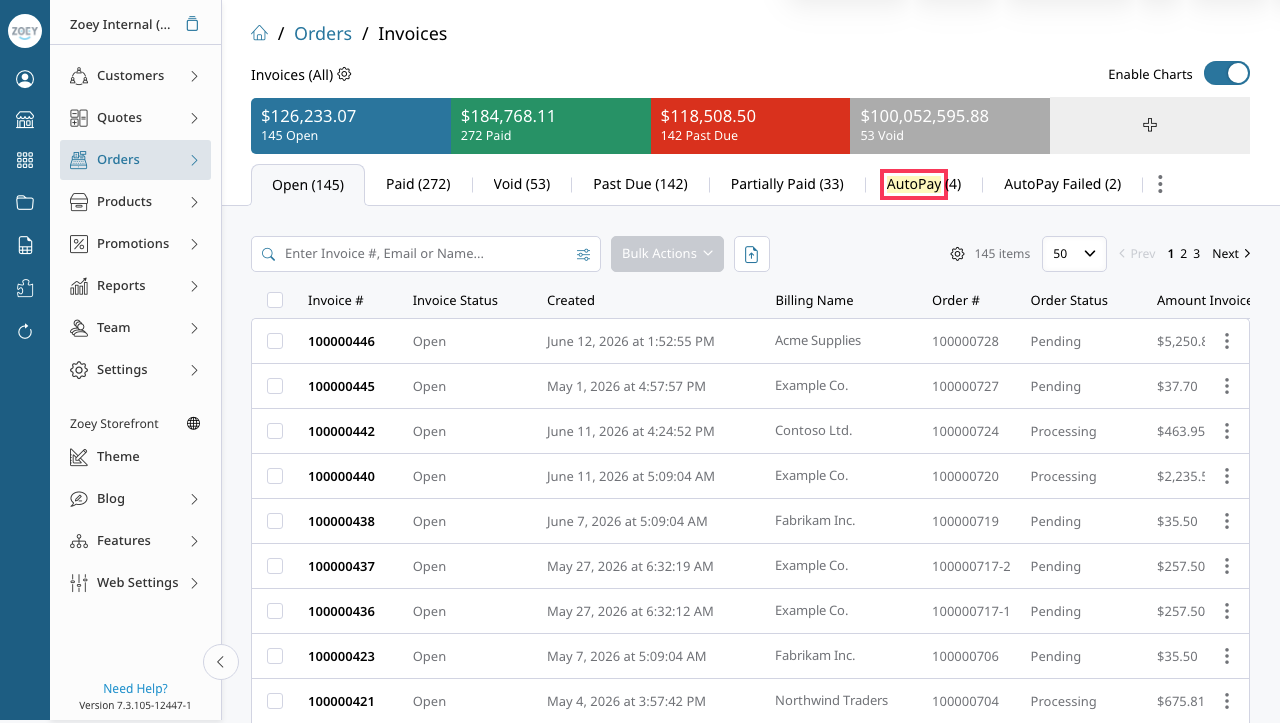
The Invoices list helps admins see which invoices are eligible for AutoPay, and which may payments failed to process through the two tabs in Orders > Invoices.
Set custom filters or use the two tabs provided AutoPay, and AutoPay Failed.
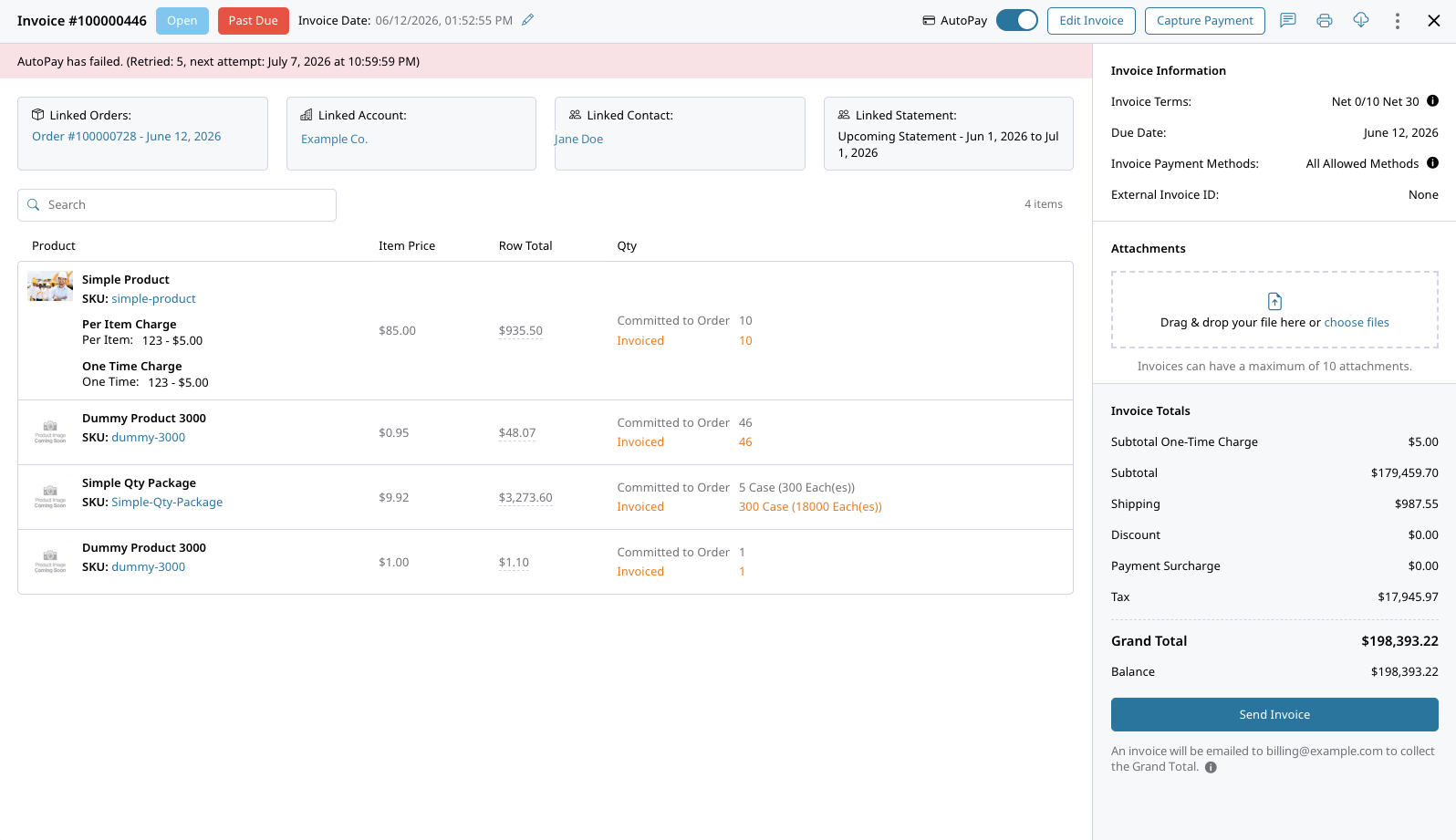
Individual Invoices will show when the payment will be processed, or if any AutoPay attempts have failed.

AutoPay will retry a failed payment once per day.
AutoPay Troubleshooting
I saved a card but AutoPay isn’t working
Confirm that AutoPay is enabled for both the Account or the individual Invoice. View the invoice to check how many failed payment attempts and retries have processed.
Confirm that the saved payment method is selected in the Account’s AutoPay settings. Adding a saved card or bank account alone does not complete AutoPay setup.
AutoPay supports:
- Stripe saved cards
- Authorize.Net saved cards
- Braintree saved credit cards
- Stripe ACH saved accounts
For Authorize.Net, CIM must be enabled. Stripe ACH accounts must first be saved by the customer through the storefront.
The next payment date keeps changing
Next Payment date is intended to show when Zoey expects the next invoice to become due for AutoPay. If the date changes, review the Account’s open invoices and their due dates as it may have changed.
If the date appears incorrect after reviewing those details, contact Zoey Support with the Account, invoice, and AutoPay settings so the team can investigate.
I want to skip just one invoice
Open the Invoice in the Zoey Admin and turn off the AutoPay slider at the top of the page. This excludes that Invoice from automatic payment without disabling AutoPay for the Account.

To stop automatic collection, disable AutoPay for the Account and then confirm in the Invoices list that AutoPay is disabled through the AutoPay Allowed column.
AutoPay didn’t capture a payment after I enabled it
Confirm the following:
- The Invoice is open with an outstanding balance.
- The Invoice due date plus the Account’s grace period has passed.
- The Account has AutoPay enabled.
- The store-level switch for where the order originated is set to Yes: Enable AutoPay (Admin) for Admin-created orders, or Enable AutoPay (Storefront) for storefront orders.
- AutoPay is not suspended for the Account. Suspension occurs after the configured Maximum Retry Attempts are reached, and clears on the next successful capture.
- The selected payment method is still valid.
- The payment method uses a supported gateway.
If AutoPay was enabled after the Invoice became due, Zoey still uses the due date and grace period to determine whether the Invoice is eligible for AutoPay.
AutoPay FAQs
Does AutoPay charge sales tax?
Yes. AutoPay charges the invoice total, including sales tax, shipping, discounts, surcharges, and any other amounts included on the invoice.
Will AutoPay charge before the due date?
No. AutoPay only attempts payment on or after the invoice due date plus the configured grace period.
Can I have AutoPay on some invoices and not others?
Open an Invoice in the Zoey Admin and toggle off its AutoPay slider to exclude it from automatic payment. AutoPay can remain enabled on the Account for its other eligible Invoices.
To stop automatic collection, disable AutoPay for the Account before the Invoice due date plus grace period passes. See How to configure customer AutoPay details.
What happens when my card expires?
The card will be retried until a new payment account is provided.
When Enable Dunning (Retry) is set to Yes, Zoey retries failed payments once per day until the maximum retry limit is reached. Failure emails are sent according to your configured dunning rules. When dunning is disabled, failed payments are not retried automatically.
If the saved card expires, update the saved card for AutoPay so that payments can can continue to be collected automatically for that customer.
Is there a fee for using AutoPay?
No, there is no additional fee for AutoPay. Zoey does not add a separate AutoPay fee. Payment processing fees apply.
Does AutoPay work with statements?
AutoPay can be used with statement billing when Allow Payment by Invoice is enabled. Statements cannot be paid automatically at this time.
Can I see a history of AutoPay attempts?
Yes. Admins can review AutoPay attempts through the Account, invoice, transaction details, and audit log.
Updated 17 days ago