
Blocks (The + Add Menu)
Overview
The + menu in the Visual Design Editor (VDE) is where you find every block you can add to a page. Browse by category, search by name, and click or drag a block onto your page. You can also save blocks you've built to My Blocks and reuse them on any page.
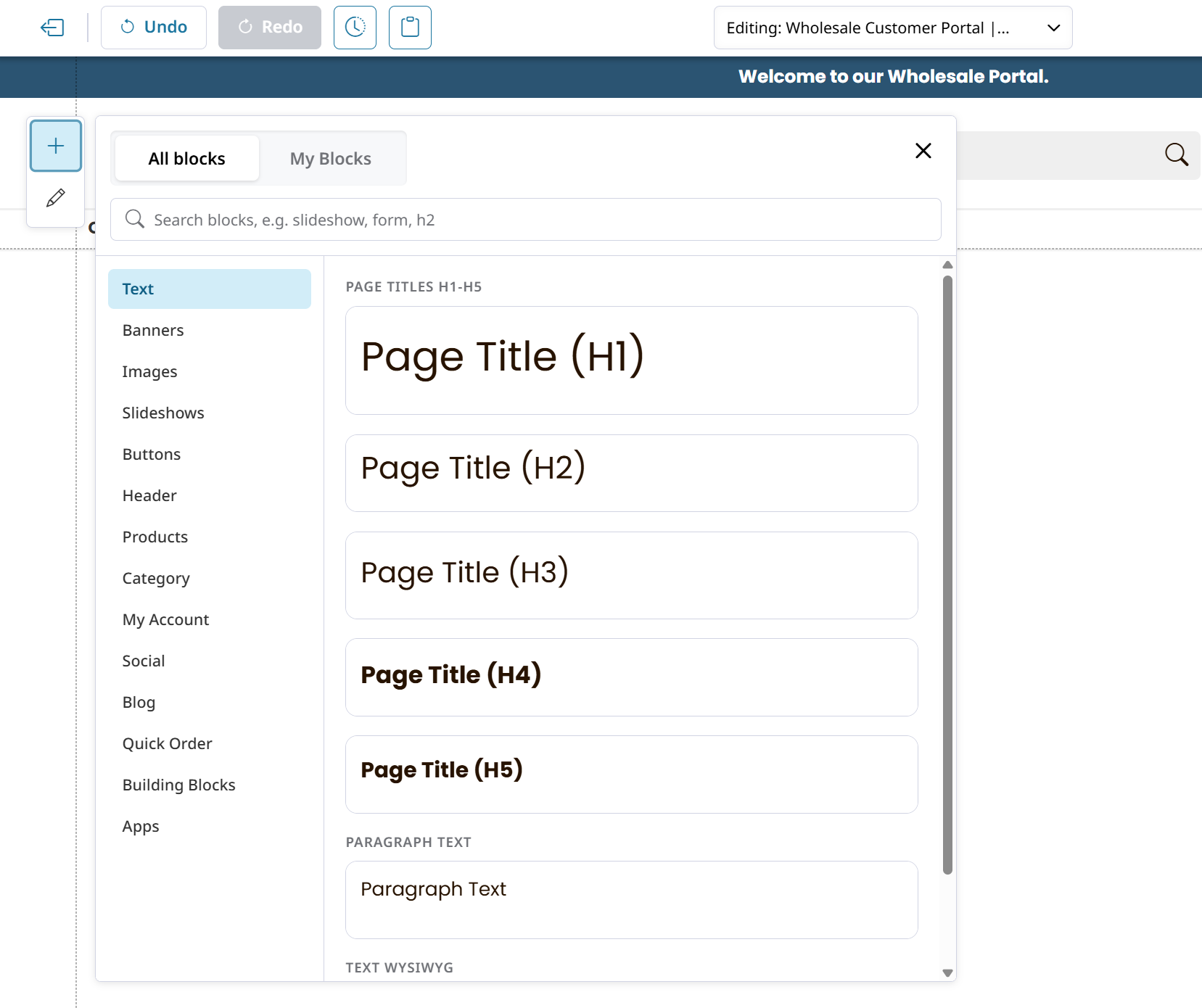
Open the Add Menu
Click the + button in the toolbar on the left side of the editor. The menu has two tabs:
- All blocks: every block you can add, organized by category.
- My Blocks: blocks you've saved for reuse.
Browse and Search All Blocks
In All blocks, click a category on the left to see its blocks. Each block shows a preview of what it looks like, with its name underneath.
To find a block quickly, type in the search box. Search finds blocks by name, section or category. For example, "h2" or "heading 2" finds the heading blocks.
Add a Block to Your Page
- Click a block to add it to the page.
- Drag a block onto the page to place it exactly where you want. The menu moves aside while you drag, so you can see the whole page.
The Block Menu
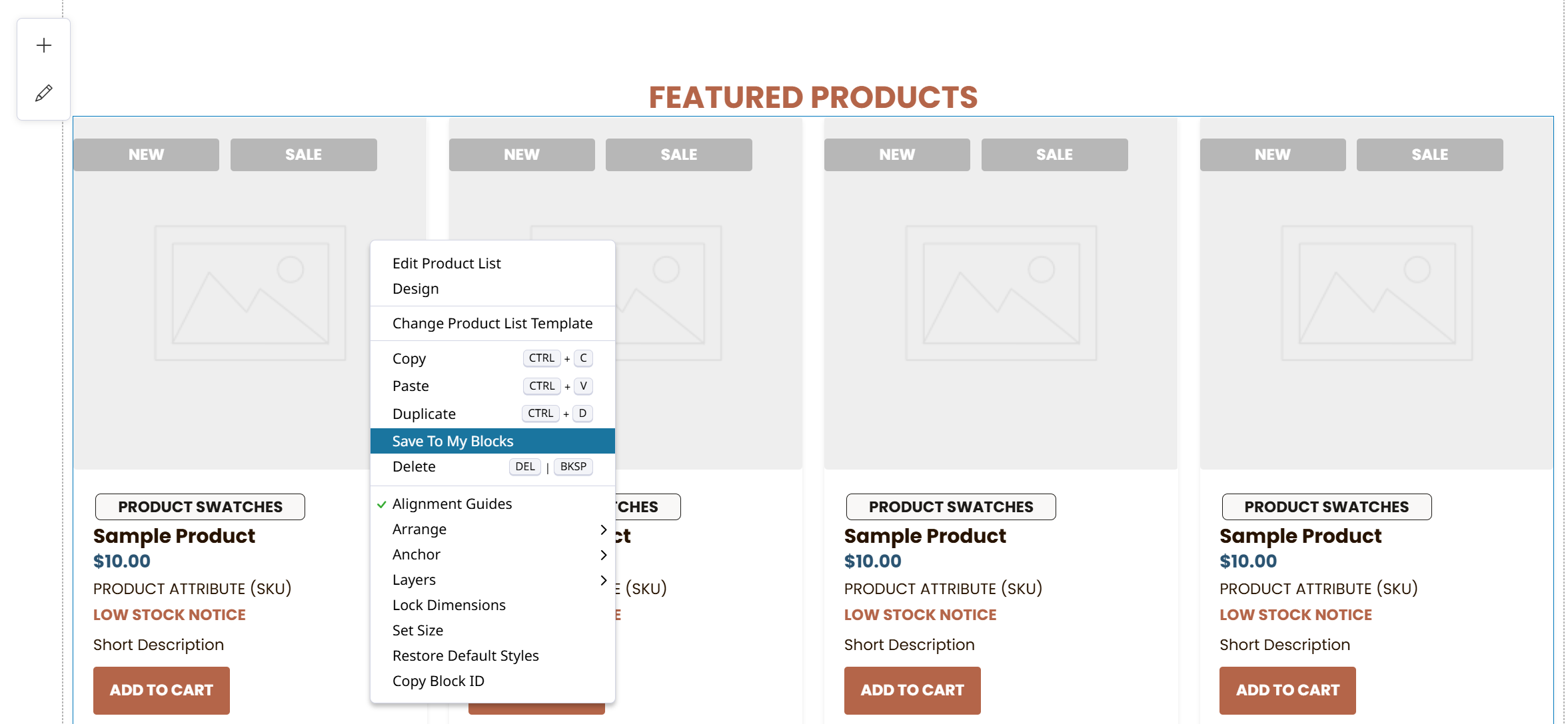
Right-click a block on the page and open its menu options.
| Option | What it does |
|---|---|
| Edit [Block Name] | Change the block's content and settings, for example Edit Product List. |
| Design | Change the block's colors, borders, corners, text and spacing. |
| Change [Block Name] Template | Switch to another layout for this block type, where available. |
Copy (Ctrl + C) | Copy the block to paste elsewhere. |
Paste (Ctrl + V) | Paste a copied block. |
Duplicate (Ctrl + D) | Add a copy of the block in place. |
| Save To My Blocks | Save the block to reuse on other pages. See My Blocks. |
Delete (Delete or Backspace) | Remove the block from the page. |
| Alignment Guides | Show guides while you move blocks. |
| Arrange | Bring the block forward or send it back when blocks overlap. |
| Anchor | Set where the block is anchored on the page. |
| Layers | Select a block that's behind another one. |
| Lock Dimensions | Keep the block's size from changing. |
| Set Size | Enter an exact size for the block. |
| Restore Default Styles | Remove your design changes from this block. |
| Copy Block ID | Copy the block's ID, for use in custom CSS or JavaScript. |
My Blocks
Save a block you built, with everything inside it, and add it to any page.
Save a Block to My Blocks
-
Select the block on the page and open its menu.
-
Choose Save To My Blocks.
Add a Saved Block to the Page
-
Click + and open the My Blocks tab.
-
Find the block, or type in Search my saved blocks.
-
Drag the block onto the page, or click it to add it next to the selected block.
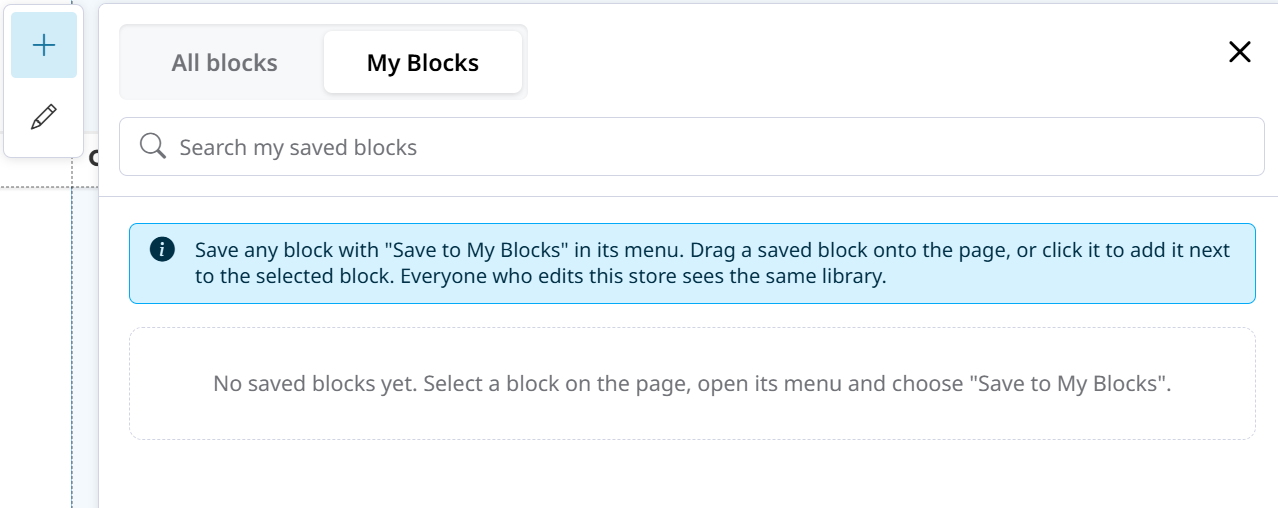
Saved blocks are copiesEach block you add from My Blocks is an independent copy. Editing it doesn't change other pages, and deleting a saved block doesn't change pages that already use it. Everyone who edits your store sees the same My Blocks library.
The block menu also has Copy, Paste and Duplicate for reusing a block on the same page. See Undo, Redo, History and Copy/Paste.
Learn more: New in the Zoey Visual Designer: My Blocks
Block Types
Use the links below to explore the different block types.
Updated about 6 hours ago