
Translate categories
Translate category titles, URL keys, descriptions and SEO fields for each language in the admin or with a category CSV import.
Available only on certain plansThis feature is only available on certain plans and you may be required to upgrade your plan in order to use this feature.
If your store has more than one language, translate each category's Category Title, URL Key, Overview (description) and Search Engine Information for every Store View. Edit one category at a time in the admin, or translate many at once with a CSV import.
Editing Categories in multiple Store Views
- Open the category you want to translate.
- Click the Translate button (the globe next to Save) and select the language (Store View) you want to edit. The button then shows that language.
- Edit the Category Title, URL Key, Overview and Search Engine Information for that language.
- Click Save.
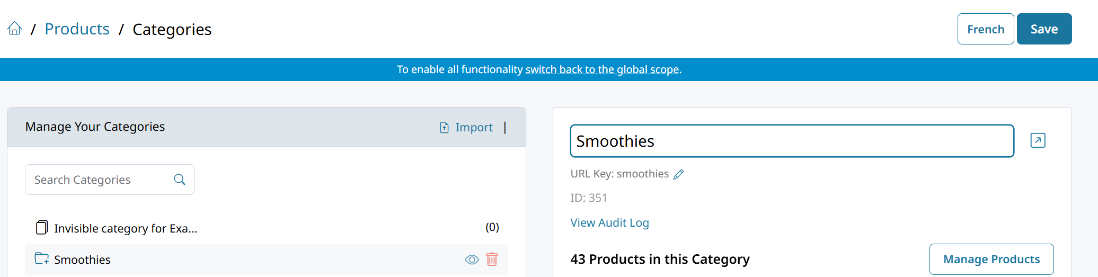
Images and Category Page DesignYou won't be able to add different images or create a different Category template for different store views.
Import Translations with a CSV
Translate category names, URLs, descriptions and SEO content for many categories at once.
Step 1 - Export Template File
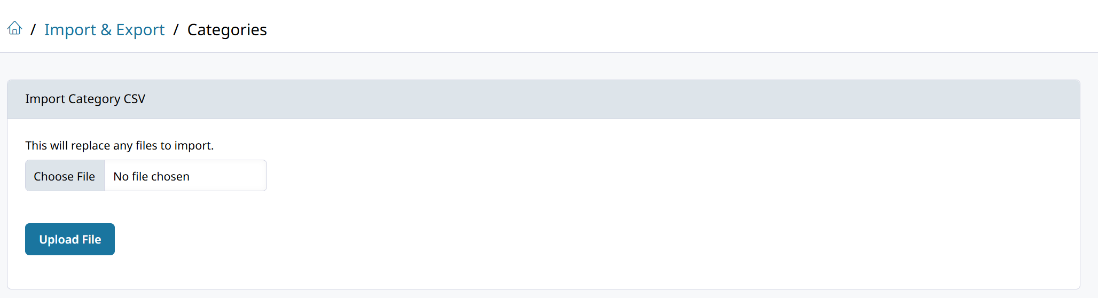
- Go to Import & Export and select Categories.
- In the Export Categories section, choose the language in Select Store. This file is your import template for that language. Export one file for each language you want to translate.
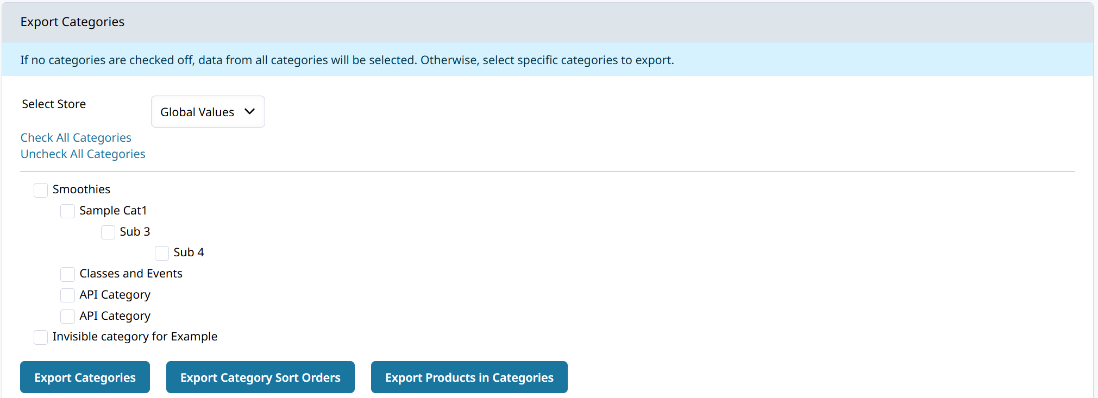
- Click Export Categories, then open the exported file.
Step 2 - Translate The CSV File
In the CSV file, translate these columns:
category_namedescriptionmeta_titlemeta_keywordsmeta_descriptionurl_key

Step 3 - Import The Translated File
Import the file in the Import Category CSV section of the Category Import & Export page. For more information, see Importing Categories.
Importing to the Correct StoreWhen importing data for a specific store, make sure the
store_codecolumn is correct for the language you are translating.
Updated about 14 hours ago