
Activity Logging in Zoey CRM
Track engagements with your customers by adding a note, logging a call, or recording a meeting to their Account.
CRM Activities
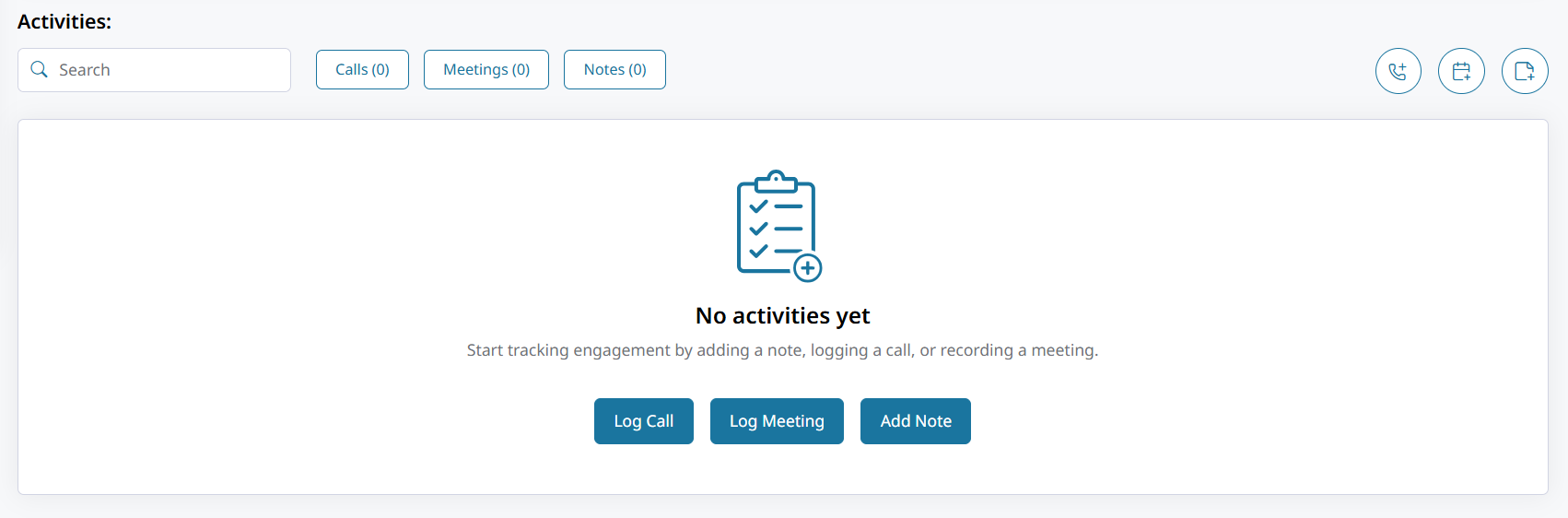
Log calls to your customers, meetings, and notes in the Activities section in your Accounts. To get started, simply open any Account and scroll down to Activities.
Activity logs can be created and edited by users with the permissions to do so. Click the icons in the top-right to begin logging a call, a meeting, or adding a note.
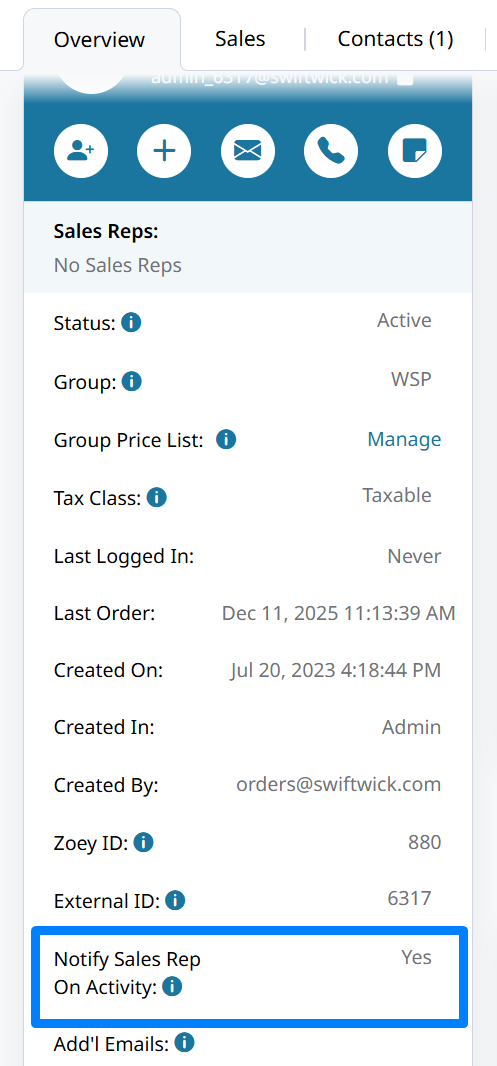
Notify Sales Rep on Activity can be set to Yes or No in each Account, and the Account Activity Notification email template can be enabled to be sent to the sales rep when Activity is logged.
Logging a Call to your Customer
Click on Log Call, or the phone handset icon to record the details of a call with this customer.
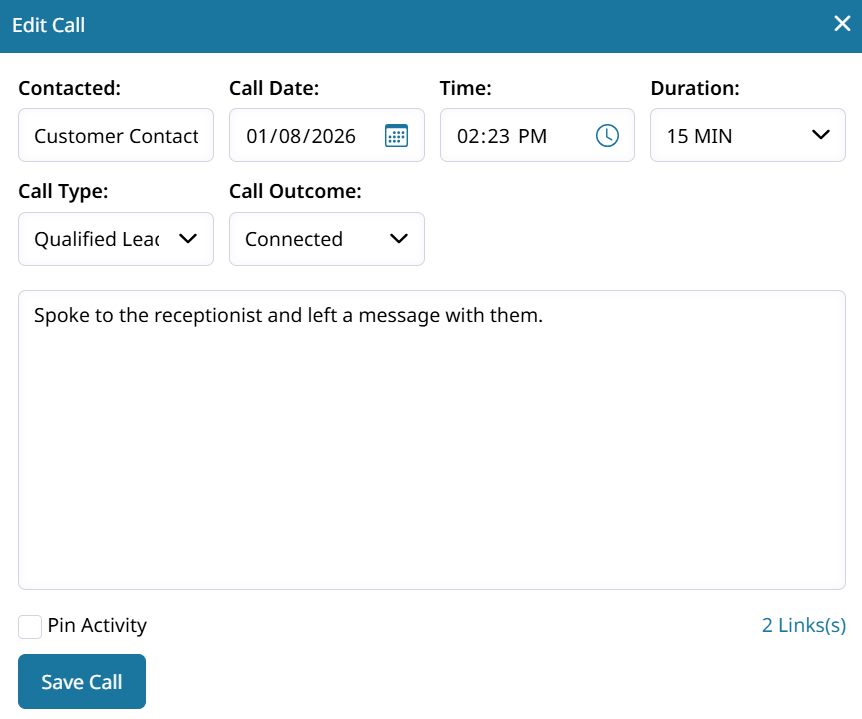
Recording that a call took place means including details such as who was contacted, the date/time of the call, its duration, the call type, and the outcome.
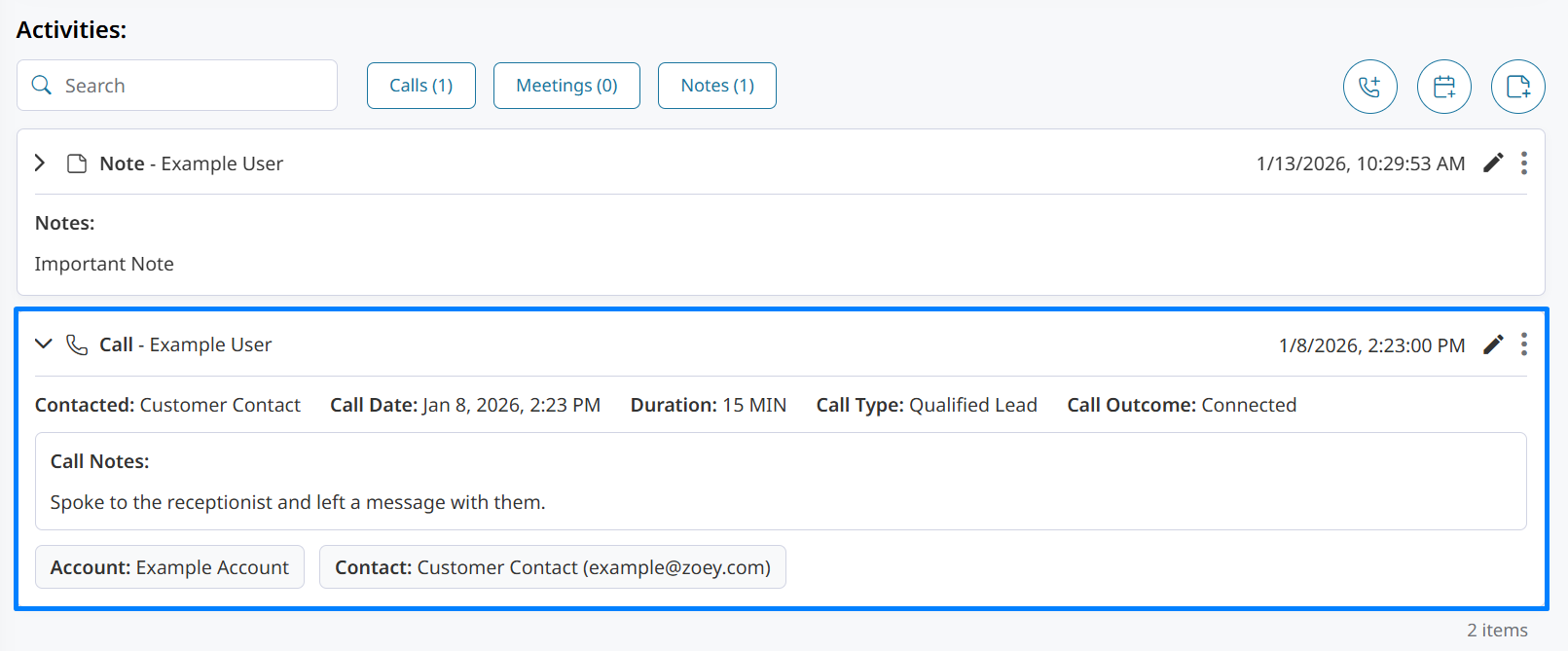
Call Notes can also be included which will display after saving like shown below. Expand the log to show the full details.
Log who was contacted
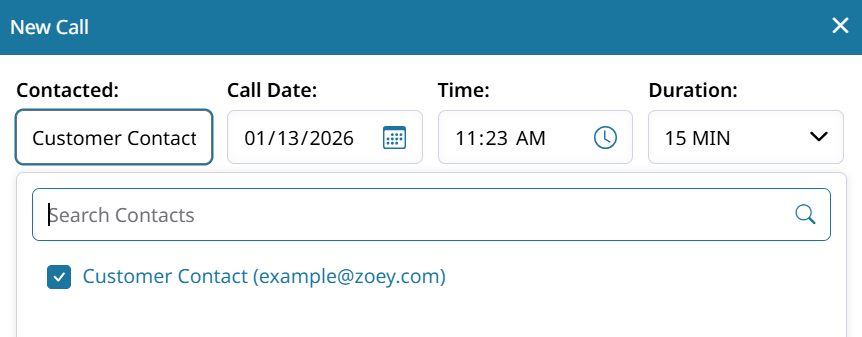
In the Contacted drop-down a Contact linked to the Account can be selected to record them as the customer who received the call. Search for them by name or email. Only the Contacts linked to this Account are available.
Logging a Meeting with your Customer
Click on Log Meeting, or the calendar icon in the top to record the details of a call with this customer.
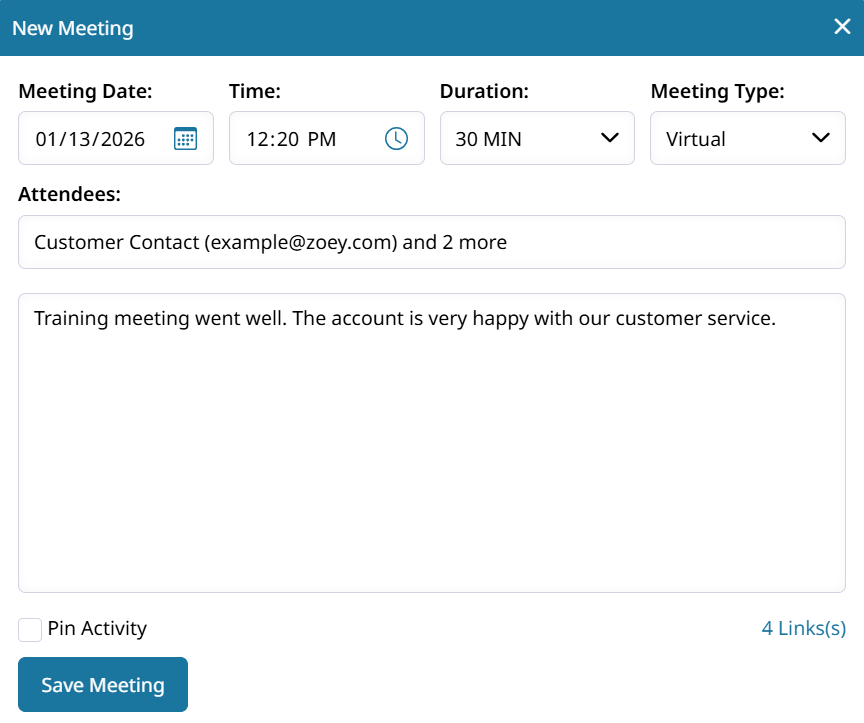
Set the date, time, and duration of your meeting. Choose whether the meeting was in-person, or virtual. Then select from the contacts to list them as attendees of the meeting.
Type in, or paste your meeting notes and then Save Meeting.
Add Note to your Customer
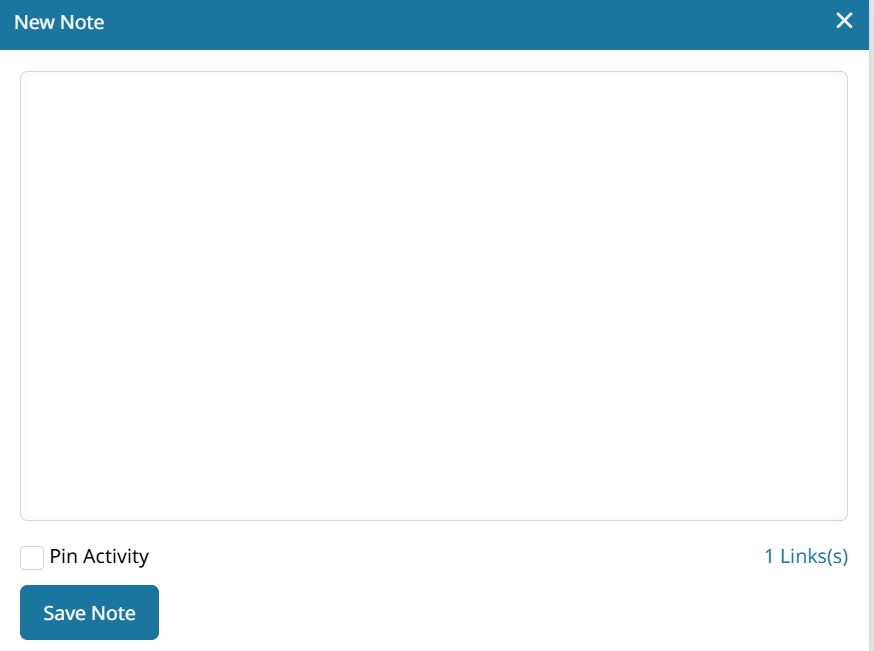
Click on Add Note, or the page icon to begin composing the note.
Activity Log Features
Activity Email Notification
Notification emails will be sent out whenever an activity such as a note, meeting or call is logged. It may take up to 5 minutes to dispatch the email depending on the timing.
The Account Activity Notification email template is sent to Sales Reps when activity is logged.
The global setting can be found in Customer Settings > Account Request/Registration as Default Notify Sales Rep on Activity.
Or Default Notify Sales Rep on Activity can be configured on each Account in the in the overview side bar.
Pinning an Activity
Activity logs can be pinned to appear at the top of the list. When an activity is pinned, it will display with a shaded background. Multiple activities can be pinned at the same time.
Displaying Pinned Notes on Picklist PDF
Pinned Notes can be added to your Picklist PDF!
Here's how to add the Account's Pinned Notes to your Pick List PDF:
-
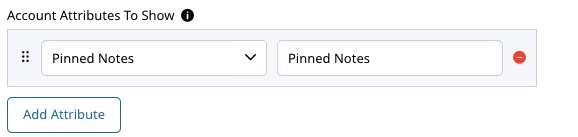
Go to Orders > PDF Settings > Pick List and find the Account Attributes To Show.
-
Click Add Attribute and then search for the "Pinned Notes" special attribute.
-
Rename the label for the attribute and hit Save!
Pinned notes will then appear in the header of your PDF alongside other displayed attributes.
Linking Activities
When logging an activity, you'll see # Link(s) in the bottom right corner. The link function lets you connect more customers, other activities, and locations to the activity log.
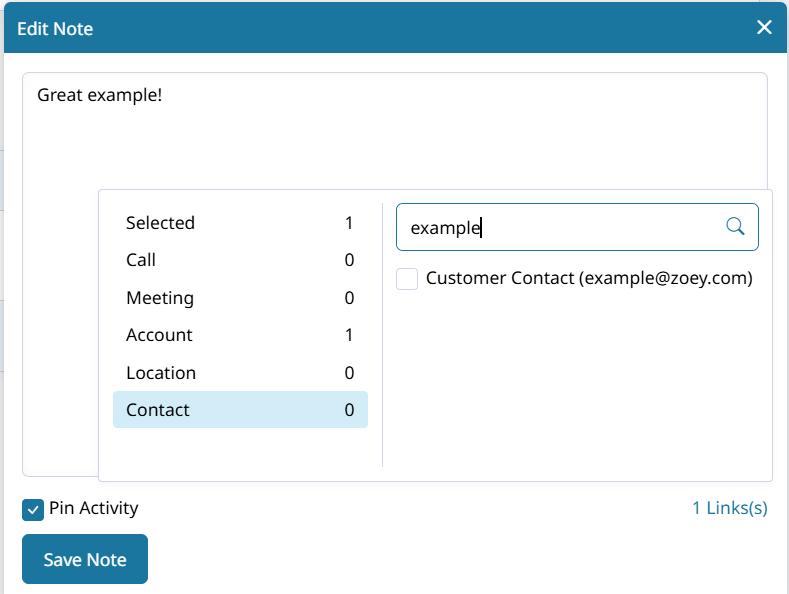
Activity notes are not visible to your customers.Activity Logs will only appear on the Account they were added to. Linking additional contacts or accounts does not put the log in their activity.
Managing Activity Logs
Editing an Activity Log
Activities can be edited by clicking the ✏️ pencil icon. Doing so will open the activity log and let you change the details.

All edits are recorded to the activities' Audit Log!
Activity Reporting
In the Customers > Accounts list, admins can view, sort, and filter accounts by their "Last Activity Date" as well as the "Last Meeting Date", and "Last Call Date"
Reports
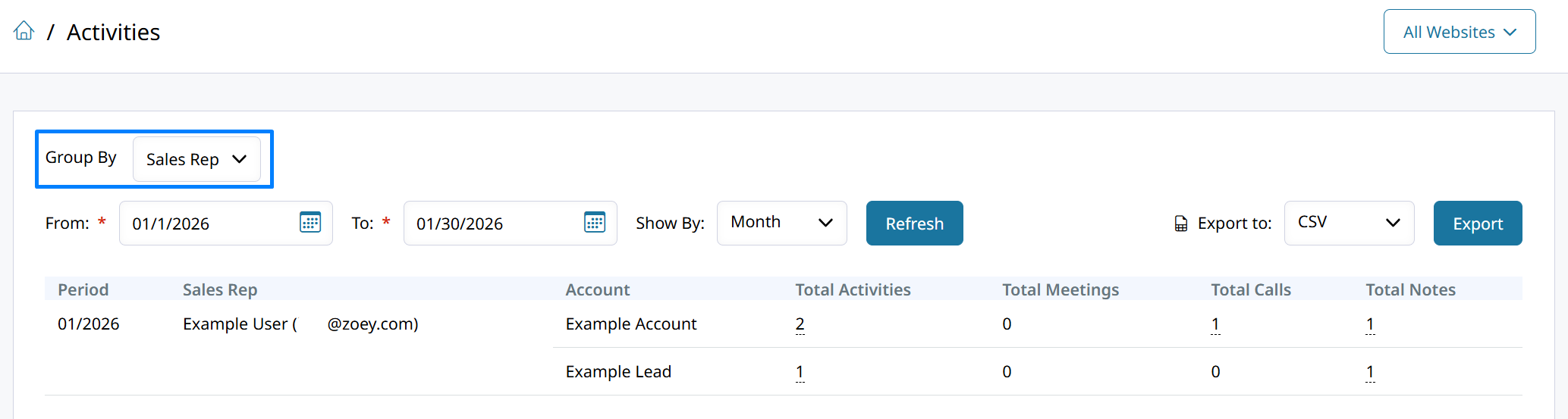
In Reports > Accounts there is an Activities report which displays an Account's activities grouped by Account or Sales Rep.
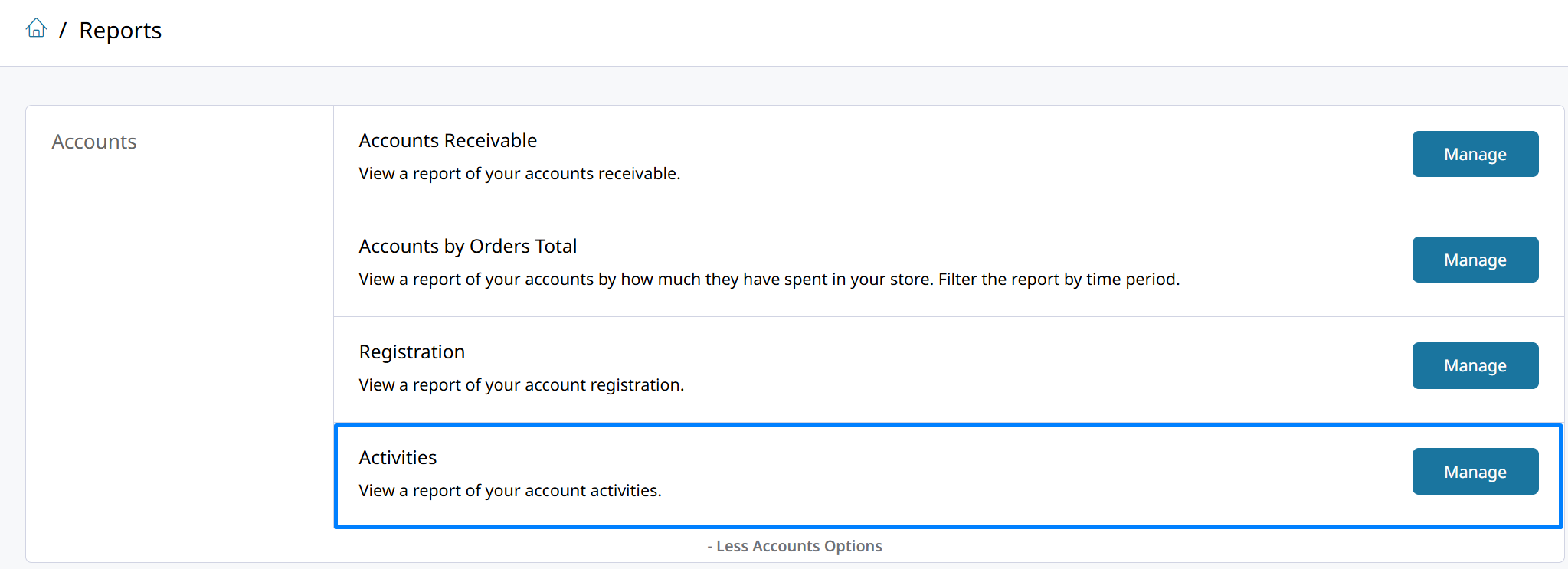
Group By Account will show a count of activities logged for all accounts, leads, or opportunities within the specified date range. The totals are broken down for Meeting, Call, and Note activities.
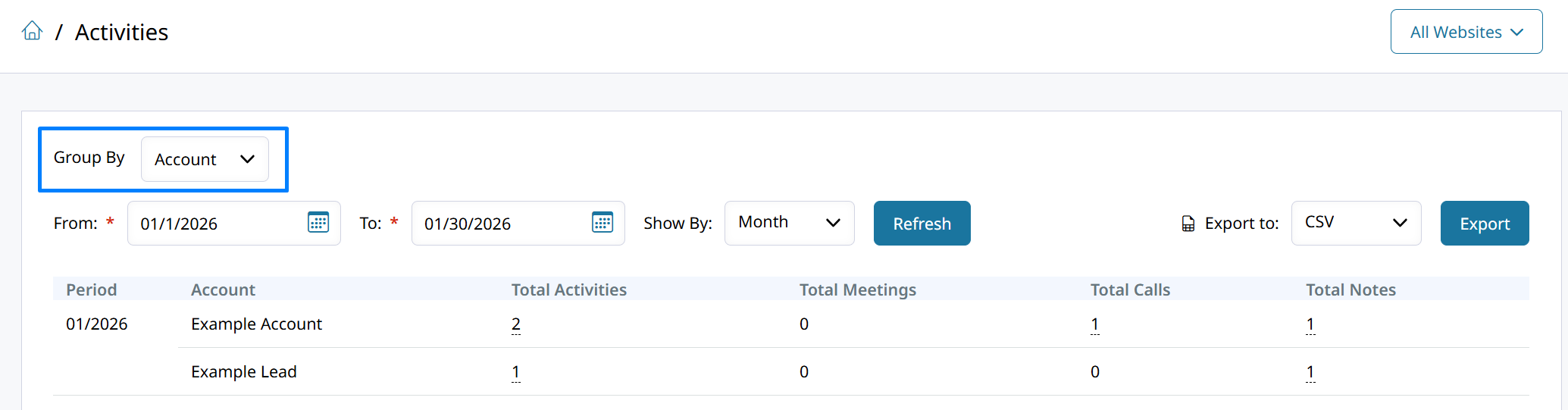
Group by Sales Rep will show a count of activities logged within a specified date range, grouped by the Sales Rep who logged the activity.
Audit Log
Edits made to individual Activity Logs are recorded in that activities' Audit Log.

Click the 3-dots, then Audit Log to pull up the history of all changes made to the activity record.
Activity Options
Go to Customers > Activity Options to manage the selectable options for Call Type, Call Outcome, and Meeting Type.
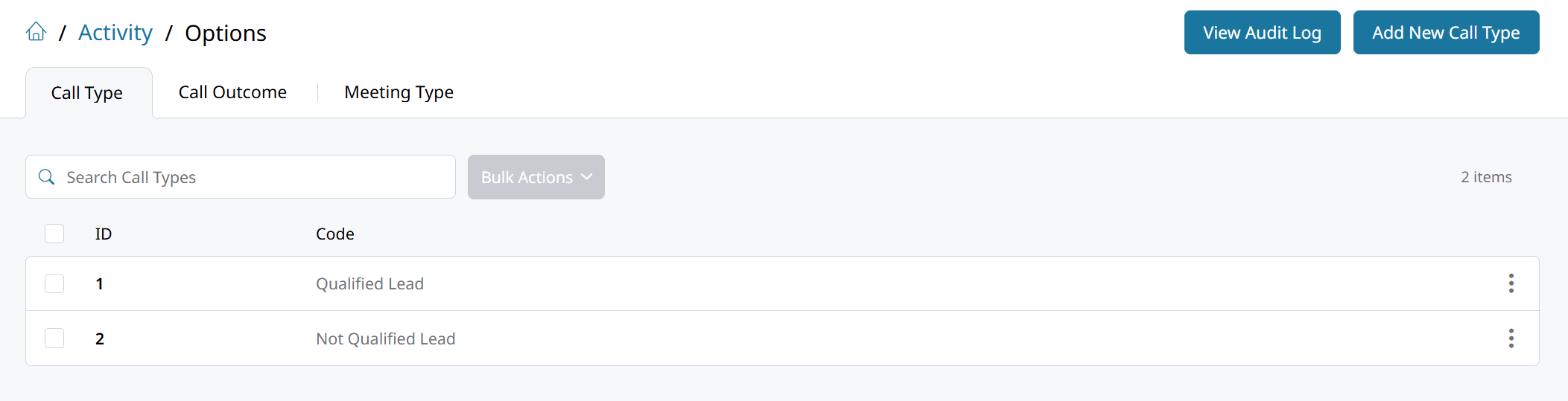
Activity Options can be edited or deleted through the options revealed after clicking the three-dots icon.
Add a new Call Type, Call Outcome, or Meeting type by clicking their respective buttons.
You find a history of changes made to the Activity Options by clicking View Audit Log.
Log Activity through the Zoey App and API
- Activity logs can be viewed, created, and updated through the Zoey Mobile App.
- Activity logs and the options can be managed fully through the API.
Click here for the CRM Activities API docs.
Record Calls, Meetings, and Notes from the Zoey Mobile App
In the Zoey Mobile App, open any Account and then click on + Log Activity to begin logging a new activity. Select between a Call, Meeting, or Note to record the details of the interaction with your customer.
Existing activities can be edited through the app to make changes or add more details. Simply tap on an activity to open it and then click the checkmark to save your changes.
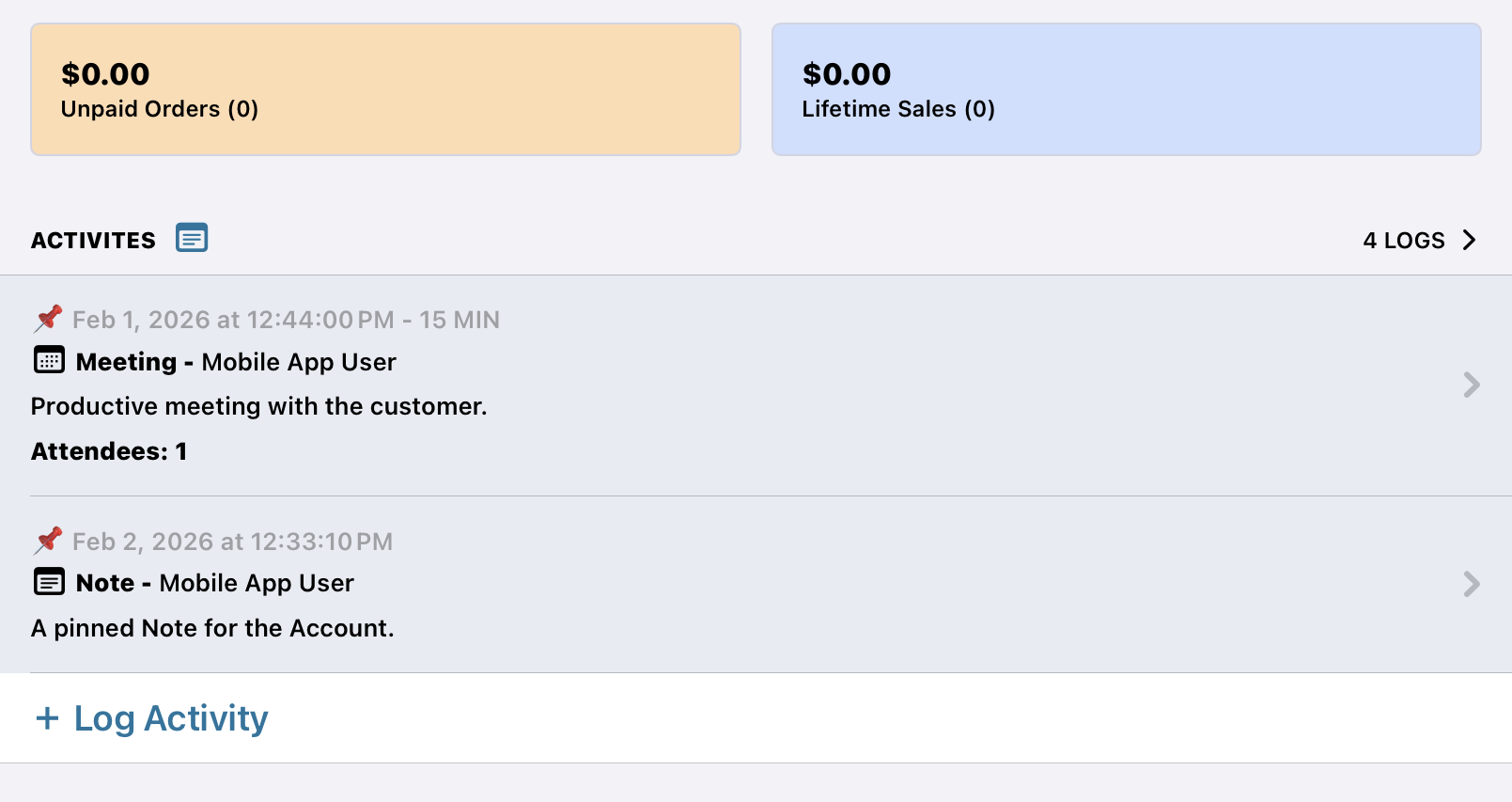
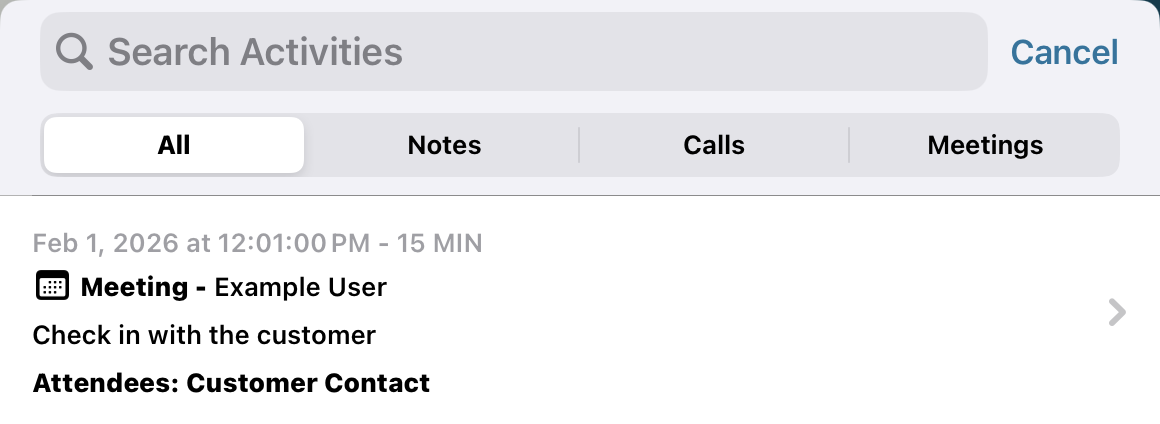
Tap on Activities or the # Logs > to see all recorded activity for the Account. A list will open that can be searched through to find a specific note, or filter for just Notes, Calls, or Meetings.
Pinned Activity will always display at the top of the list on the Account.
Non-pinned activities will display in the order by which they were last updated. With the most recently added updated activities appearing higher in the list.
Updated 4 months ago