
Product Image Import
How to Import Images
- Upload your images to Import & Export > Product Images. For steps, see Uploading Image Files.
- In Product Images, open the dropdown in the top-right corner and select Export to CSV For Import. This downloads a spreadsheet with the image paths and the column headers needed for import. See Export Image Paths For CSV Files.
- Add a
skucolumn to the spreadsheet so each row links a product to its images, then import the file. Use the Image Path Format rules below for any paths you enter by hand.
Importing Images
There are two main Image types that you can import images to on your products. The CSV column headers below may be added to your product and category import spreadsheets.
| Image | Description | CSV Column Header |
|---|---|---|
| Main Image | The main image that will appear first and on all product locations in your store (category page, product page, shopping cart, checkout, emails, and featured/new product lists) | image |
| Gallery Image | Also called "Media Images" These are additional images that will display only on the Product Page below or next to the Main Image. | _media_image |
Image Path Format
Images uploaded to Product Images must be referenced by their path, not their full linkIf the image is already in Import & Export > Product Images, enter its path in the
imageand_media_imagecolumns. Do not use the fullhttps://link to that image.
- Start the path with a forward slash:
/- Include every folder the image is in.
- Replace each space in a folder or file name with
%20.- Match the file name exactly, including capitalization and the file extension.
| Where the image is | What to enter | Example |
|---|---|---|
| Product Images, main folder | / + file name | /blue-widget.jpg |
| Product Images, inside a folder | / + folders + file name | /widgets/blue-widget.jpg |
| Product Images, file name with a space | Replace the space with %20 | /widgets/blue%20widget.jpg |
| Hosted publicly on another website | The full URL | https://cdn.example.com/images/blue-widget.jpg |
A full URL is only for images hosted on another website. Zoey downloads those images into Product Images and sets them on the product.
Use a hyphen or underscore instead of spaces in image and folder names, likeblue-widget.jpg. This avoids most image import problems.
The Template
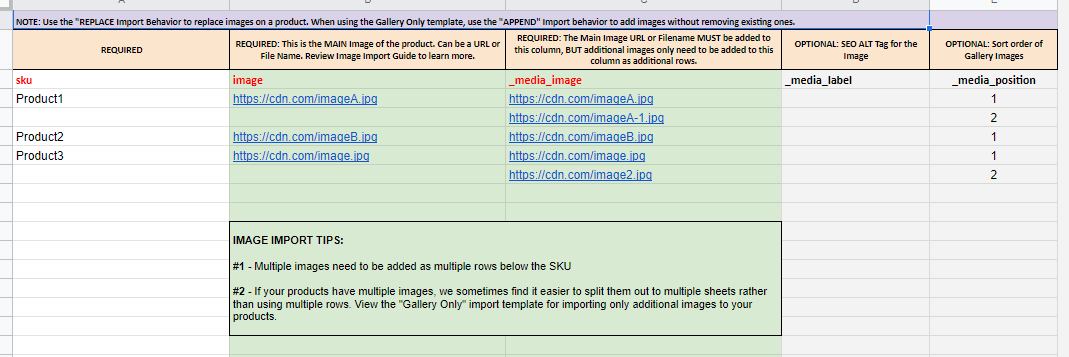
The Images template below has one tab for your main image, and one tab for a second image. You may copy the second image tab as a third, fourth, fifth tab, etc., for any additional images you may have to import.
Image Import FAQ
The import finished without errors, but the image isn't showing on the product. Why?
The image path in your CSV doesn't match an image in Import & Export > Product Images. Check that the path:
- starts with
/, - includes every folder the image is in,
- uses
%20for each space, and - matches the file name exactly, including capitalization and the file extension.
The most common cause is using the full https:// link for an image that's already uploaded to Product Images. Use its path instead, like /widgets/blue-widget.jpg. See Image Path Format.
How do I find the exact path of an uploaded image?
Go to Import & Export > Product Images, open the folder, and click the image to preview it. The File Path shows the full link to the image. Your path is the part after /import.
For example, if the File Path ends in .../media/import/widgets/blue%20widget.jpg, enter /widgets/blue%20widget.jpg in your CSV.
My image name has a space in it. What do I enter?
Replace each space with %20. For blue widget.jpg in the main folder, enter /blue%20widget.jpg. To avoid this, rename the image with a hyphen or underscore before uploading it.
My image is in a folder. Do I need to include the folder?
Yes. Include every folder, starting from the main Product Images folder. For blue-widget.jpg in a widgets folder, enter /widgets/blue-widget.jpg.
Can I use a link to an image on my own website or a CDN?
Yes. Enter the full public URL, like https://cdn.example.com/images/blue-widget.jpg. The image must open in a browser without logging in. Zoey downloads it into Product Images and sets it on the product.
Updated 4 days ago