
How to Credit Memo
Credit Memos let you refund a customer to store credit, or via their online/offline payment method,Invoices and items can be linked, but are not required.
Create a Credit Memo to issue store credit, or refund a customer without reopening the Invoice or affecting its balance. A Credit Memo helps track returned items, order adjustments, or a general goodwill store credits.
To refund a Payment and reopen the Invoice for payment, issue a Payment Refund instead.
How to Credit Memo
Start a Credit Memo from the Order, Account, or individual Invoice.
Credit Memo an Order
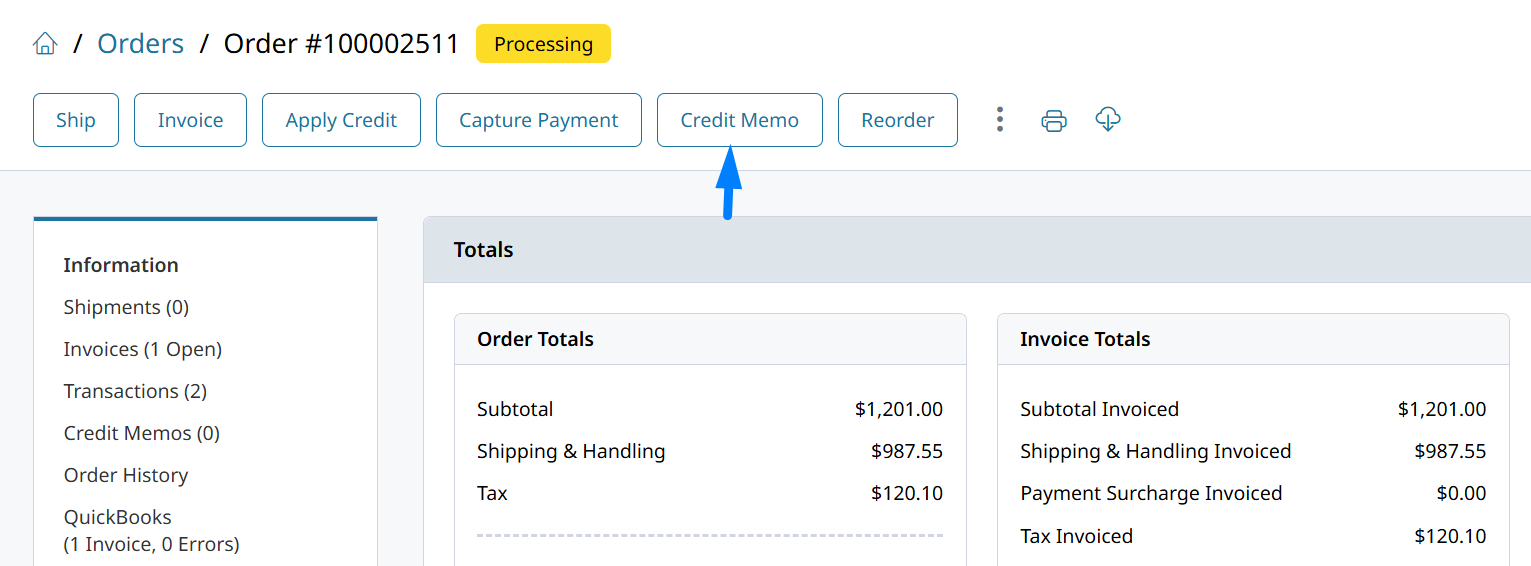
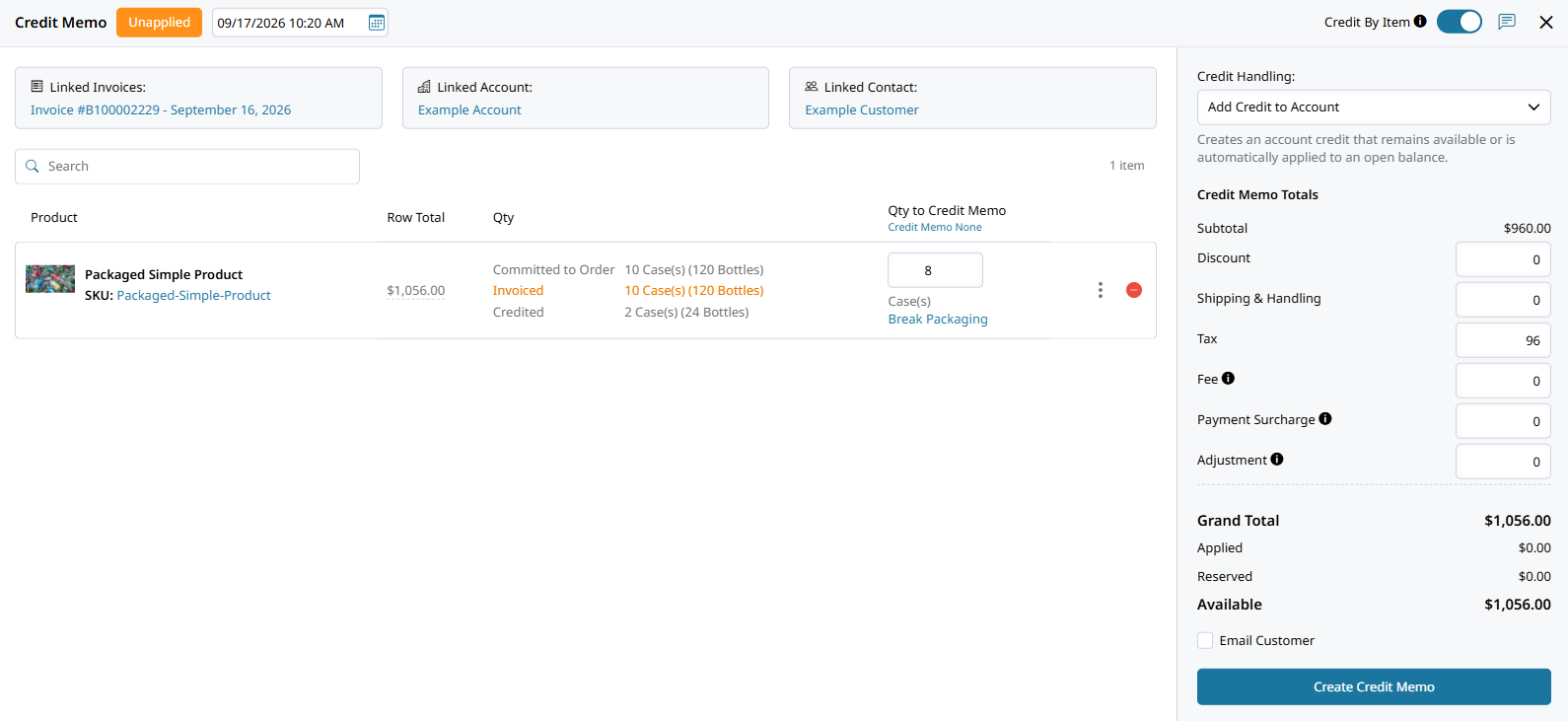
The credit memo will automatically link with invoices on the same order and display their items. Here you can edit the Credit Memo Totals and the Qty to Credit Memo for each item.
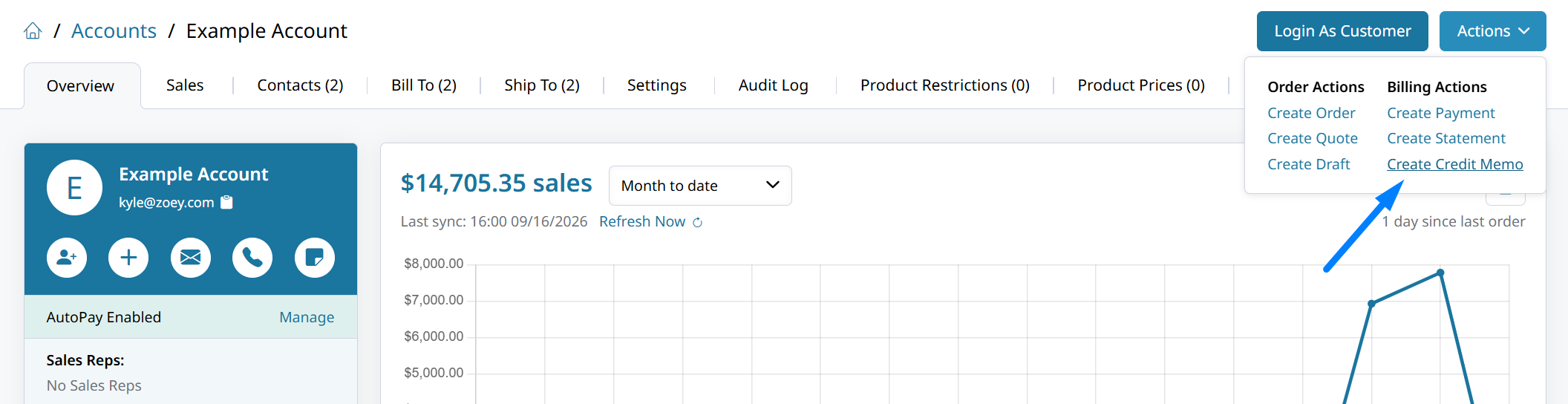
Credit an Account
Open the Account or Contact and find Create Credit Memo from the Actions drop-down.
When crediting through the account, items to add to the memo can be selected from invoices, or added as standalone items. This allows you to issue item-based credit memos that combine products from different invoices, or add products that weren't ordered.
Creating the Credit Memo through the Account will start with selecting the invoices to link.
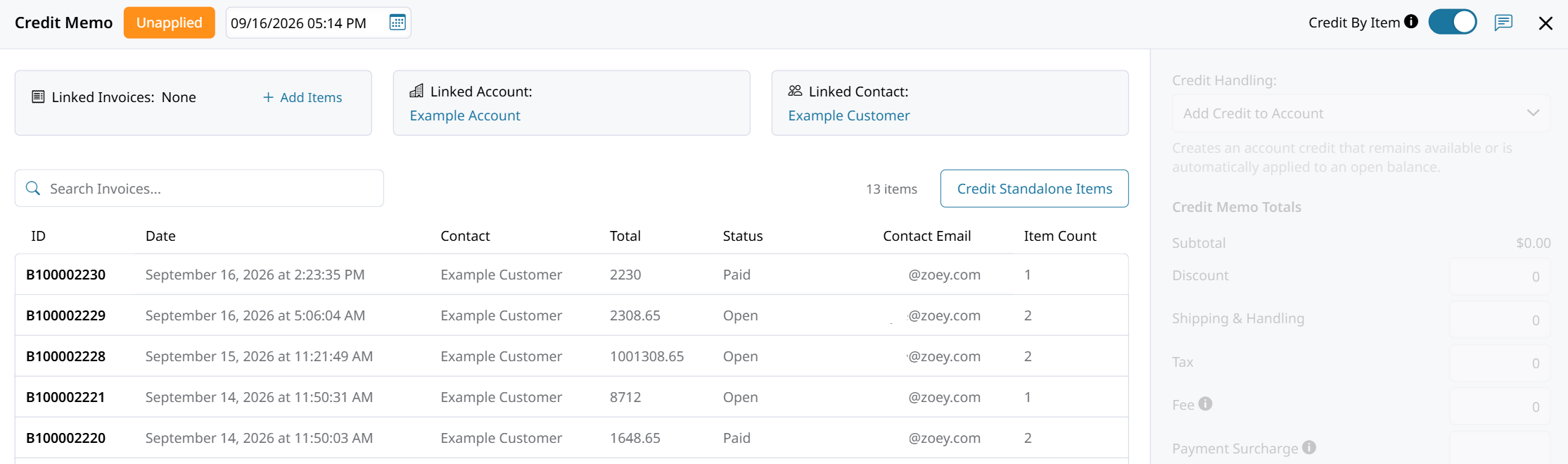
Click on an Invoice and set the item quantities to Credit Memo. Then click Add Products to link the items and their invoice to the Credit Memo. You can then adjust the credit memo totals, or link more items by clicking + Add Items.
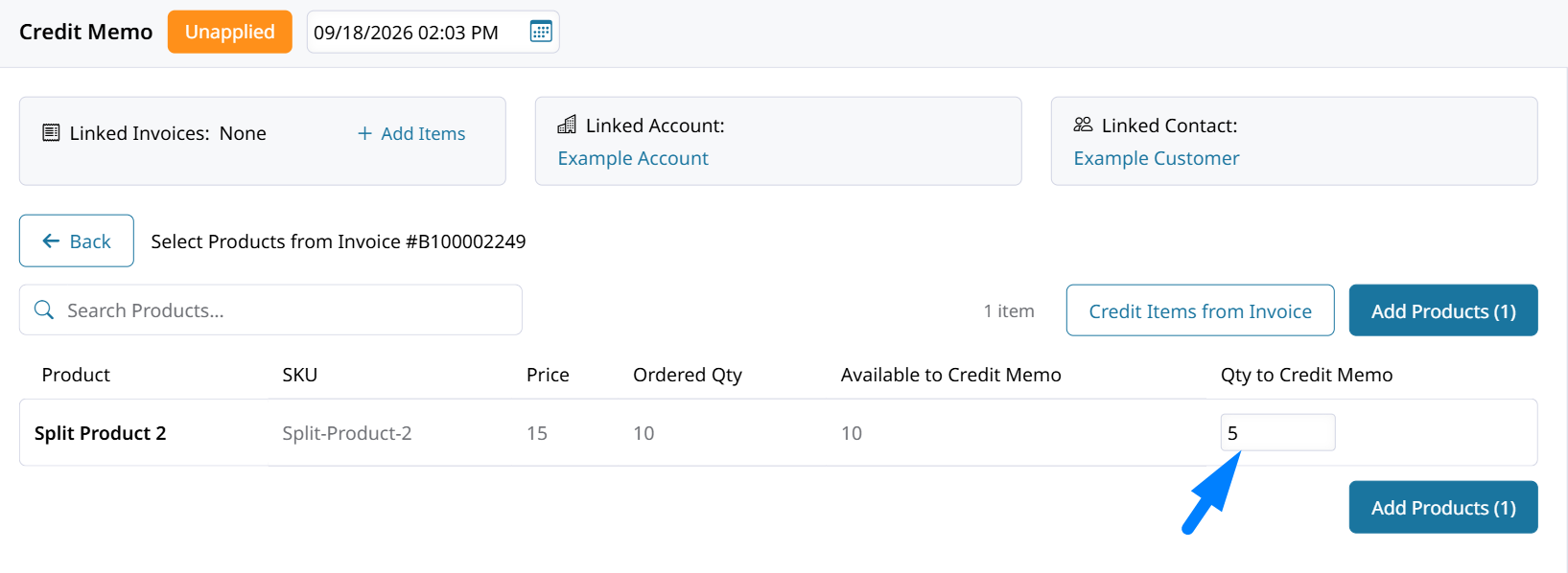
Credit Standalone Items
Click on Credit Standalone Items to add products to the Credit Memo from your general catalog.
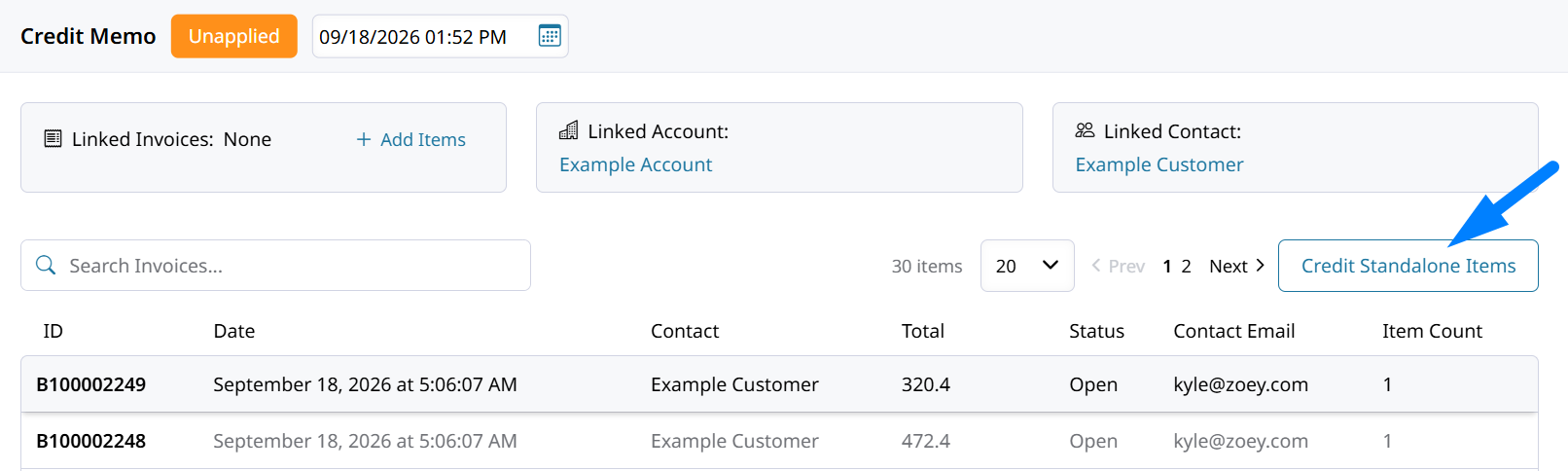
Adding standalone items to the invoice means you can create a Credit Memo that's linked to any item from your catalog, without linking the Credit Memo to any specific invoice.
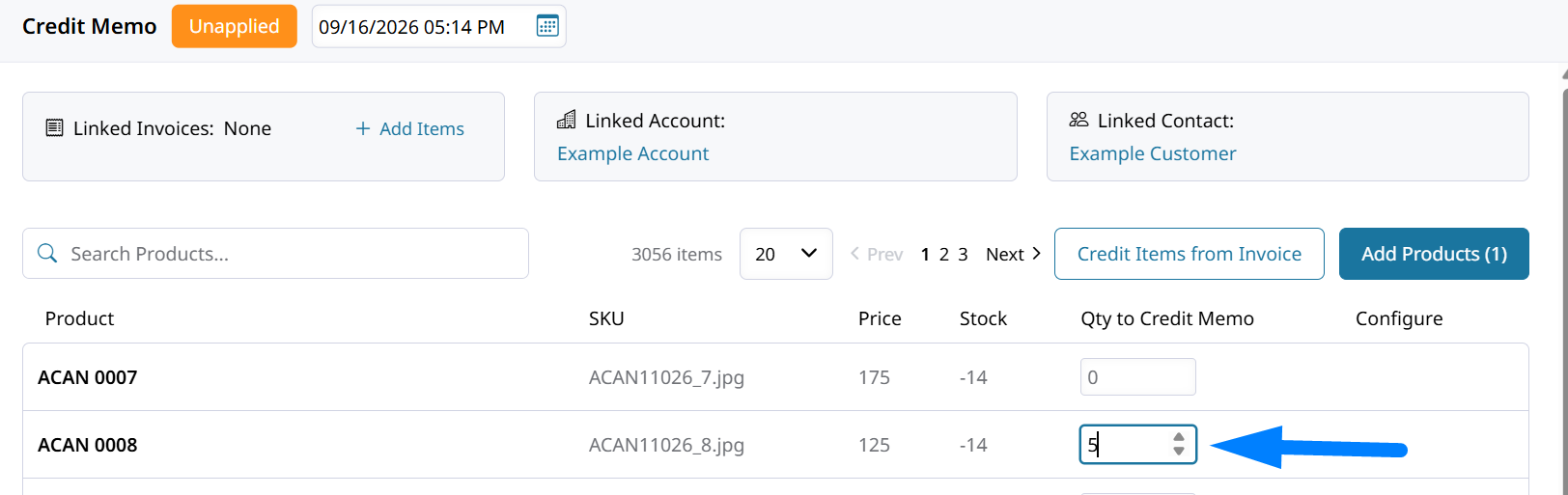
Search for the product from your catalog and set their Qty to Credit Memo.
Then hit Add Products to start the item-based Credit Memo.
Click Update after changing item quantities to recalculate the Credit Memo total. Setting an item's Qty to Credit Memo to
0removes that item's amount from the memo.
Select a Reason
Select a Reason from the dropdown for the Credit Memo while creating it. This reason will be displayed and recorded as the primary reason for the Credit Memo.
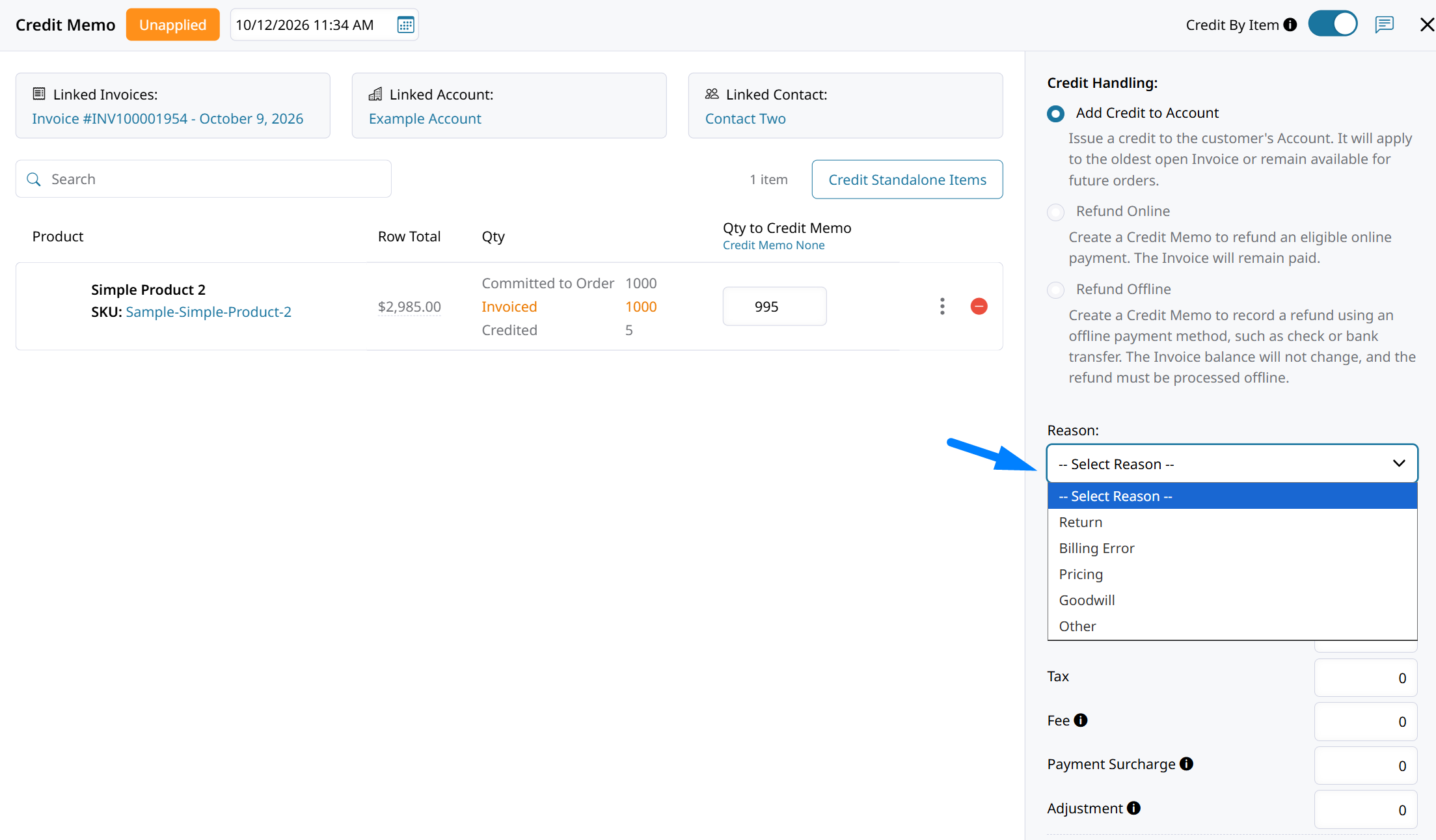
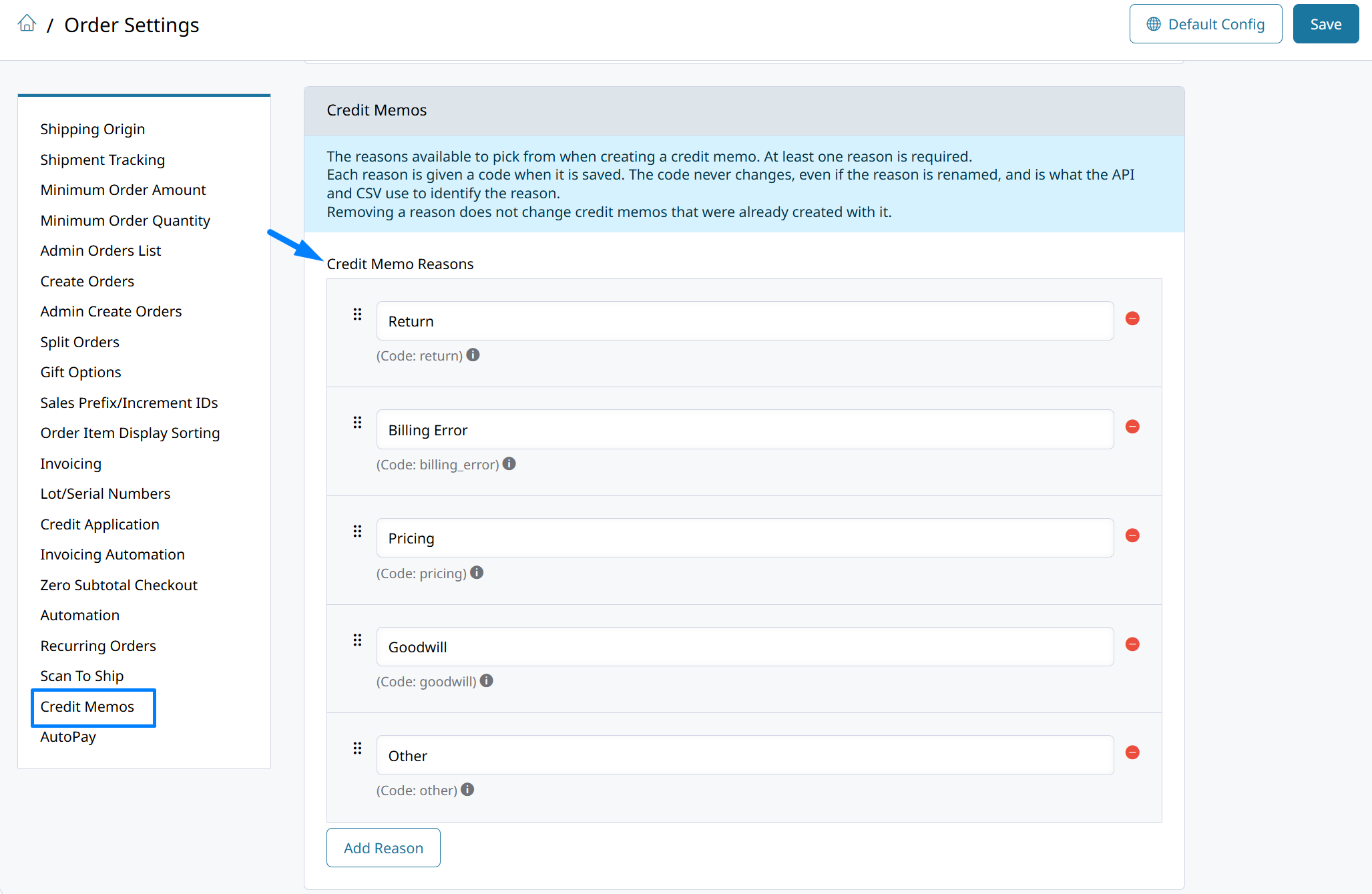
Add or remove Reasons from the dropdown in Orders > Settings > Credit Memos. The Credit Memos list can be filtered by the reason to report and download data.
Credit Handling
The selected Credit Handling option determines whether the Credit Memo adds credit to the Account or refunds the customer.
| Option | Result |
|---|---|
| Add Credit to Account | Adds credit to the Account. The credit is automatically applied to eligible open Invoices or remains available for future use. |
| Credit & Refund Online | Creates the Credit Memo and refunds an eligible online payment transaction. The original Payment remains applied and the Invoice remains paid. |
| Credit & Refund Offline | Creates the Credit Memo and records an offline refund. The original Payment remains applied and the Invoice remains paid. Funds must be returned separately. |
Credit & Refund Online is available only when the Credit Memo can be refunded through an eligible online payment transaction.
Credit & Refund Offline records the refund in Zoey but does not transfer funds to the customer. The refund must be completed separately.
Credit By Item
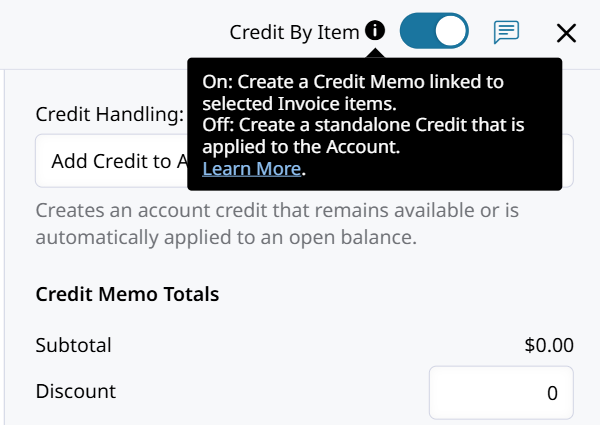
Use Credit By Item to choose how the Credit Memo is calculated:
- Enable Credit By Item to credit items from an Invoice or add standalone products.
When crediting by item the Tax and discounts from the Invoice are prorated automatically based on the credited lines and quantities. Changing the credited quantity of one item does not change the unit price of another item.
- Leave Credit By Item disabled to enter a custom amount.
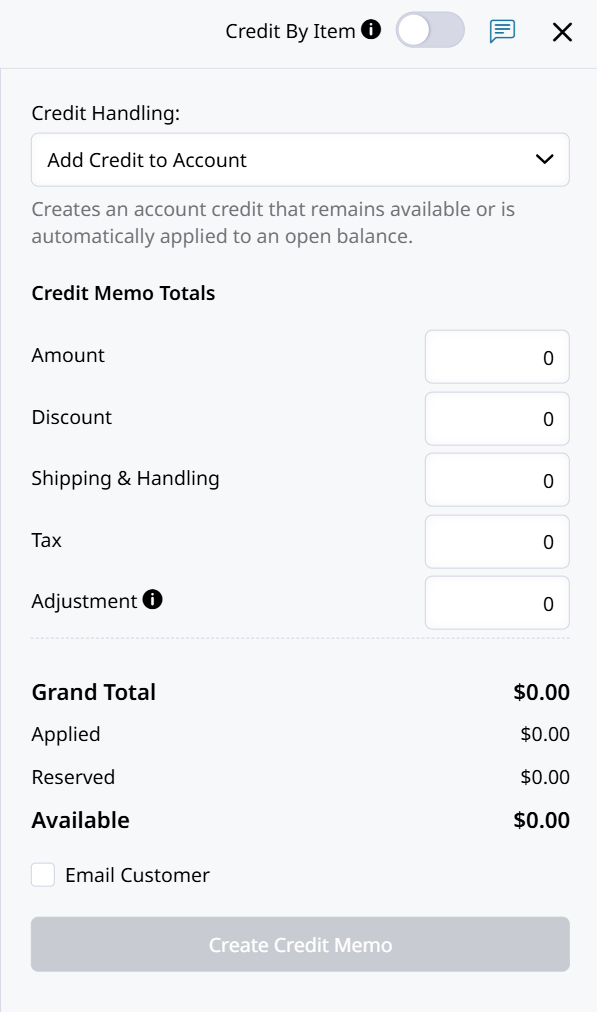
When Credit By Item is disabled, custom amounts are entered manually into under Credit Memo Totals.
There you can set custom amounts to refund to the customer via store credit or back through their payment method.
Select + Add Items to return to Invoice and item selection.
A Credit Memo can be linked to an Invoice without selecting specific items. This associates the Credit Memo with the Invoice while allowing the credit amount to be entered manually.
Return Credited Items to Stock
Enable Return to Stock for an item when its credited quantity should be added back to inventory.
Leave Return to Stock disabled if the item was not physically returned or should not become available for sale again.
The inventory selection is independent of the selected Credit Handling option.
How Credit Is Applied Automatically
When Add Credit to Account is selected, Zoey adds the Credit Memo balance to the Customer or Company Account.
The credit is automatically applied to the Account's oldest eligible open Invoices. If the Credit Memo is larger than the available Invoice balances, the remaining amount stays available on the Account for future use.
Credit reserved for an Order is always applied to that Order's Invoice, even when Auto-Apply Credit Balance to New Invoices is disabled. That setting prevents additional available credit from being applied automatically.
A single Credit Memo can therefore be:
- Fully applied to one Invoice
- Divided among multiple Invoices
- Partially applied with a remaining available balance
- Left available when there are no eligible open Invoices
Credit is applied to Invoices rather than directly to Sales Orders.
Online and Offline Refunds
To refund a customer when creating a Credit Memo, select a refund option under Credit Handling. To refund the unapplied balance of an existing Credit Memo, use Refund Remaining Balance.
Credit & Refund Online
Select Credit & Refund Online to create the Credit Memo and submit the refund through an eligible online payment transaction.
The option is available only when a supported payment transaction can be refunded online.
Credit & Refund Offline
Select Credit & Refund Offline when the refund will be completed outside Zoey.
Zoey creates the Credit Memo and records the refund, but it does not transfer funds to the customer.
Cancel a Credit Memo to Reissue Credit or a Refund
Cancel a Credit Memo when you need to undo it and create a replacement with the correct credit or refund details. You can cancel a Credit Memo only while it is fully Unapplied.
- Go to Orders > Credit Memos and open the Credit Memo you want to cancel.
- Open the three-dot menu in the top right and select Cancel.
- Create a replacement Credit Memo from the Account, Order, or Invoice using the instructions above.
- Select the Credit Handling option for the replacement: Add Credit to Account, Credit & Refund Online, or Credit & Refund Offline.
Canceling the original Credit Memo undoes its credit. The replacement issues credit or records a refund according to the Credit Handling option you select. An offline refund must be completed separately outside Zoey.
Once any credit has been applied to an Invoice or consumed by a Refund, the Credit Memo cannot be canceled. If the memo still has an unapplied balance that you want to refund, use Refund Remaining Balance instead.
Refund the Remaining Credit Memo Balance
Use Refund Remaining Balance to refund an existing Credit Memo's unapplied balance instead of leaving that amount available to apply as credit. You do not need to cancel the Credit Memo or create a replacement to refund its remaining balance.
- Go to Orders > Credit Memos and open the Credit Memo with an unapplied balance.
- Select Refund Remaining Balance.
- Choose an online or offline refund from the available options and complete the refund process.
An online refund returns funds through an eligible online payment transaction. An offline refund records the refund in Zoey, but you must return the funds separately.
The refunded amount is no longer available to apply as credit. Credit already applied to Invoices is not part of the remaining-balance refund.
For example, if a $100 Credit Memo has $60 applied to an Invoice, Refund Remaining Balance lets you refund the remaining $40. The $60 already applied stays applied to the Invoice.
Void a Credit Transaction
Credit transactions can be voided when a credit needs to be reversed.
Void a credit transaction to add that amount back to the account.
Locate the applicable credit transaction and select Void. Review the Customer or Company balance after voiding to confirm that the transaction was reversed correctly.
Voiding a credit transaction is different from refunding a customer. Review any related Invoice applications or refunds before selecting Void.
Related Guides
Updated 39 minutes ago