
Split Order by Attribute Options
Split Order by Attribute Options
When Split Mode is set to Attribute, Zoey can separate products into different orders based on a custom product attribute and its values.
For example, you could create a Fulfillment Type attribute with the values Standard, Preorder, and Dropship. Products with different values would be placed into separate orders during checkout.
Create a Split Order Attribute
-
Go to Products > Attributes.
-
Create a new attribute or edit an existing one.
-
Set the attribute type to one of the following:
- Drop Down
- Date
-
Enable Split Orders By This Attribute's Values.
-
Save the attribute.
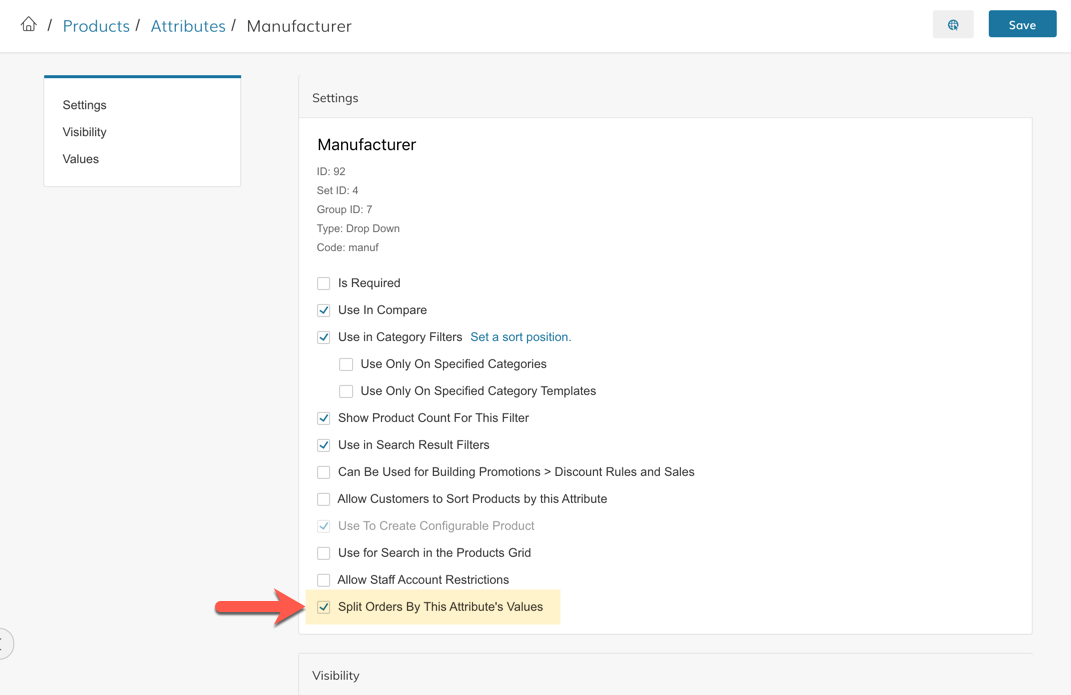
When an order contains products with different values for this attribute, Zoey creates a separate order for each value.
Products sharing the same split-order attribute value are grouped into the same order.
Configure Each Attribute Value
Each value within the attribute can have its own order status, backorder behavior, and email settings.
To configure a value:
- Open the split-order attribute.
- Scroll to the Values section.
- Click the gear icon next to the value.
- Configure the split-order settings.
- Save your changes.
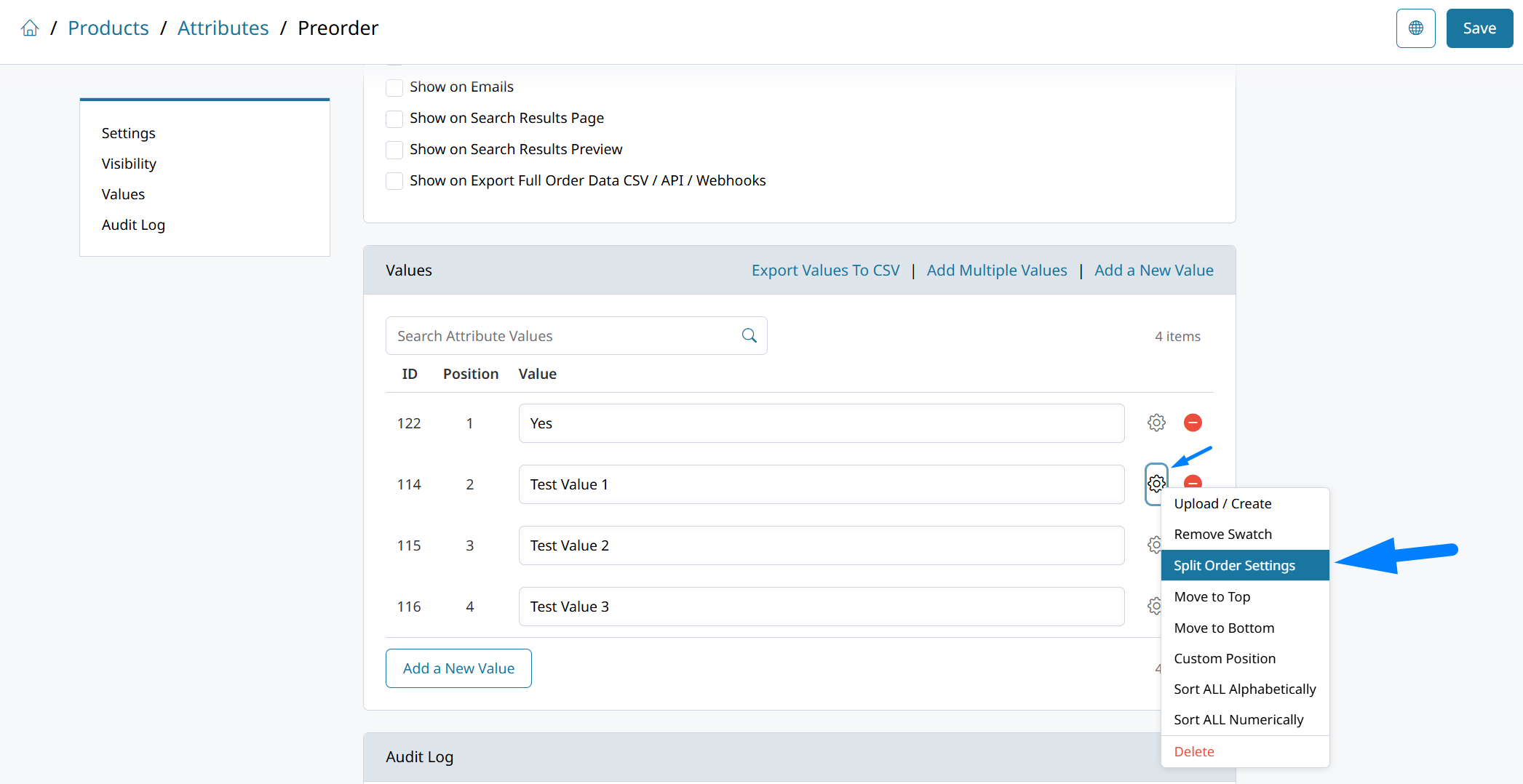
The following options can be configured for each attribute value:
| Setting | Description |
|---|---|
| Send Email Copy To | Sends a copy of the order email to the specified email address. |
| Email Copy Method | Determines whether the recipient receives a BCC copy or a separate email. |
| Email Template | Selects the template used when sending a separate email. |
| Sender Email | Selects the sender address used for the separate email. |
| Further Split Order if Item is Back-Ordered | Determines whether backordered products with this value should be split into an additional order. |
| New Order Status | Sets the status assigned to the order created for this attribute value. |
| Apply "New Order Status" for Orders that are not Split | Enable this setting to apply the custom order status to orders with this product attribute, even when they are not split. |
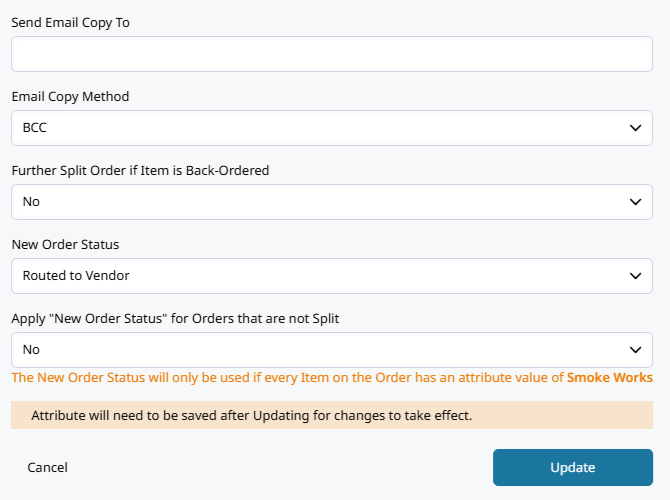
Set the Split Order Status
Use New Order Status to set the initial status of orders created for each attribute value.
For example, orders containing products with a Preorder value could be assigned a custom Preorder status, while products with a Standard value remain in the regular processing status.
Additional statuses for the New order state can be created under Orders > Order Status Settings.
Orders in which all items have the same attribute value will not be split. The custom status will only be applied if the setting is enabled.Set Apply "New Order Status" for Orders that are not Split to Yes for orders that have this product attribute to get the custom status even when not split.
What Happens When the Order Is Placed
If an order contains products with different values for the split-order attribute, Zoey creates a separate order for each value. Each resulting order can then be managed, invoiced, shipped, and refunded independently.
The orders retain the same base order number and receive a suffix such as -1, -2, or -3.
Updated about 2 months ago