
Account Product Prices and Restrictions
Import and manage Account Resticted Poructs and Account Product Prices using this Data Mapper.
Importing Account Prices and Restrictions via Data Mapper.
It is recommended to set up a Dropbox or FTP folder named:
Account Prices And Permissionswith a sub folder calledArchived.The file names can be anything, but if you plan to import one file per account, please set the file name to something like
account_name_yyyymmdd_hhmm.csvIf importing for multiple accounts in one file, you can name it something likeaccount_products_and_prices___%dd_%mm_%yyyy.csvWhen processed, Zoey will add the process timestamp and the Archive folder will be easy to audit.

Mapper Settings
- Set up your Data Mapper's basic Configuration. Provide the Name, choose a Connection, and set up your Schedule. This can be done after setting up the mapper.
- Select Account Prices and Restrictions from the Zoey Object drop-down.
- Set Type to File Import.
- Import Mode should be set to Import Based On File Name.
- Select Custom Account Prices And Restrictions Import from the Mapper Template.
Field Mapping
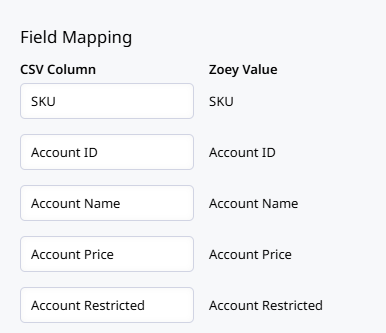
The template is mapped to Assign the SKU and Price to the Account using the Account Name and/or the Account ID.
Your file should look similar to this example:
Account Product Prices and Restrictions CSV example:
| account_id | account | sku | account_price | account_restricted | account_product_restriction_type |
|---|---|---|---|---|---|
| 5 | Test Account 1 | ABC-1 | 10 | 1 | |
| 5 | Test Account 1 | ABC-2 | 20 | 0 | |
| 6 | Test Account 2 | ABC-1 | 12 | 0 | 2 |
| 6 | Test Account 2 | ABC-2 | 22 | 1 | 2 |
Things to note:
- The import will support account_id (zoey Account ID) or Account Name as the identifier.
- The import will support one or multiple accounts at the same time
account_pricerows can be left blank and the price for those SKUs will fallback to the customer group or product price.- Setting
account_priceto 0 will set the price to $0.00. To remove a previous price from an account, leave the price blank. account_restrictedis 1 = allow, 0 = not allowed - our database only stores allowed, so setting 0 will do nothing unless the product was previously allowed, then it will remove it from the account.- The
account_product_restriction_typevalue is set at the account level, so each row for the same account should have the same number so the account's Behavior For Product Restrictions is set properly.In the example, both rows for Test Account 1 are blank so that the Account uses the system default restriction behavior, and both rows for Test Account 2 use 2 so that account will only see the specific products restricted to them.
Changing the Behavior For Product Restrictions on an Account
The behavior setting that controls how an Account's product restrictions function can be controlled through Account CSV import.
Under the account_product_restriction_type column set the restrictions behavior through the options listed in the table below. Blank, 0, 1, and 2 are accepted for the import column.
account_product_restriction_type | Behavior For Product Restrictions |
|---|---|
| blank | System default defined in Features->Catalog Restrictions |
0 | Show Non Restricted and Allowed Restricted Products |
1 | Show Only Specific Restricted Products (Account + Contact + Customer Group) |
2 | Show Only Specific Restricted Products (Account + Contact) |
Updated 4 months ago