
Visual Design Editor: Undo, Redo, History and Copy/Paste
Undo and redo changes, jump back to an earlier step in the change history, and paste recently copied blocks in the Visual Design Editor.
Overview
The Visual Design Editor keeps a history of your changes while you edit, so you can undo mistakes, jump back to an earlier step, and reuse blocks you copied.
Undo and Redo
Use the Undo and Redo buttons in the editor toolbar, or the keyboard shortcuts below.
| Action | Windows | Mac |
|---|---|---|
| Undo | Ctrl + Z | Cmd + Z |
| Redo | Ctrl + Shift + Z or Ctrl + Y | Cmd + Shift + Z or Cmd + Y |
| Copy selected block | Ctrl + C | Cmd + C |
| Paste | Ctrl + V | Cmd + V |
| Duplicate selected block | Ctrl + D | Cmd + D |
Change History
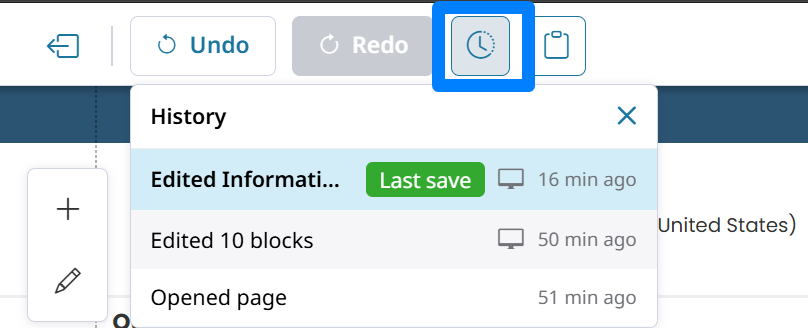
The history panel lists each change with a timestamp. A marker shows your last save. Click any step to return the page to that point.

Revert to a previous version
Reverting works like Undo, but you can go back to any earlier version from your current editing session in one step. Select the previous version in the drop-down, and the page returns to that version.
Recent Copies
The Recent copies panel keeps your last few copied blocks in a clipboard, so you can paste any of them, not just the most recent one.
Test big changes on a copyUndo and history cover your current editing session. For larger changes to a live page, duplicate the page and edit the copy, then publish when you're ready.
Learn more: Visual Designer: Undo, Redo and Change History
Updated about 5 hours ago