
Fintech Data Mapper Integration
Automatically export your financial statements for Fintech empowered customers.
Zoey integrates with Fintech by automatically generating and sending invoice item report files to Fintech by email!
Fintech helps business customers automate vendor payment processing. With this Zoey Data Mapper integration, Zoey exports invoice item data from the customer's store and sends the file to Fintech so open invoices can be reviewed and processed for payment.
Fintech Data Mapper Integration
Requires that Fintech is configured to receive invoice report files by email.Confirm the recipient email address, required file name, and required CSV column format with Fintech before enabling the mapper.
Then a Zoey Data Mapper will be set up to perform the following export job.
- Export Zoey Invoice Items to Fintech
Click here for general information on setting up a connection and data mapper in Zoey.
Data Mapper Setup for Fintech Integration
In your Zoey Data Mappers, first add an Email connection!Click Add Connection and configure the new connection for the email address where the Fintech invoice file should be sent.
Save and Test Connection to make sure your email connection details are correct.
1. Invoice Items Export to Fintech
With the Connection configured, we can set up the Invoice Items export to Fintech.
This mapper exports invoice item data from Zoey and sends the generated CSV file to Fintech on a weekly schedule.
Setting up the Zoey Invoice Items export for Fintech
Click Add Data Mapper to begin creating the mapper. Here is a walkthrough of the important steps in creating an Invoice Items Data Mapper that exports to Fintech:
-
Select Email from the Connection drop-down.
-
Give your mapper a name like "Silver Diner - Invoices to Fintech".
-
Set Enabled to Yes.
-
Set Priority to
0. -
Set Use Schedule to Yes.
-
Configure the schedule to run weekly on Friday at 04:30 PM.
This mapper is commonly scheduled to run weekly on Friday afternoon so the invoice file is automatically sent to Fintech at the end of the week.
-
Set Send Error Emails to No, unless the customer wants error notifications sent to a specific email address.
If error emails are disabled, the customer will not receive automatic notifications if the mapper fails. For production setups, we recommend confirming how mapper errors will be monitored.
Mapper Settings:
- The Zoey Object must be set to Invoice Items.
- Type must be set to File Export.
- Export Mode must be set to All Objects To One File.
- Mapper Template must be set to Standard Invoice Items Export.
Select the Standard Invoice Items Export Mapper Template.
File Settings
Configure the File Settings as follows:
| Setting | Value |
|---|---|
| File Name | Silver_Diner_FintechInvoices%yy%mm%dd%hh%ii.csv |
| File Format | CSV |
| File Extension | csv |
| Delimiter | Comma , |
| Enclosure | Quote " |
| Line Endings | Default |
| Export Format | Default Format |
| Remove CSV Column Names | No |
The file name includes date and time variables so each export generates a unique file name.
Field Mappings
The field mappings here determine the invoice item data being exported to Fintech. Click + Add Field to add columns to the spreadsheet.
CSV Column will be the column header. Zoey Value is the data being exported from Zoey.
Configure the Fintech Invoice Items mapper fields exactly as shown below.
Fintech Invoice Items Data Mapper Fields
| Sort | Required | CSV Column | Zoey Value |
|---|---|---|---|
| 1 | No | Division_id | Custom Value → 274565 |
| 2 | No | invoice_number | [Invoice] Increment Id (increment_id) |
| 3 | No | invoice_date | Created At (created_at) — Date Format: MM/DD/YYYY |
| 4 | No | Vendor_store_id | [Invoice] [Order] [Shipping Address] Company (company | 24) |
| 9 | No | quantity_shipped | Qty (qty) |
| 10 | No | Quantity_uom | Custom Value → CA |
| 11 | No | item_number | Sku (sku) |
| 12 | No | product_description | [Product] Name (name | 71) |
| 13 | No | unit_price | Price (price) |
The
Division_idvalue is a static Fintech-provided value. For this setup, use Custom Value274565.
The
Quantity_uomvalue is also static. For this setup, use Custom ValueCA.
Be careful with capitalization and underscores in the CSV Column names. Fintech may require the column headers to match exactly.
Hit Save! The data mapper is ready to automatically send the Zoey Invoice Items export file to Fintech.
Invoice Items export mappers have a Preview option which will let you download and test the export file before the mapper is enabled.
Testing the Fintech Invoice Items Export
Before relying on the automated schedule, test the export manually.
- Open the "Silver Diner - Invoices to Fintech" mapper.
- Use Preview to download a sample CSV file.
- Confirm that the file name follows the expected format.
- Confirm that the CSV column names match the Fintech field mapping exactly.
- Confirm that invoice dates are formatted as
MM/DD/YYYY. - Confirm that the static values are exporting correctly:
Division_idshould export as274565Quantity_uomshould export asCA
- Confirm that invoice item rows include SKU, product description, quantity, and unit price.
- Send a test file to Fintech for validation if required.
A successful Zoey export confirms that the file was generated. Fintech should confirm that the file layout and invoice item data are accepted for processing.
Manually Run a Data Mapper
Make sure the mapper is using the correct Email connection and field mappings before running it manually.
Data mappers can run manually by clicking the 3-dots on their right side in the general data mapper list. This is best for testing the export process.
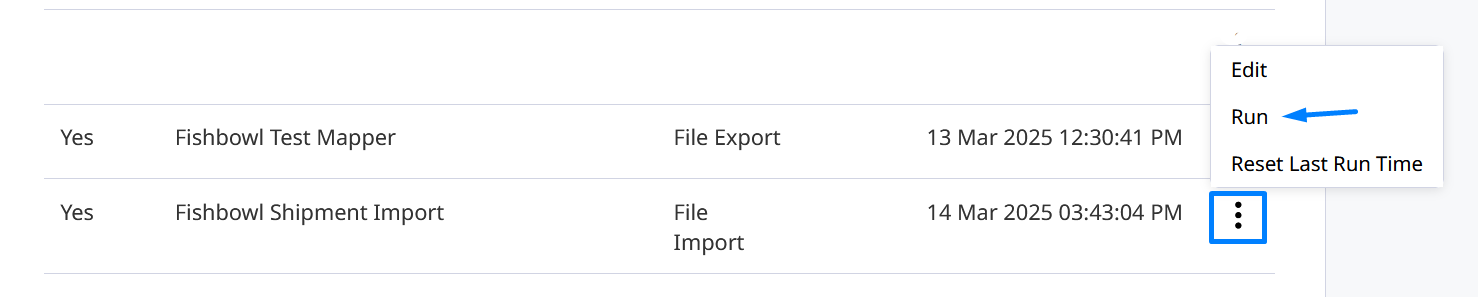
To schedule the mapper to run automatically, set Use Schedule to Yes. Then configure the schedule. For this Fintech setup, the mapper should run weekly on Friday at 04:30 PM.
Updated 2 months ago