
Credit Memo Overview
Read all about our new Credit Memo system and how to keep track of, and manage account credits in Zoey.
Credit Memos in Zoey
Credit Memos can issue store credit to an Account, or create a Refund, without unapplying payments or reopening an Invoice.
Issue credit for specific items, or to the Account without linking the Credit Memo to any invoices.
After you create a Credit Memo, its available balance will be applied to one or more Invoices, left available for future use, or refunded to the customer.
A Credit Memo gives a customer Store Credit that can be applied to their open Invoices.Credit Memos replace Store Credit as the way to issue credits to your customers in Zoey!
A Credit Memo can be created on its own (for example, a goodwill credit) or be linked to items and return them to stock. Whether new credit applies to open Invoices automatically depends on your settings in Orders > Settings > Credit Memos. See How Credit Is Applied Automatically.
What's changed: Store Credit → Credit MemosCredit Memos are now how you issue and apply credit in Zoey. Legacy Store Credit is being retired:
- On a Customer's or Company's My Account page, the credit section is now labeled Available Credit and reflects their Credit Memo balance.
- Legacy Store Credit balances on Orders remain visible as read-only history.
- With automatic checkout credit enabled, customers do not need to apply a credit amount during checkout. Credit is reserved for the Order and applied according to your Invoice and payment settings. Apply Credit Manually Only disables automatic reservations and application.
Credit Memos sync with QuickBooks Online and NetSuite.Learn about QuickBooks Online sync · Learn about NetSuite sync
Credit Memo Types
There are two types of Credit Memos. Both can be applied to Invoices the same way - the difference is how the credit amount is built. When you start a new Credit Memo, you'll pick the type first:
- Item-based - Credit tied to specific products or invoices.
- Amount-based - Credit any amount with no inventory impact.
Item-Based Credit Memo
An item-based Credit Memo is built from specific products, using their quantity × price to set the total amount. Link your Credit Memo to invoices and items if the credit applies to a specific return, damaged goods, or missing items.
You can add items to an item-based Credit Memo in two ways:
- Standalone Item(s) - add products directly to the memo.
- Item(s) from Invoice - credit a whole Invoice, specific lines, or partial quantities.
When you add items from an Invoice, tax and discount amounts are prorated per unit from the Invoice line, so partial-quantity credits stay accurate. Configurable and bundle products expand into their parent and child rows automatically so your inventory and item display stay correct.
Item-based Credit Memos also include a Fee to deduct from the amount being returned.
Amount-Based Credit Memo
An amount-based Credit Memo is a flat dollar amount you enter - for example, a $50 goodwill credit. You can still record separate shipping, tax, and discount totals on the memo if your business needs them broken out.
Credit Memo Totals
For both types of Credit Memos:
Grand Total = Subtotal + Shipping & Handling + Tax + Adjustment − Discount - Fee
Use Adjustment to modify the Credit Memo Grand Total. A positive amount increases the Grand Total, and a negative amount reduces it. Adjustment is available for both item-based and amount-based Credit Memos.
Use Fee to deduct from the Credit Memo Grand Total. Fee is available only for item-based Credit Memos.
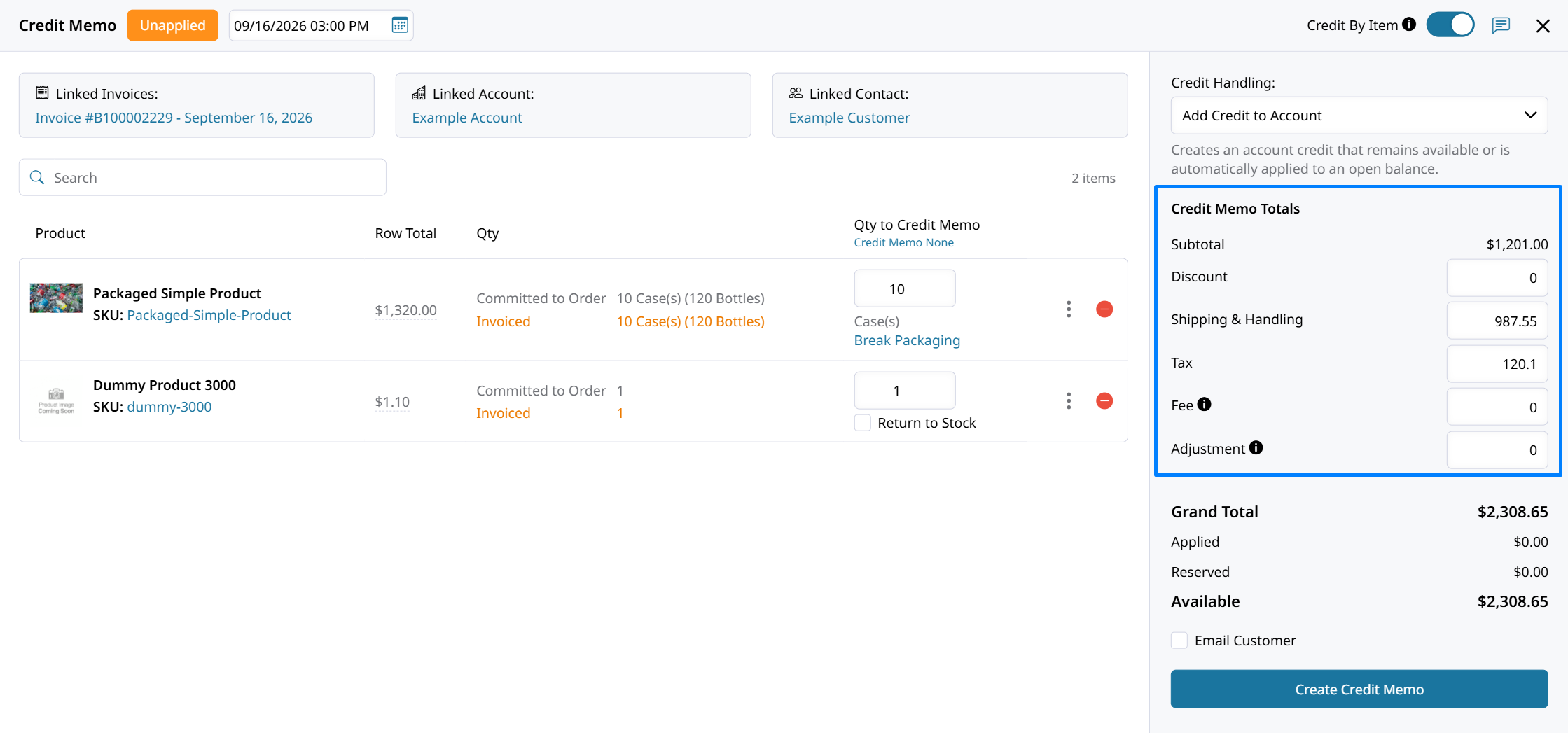
Totals can only be edited while you're creating the Credit Memo.After you save, all totals are read-only. The Subtotal and Grand Total are always calculated for you and can't be edited directly.
How to Create a Credit Memo
How Credit Is Applied Automatically
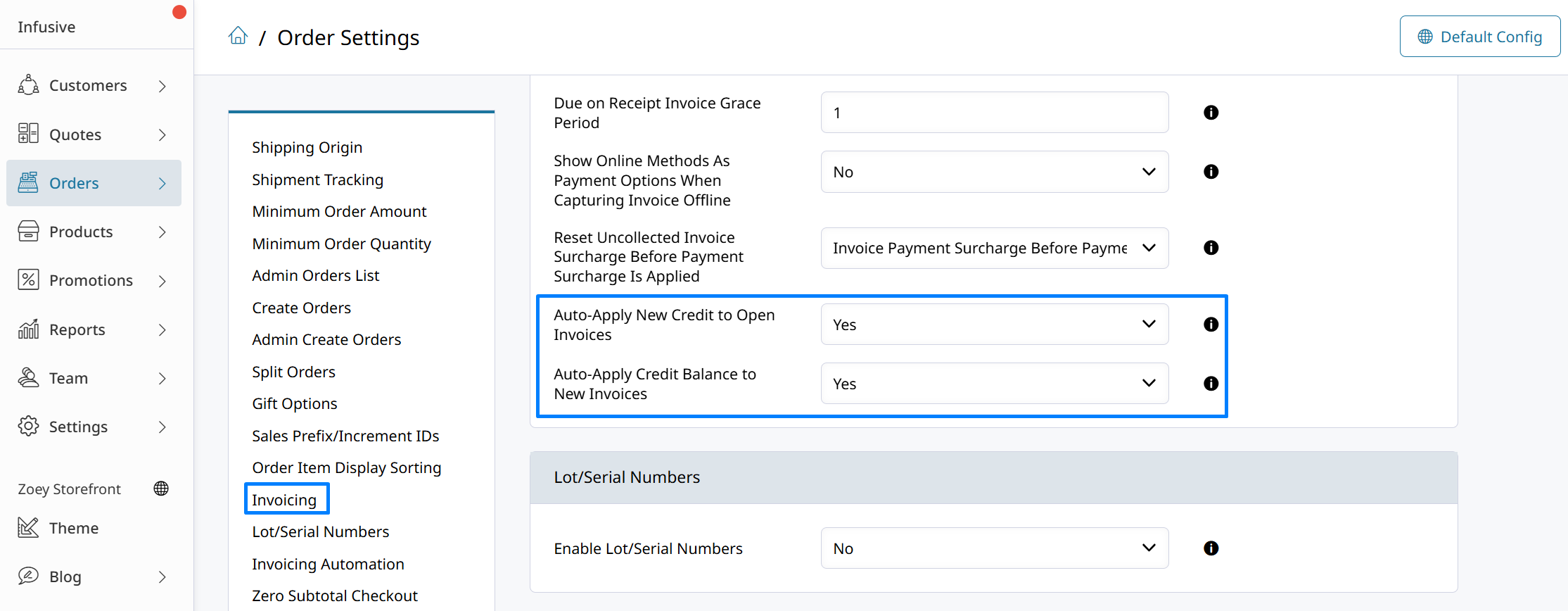
Configure automatic credit application in Orders > Settings > Credit Memos:
- Apply Credit Manually Only - When enabled, credit applies only through a manual action. New Credit Memos do not automatically pay existing open Invoices, available credit does not automatically pay new Invoices, checkout does not reserve credit, and credit does not automatically apply when a customer pays an Invoice. The two Auto-Apply settings are not in effect. When disabled, the other credit application settings control automatic behavior. This store-wide restriction takes priority over Account and Contact checkout preferences.
- Auto-Apply New Credit to Open Invoices - When enabled, a new Credit Memo pays the oldest eligible open Invoices until its credit runs out or those Invoices are paid. When disabled, the credit stays available rather than automatically paying open Invoices. This setting is not in effect while Apply Credit Manually Only is enabled.
- Auto-Apply Credit Balance to New Invoices - When enabled, available credit can apply to new Invoices. When disabled, creating an Invoice without payment leaves the Order's credit reserved until payment rather than applying it immediately. This setting is not in effect while Apply Credit Manually Only is enabled.
- Keep Order Status When Credit Partly Pays an Invoice - Controls whether an Order retains its status when credit pays only part of an Invoice.
When creating a Credit Memo, review the message explaining whether credit will apply to the oldest open Invoice or remain available. The message follows Auto-Apply New Credit to Open Invoices. Manual-only mode prevents automatic application regardless of that setting.
If credit does not cover the full Invoice, the remaining balance stays outstanding under the Account's payment terms. For credit shared by a Customer and Company, the oldest Credit Memo is used first.
Which Credit Gets Used First?
All of a Customer's and their Company's Credit Memos form one pool. Credit is consumed oldest-first, by the date the memo was created. Customer-owned and Company-owned credit have equal priority - the oldest memo always goes first.
Apply Credit to an Invoice Manually
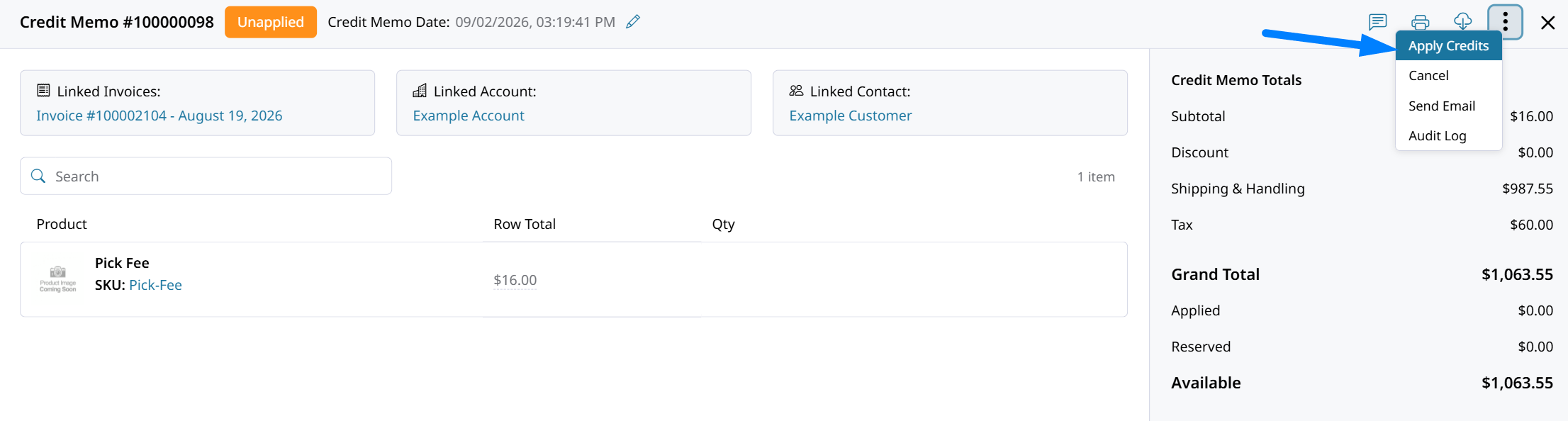
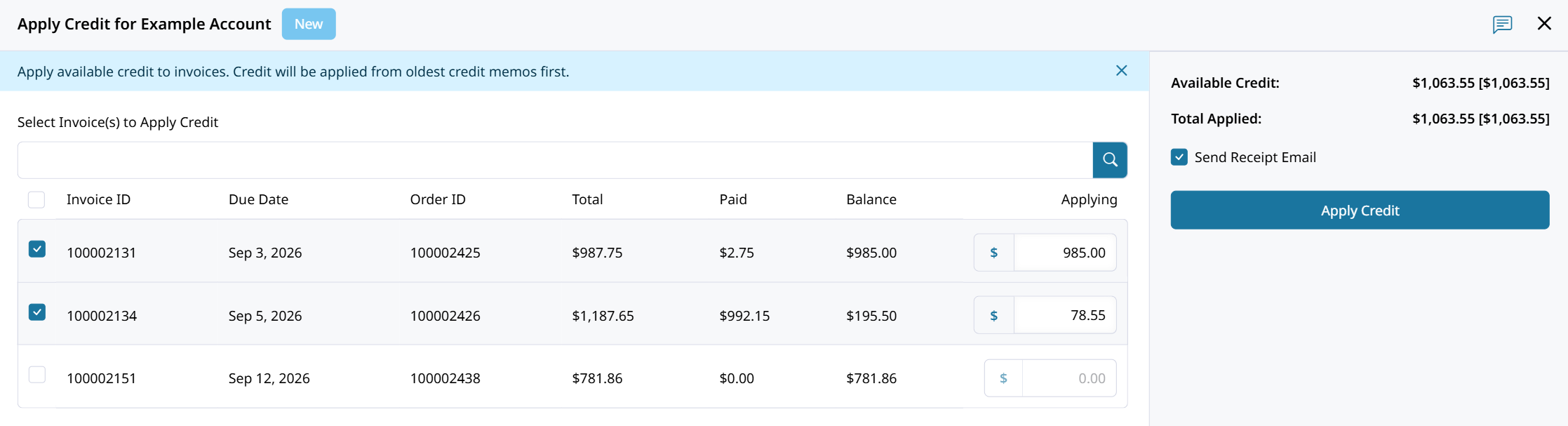
Apply credit from a saved Credit Memo using Apply Credit. Use this action when Apply Credit Manually Only is enabled or when you want to choose specific Invoices and amounts yourself.
-
Open the Credit Memo.
-
Click on the 3-dots in top right, then Apply Credit.
-
Select the invoices and enter the credit amount to apply.
-
Decide to send an email or not and click Apply Credit.
The applied amount reduces the Invoice balance and the available Credit Memo balance.
Real World Example
This example assumes Apply Credit Manually Only is disabled, the effective Credit at Checkout setting is Automatic, and both Auto-Apply settings are enabled. Authorize/Capture the Remaining Balance After Reserved Credit is disabled, so the card is authorized for the full Order total.
- Day 1 - Invoice #301 is created for $600. The Customer has no credit, so the Invoice sits outstanding.
- Day 3 - You issue an $800 Credit Memo. $600 auto-applies to Invoice #301 (now paid). The memo is now Partially Applied with $200 remaining.
- Day 5 - The Customer places a $1,000 order. The remaining $200 is reserved for that Order, leaving $0 available for another checkout. The Account Dashboard can still show the full $200 credit balance. Their card is authorized for the full $1,000.
- Day 10 - The Invoice for that order is created. The reserved $200 applies automatically, and $800 remains due under the order's payment terms.
Credit Memo Balances
A Credit Memo may have:
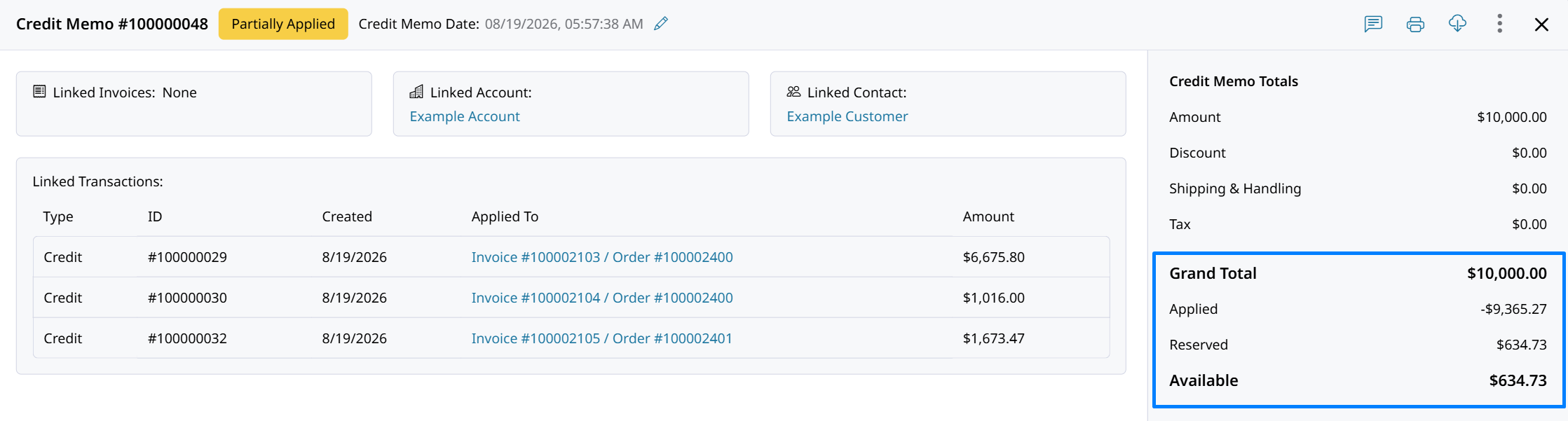
- Available Credit: Credit that has not been applied, refunded, or reserved for another Order or Quote.
- Applied Credit: Credit that has been applied to an invoice.
- Reserved Credit: Credit selected for use on an order but not yet applied to an invoice.
Credit Memo States
A Credit Memo's state reflects how its original credit amount is currently being used.
- Open: The Credit Memo has an available balance that can still be applied or refunded.
- Partially Applied: Part of the credit has been applied to one or more Invoices, while the remaining balance is still available.
- Fully Applied: The entire Credit Memo balance has been applied to Invoices. No available credit remains.
- Reserved: Some available credit has been selected for an Order but has not yet been applied to an Invoice.
A Credit Memo may include more than one balance state at the same time. For example, part of its balance may be applied to an Invoice while another portion is reserved for an Order or remains available.
Once the full Credit Memo amount has been applied or refunded, the Credit Memo no longer has an available balance.
NetSuite invoicing works differently.With NetSuite, an Invoice is created only once it's fully paid in Zoey - it arrives already settled, together with its payment. So at the moment you create a Credit Memo, these merchants usually have no open Invoices for the credit to apply to. In that case the credit stays available and applies to the next order instead.
Credit at Checkout
Configure Credit at Checkout at the store level in Orders > Settings > Credit Memos, or manage checkout preferences in the Account or Contact's Credit Settings card.
The following priority determines which setting is in effect:
- Apply Credit Manually Only overrides all checkout preferences. When enabled, checkout does not reserve credit for anyone.
- The Account preference takes priority when the Order belongs to an Account.
- The Contact preference applies only when the Contact does not belong to an Account.
- Use Global Setting inherits the store-level Credit at Checkout setting.
Account and Contact preferences overridden by manual-only mode display Not in effect while Apply Credit Manually Only is on. Their saved values are preserved and take effect again when manual-only mode is disabled.
With manual-only mode disabled and the effective checkout setting set to Automatic, credit is reserved when the Order or Quote is placed so another Order cannot spend it at the same time. The reserved credit:
- Caps at the Order total. Any extra credit stays available for other Orders.
- Applies according to your Invoice and payment settings. With Auto-Apply Credit Balance to New Invoices disabled, creating an Invoice without payment leaves credit reserved until payment.
- Returns to the available balance if the Order is canceled.
The Account Dashboard displays the customer's full credit balance, while the Cart subtracts credit reserved for other open Orders. For example, with $100 in credit and $30 reserved for another Order, the dashboard can show $100 while the Cart offers $70. This difference is intentional, not a balance discrepancy.
When credit balances are shown, checkout also displays Estimated Total (what will be owed after credit) or Amount Due Today (what is charged now after credit), depending on the payment method.
Credit Memo Settings
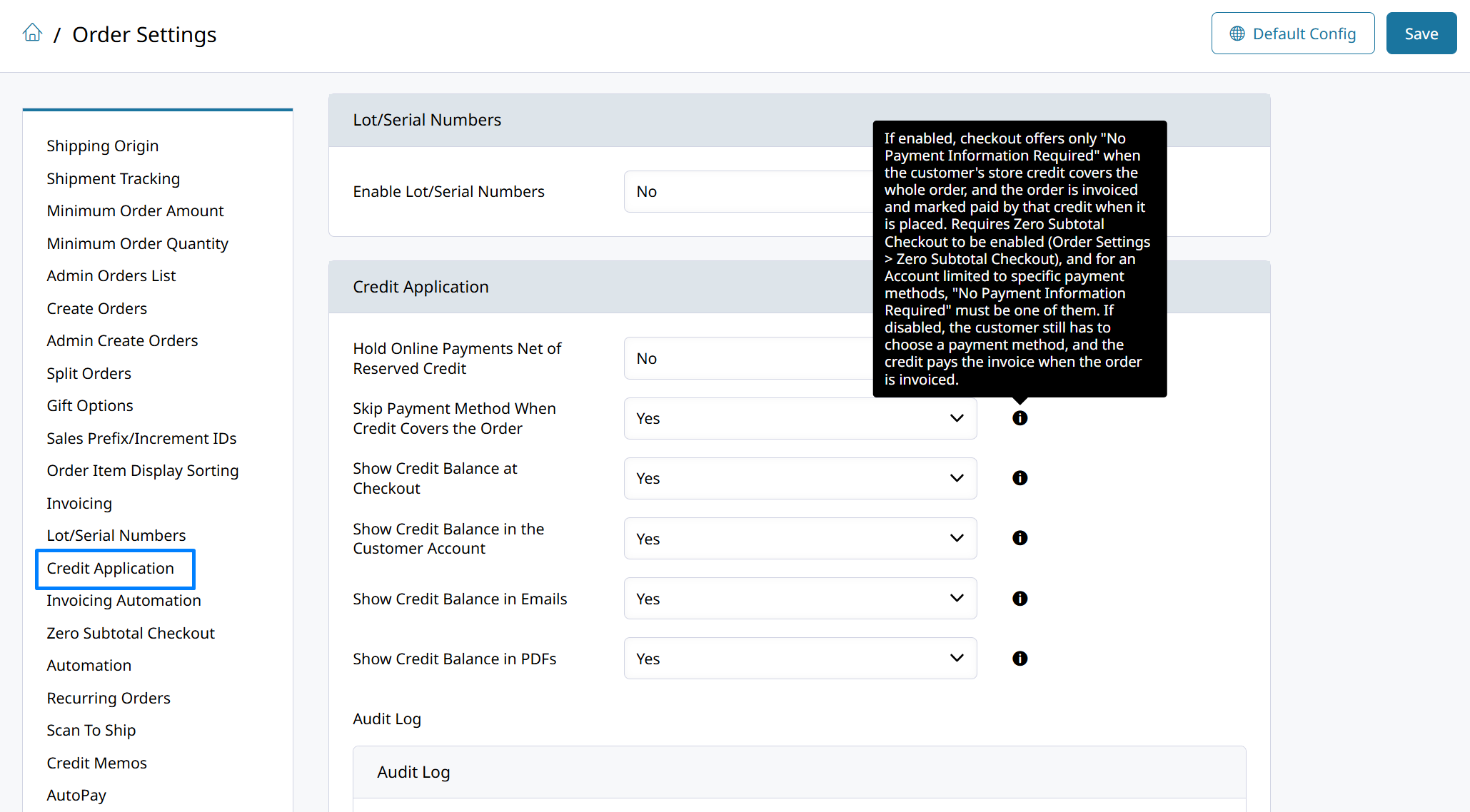
Configure checkout behavior, payment-method selection, and credit-balance visibility in Orders > Settings > Credit Memos. Apply Credit Manually Only takes priority over automatic credit behavior; see How Credit Is Applied Automatically.
- Credit at Checkout - Sets the store-level checkout credit behavior. Automatic reserves available credit for the Order or Quote. Account and Contact preferences can override the store setting unless Apply Credit Manually Only is enabled.
- Authorize/Capture the Remaining Balance After Reserved Credit - When enabled, the amount authorized or captured is the Order total minus reserved credit. If that credit is unavailable when the Invoice is created, collect the difference separately. When disabled, the card is authorized for the full Order total and applied credit reduces the amount captured.
- Skip Payment Method When Credit Covers the Order - Defaults to Yes. When enabled and reserved credit covers the full Order, checkout displays No Payment Required. Selecting this payment method generates an Invoice so credit can be applied. Enable Zero Subtotal Checkout in Orders > Settings > Zero Subtotal Checkout, and include the zero-subtotal payment method if the Account is limited to specific payment methods. When disabled, the customer selects a payment method.
- Allow Customers to Apply Credit When Paying an Invoice - When enabled, customers can draw additional available credit during storefront Invoice payment. When disabled, they cannot draw additional credit, but existing Order reservations still reduce the payment amount. Apply Credit Manually Only prevents automatic credit application during Invoice payment.
- Show Credit Balance in the Customer Account - Controls whether the full credit balance appears in the Customer Account. The credit available for checkout excludes amounts reserved for other open Orders.
- Show Credit Balance in Emails - Controls whether Order, Quote, Invoice, and Credit Memo emails show credit balances and remaining credit.
- Show Credit Balance in PDFs - Controls whether Order, Quote, Invoice, and Credit Memo PDFs customers receive or print show credit balances and remaining credit. PDFs downloaded in the admin are unaffected.
Audit Log
Use the settings Audit Log to review changes to the credit application configuration, including changes to Apply Credit Manually Only. This configuration history is separate from individual Credit Memo and credit-transaction history.
Quotes reserve available Credit too!With automatic checkout credit enabled and Apply Credit Manually Only disabled, available credit is reserved when a Quote is created, just as it is for an Order. The credit is not applied as a discount to the Quote. The reservation carries through conversion, and credit applies according to your Invoice and payment settings.
Reservations are advisory, not a guarantee.If QuickBooks Online credit memo sync is enabled, QuickBooks auto-apply can use reserved credit against other Invoices first. If that credit is unavailable when the Order is invoiced, the missing amount must be paid. When Authorize/Capture the Remaining Balance After Reserved Credit is enabled, charge the difference separately because the card was authorized only for the Order total minus reserved credit.
Credit and Failed Payment Captures
When using Capture Payment, review the Apply Credit checkbox before submitting payment, including when an Invoice has reserved credit. When credit is applied during the attempt, it reduces the remaining payment amount to capture. With Apply Credit Manually Only enabled, do not assume credit will apply automatically.
If the payment capture fails, the credit being applied during that attempt is automatically voided. The original Credit Memo's balance remains unchanged. Credit is not applied automatically in failed payment scenarios.
The voided credit application remains visible in the Account or Order history. This is expected behavior and does not mean the original Credit Memo was canceled.
If you see a voided credit transaction that you did not manually void, check whether the payment capture failed after the credit was applied.
Credit Memo Statuses
| Status | Description | Available Actions |
|---|---|---|
| Unapplied | The full balance is available. | Apply credit, or cancel the memo. |
| Partially Applied | Some credit is used; a balance remains. | Apply more credit. Can't be canceled. |
| Applied | The balance is fully used. | None - this is a final status. |
| Canceled | The memo was voided before any use. | None - this is a final status. |
A Credit Memo can only be canceled while it's Unapplied.Once any amount of credit has been applied, the memo can't be canceled.
You can add comments, email the Customer, and print the Credit Memo PDF in every status.
Available credit on a memo = Grand Total − applied amount − reserved amount. A Customer's total available credit is the sum across all their Unapplied and Partially Applied memos.
Comments and Notifications
Comments on a Credit Memo can be internal-only or visible to the customer. When you add a customer-visible comment, you can choose to send it by email.
| Credit is applied to an Invoice | Emails the Customer by default - it's a payment event. |
| Credit Memo is created | Emails only when you check Email Customer. |
| Comment is added | Emails only when you choose to notify the Customer. |
| Credit Memo is canceled | Emails the Customer by default when you cancel it. |
The Credit Memo emails live in Settings > Emails, under Orders: New Credit Memo, Credit Memo Update, and Credit Memo Cancel. You can edit or disable any of them there.
Updated 10 days ago