
Store Pickup
Let customers pick up their order from your location instead of having it shipped.
Let customers pick up their order from your location instead of having it shipped.

Store Pickup lets customers choose to collect their order from your location. When Store Pickup is selected as the order's shipping method, the order's Ship To address is set to your pickup address, so your team can identify pickup orders. You can also choose whether tax is calculated from your pickup address or from the customer's address.
Store Pickup is available on the Storefront at checkout and in the Admin when creating an order.
Configure Store Pickup
- Open Settings > Shipping Methods.
- Select Add Shipping Method, then select Store Pickup.
- Set Enabled to Yes and enter the pickup Street Address, City, and Country.
- Configure the remaining settings using the table below.
- Scroll to the bottom and select Save.
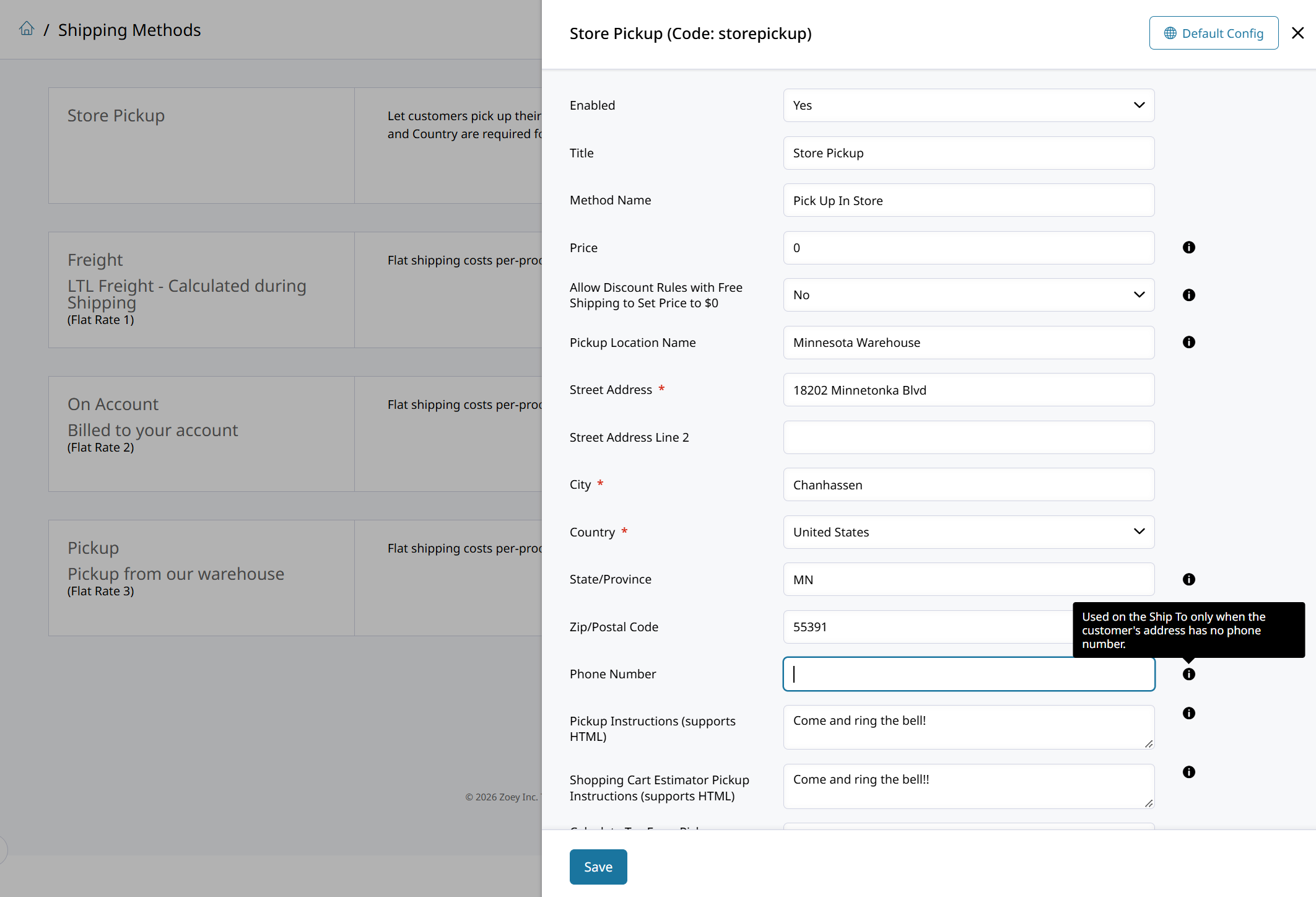
| Setting | Description |
|---|---|
| Enabled | Set to Yes to display Store Pickup in the shopping cart and in the shipping section during checkout. Enter the required pickup address fields to make the method available. |
| Title | Enter a name to identify this method during checkout, such as "Store Pickup". |
| Method Name | Enter a descriptive label for the pickup option, such as "Pick Up In Store" or "Pick Up at Our Warehouse". |
| Price | Enter the amount charged for Store Pickup. Leave as 0 for free pickup. If a Promotion Discount Rule with Free Shipping applies to the cart, the price is set to $0. |
| Pickup Location Name | Enter the name of your pickup location, such as "Main Warehouse". This appears as the Company on the order's Ship To address. |
| Street Address | Enter the street address customers will pick up from. Required. |
| Street Address Line 2 | Enter a suite, unit, or building, if needed. |
| City | Enter the pickup location's city. Required. |
| Country | Select the pickup location's country. Required. |
| State/Province | Enter the two-letter code, such as NY, or the full name, such as New York. |
| Zip/Postal Code | Enter the pickup location's zip or postal code. |
| Phone Number | Enter your location's phone number. This is only added to the order's Ship To when the customer's address does not include a phone number. |
| Pickup Instructions | Enter text shown with the shipping method at checkout, such as pickup hours or where to go when arriving. |
| Calculate Tax From Pickup Address | Set to Yes to calculate tax from your pickup address. Set to No to calculate tax from the address the customer entered at checkout; the Ship To changes to your pickup address when the order is placed. See How Tax Is Calculated. |
| Show Method if Not Applicable | Set to Yes to display Store Pickup with the Displayed Error Message when it is unavailable, such as when no pickup address has been entered. |
| Displayed Error Message | Enter a custom message that appears if Store Pickup is unavailable during checkout. |
| Sort Order | Enter a number to set where Store Pickup displays in relation to other shipping methods. For example, 1 displays first. |
How the Ship To Address Works
When a customer selects Store Pickup, the order's Ship To address is set to the pickup address of the order:
- The street address, city, state, zip, and country are set to your pickup address.
- The Company is set to your Pickup Location Name.
- The customer's name, email, and phone number are kept, so you know who will be collecting the order. If the customer's address has no phone number, your configured pickup phone number is used.
- The pickup address is never saved to the customer's address book or to their Account's addresses.
If the customer selects a different shipping method before placing the order, their original shipping address is restored.
Customers still enter a shipping address at checkout before shipping methods are shown. Zoey uses this address to determine which shipping methods are available. For Store Pickup orders, the order's Ship To uses your pickup address; the timing of the replacement depends on Calculate Tax From Pickup Address, as described below.
How Tax Is Calculated
The Calculate Tax From Pickup Address setting controls which address is used for tax. This works the same way whether you use Zoey's tax rules or Avalara.
| Calculate Tax From Pickup Address | Tax is calculated from | Order Ship To |
|---|---|---|
| Yes | Your pickup address | Pickup address |
| No | The shipping address the customer entered at checkout | Pickup address |
When set to No, Zoey calculates tax using the customer's shipping address and changes the Ship To to your pickup address when the order is placed.
Check with your tax advisor if you are unsure which setting applies to your business.
Creating Store Pickup Orders in the Admin
When creating an order in the Admin, select Store Pickup in the Shipping Method section. The order's Shipping Address updates to your pickup address, and tax is recalculated based on Calculate Tax From Pickup Address.
Updated about 5 hours ago