
Voiding a Transaction
Payments, Refunds, and Deposits can each be undone through voiding the transaction.
Voiding a Payment, Deposit, or Refund
Payments, Deposits, and Refunds can each be undone by voiding or deleting the transaction. The options available depend on whether the transaction was processed Online (credit card or ACH through a payment processor) or Offline (a hand-delivered check or cash payment recorded by a store admin).
Online Payments cannot be voided. They must be refunded to the customer instead. Learn more about Refunds.
Void vs. Delete
- Void reverses the transaction and marks it as voided on the order. The transaction record remains visible in the order history for auditing purposes.
- Delete removes the transaction record from the order entirely. Use this when a transaction was created by mistake and you want to clear it from the order history.
Both actions un-apply the transaction amount from the order, which updates the order's outstanding balance.
How to Void or Delete a Transaction
Offline Payments, Deposits, and offline Refunds can all be voided or deleted. Follow these steps:
- Navigate to the transaction record (Payment, Deposit, or Refund) on the order..
- Click the 3-dots in the top-right corner of the transaction record to find the options.
- Select Void or Delete from the menu. These options only appear if the action can be performed on that transaction.
- Confirm the action when prompted. The transaction amount is un-applied from the order and the order balance updates accordingly.
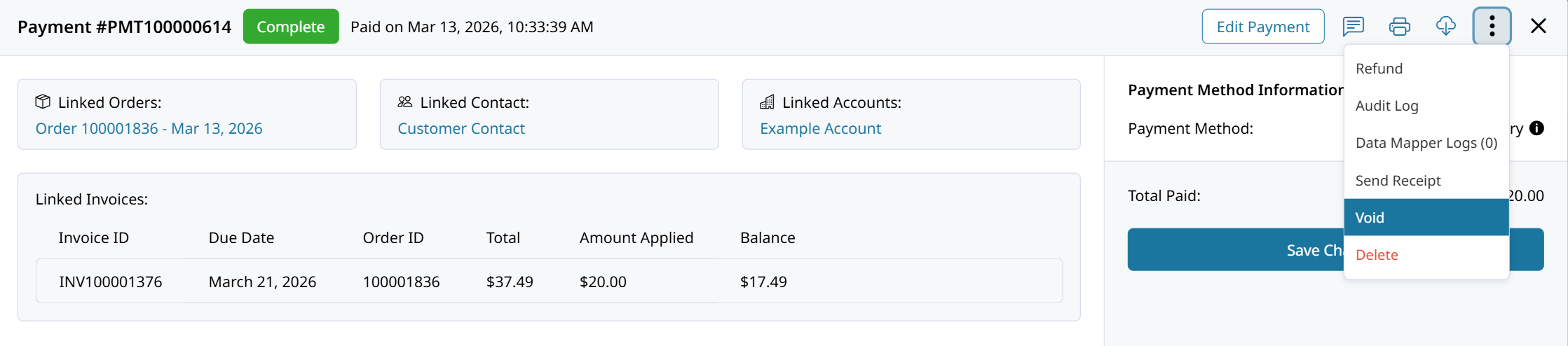
The 3-dots menu also provides options to Refund the transaction, view the Audit Log, view related Data Mapper Logs, and resend the transaction's email notification.
Updated about 1 month ago