
Syncing Refunds
Syncing Refunds to QuickBooks Online
Zoey refunds can sync to QuickBooks Online as Refund Receipts. The effect on the Invoice depends on whether the refund was created through a Credit Memo or from a Payment.
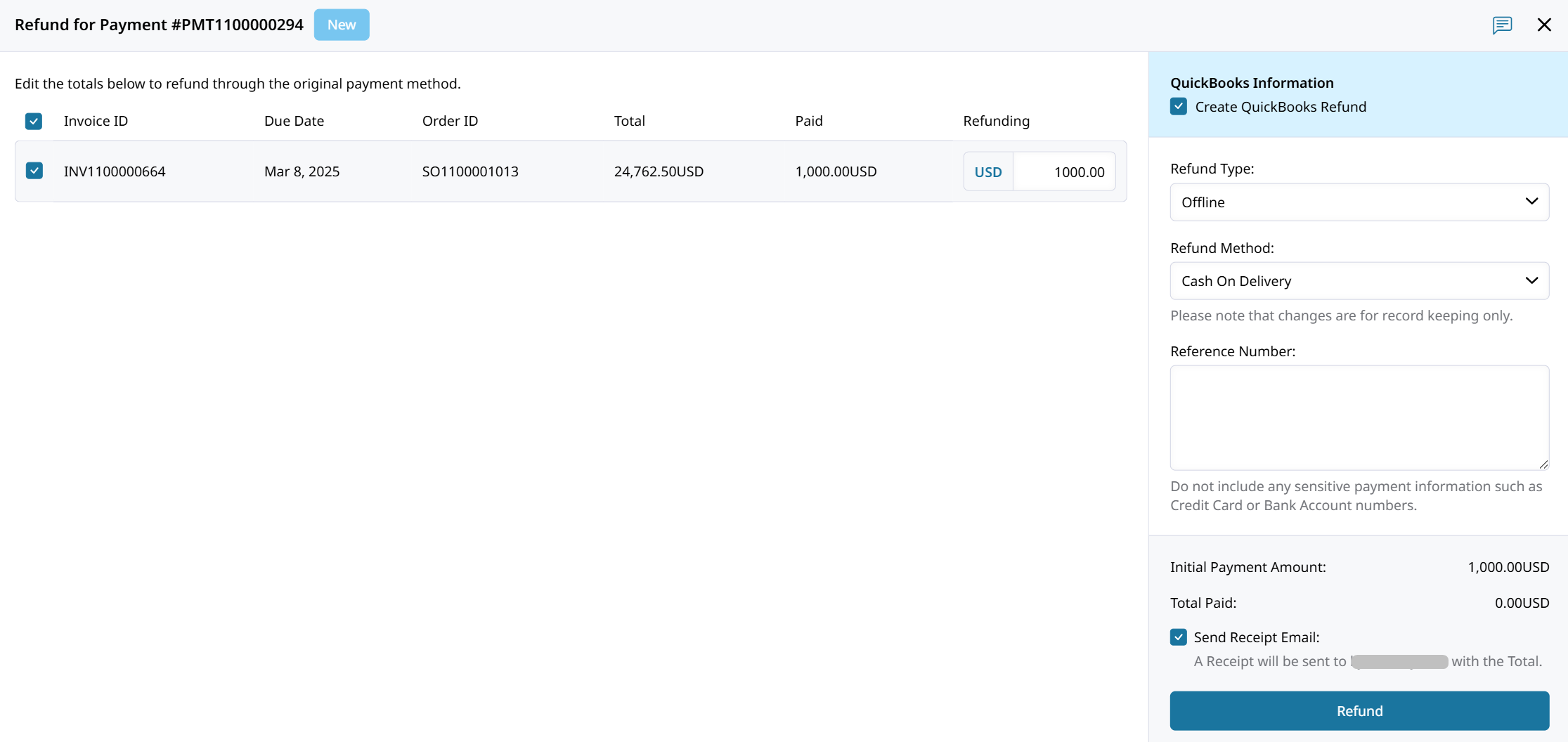
For instructions on creating a refund, see Payment Refund.
Credit Memo Refunds and Payment Refunds
Both processes can create a QuickBooks Refund Receipt, but they affect the Zoey Invoice differently.
| Refund action | Result in Zoey | Result in QuickBooks |
|---|---|---|
| Credit Memo & Refund | The original Payment remains applied and the paid Invoice stays paid. Applied credit is consumed by the refund. | Creates a Refund Receipt without also creating a Credit Memo for the refunded amount. |
| Payment Refund | The refunded amount is unapplied from the Invoice, increasing the amount due and reopening it for payment. | Creates a Refund Receipt. The Refund Receipt does not itself reopen the QuickBooks Invoice. |
After a Payment Refund, the Invoice balance may differ between Zoey and QuickBooks. Zoey reopens the refunded amount for payment, while the QuickBooks Refund Receipt records the refund separately.
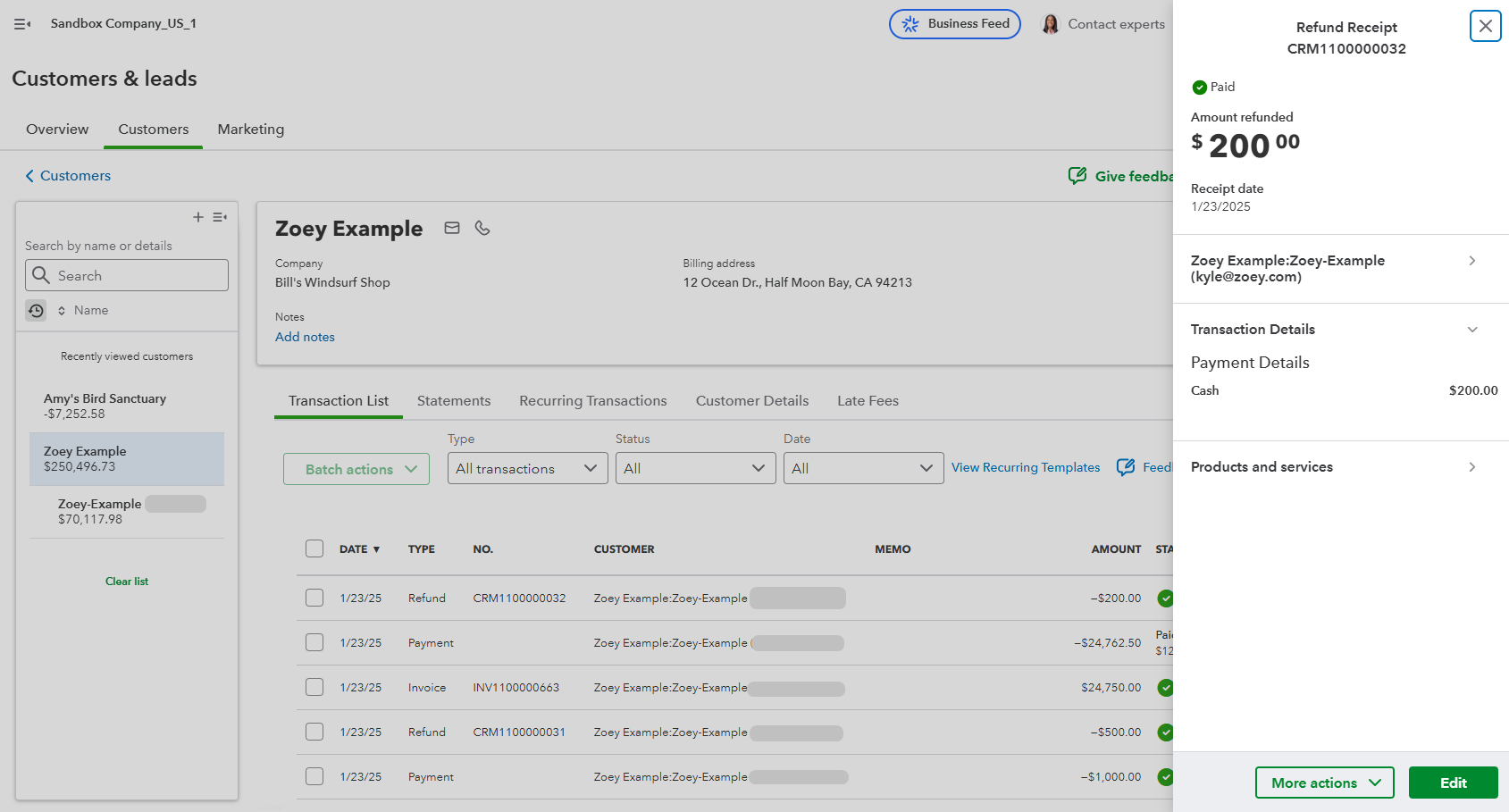
Refund Settings
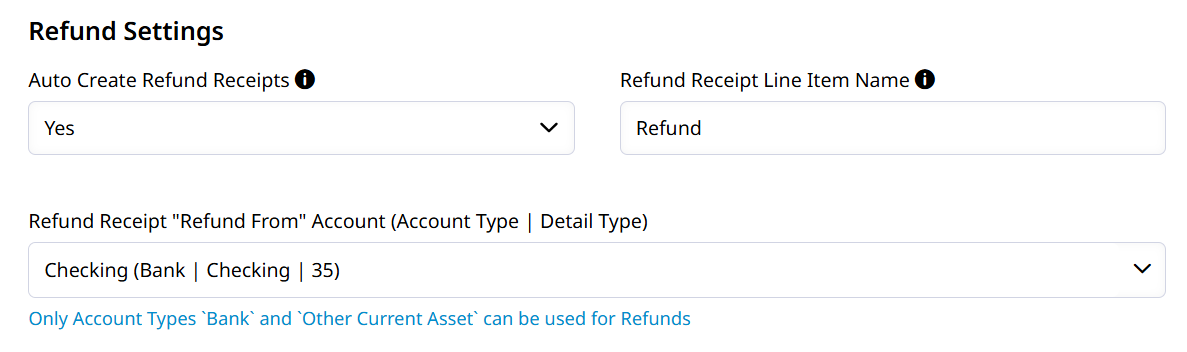
Auto Create Refund Receipts will ensure that the refund's Create QuickBooks Refund box is checked by default.
Refund Receipt Line Item Name must be set and has to exactly match a product in your QuickBooks environment.That item will be used to represent the refund amount on the receipt in QuickBooks.
You must also choose an Account to refund from in QuickBooks.
Guest Order Refunds
Refunds for guest Orders use the default QuickBooks Customer mapping for the Not Logged In customers. This is the same mapping used when syncing guest Invoices to QuickBooks.
Syncing the Refund
Your refund will sync to the QuickBooks customer as a Refund Receipt immediately if Create QuickBooks Refund is checked. If Create QuickBooks Refund is not checked, you can manually sync it to QuickBooks later.
After the refund is synced, open the Refund Transaction. The QuickBooks Information section shows the details of the QuickBooks Refund Receipt.
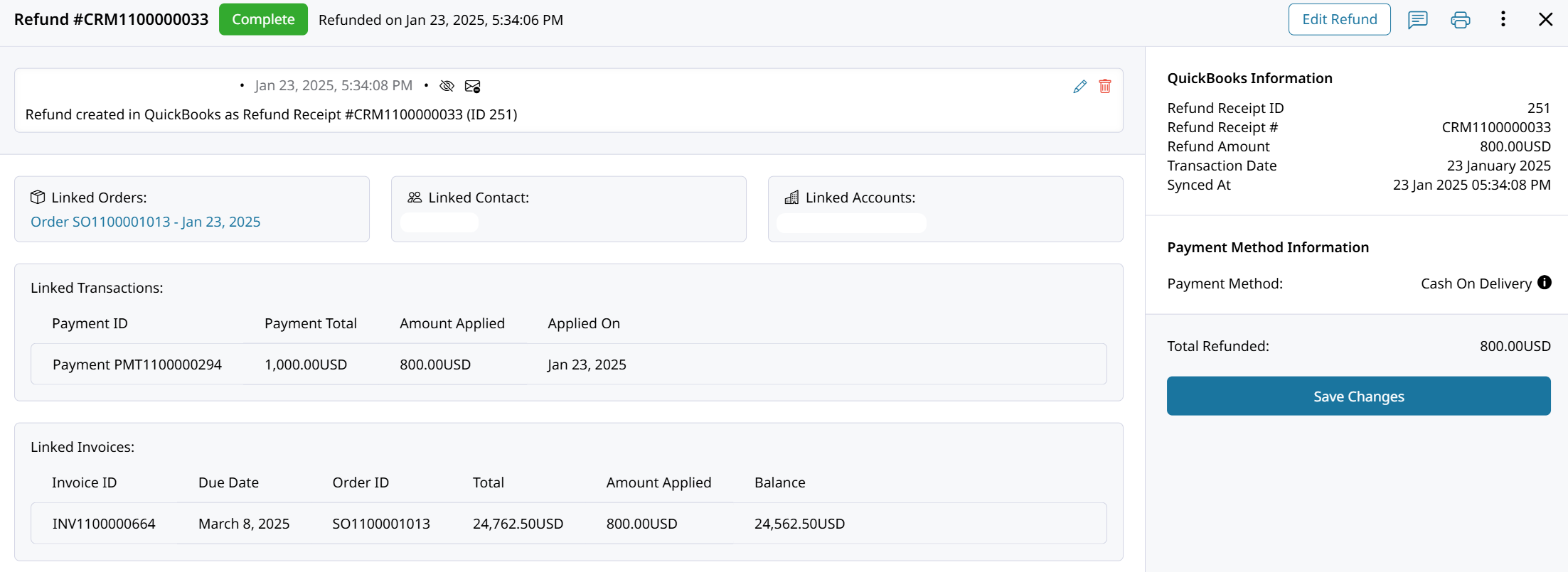
Editing your Refund
Offline refunds can be edited in Zoey to correct the recorded amount. See Payment Refund for instructions.
If the refund already synced, review the QuickBooks Refund Receipt after making changes to confirm the amounts match.
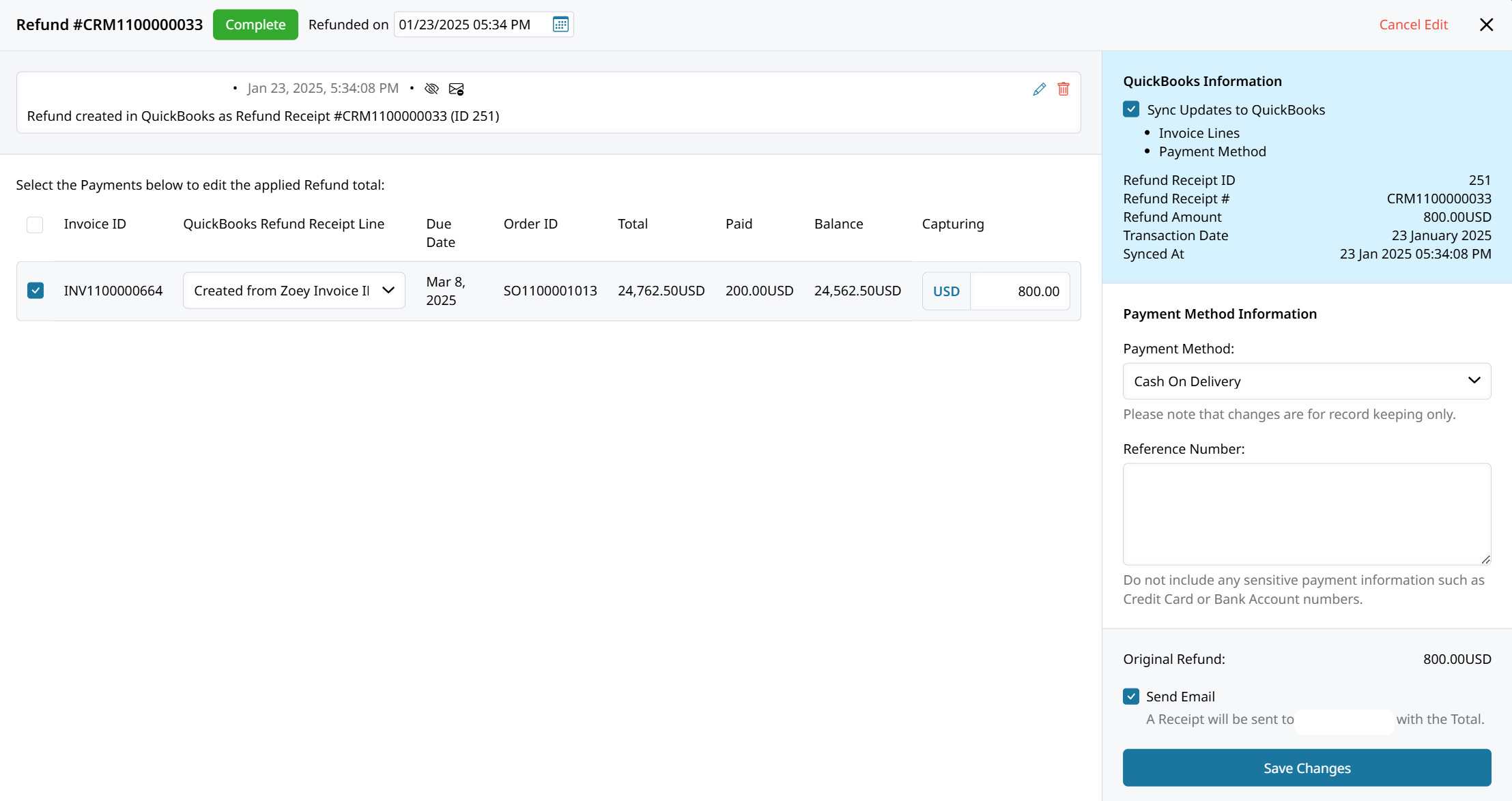
Open a Refund and click Edit Refund. A refund that was synced can have its amount, linked invoice, or payment method changed. The change will get synced to the QuickBooks if the box is checked.
QuickBooks Refund Receipt Line
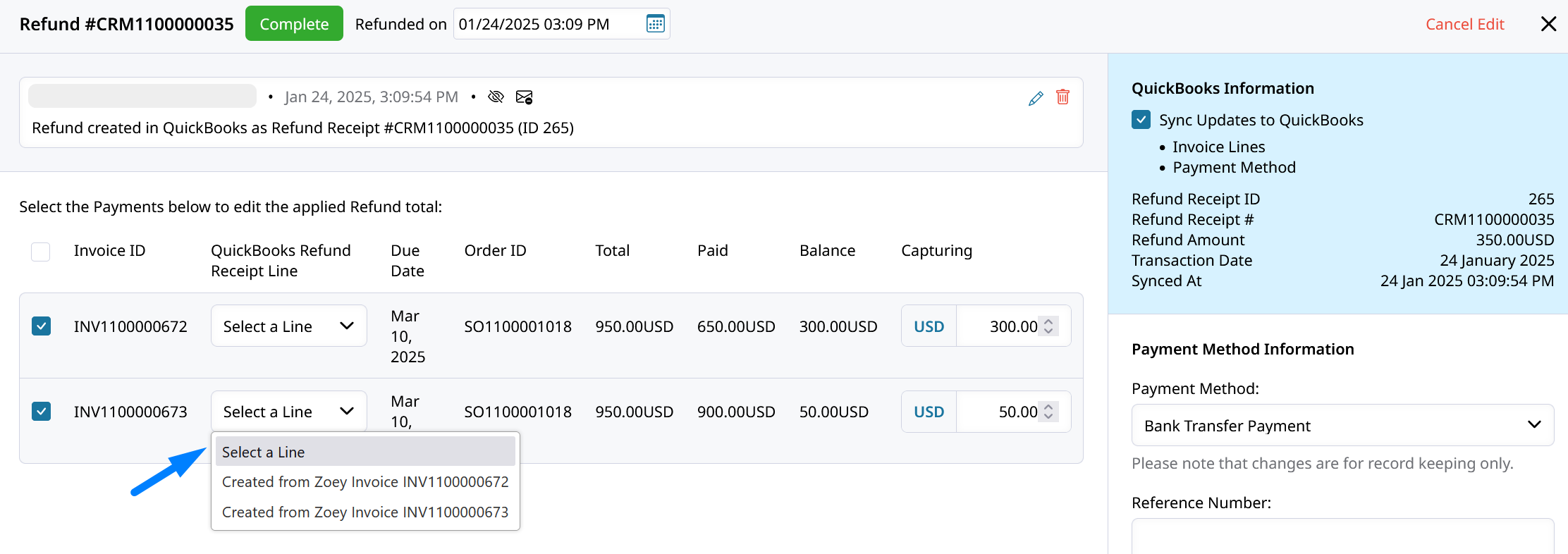
If there are more than one Zoey Invoices linked to the Refund then the QuickBooks Refund Receipt Line has to be selected.That will choose which of the Invoices in QuickBooks to track to the Refund Receipt.
Adding Account Credit Instead
Add Credit to Account creates a QuickBooks Credit Memo instead of a Refund Receipt. The credit can be applied to open Invoices or remain available for future use.
Updated about 1 month ago