
Status Flags
Status Flags can provide quick bites of information to your customers by displaying a message on top of product images in the cateogry or product page.
Overview
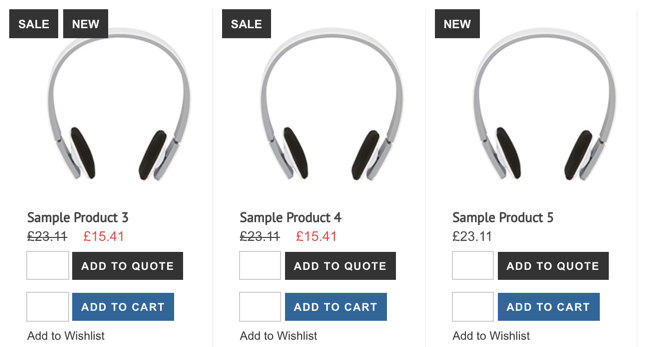
Status Flags are labels that help visually display information about a product.
Products can be marked as New or On Sale to show the flag on their image in Categories and/or Search Results. The category or product can be configured to show or hide the flags.
Which flags get shown is determined by the rules in Web Settings > Product Settings > Status Flags. There you can even add custom flags that get displayed based on Yes/No attributes.
Status Flags
Manage the existing Status Flags or add new Custom Status Flags in Web Settings > Product Settings > Status Flags.
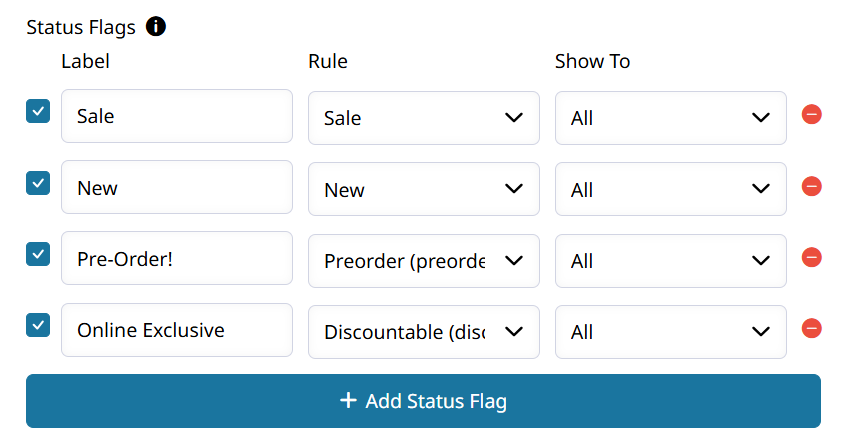
Add the "Out of Stock" label and rule to display a status flag that makes it clear when a product is out of stock.
Add Custom Status Flag
Click + Add Status Flag to create a new custom Status Flag that can be displayed on your product through a Yes/No attribute.
Simply select the Yes/No attribute that will determine if the flag is shown, and set the label to display. The color of your flag can be configured in the theme design.
Configuring Products To Show Status Flags
Sale
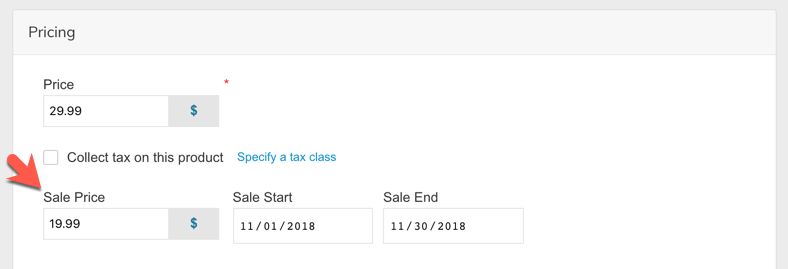
To show the Sale flag on a product, simply set a special price Advanced Product Pricing (Special Price), or set the Sale Status (sale_status_override) attribute to Yes on your Product to force the Sale flag to display.
New
To show the New flag on a product, set the New From and New To date attributes on the product.
Open the product in the admin panel and add the custom attributes Set Product as New from Date and Set Product as New to Date.
Type "New" into the attribute field and select Set Product as New from Date, then choose the date from the calendar in the next field.
When updating products via CSV, use the following column headers (corresponding to the Set Product as New from Date and Set Product as New to Date attributes):
news_from_datenews_to_date
With the following date format: YYYY-MM-DD HH:MM:SS
For example:
| news_from_date | news_to_date | sku |
|---|---|---|
| 2025-07-01 00:00:00 | 2025-12-01 00:00:00 | product-sku |
news_to_date can be left blank for the New flag to display forever. Otherwise the flag will only be shown while the current date is between the new from/to range.
Control who sees each Status Flag
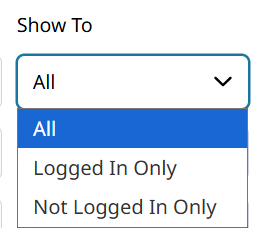
Configure the Show To setting to determine whether each Status Flag is displayed to all visitors, logged in customers, or not logged in guests.
Enable Status Flags in your Theme
Category Product Lists
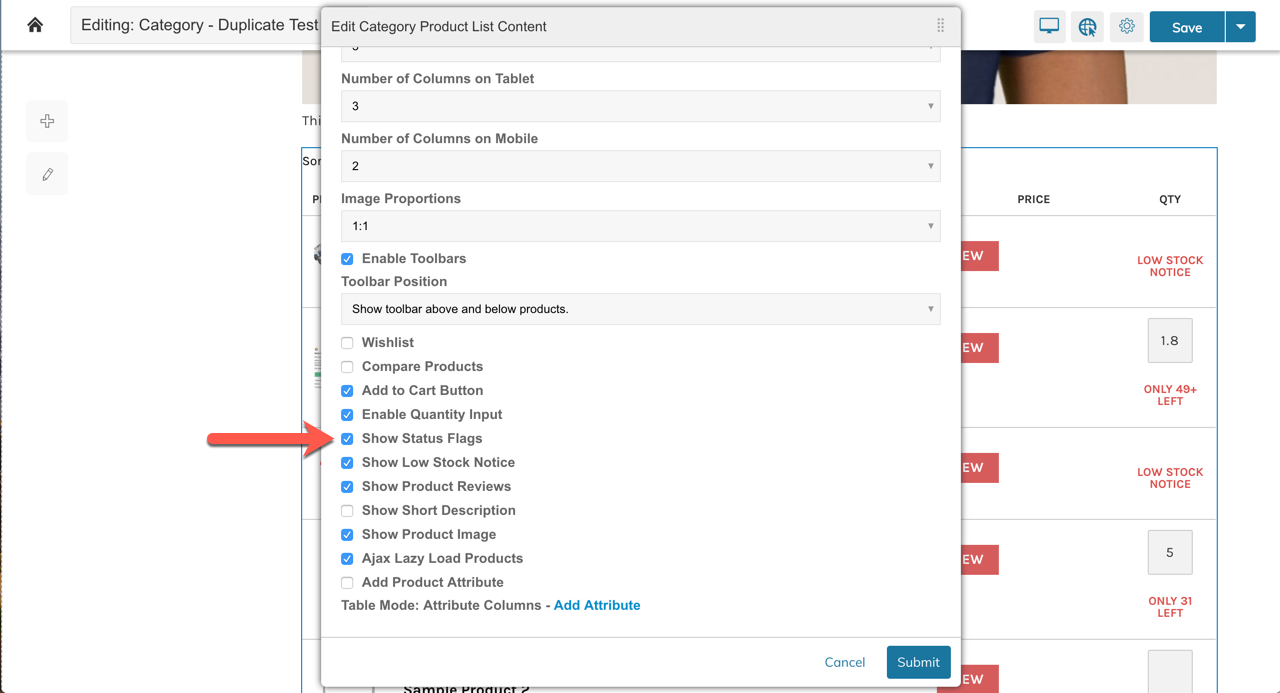
On any product list, including Category Product Lists, you can enable the Status Flags in the Block Settings within the Visual Design Editor.
Product Pages
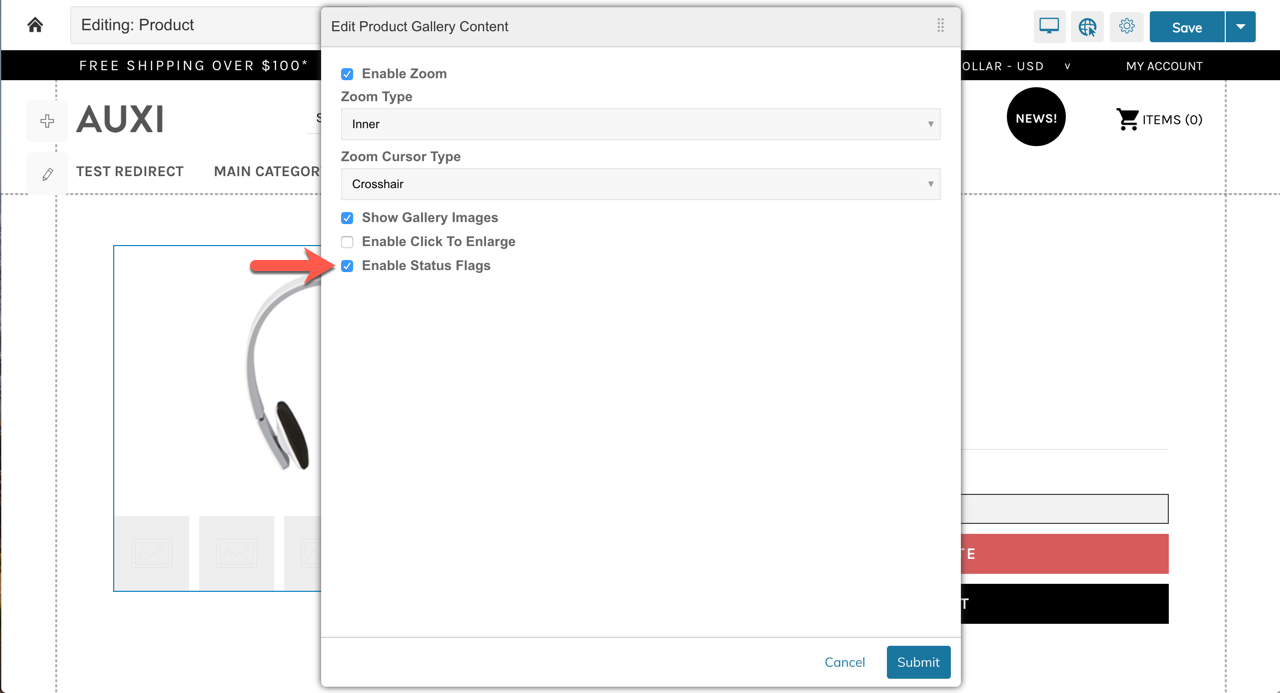
On the product page, the Status Flags will show in the top-right corner of the Product Image. In the Product Template, within the Visual Design Editor, you can enable Status Flags by updating the "Product Gallery Block" settings.
Search Results
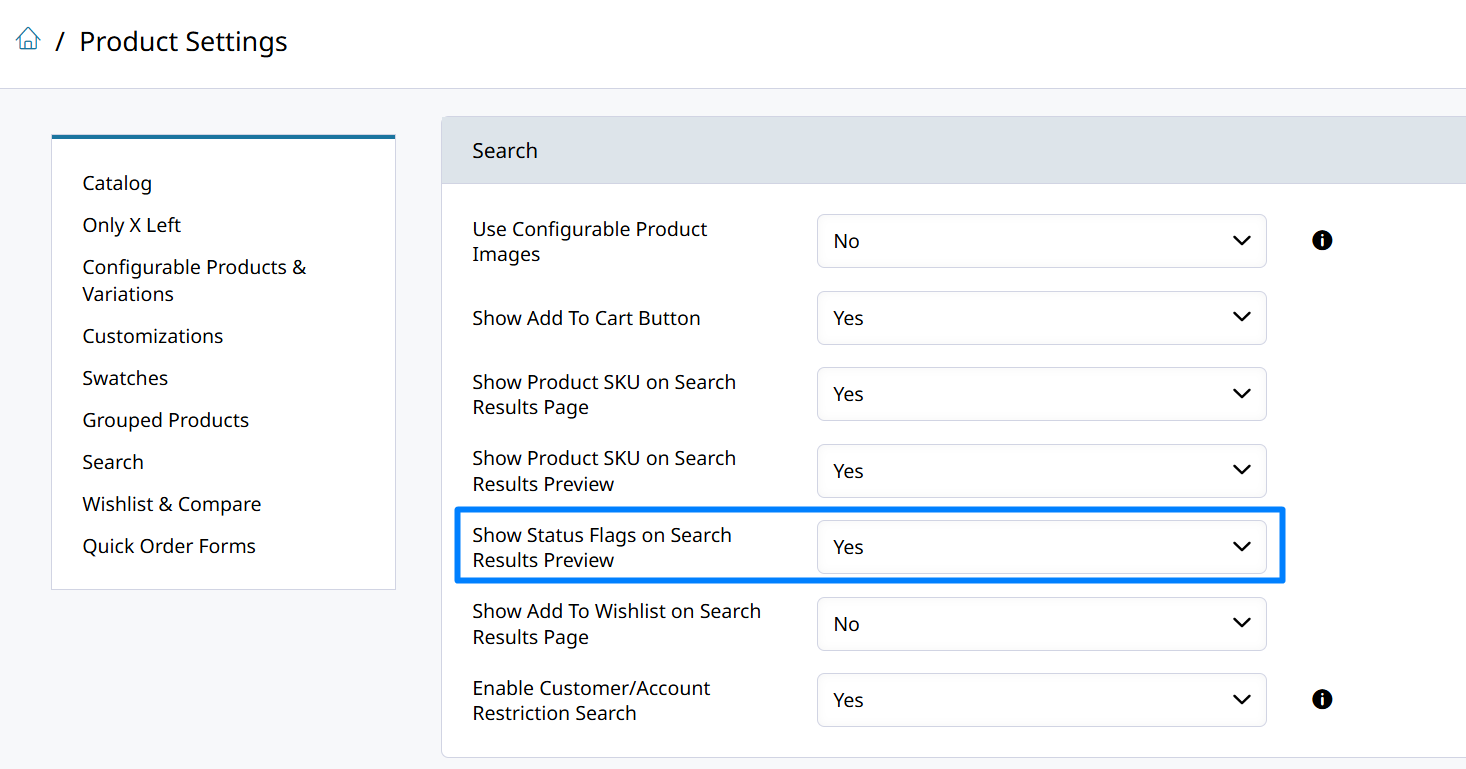
In Web Settings > Product Settings > Search you can enable Status Flags by setting Show Status Flags on Search Results Preview to Yes.
Updated 3 months ago