
Connect with a Zoey Data Mapper
How to connect with a Zoey Data Mapper
Navigate to Integrations >Zoey Data Mappers > Manage Connection > Add Connection.
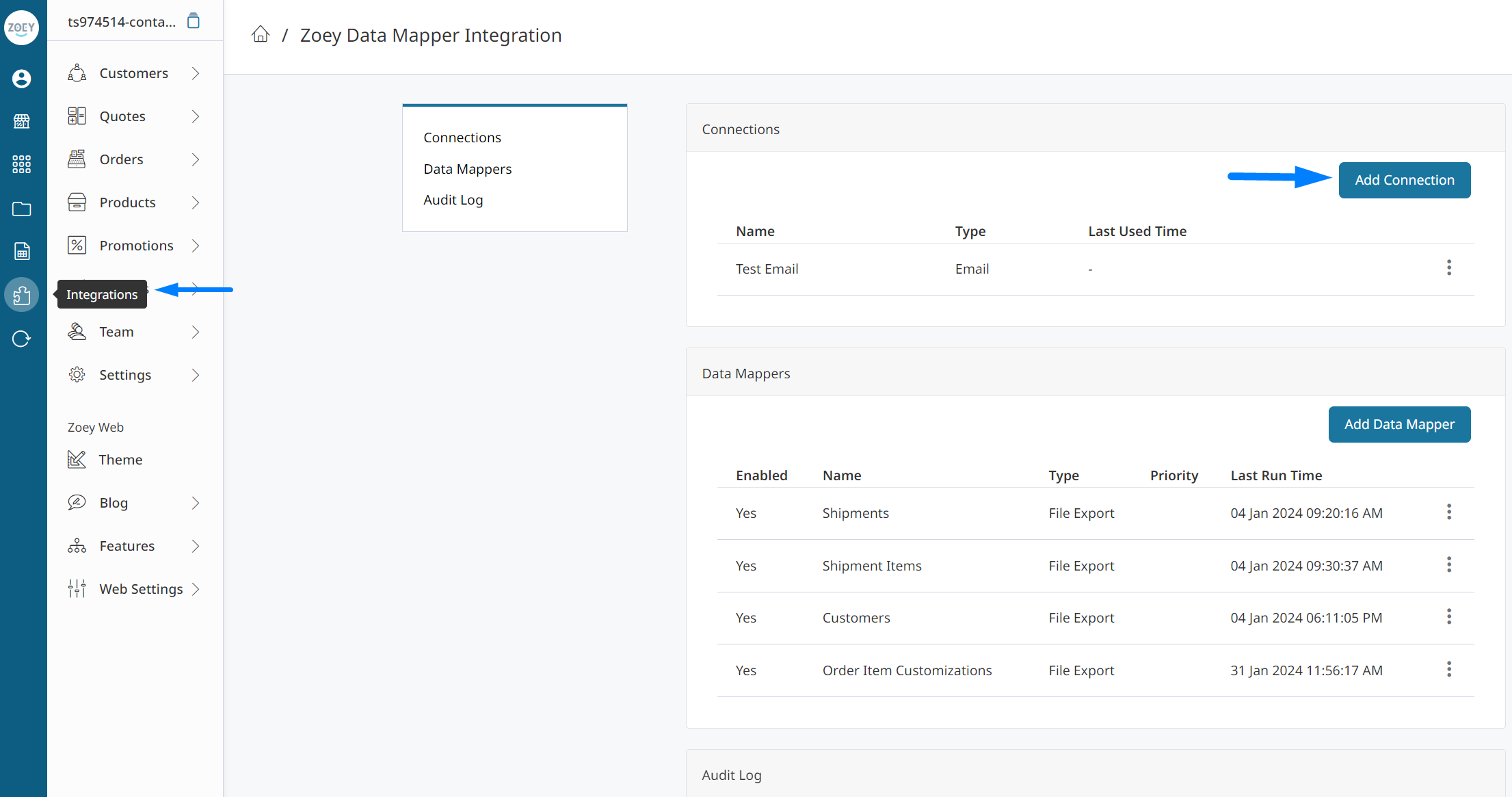
Set up a Connection
In order to use a Zoey Data Mapper, a Connection to an external system must first be made. All Connections require a Connection Name to help identify the Connection within your Zoey Store
The available Connection types and associated fields are listed below:
Data Mapper Connection Options
Dropbox - Import & Export
- To use a Dropbox Connection for your Data Mapper, you must first connect your Zoey Store to Dropbox. Click here for details on how to connect your Zoey Store to Dropbox.
Email - Export Only - Sends an email with files attached to the specified email addresses.
- Email Recipients: Specify who should receive emails for this connection. One email per line, maximum 10 emails.
- Sender: The email address that "sends" the email. The list of Senders is populated by the "Sender Email Addresses" within your Zoey Store under Settings > Emails
FTP - Import & Export - Upload File to or Download files from an FTP Server
- Host URL: Either the IP Address or HTTPS URL of the FTP Server
- Port: Port used when making the FTP connection. Defaults to 21
- Username: User to log into the FTP server
- Password: Password for the User logging into the FTP server
- File Transfer Mode: ASCII or Binary. This value depends on your FTP server's settings.
- Default Directory: The default directory the user has access to after Logging In
HTTPS - Export Only - Submit HTTPS POST Requests to a Specified URL
Security on your webserver may prevent the file from being posted.If you receive Status Code 406, it may be security modules such as ModSecurity causing it.
- URL Endpoint: The HTTPS URL destination for the POST requests. Requests will automatically timeout after 60 seconds. URL must start with https://
- Test URL Endpoint: Zoey will execute a sample request with an empty body to this URL when testing the connection and check for the HTTP response code defined below. You may use the URL Endpoint defined above or a separate URL (belonging to the same domain) if the URL Endpoint is not configured to receive an empty body. URL must start with https://
- HTTPS Method: The HTTP Method used when submitting the request
- HTTPS Success Code: Zoey will check for this HTTP response code to verify the HTTPS request was successfully sent.
- Additional HTTPS Headers: Additional Header Names/Values to be sent in the Request
The HTTPS Authentication is used to ensure that the data you are receiving is properly signed so that you can authenticate it.This is a security best practice to ensure your endpoint is not accepting arbitrary data.
If you do not plan on authenticating the request on your end (or the third party you're using) then you can put any value you want in these fields as you aren't checking them.
The following are not required unless using HTTPS Authentication.
- HTTPS Signature Header: The HTTPS Header Name for the HTTPS Signature. This value will be a 64 character randomly generated string for each request. Hash this value using the HTTPS Signature Key to verify the HTTPS Signature Hash.
- HTTPS Signature Hash Header: The HTTPS Header Name for the hashed HTTPS Signature. This is the hashed value of the HTTPS Signature using the HTTPS Signature Key.
- HTTPS Signature Key: The key used for hashing the HTTPS signature. Use this signature when validation the HTTPS Signature Header and HTTPS Signature Hash Header. The HTTPS Key must be 16 characters or more.
- HTTPS Signature Method: The hashing algorithm used for the HTTPS Signature Hash.
SFTP - Import & Export - Upload File to or Download files from an SFTP Server
- Host URL: Either the IP Address or HTTPS URL of the SFTP Server
- Port: Port used when making the SFTP connection. Defaults to 22
- Authentication Type: Specify whether to use Username/Password or Private Key authentication
- Server Type: Specify either Unix or Windows depending on your SFTP server
- Username: User to log into the SFTP server
- Password: If Username/Password Authentication is selected, the password for the User logging into the SFTP Server.
- Private Key: If Private Key Authentication is selected, the Private Key for the User logging into the SFTP Server
SSH - Import & Export - Upload File to or Download files from an SSH Server
- Available Connection Fields for the SSH connection are the same as SFTP Connections defined above.
Creating a Data Mapper
Navigate to Integrations >Zoey Data Mappers > Manage Connection > Add Data Mapper.
Updated 5 months ago