
Print or Send Order/Invoice Statement PDF
Print an Invoice Statement
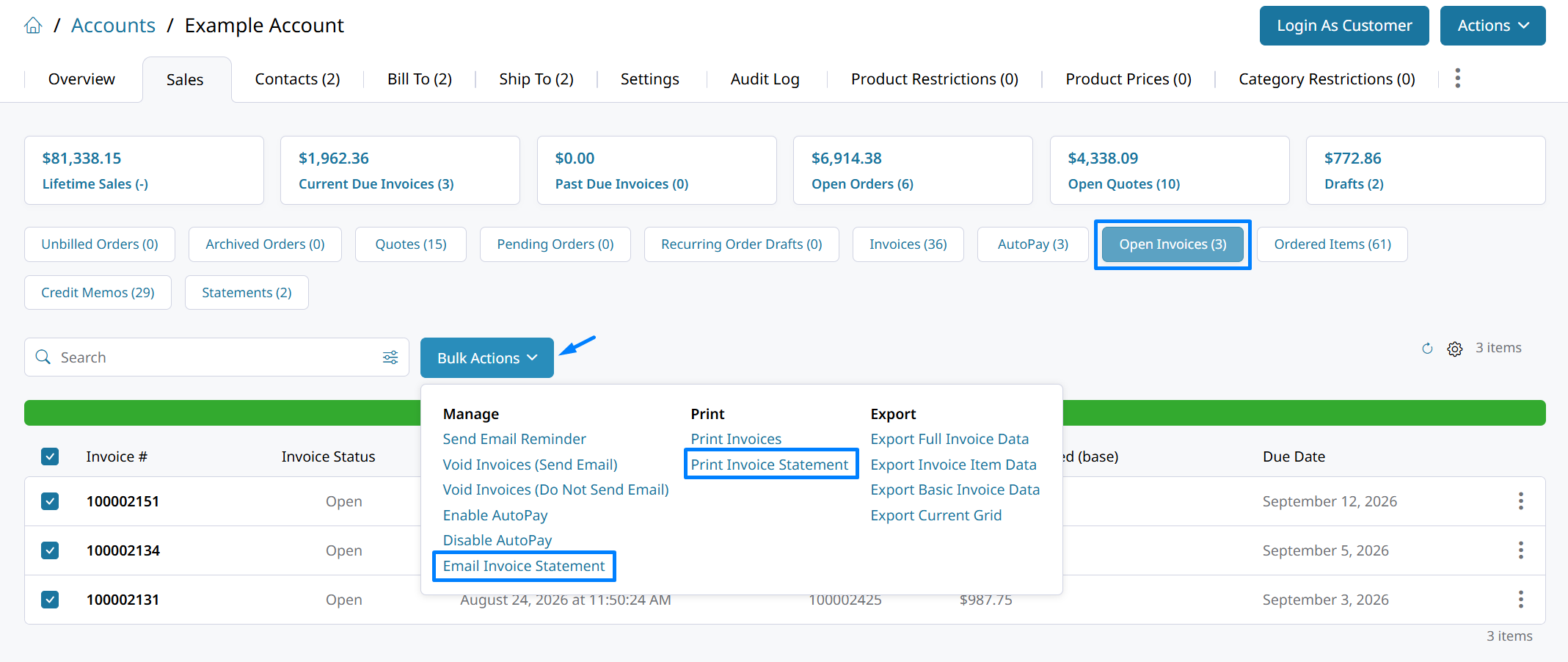
Generate an Invoice Statement from the Sales > Invoices tab of an Account. Select the invoices you want to include, and then select Bulk Actions > Print Invoice Statement.
The statement includes all selected invoices. Fully paid invoices can be included on the invoice statement along with open invoices and their Pay Now button.
Print an Order StatementSelect Print Order Statement from the Order Summary to generate a statement containing invoice details for that order only.

Invoice Statement PDF
The Invoice Statement PDF provides a summary of the selected invoices, including their payment status and amount due.
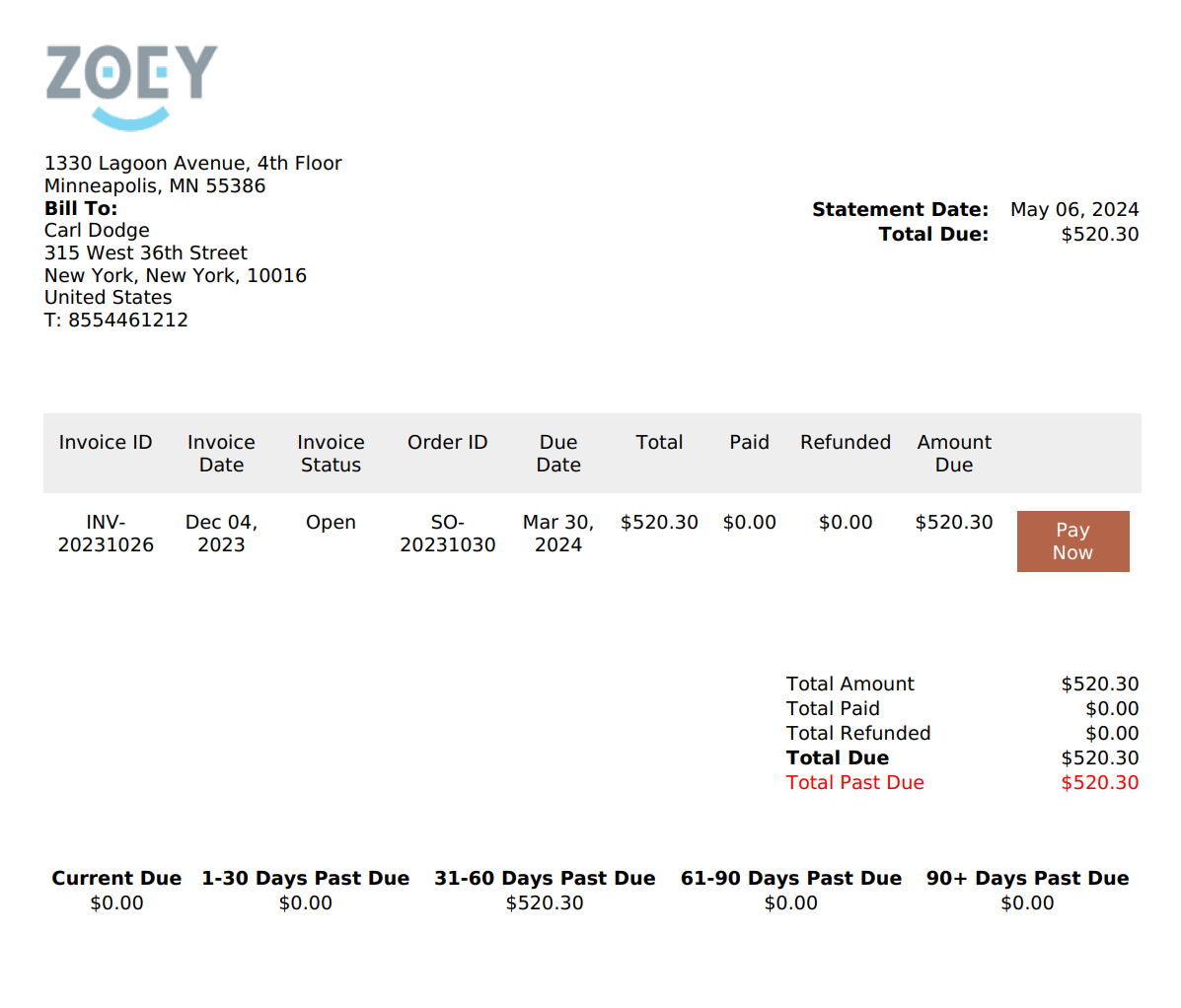
The bottom of the statement shows the Account's current and past-due balances, grouped by the number of days past due.
Pay open invoices individually from the Invoice Statement PDFA Pay Now button is displayed for each selected invoice that has an amount due. Customers can select this button in the PDF to pay the invoice.
Statement Billing is a seperate related feature which enables customers to be sent an Account Statement for bulk payment instead of individual invoices.
Account Order Statement
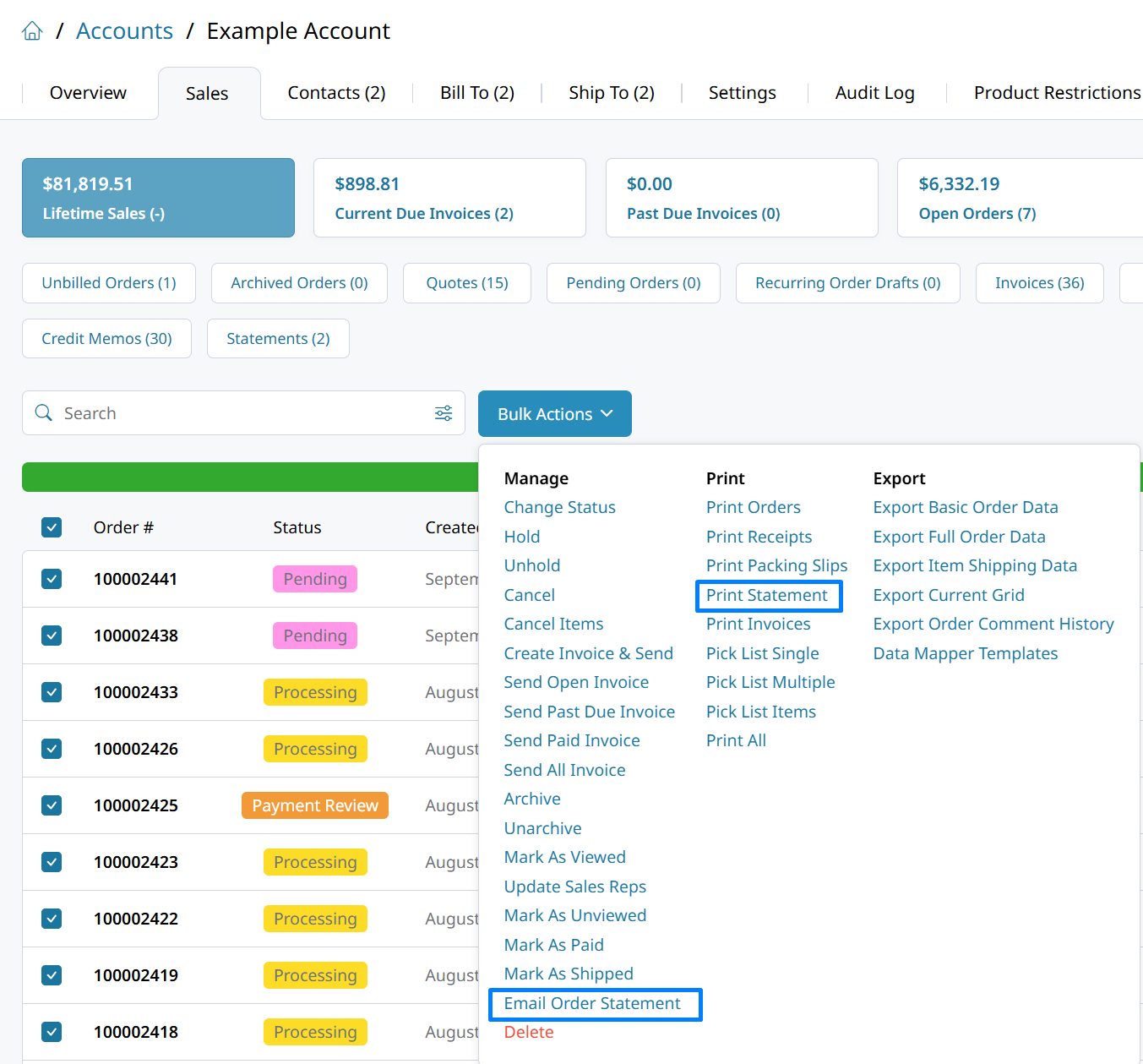
Export a Statement of Orders from within an Account > Sales order list. Select the Orders to include, then open Bulk Actions to click on Email Order Statement or Print Statement to download or send a summary of Order invoices.
Email an Invoice Statement
To email an Invoice Statement, go to Account > Sales > Invoices. Select the invoices you want to include, and then select Bulk Actions > Email Invoice Statement.
The emailed statement includes the manually selected invoices, including fully paid invoices when selected.
Updated about 1 month ago