
How Customers manage Recurring Orders
Customers can log in and change, skip, pause, create and cancel their own recurring orders in your storefront.
Enabling Recurring Orders in My Account adds a link to the My Recurring Orders page /zoey_sales/recurring/history/ on customers' My Account, where they can:
- see their recurring orders, the next order date and the orders already placed
- skip the next order, or pause and resume a recurring order
- change quantities, the schedule, addresses, the shipping method and the payment method
- cancel a recurring order
Customers can also be allowed to make an order recurring during checkout.
This feature is off by default. Store Admins still create and manage recurring orders in the admin as described in Recurring Orders.
Let Customers Manage Their Recurring Orders in My Account
- Go to Orders > Settings > Recurring Orders and open the Recurring Orders In My Account section.
- Set Show Recurring Orders In My Account to "Yes".
- Choose what customers can do using the settings described below.
- Save your changes.
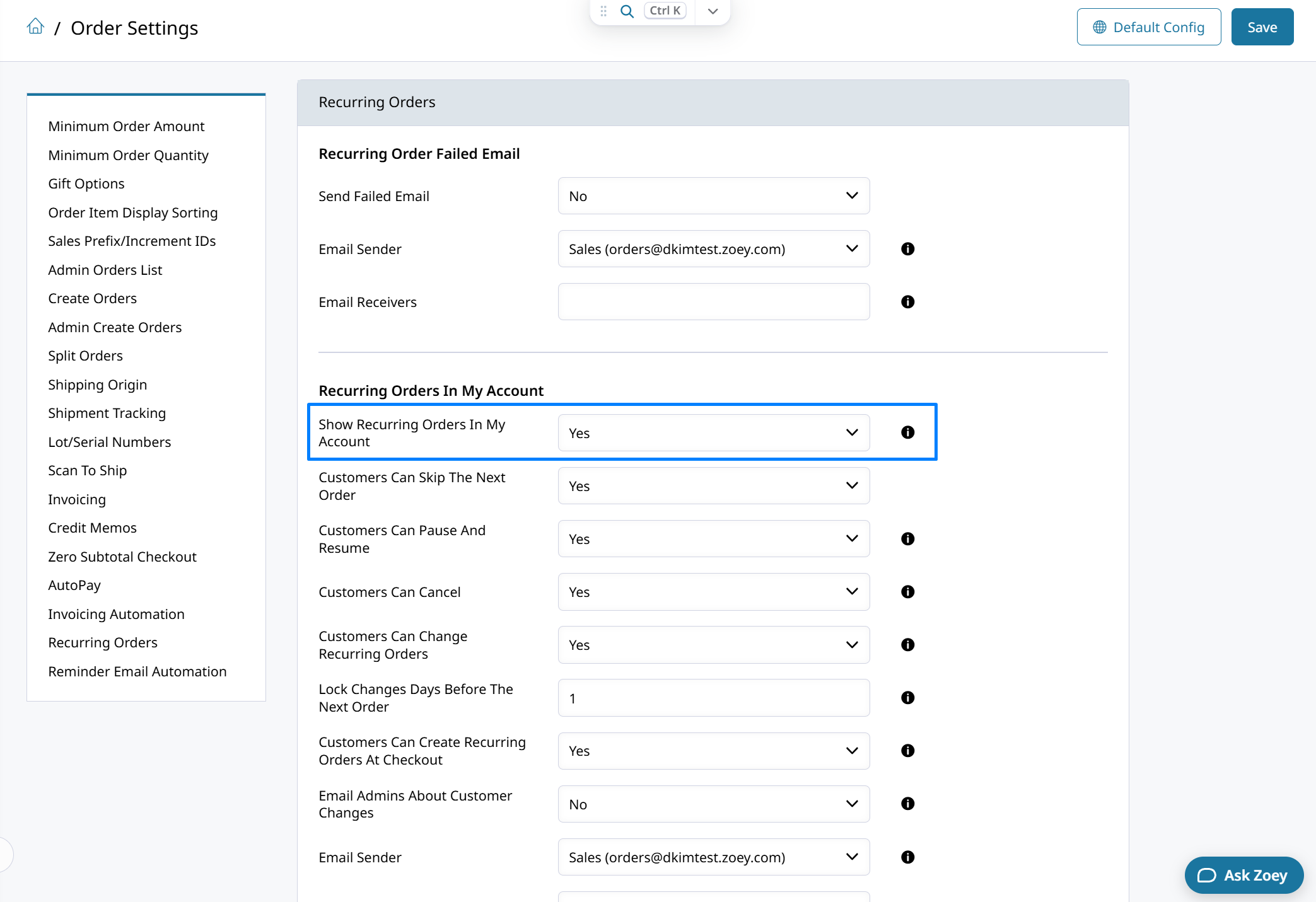
Recurring Orders In My Account settings
Once the feature is on, My Recurring Orders is added to your theme's account links and dashboard quick links. The link only shows when Show Recurring Orders In My Account is set to "Yes". You can rename or move it in the Design Center like any other account link.
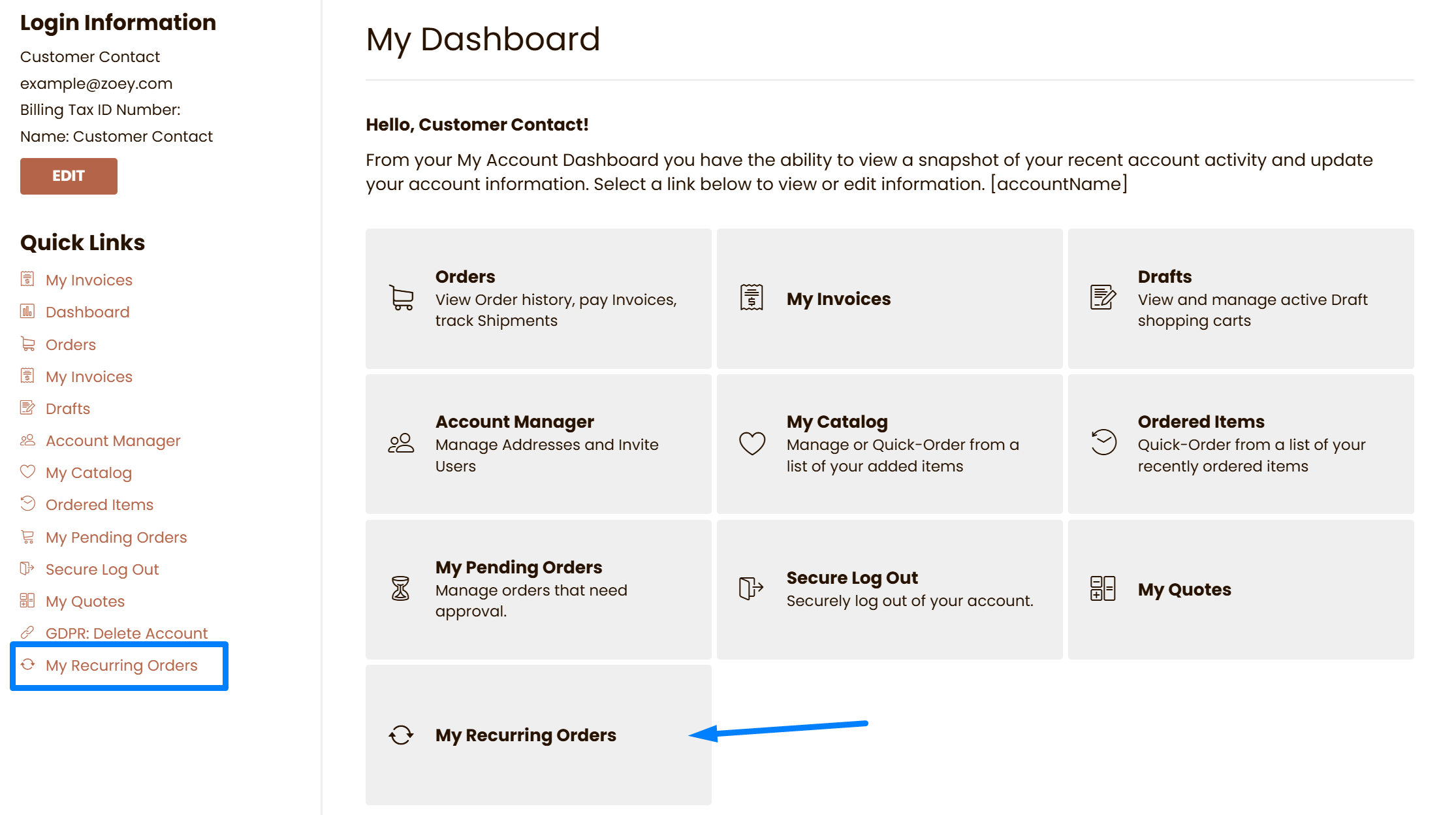
My Recurring Orders link in the customer's account
Recurring Orders In My Account Settings
These settings control what customers can do with their recurring orders in My Account, whether they can create recurring orders at checkout, and whether admins are emailed when a customer makes a change.
| Setting | What it does |
|---|---|
| Show Recurring Orders In My Account | Turns the feature on. Adds links to My Recurring Orders on the customer's My Account page. |
| Customers Can Skip The Next Order | Lets customers skip the next order and undo the skip. |
| Customers Can Pause And Resume | Lets customers pause a recurring order and turn it back on. |
| Customers Can Cancel | Lets customers cancel a recurring order. |
| Customers Can Change Recurring Orders | Lets customers change items, schedule, addresses, shipping method and payment method. |
| Lock Changes Days Before The Next Order | The number of days before the next order when skips and changes stop. "0" allows changes until the order day. |
| Customers Can Create Recurring Orders At Checkout | Shows the Make this a recurring order option at checkout. |
| Email Admins About Customer Changes | Sends an email to the Email Receivers each time a customer changes a recurring order. |
Recurring orders are placed each morning. The lock stops a customer from changing an order while it's being placed.
Customers can still pause or cancel a recurring order during the lock. To make a change during the lock, they need to contact you.
Payment Methods
Recurring orders can only use offline payment methods, such as Net Terms, Purchase Order, Check / Money Order and Bank Transfer. Saved cards aren't charged on recurring orders.
- At checkout, Make this a recurring order only appears when the customer chooses an offline payment method.
- In My Recurring Orders, customers can switch to another offline payment method that you offer at checkout.
- If you set an admin-only method on the recurring order, such as Send Invoice, it stays until the customer changes it.
Who Can See and Change a Recurring Order
- The customer who owns the recurring order can see and change it.
- Company contacts can see the recurring orders of a location when their role can view company orders for that location.
- To change one, the contact's role also needs permission to approve pending orders for that location. Other contacts see it read-only.
This keeps a contact who can only view orders from placing orders that would otherwise need approval. To set up role permissions, see Account Roles & Permissions.
Creating a Recurring Order at Checkout
When Customers Can Create Recurring Orders At Checkout is set to "Yes", customers see Make this a recurring order on the review step of checkout.
- Choose an offline payment method.
- Check Make this a recurring order.
- Choose how often it should Repeat.
- Optionally, choose the date to First repeat on. Leave it empty to repeat one period from today.
- Optionally, enter a Name for the recurring order.
- Place the order.
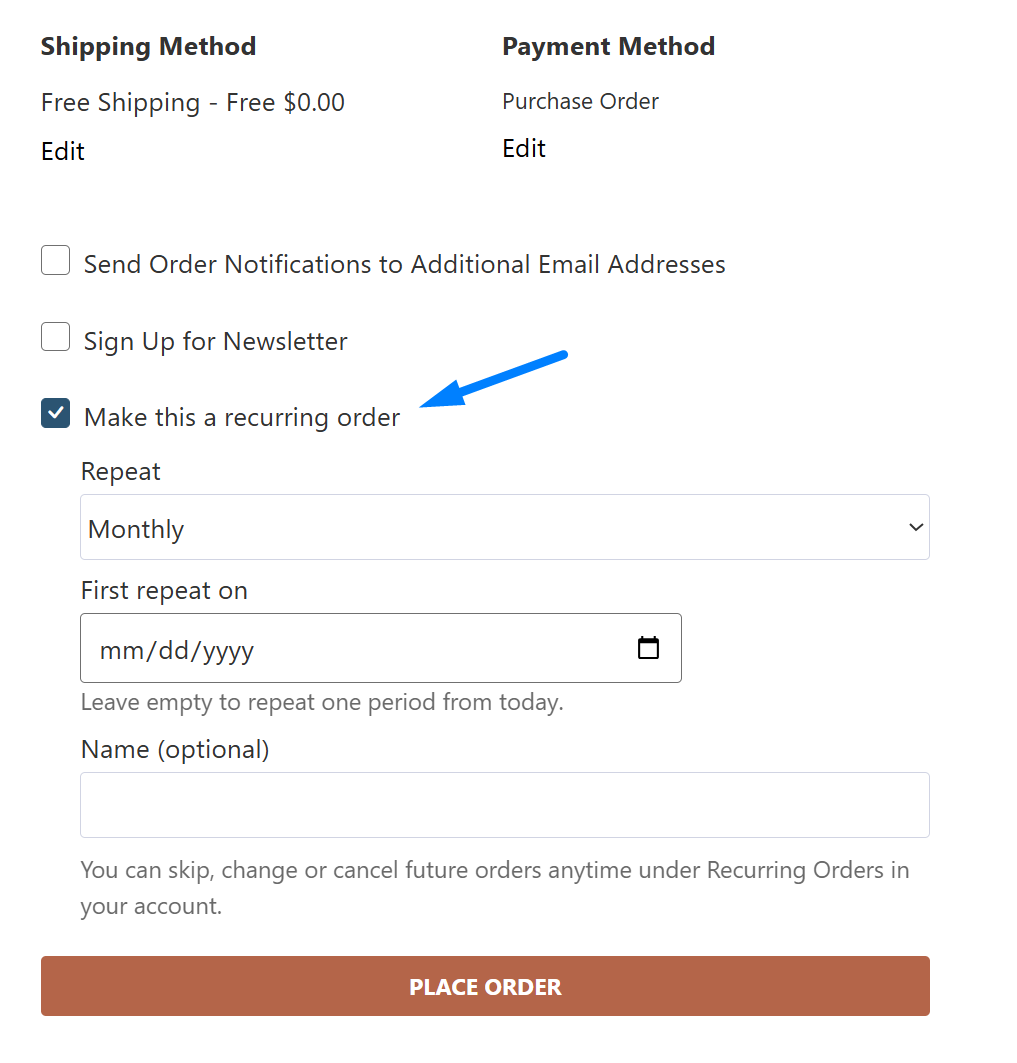
Make this a recurring order option at checkout
The order is placed as usual, and a new recurring order is saved from it. It's listed in the admin under Orders > Drafts > Recurring Orders with your other Recurring Order Drafts.
If the order is split into several orders at checkout, each order gets its own recurring order.
My Recurring Orders
Customers can see their recurring orders by going to My Account > My Recurring Orders. Click View to open a recurring order and see or change its details.
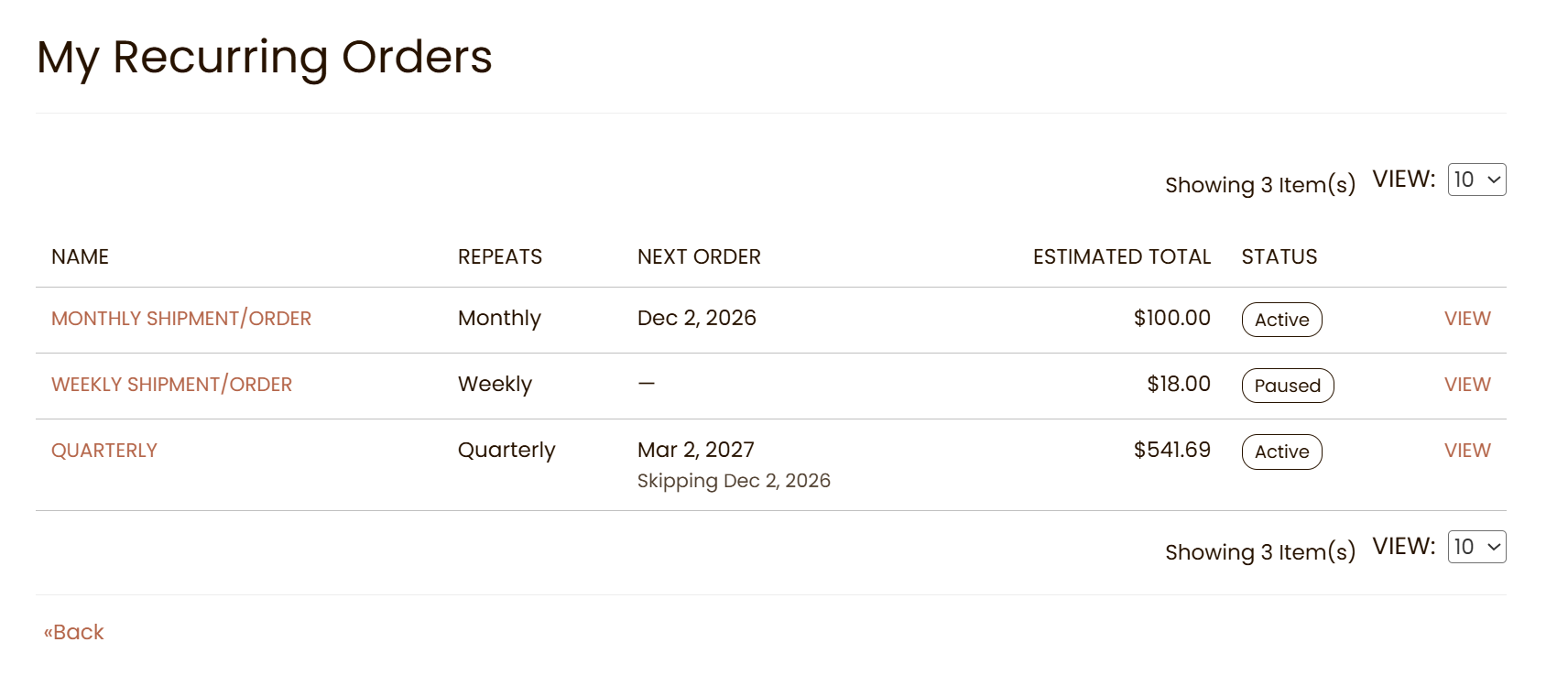
My Recurring Orders list
The list shows each recurring order's Name, how often it Repeats, the Next Order date, the Estimated Total and the Status.
| Status | Meaning |
|---|---|
| Active | Orders will be placed on schedule. |
| Paused | The customer or the store paused it. No orders are placed until it's resumed. |
| On Hold | The last order couldn't be placed. Only the store can turn it back on. |
| Cancelled | Cancelled for good. It can't be turned back on. |
| Ended | The recurring order has passed its Ending date. |
Recurring Order Details
Click View to open a recurring order. The page shows:
- Schedule: how often it repeats, the next order date and the last order
- Items with quantities and prices
- Ship To address and Shipping Method
- Payment Method and Billing Address
- Estimated totals
- Orders Placed: the orders this recurring order has already created
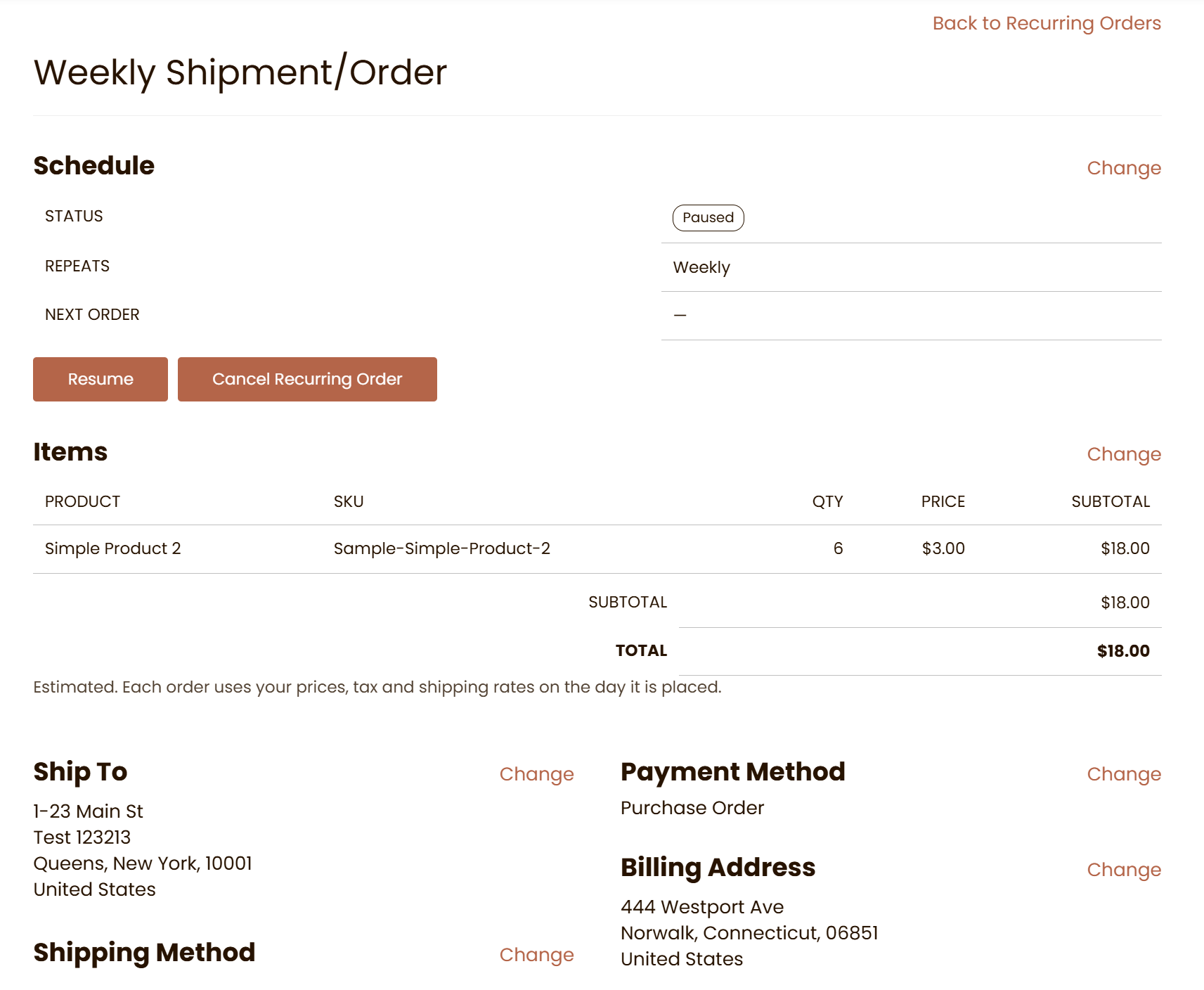
Recurring order details page
Totals are estimates. Each order uses the customer's prices, tax and shipping rates on the day it's placed.
Managing a Recurring Order
Skipping the Next Order
Click Skip Next Order to skip the next scheduled order. The recurring order stays active, and the page shows the skipped date and the next order date.
To place the skipped order after all, click Undo Skip.
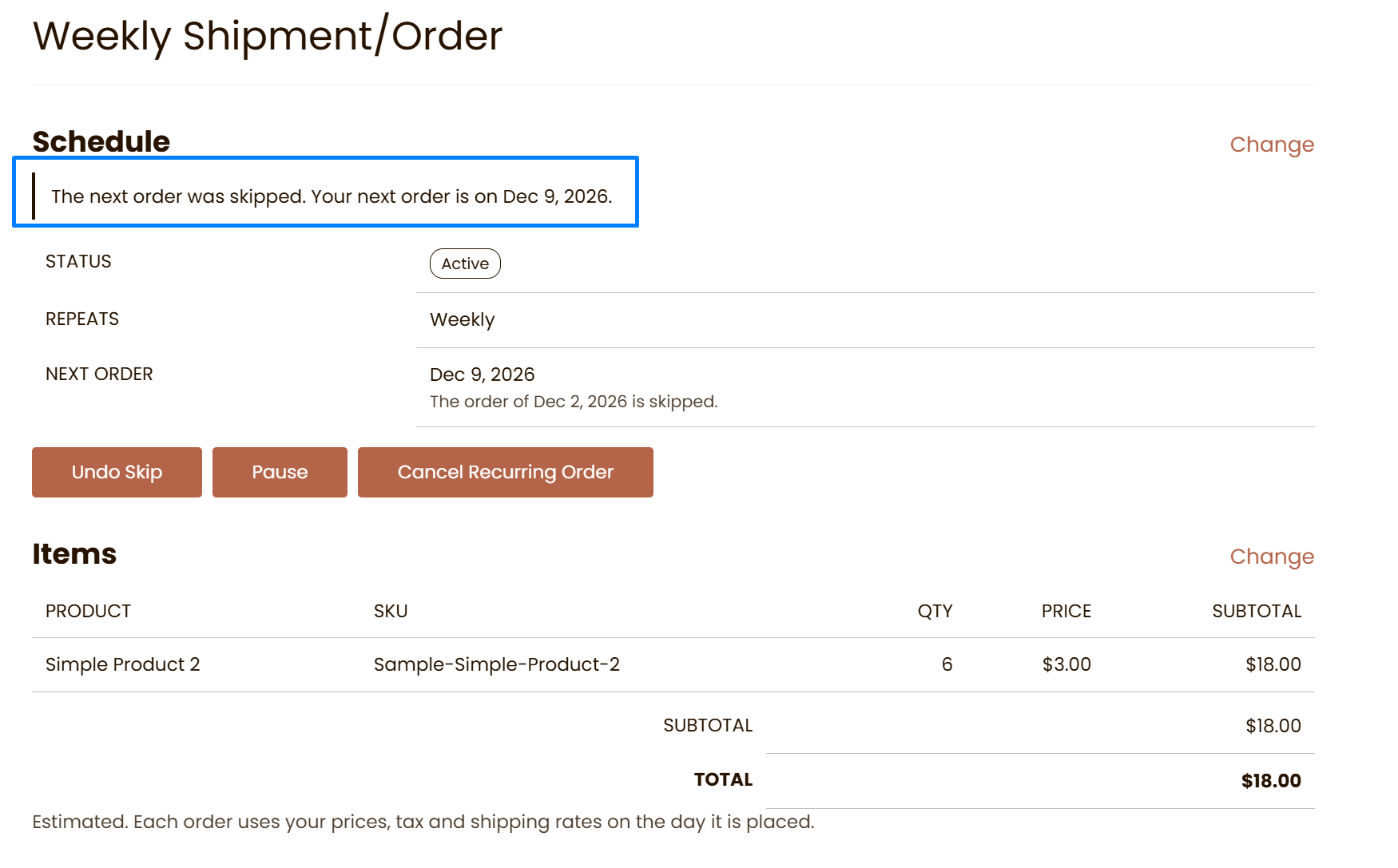
Skipped next order with the Undo Skip option
Customers can skip one order at a time, or pause the recurring order indefinitely.
Pausing and Resuming
Click Pause and confirm. No orders are placed until the customer clicks Resume.
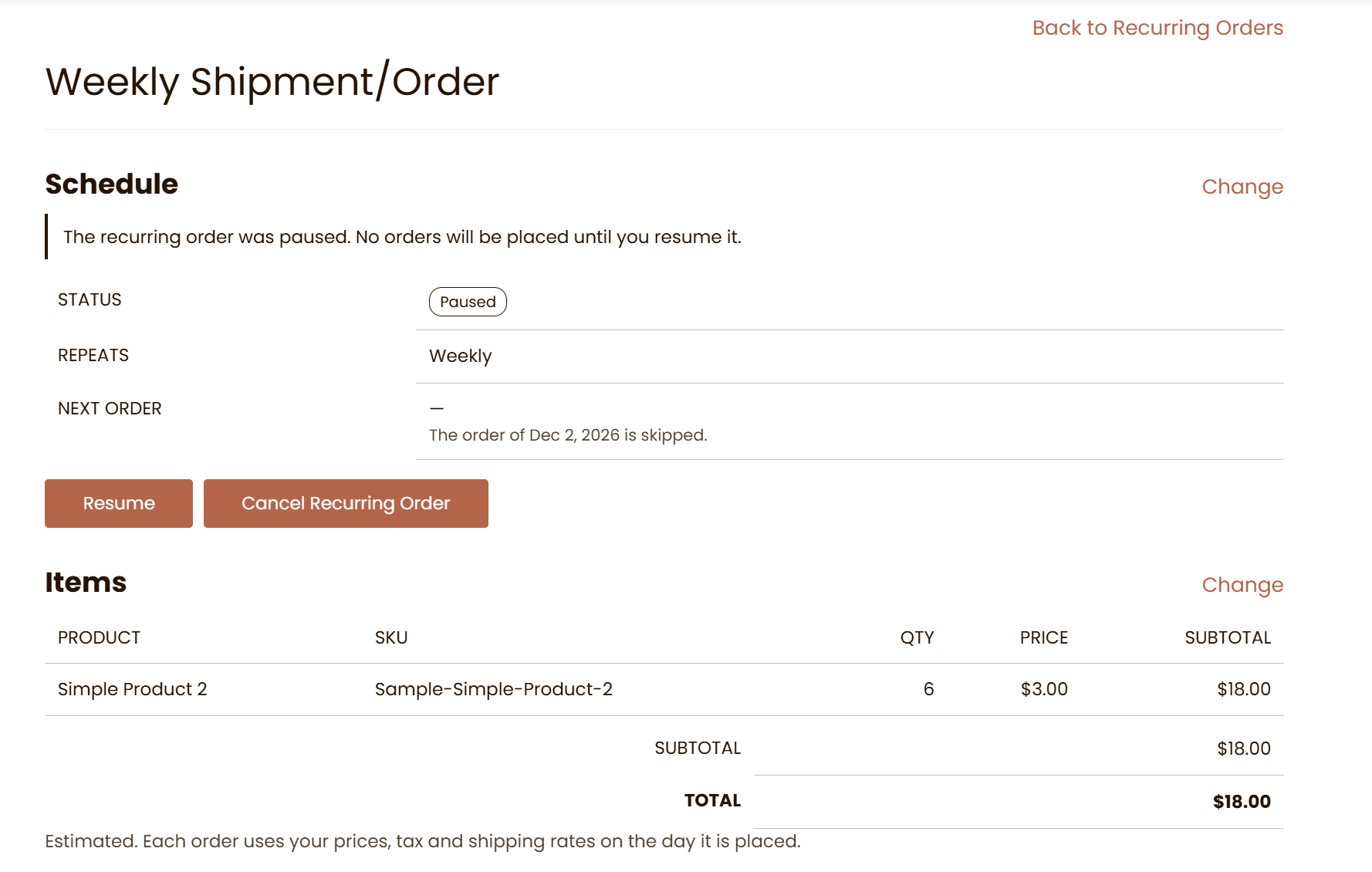
Pausing a recurring order
If an order fails to be placed, the recurring order goes On Hold. The customer sees a message asking them to contact you. Once you've fixed the problem, set Enabled to "Yes" on the Recurring Order Draft in your admin. See Failed Recurring Orders.
Cancelling
Click Cancel Recurring Order and confirm.
Cancelling is final. A cancelled recurring order can't be turned back on, by the customer or in the admin. To start again, create a new recurring order.
Changing a Recurring Order
Click Change next to any section to edit it on the page. Click Save to keep the change or Cancel to close the editor.
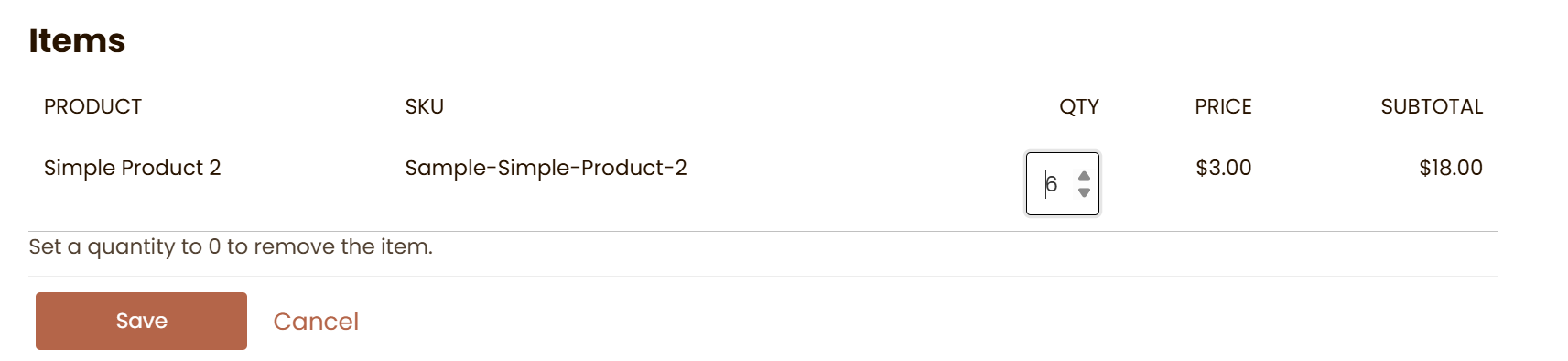
Editing item quantities on a recurring order
- Items: change quantities. Set a quantity to 0 to remove the item. At least one item must stay. Customers can't add new products to an existing recurring order.
- Schedule: change how often it repeats and the next order date. Later orders repeat from the new date.
- Ship To and Billing Address: choose from the same addresses offered at checkout. For a company, these are the location's addresses.
- Shipping Method: choose from live shipping rates. If a new address doesn't offer the current method, the cheapest available method is chosen and the customer is told. A custom shipping amount set by the store can't be changed by the customer.
- Payment Method: choose another offline payment method offered at checkout.
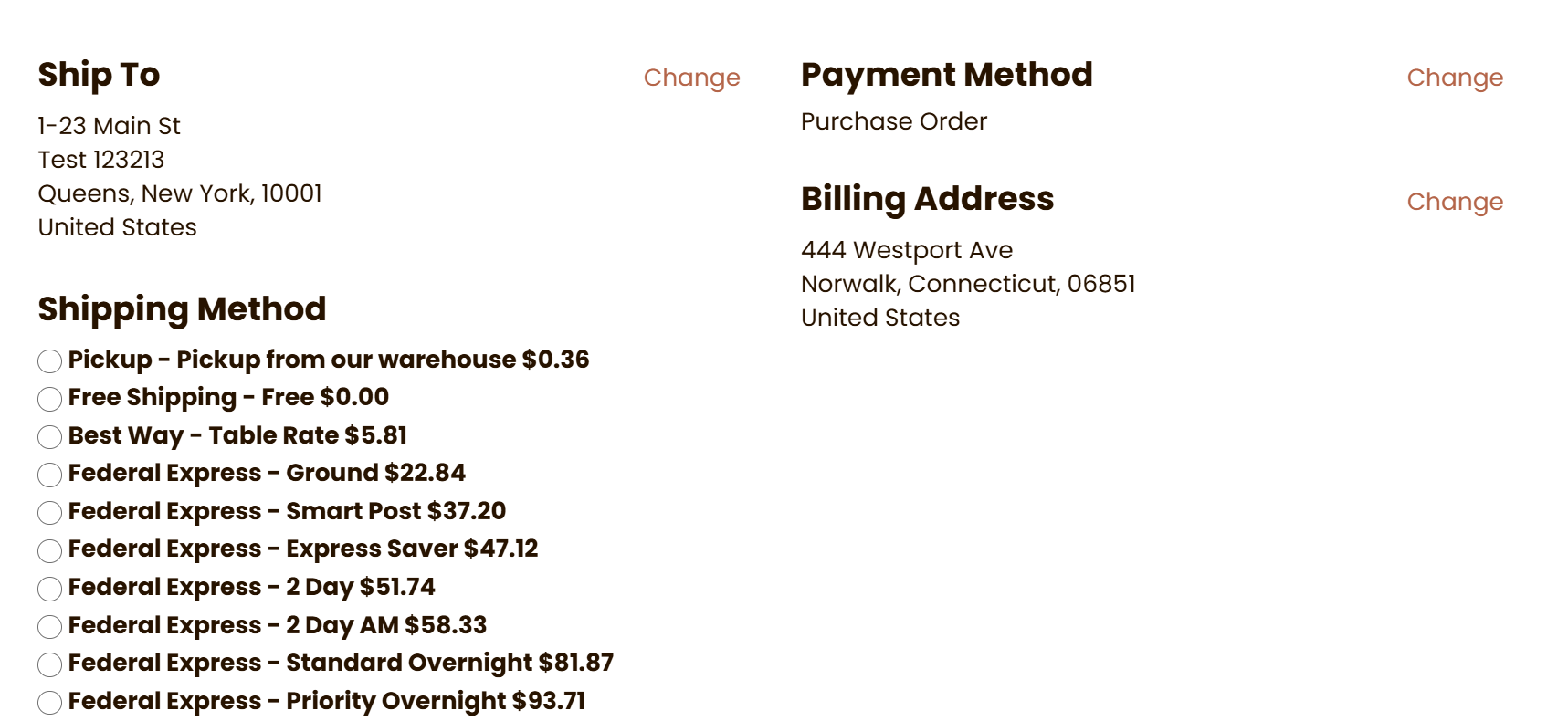
Choosing a shipping method from live rates
When the lock starts, the customer sees a message that the recurring order can no longer be changed or skipped, and is asked to contact you.
Tracking Customer Changes
Every customer change is recorded in the Audit Log of the Recurring Order Draft. The log shows which customer made the change, with their name and email, and what changed.
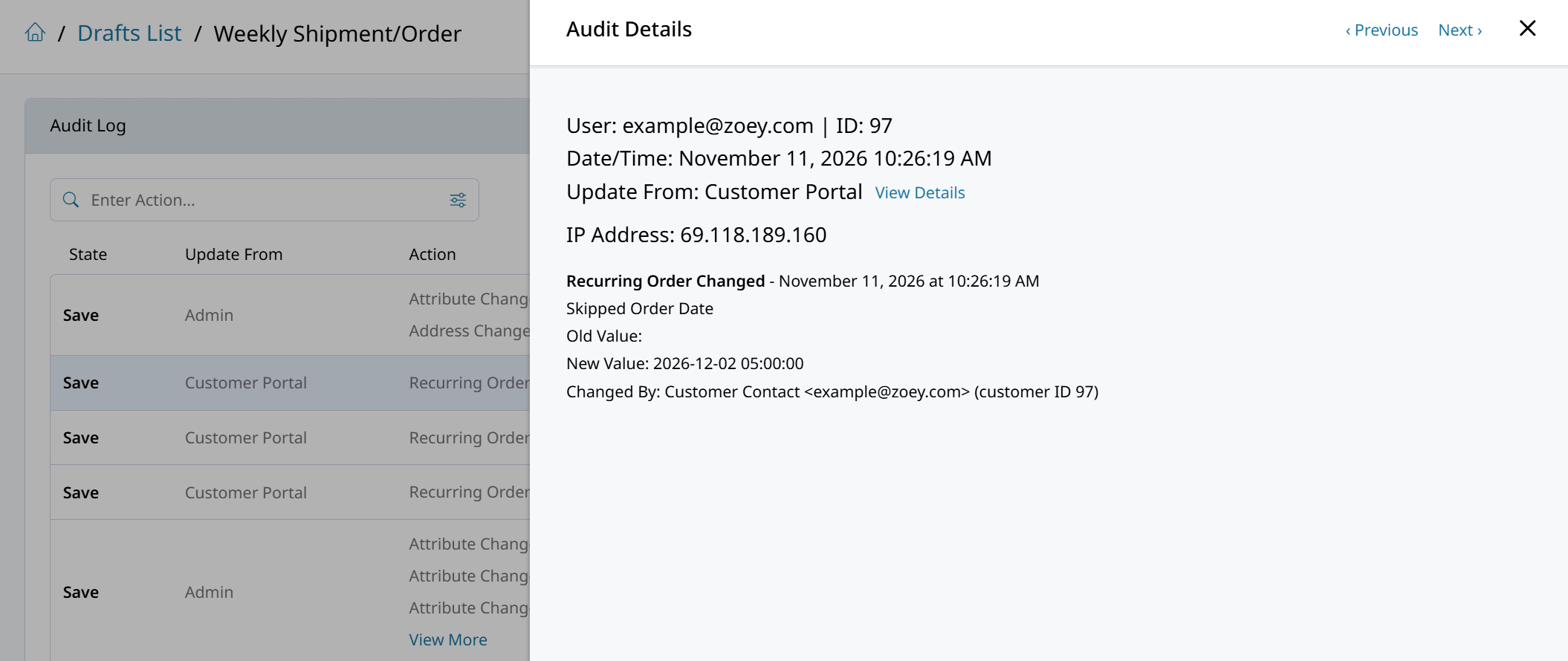
Customer changes in the Recurring Order Draft Audit Log
In Orders > Drafts > Recurring Orders, you can add the Skipped Order Date and Cancelled Date columns from the Gear icon.
To get an email each time a customer changes a recurring order, set Email Admins About Customer Changes to "Yes" and enter the Email Receivers.
Customers don't receive emails when they skip, pause, change or cancel a recurring order. They see a confirmation message on the page. Customers still receive the usual order emails when each order is placed.
Updated about 11 hours ago