
Category Grid (Subcategory List)
Use the Category Grid block to show subcategories as image tiles, so customers can drill down from a category to its products.
Overview
The Category Grid block shows categories as tiles, each with its thumbnail image, name and a button. On a Category Template, it can show the subcategories of the category a customer is viewing. That's how you build landing pages that lead customers from a category, to its subcategories, to the products.
When it shows subcategories, the grid updates on its own. When you add, remove, rename or reorder subcategories in Products > Categories, every page using the block shows the change.
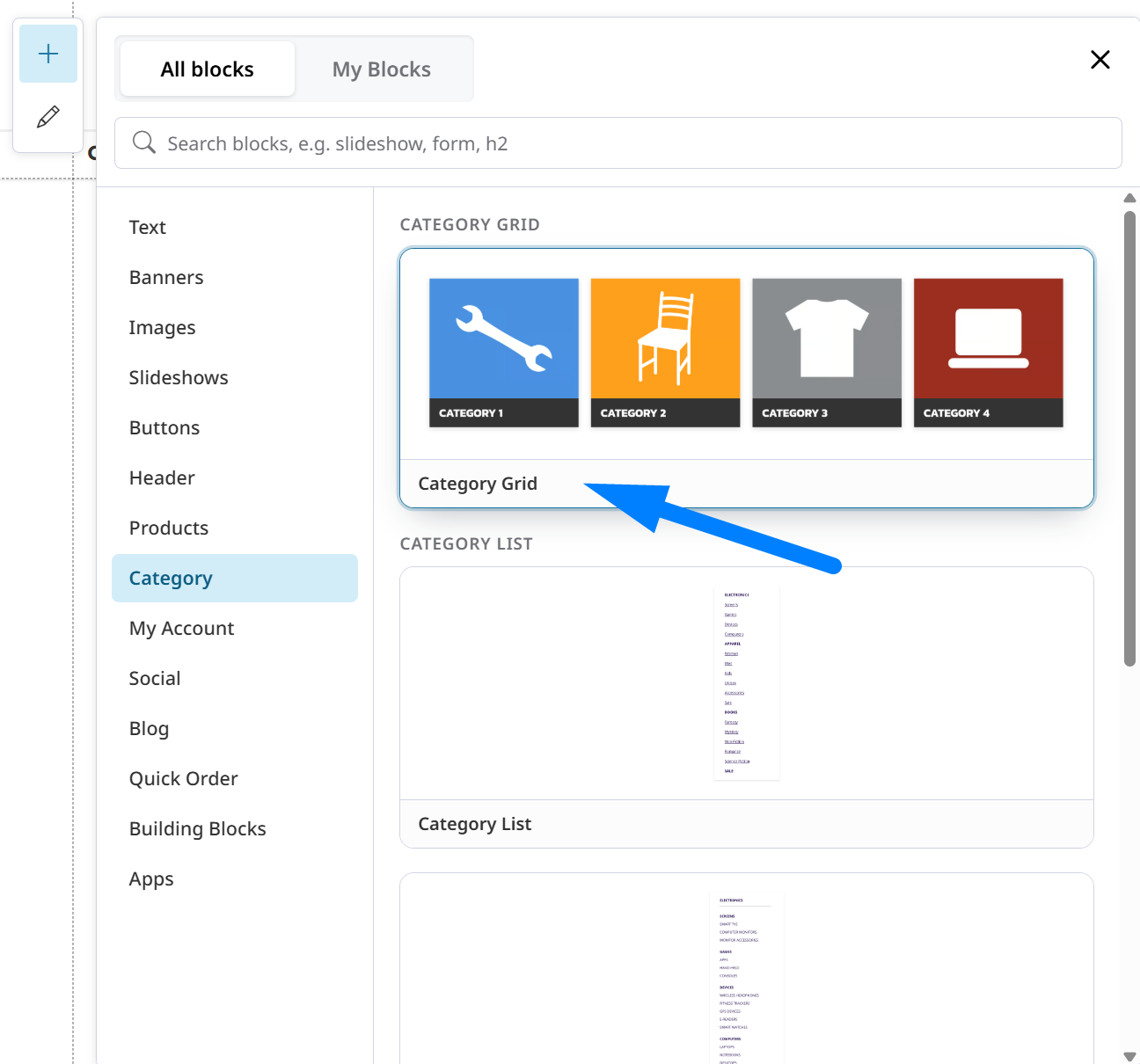
Category Grid or Category List?Both blocks are in the + menu under All blocks > Category.
Block What it shows Best for Category Grid Category tiles with images and buttons Category landing pages, brand pages, and featured categories on your homepage Category List Categories as text links Sidebar or footer navigation
Set Up a Subcategory Page
Each category uses a Category Template to decide what customers see. Parent categories and end categories usually need different templates:
- Parent categories (categories that contain subcategories) use a template with a Category Grid block.
- End categories (categories that contain products) use a template with a Category Product List block.
- Go to Theme and open the Category Template for your parent categories, or duplicate an existing one.
- Click +, open All blocks > Category, and drag Category Grid onto the template.
- Select the block, click Edit, and set it to show the subcategories of the current category. Save the template.
- Go to Products > Categories and open a parent category.
- Scroll down to Theme and select that template as the Category Template. Save the category.
- Open each subcategory that holds products and check that its Category Template has a Category Product List block, for example your default Category template.
Clicking a subcategory reloads the same pageIf a subcategory uses a template that only has a Category Grid, customers see the same layout again, or the message "There are no children categories of…", instead of its products. Change that subcategory's Category Template to one with a Category Product List.
The editor shows a different category's subcategoriesWhen you edit a Category Template, the editor previews it using one sample category. On your storefront, each category page loads its own subcategories.
Category Grid Settings
Select the block and click Edit to change its settings.
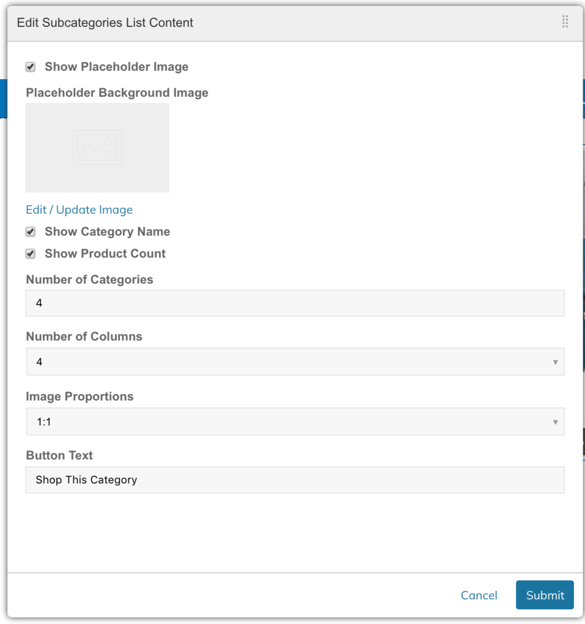
| Setting | What it does |
|---|---|
| Categories to show | Show the subcategories of the category being viewed, or categories you choose. Use the subcategories option on Category Templates; choose categories for a fixed set, such as on your homepage. |
| Number Of Categories | The most categories the block shows. If some subcategories are missing on your storefront, raise this number. |
| Columns | How many tiles show in each row. |
| Placeholder Image | The image shown for a category that has no thumbnail. |
| Button Text | The text on each tile's button, such as "View This Category" or "Shop Now". |
Different button text for different categoriesButton text is set on the template, not on each category. To use different text for a group of categories, duplicate the template, change its Button Text, and select the new template on those categories. Anyone who can edit categories can then switch a category to the new template without editing the theme.
Thumbnail Images
Each tile uses the category's Thumbnail Image. To change it, go to Products > Categories, open the category and upload a new Thumbnail Image.

Thumbnails display in a square, whatever size you upload. To show the whole image without cropping, select the block, click Design, and set the image to Fit. With Original Size, wide or tall images can be cut off.
Thumbnail Image vs. Main ImageThe Category Grid uses each category's Thumbnail Image. The Category Image block on a category page uses the category's Main Image. If an image shows in one place but not the other, check that both are set.
If a thumbnail doesn't show, check that the category still has a Thumbnail Image saved, upload it again if the file was replaced, then flush your cache.
Order of Subcategories
Subcategories appear in the same order as in Products > Categories. Drag categories to reorder them, then click Save All Categories.
To sort a category's subcategories alphabetically, click the gear icon next to the parent category and choose Sort Children A-Z. Do this again after you add a new subcategory.
Brand pages in alphabetical orderFor a brand page, create a subcategory for each brand with its logo as the Thumbnail Image, and add a Category Grid showing those subcategories to the brand page's template. New brands appear automatically, and Sort Children A-Z keeps them in alphabetical order, with no manual repositioning of logos.
Hide a Subcategory from the Grid
To hide a category everywhere on your store, uncheck Allow this category to be visible in my store on the category. To keep the category on your store but hide it from the grid, uncheck its option to show in category lists, then save and flush your cache.
Troubleshooting
| Problem | Fix |
|---|---|
| Some subcategories are missing | Raise Number Of Categories in the block's settings. Also check that each missing category is enabled and visible. |
| Clicking a subcategory reloads the same page | The subcategory's Category Template has no Category Product List. See Set Up a Subcategory Page. |
| "There are no children categories of…" | Same cause as above: the category has no subcategories, so it needs a template that shows products. |
| The grid shows the wrong categories | Check the block's Categories to show setting. To show the subcategories of each page, use the subcategories option, not chosen categories. |
| Images are cut off | Set the block's image to Fit in Design. |
| An image doesn't show | Check the category's Thumbnail Image, re-upload it if needed, and flush your cache. |
| A hidden category still shows | Check the category's visibility options and flush your cache. See Troubleshooting Categories. |
Updated about 5 hours ago