
Pay Now
One page where customers pay one invoice, several, a statement or their full account balance in a single payment.
The Pay Now page is one place where your customers pay their invoices: a single invoice, several at once, a statement, or their whole account balance, in one payment. It replaces the old page that paid one invoice at a time.
Pay Now is available on November 18, 2026 for every store using Invoicing. There is nothing to turn on: every pay link you already send opens the new page, and old invoice pay links redirect to it automatically.
How customers get to Pay Now
| Where the customer starts | What Pay Now shows |
|---|---|
| My Account › Invoices › Make A Payment | Every open invoice for the account they have selected |
| Pay Now in an invoice email, an invoice PDF, or the My Account invoice list | Just that invoice, with the full account balance one click away |
| A statement link (statement emails and PDFs) | That statement's open invoices, starting on the statement balance |
| Pay Now on an order with no invoice yet | The order as a "New Invoice". The payment creates the invoice. Requires Allow Customer To Pay Order Without An Invoice |
| An invoice email link, without logging in | That invoice only. Requires Allow Invoice Pay Without Login |
Paying with Pay Now
The page has three sections, with a Review and pay panel beside them (below them on a phone).
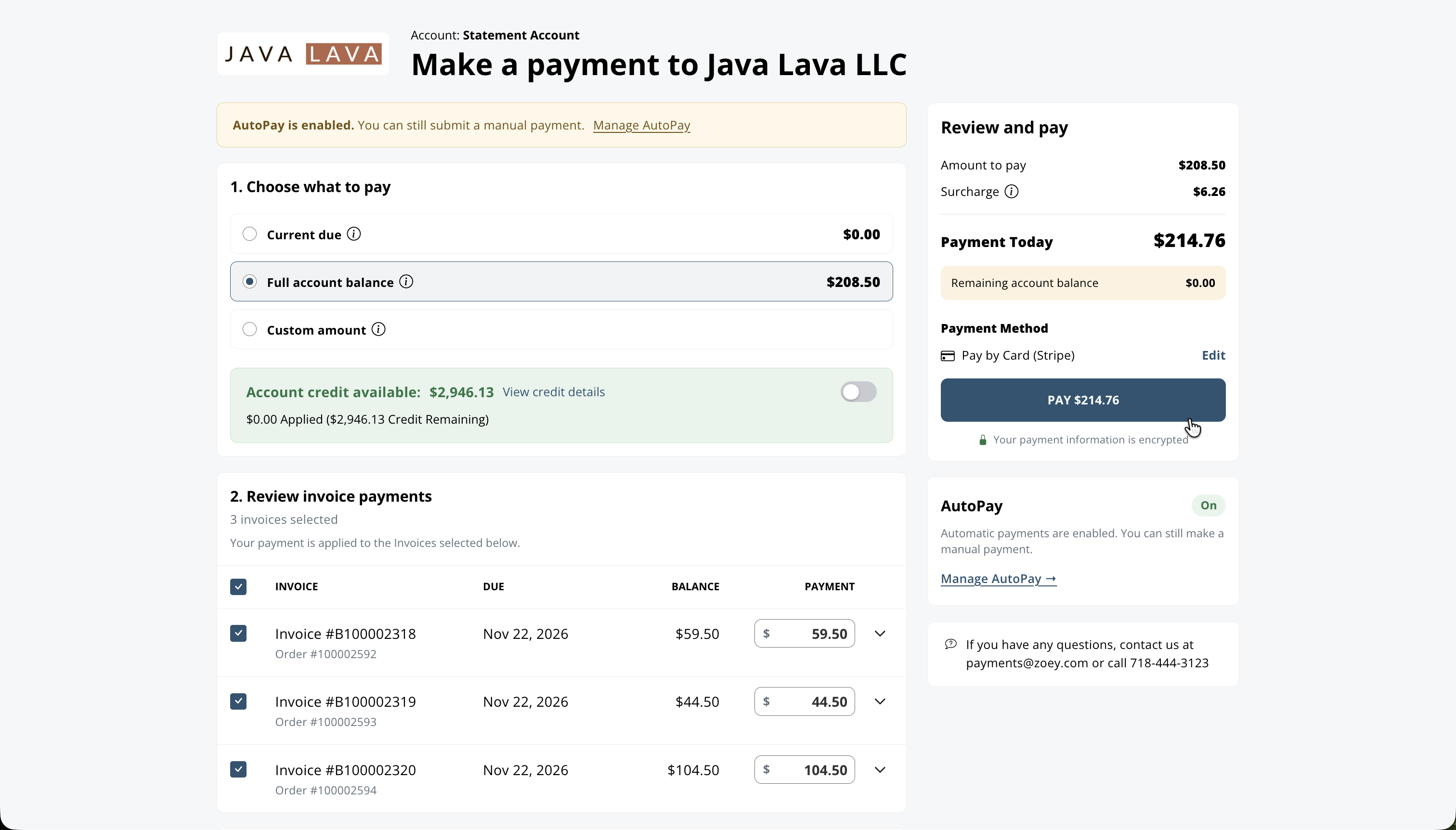
1. Choose what to pay
Customers pick one option:
| Option | What it pays |
|---|---|
| Current due | Invoices due today or past due (on a statement link: that statement's invoices due today or past due). |
| Full account balance | All open invoices. |
| Statement balance | Every invoice on the statement (from a statement link). |
| Invoice balance | That invoice in full (from an invoice link). |
| Deposit | The deposit an invoice asks for. |
| Custom amount | An amount the customer enters, spread over the selected invoices oldest due first. They can also adjust the payment and credit for each invoice. |
Account credit available shows the customer's open credit, with View credit details listing the credit memos that make it up. Apply account credit applies it, oldest due first.
2. Review invoice payments
Each invoice shows its number, due date, Past due or early-pay discount badges, balance, credit, and payment. Customers can:
- Check or uncheck invoices, or Select all invoices.
- Change the Payment for an invoice, or choose Edit credit allocation to move credit between invoices or turn it off.
- Open View details for the invoice's line items, or Download invoice PDF.
- Use Pay More Invoices to show the account's other open invoices (and Show Fewer Invoices to hide them).
When a customer changes the selection or an amount while a preset (such as Current due) is chosen, the page switches to Custom amount and says why, for example "Switched to Custom amount to include Invoice #1001." Undo puts the previous choice back.
Rows can also show Deposit requested, Deposit on file (a deposit already paid on the order) and Payment pending (a payment for that invoice is still processing).
3. Payment details
Customers pay with the methods you allow for invoice payment: a saved card, a new card, an ACH bank account, or PayPal Express. They can:
- Edit address to use a different billing address for this payment. The address on file is not changed.
- Add a Payment note, saved on the payment in your admin.
If the account has AutoPay on, the page says AutoPay is enabled and that a manual payment can still be made. Account managers see Manage AutoPay or Set Up AutoPay.
Review and pay
The panel totals the payment: Amount to pay, Account credit applied, any Surcharge, Payment Today, and the Remaining account balance after this payment. When credit covers everything, no payment method is needed.
Receipt
After paying, the customer sees Payment successful (or Payment submitted while an ACH payment processes, or Deposit received for a deposit), with the payment reference, method, and Amounts applied to each Invoice. They can Print receipt, Make another payment if a balance remains, or go to their dashboard.
B2B accounts
- A customer pays for the account they have selected. Opening an invoice link for another of their accounts switches to that account.
- Statement-billed accounts pay a statement or their full account balance.
- Deposit requests are marked as deposits, and Current Due pays exactly the deposit. Deposits already paid on an order come off its invoices' balance first.
- The page shows whether AutoPay is on for the account, and links account managers to set it up.
Guests
With Allow Invoice Pay Without Login on, someone who isn't logged in can pay an invoice from its email link. Guests see only that invoice, and can't use saved cards, saved bank accounts, ACH, or account credit.
Paying in the admin
- Order payment editor and Create Invoice: Pay Now now charges right on the screen, with no pop-up, including requested deposits.
- Statement view: Pay Now opens the Pay Now page for that statement, set up as you chose.
- Admin Pay Now applies the account's available credit automatically. When credit covers the payment, no payment method is needed.
- Customer-only methods: PayPal Express is only on the storefront. New ACH bank accounts can't be added from the admin; customers add them in My Account (Stripe ACH Accounts), and then you can charge them.
- A payment the gateway flags for review shows a message in the admin. Once it's accepted at the gateway, open the order and click Get Payment Update.
Troubleshooting
| Message the customer sees | What it means |
|---|---|
| Payment pending on an invoice | A payment for that invoice is still processing (usually ACH). It can be paid again once that payment completes. |
| "Your payment session has expired. Please refresh the page and try again." | The page was left open too long (about an hour) or the store's cache was cleared. Refreshing starts over. |
| "There are no payment methods available." | No payment method is enabled for invoice payment, or none applies to this customer (guests can't use ACH or saved methods). Check your payment settings. |
| "No payment required" / "You have no open Invoices." | The account has nothing to pay. |
| "This Invoice can not be paid here." | The invoice can't be paid on the storefront, for example because customer invoice payment is off. |
| "This Invoice has already been paid." | The invoice is paid in full. |
| "Access denied to view this Invoice." | The invoice belongs to an account the logged-in customer isn't part of. |
| "This order has to be paid in full." | Partial payment of orders without an invoice is off. See Settings. |
| "This payment link has expired. Please open the order and click Pay Now again." | The order's pay link was opened in another browser or too late. |
| "The order total changed. Please refresh the page and try again." / "An invoice was created for this order while you were paying." | The order changed while the customer was paying. Refreshing shows the current amounts. |
| "Your payment is being reviewed. We will contact you with more information." | The gateway held the payment for review. See Paying in the admin. |
Settings
Go to Settings › Order Settings › Invoicing:
| Setting | What it does |
|---|---|
| Allow Invoice Payment | Turns customer invoice payment on the storefront on or off. |
| Allow Customer To Pay Order Without An Invoice | Lets customers pay an order from the order page before it's invoiced. The payment creates the invoice. |
| Allow Partial Payment Of Orders Without An Invoice | Lets customers pay part of such an order. Off by default, so those orders are paid in full. |
| Allow Invoice Pay Without Login | Lets guests pay from their invoice link. |
| Help Text / Login Help Text | Text shown on the page, and to customers who aren't logged in. |
| Pay Invoice Page Logo | The logo shown on the page. |
The payment methods offered are the ones enabled for invoice payment in your payment settings.
Related
Updated 28 minutes ago