
How to sell Classes or Tickets through your Zoey Store
Zoey makes it easy to sell tickets, classes, or event registrations using Virtual Products
Overview
Stores that offer in-person experiences can sell tickets and track attendance in Zoey. Customers would purchase the ticket or class like any other product. This guide will help outline and provide steps for selling tickets, control availability, collect attendee information, and track who purchased each class.
Step 1: Create a Virtual Product for Each Class
Create separate Virtual Products for each class, event, or session you want to sell.
For example:
- "Chocolate Making Class - Feb 24"
- "Yoga Flow - Saturday Morning"
- "Kids Art Workshop - Winter Season Pass"
Using a virtual product per class keeps everything organized, and makes it easy for customers to understand what they're purchasing.
Set Stock Qty to Match Available Seats
Virtual Products can track inventory to represent how many seats are available. Configure Inventory to "Track inventory on this product". Then set the Quantity to be the number of tickets available for the class.
When available stock reaches 0, the class will appear sold out based on the Qty for Item's Status to Become Out of Stock.
Configure Allow customers to purchase this product when it's Out of Stock to No so that the event does not get oversold.
Set a Maximum Quantity Allowed in Shopping Cart to set limits for how many tickets can be purchased in a single Order.
Add Product Attributes that Detail the Class Schedule and Start Time
Providing important information will be critical to driving ticket sales for your event. Add a detailed Description, and add Product Attributes such as event date, class subject, minimum age requirements, and any other important information to display it on the Virtual Product's page.
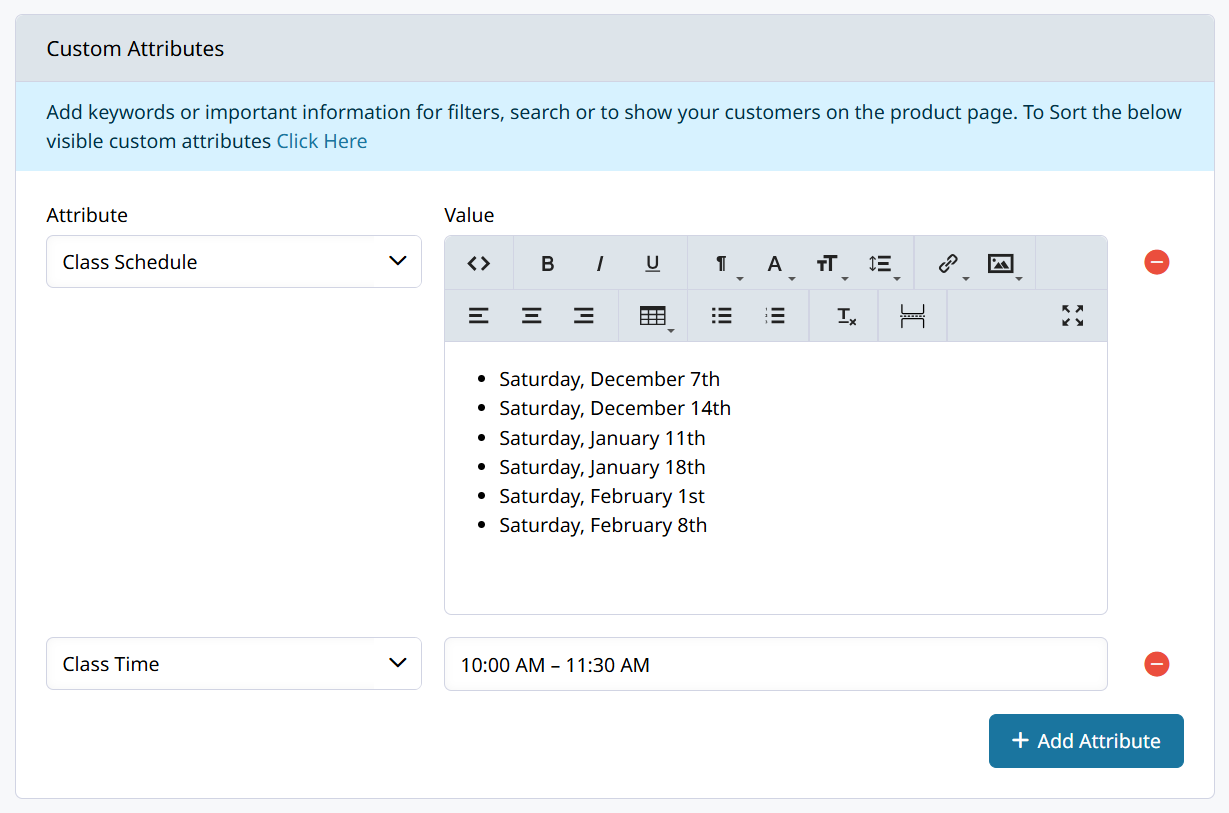
There are many other Product Features in Zoey which can help sell tickets.
Collect Information With Product Customizations
You can add Customizations to the virtual products to require info from your customers and track those details in the Order.
Here are some examples of information you may want that can be collected through a Customization:
- Attendee name
- Contact information for attendee
- Preferred method to be contacted
- Dietary restrictions or other important information
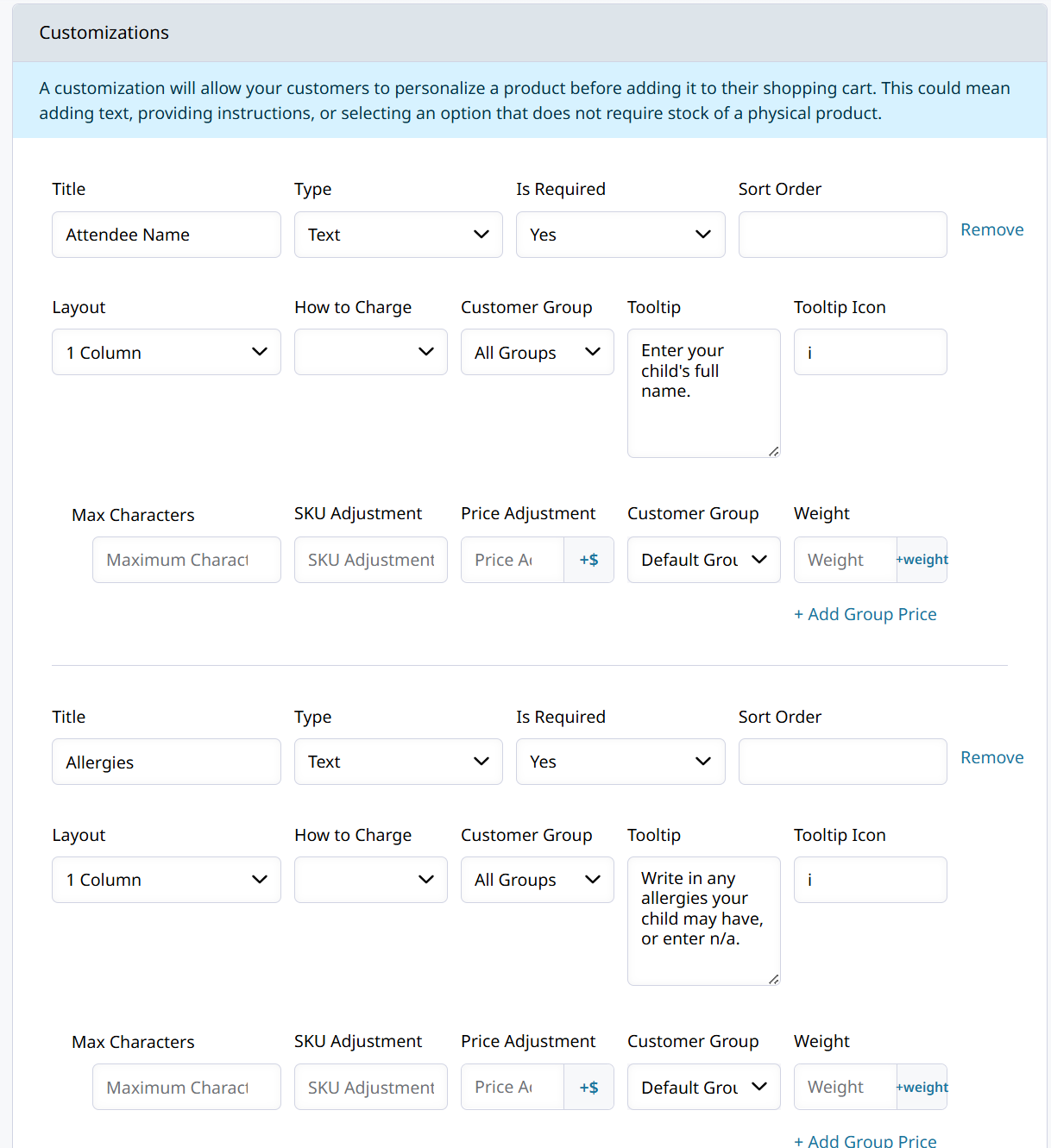
These details appear on the order, so you can easily reference who is expected to attend and important details about their reservation.
Step 2: Display the Virtual Product to your Store
It's highly recommended to create a new Category for the event ticket virtual products. After adding the product to a Category it will begin appearing in the storefront. Please be sure to either Restrict the product, or change the Visibility to prevent customers from finding it before you're ready to start selling tickets.
Create a new Page in your Theme for Upcoming Events
Helpful guides for designing pages of your store are available here!
Customers decide to purchase a ticket for an event or class differently than they would a physical product. It helps a lot to have a nicely designed page that shows the workshops or classes which are available to purchase a ticket for, and upcoming events plus when tickets will become available.
Create a new Information page template to display the products. This will be the page where customers can view event details and add tickets to cart.
The information page for events can be custom designed without impacting any other parts of your store. How you envision the layout of the page determines how to set it up.
Important Information to Display
Use the product description and page layout to clearly explain what customers are signing up for. Make sure to include any disclaimers or requirements for participation.
Here is a list of helpful details to include:
- Date and time
- Duration
- Location
- What’s included
- Skill level or age requirements
- Cancellation or refund policies
Clear information reduces refunds and increases confidence at checkout.
Step 3. Tracking Who Purchased a Ticket
In Reports > Sales the Find Customers by Sku report makes it easy to see which customers purchased a ticket. Enter the SKU of your class or event virtual product and then Refresh to see a list of the customers.
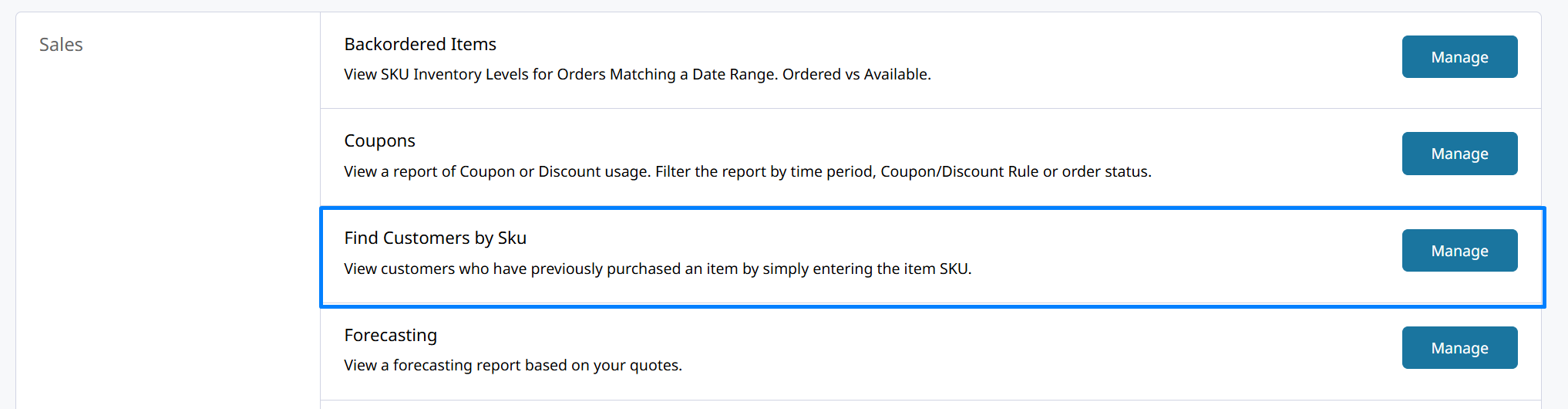
The Orders list can also be filtered by SKU to return Orders which include a ticket. From there Bulk Actions can export the Order details to CSV.
Updated 8 months ago