
Manually Link a Zoey Invoice to a QuickBooks Invoice
If an invoice already exists in QuickBooks Online but is not linked to its Zoey invoice, you can manually connect the two records.
How to Manually Link an Invoice
- Go to Orders > Invoices.
- Open the Not Synced to QuickBooks tab.
- Click the Zoey invoice you want to link.
- Click the Order # to open the related order in a new tab.
- From the order, click QuickBooks to open the QuickBooks Information panel for that order.
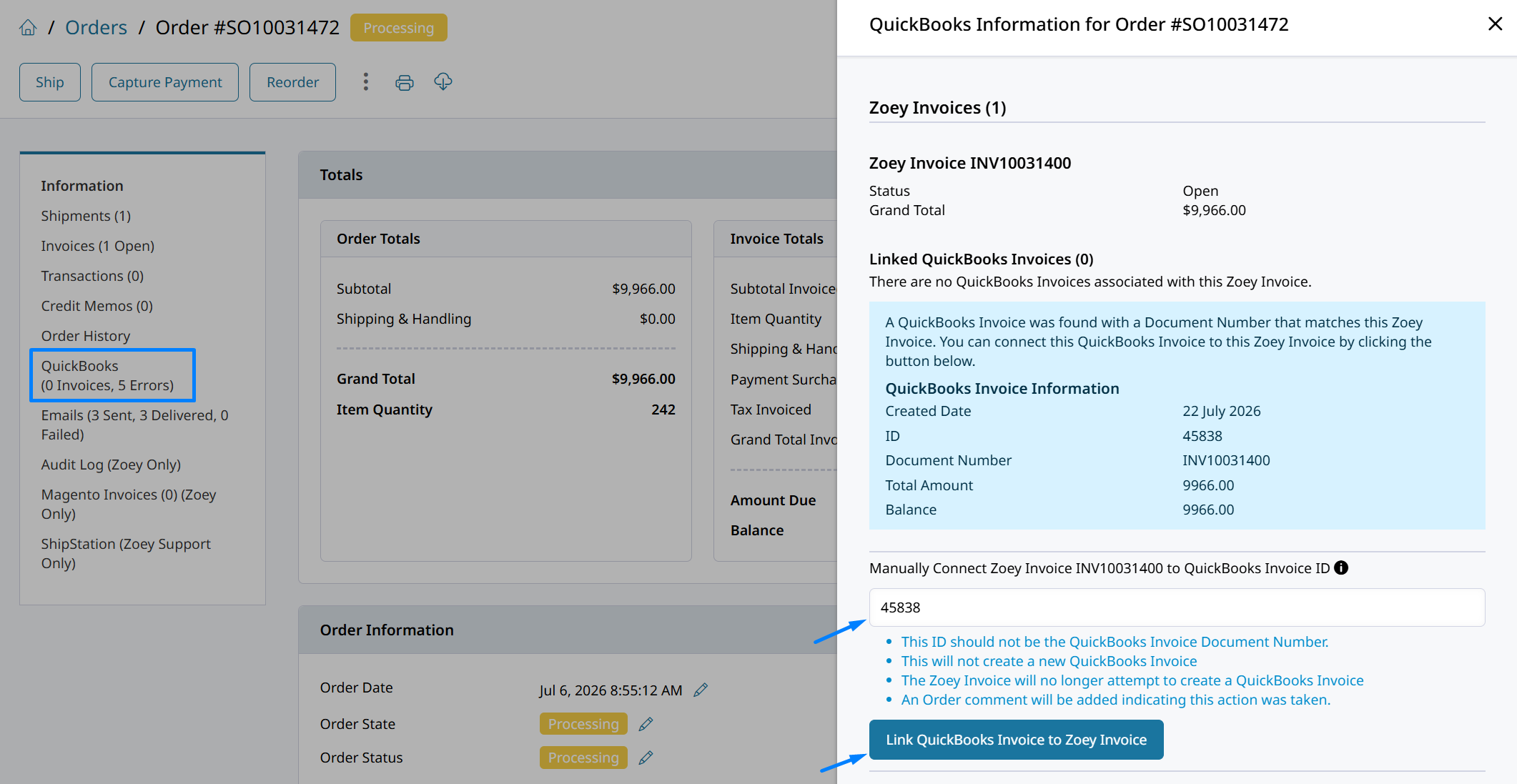
If QuickBooks finds an invoice with a matching document number, its information and internal QuickBooks invoice ID will be displayed.The expected ID will also be entered automatically in the manual connection field. Confirm that the displayed QuickBooks invoice is the correct record before linking it. You can use the internal invoice ID to locate and verify the invoice in QuickBooks Online. The internal ID is not the QuickBooks invoice document number.
- Confirm that the correct internal QuickBooks invoice ID is entered.
- Click Link QuickBooks Invoice to Zoey Invoice.
The existing QuickBooks invoice will be linked to the Zoey invoice. This action does not create a new invoice in QuickBooks. Once linked, Zoey will no longer attempt to create the invoice again, and a comment recording the action will be added to the order.
Updated 3 months ago
Did this page help you?