
Set up free shipping
Offer free shipping over an order amount, per customer group, by region, with a coupon, or for specific products.
Offer free shipping (free freight) to your customers with the built-in Free Shipping method. Use it on its own for free shipping over an order subtotal, or combine it with a Discount Rule for promo codes, specific products or customer groups.
Use it to:
- Give free shipping on orders over a set subtotal (for example, orders over $100)
- Set a different free shipping minimum for each Customer Group
- Offer free shipping only with a promo code (coupon)
- Ship specific products for free
- Limit free shipping to certain countries or states/regions
- Turn free shipping off when a certain discount is in the cart
| I want to… | Go to |
|---|---|
| Turn on the Free Shipping method | Set Up the Free Shipping Method |
| Free shipping over an order total | Free Shipping Over an Order Subtotal |
| A different minimum per customer group | Free Shipping for Customer Groups |
| Free shipping only in some countries or states | Limit Free Shipping by Country, State or Region |
| Free shipping with a coupon, or automatically through a rule | Free Shipping with a Discount Rule or Promo Code |
| Free shipping for certain products | Free Shipping for Specific Products |
| Remove free shipping when a discount applies | Stop Free Shipping When a Discount Applies |
Free shipping by weight or number of itemsTo charge $0 shipping based on weight or item count, use Table Rate Shipping instead. Carriers like UPS, FedEx and USPS also have their own free shipping options in their method settings.
Set Up the Free Shipping Method
Every free shipping option below starts with this method.
- In the Zoey Admin, go to Settings > Shipping Methods.
- If Free Shipping isn't in your list, click Add Shipping Method and add Free Shipping.
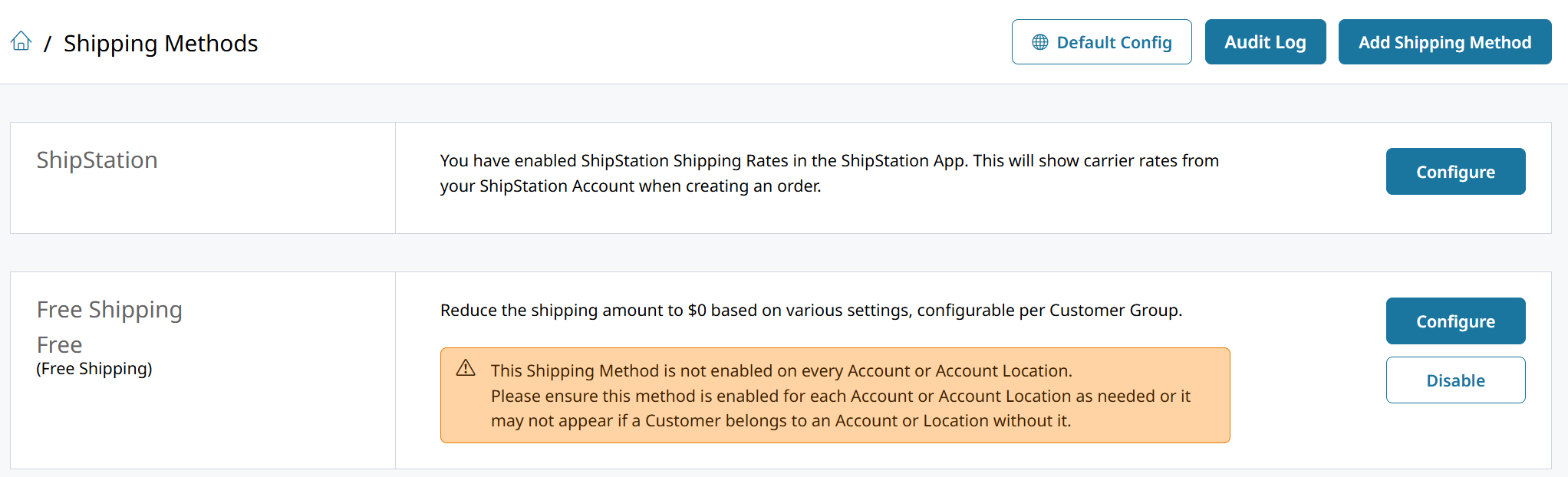
- Open Free Shipping and fill in the settings below.
- Click Save.
- Test it: on the storefront, add products to the cart that meet your rules and go through checkout.
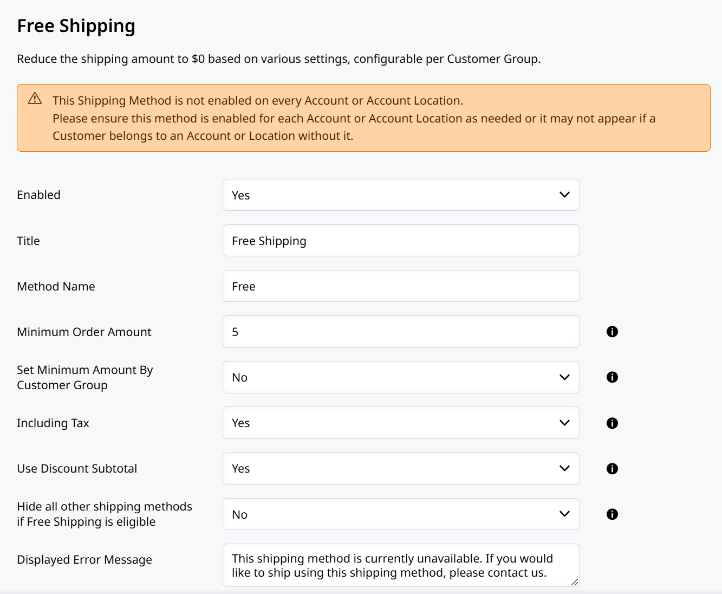
| Setting | What it does |
|---|---|
| Enabled | Yes offers Free Shipping at checkout to every customer who qualifies. |
| Title | The name customers see above the method, like a carrier name. We recommend Free Shipping. |
| Method Name | Extra detail shown with the method, such as Ground or Standard 3 Day. |
| Minimum Order Amount | The order subtotal a customer must reach to get free shipping. Enter a plain number with no currency symbol (100, not $100). |
| Set Minimum Amount By Customer Group | Yes lets you enter a different minimum for each Customer Group. See Free Shipping for Customer Groups. |
| Customer Group Minimum Amounts | The minimum for each Customer Group. Shows when the setting above is Yes. |
| Including Tax | Yes adds the tax amount to the subtotal when checking whether the minimum is met. |
| Use Discount Subtotal | Yes checks the minimum against the subtotal after discounts. |
| Hide all other shipping methods if Free Shipping is eligible | Yes shows only Free Shipping at checkout when the order qualifies. |
| Enable Free Shipping for Specific Countries / Select which Countries to Enable Free Shipping For | Limit free shipping to the countries you select. |
| Enable Free Shipping for Specific Regions/States / Select which Region/State to Enable Free Shipping For | Limit free shipping to the states or regions you select. |
| Show Method if Not Applicable | Yes still lists Free Shipping for customers who don't qualify, with the error message below. |
| Displayed Error Message | The message a customer sees when Free Shipping shows but they don't qualify. |
| Hide Price / Show Prices on PDF and Emails | Hide the shipping price at checkout; optionally still show it on PDFs and emails. |
| Sort Order | Where Free Shipping appears in the list of shipping methods. Leave blank for the default order. |
Hiding other methods and discount rulesIf Hide all other shipping methods if Free Shipping is eligible is Yes and a Discount Rule removes Free Shipping (Stop Free Shipping When a Discount Applies), the customer can end up with no shipping methods at checkout.
Free Shipping Over an Order Subtotal
The simplest setup: any order over the Minimum Order Amount that ships to an allowed destination gets free shipping.
- Follow Set Up the Free Shipping Method.
- Set Minimum Order Amount to your threshold, for example
100. - Choose whether tax and discounts count toward the minimum with Including Tax and Use Discount Subtotal.
- Click Save.
Example: the Minimum Order Amount is 100.
| Cart | Including Tax | Use Discount Subtotal | Amount checked | Free shipping? |
|---|---|---|---|---|
| $95 subtotal + $8 tax | No | No | $95 | No |
| $95 subtotal + $8 tax | Yes | No | $103 | Yes |
| $110 subtotal, $15 discount | No | No | $110 | Yes |
| $110 subtotal, $15 discount | No | Yes | $95 | No |
Free Shipping for Customer Groups
Set a different free shipping minimum for each Customer Group, for example $500 for wholesale and $75 for retail.
Available on certain plansIf you don't see Set Minimum Amount By Customer Group, your plan may not include it. Contact Zoey to upgrade.
- Follow Set Up the Free Shipping Method.
- Set Set Minimum Amount By Customer Group to Yes.
- Under Customer Group Minimum Amounts, enter the minimum for each group.
- Click Save.
- A group minimum takes priority over the main Minimum Order Amount.
- A group you leave empty uses the main Minimum Order Amount.
- If you change the main Minimum Order Amount later, group values don't update with it. Update any group that should match by hand.
Limit Free Shipping by Country, State or Region
- Follow Set Up the Free Shipping Method.
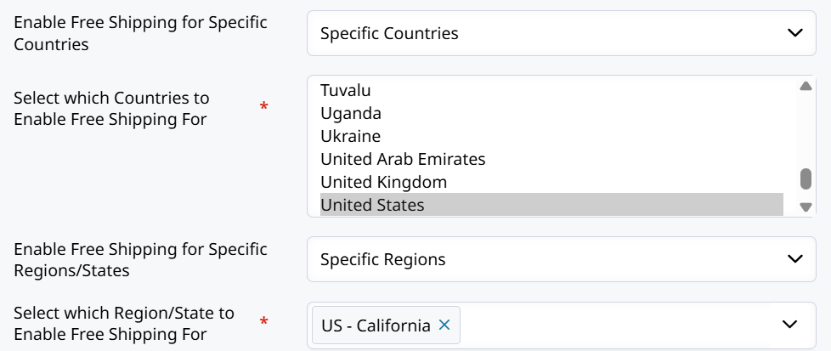
- Set Enable Free Shipping for Specific Countries to specific countries, then select each country in Select which Countries to Enable Free Shipping For. Hold Ctrl (Cmd on a Mac) to select more than one.
- Set Enable Free Shipping for Specific Regions/States to Specific Regions, then pick each state or region that gets free shipping in Select which Region/State to Enable Free Shipping For (type to search, or click Select All and remove the ones that don't).
- Click Save.
Free Shipping with a Discount Rule or Promo Code
Use a Discount Rule when free shipping depends on something other than the order total: a coupon (promo code) the customer enters, or rule conditions that apply automatically.
Step 1: Make the Free Shipping method rule-only
- Follow Set Up the Free Shipping Method.
- Set Minimum Order Amount to a very high number, such as
9999999999. - Click Save.
No order can reach that amount, so customers only get Free Shipping when a Discount Rule gives it to them.

Step 2: Create the Discount Rule
- Go to Promotions > Discount Rules and click Create a Discount Rule.
- Fill in the rule:
| Setting | Value |
|---|---|
| Discount Name | Free Shipping (or a name your team recognizes) |
| Status | Active |
| Customer Groups | The groups that can use it, or all groups |
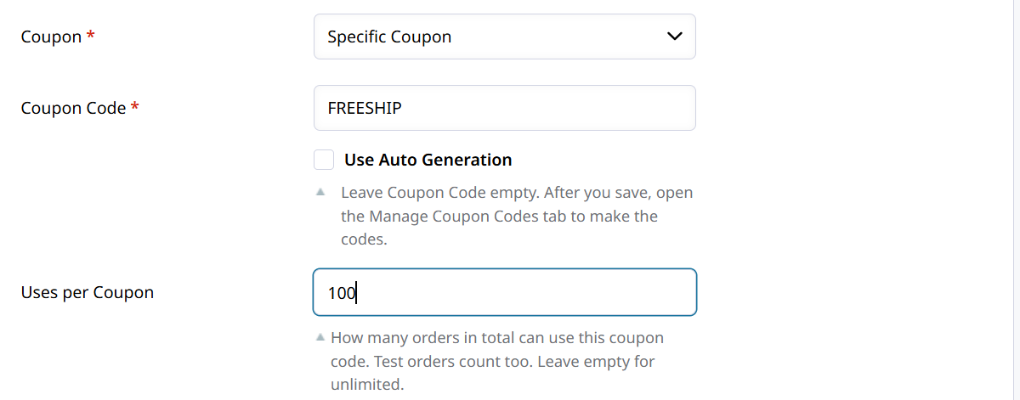
| Coupon | Specific Coupon for a promo code (then enter the code in Coupon Code), or No Coupon to apply it automatically |
| Uses per Coupon | The total number of times the coupon can be used across all customers, for example 100 |
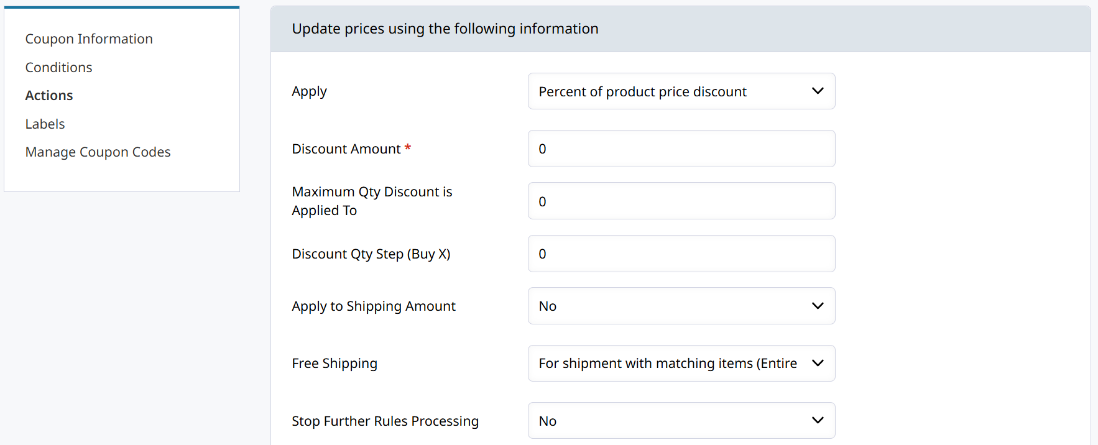
- Open the Actions tab and set:
| Setting | Value |
|---|---|
| Discount Amount | 0 |
| Apply to Shipping Amount | No |
| Free Shipping | For shipment with matching items (Entire Cart), or For matching items only |
- Save the rule. A rule with Free Shipping set can save with a
0Discount Amount.
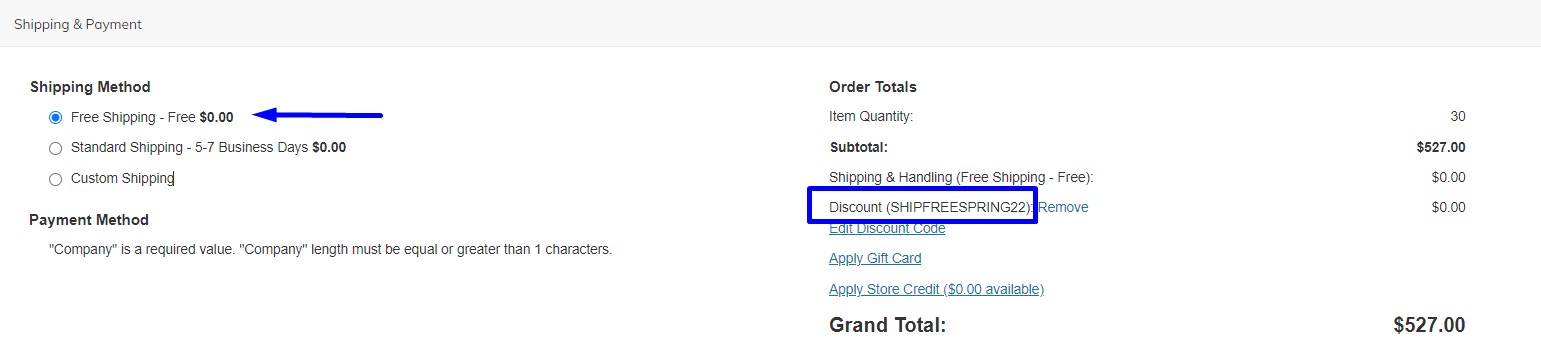
When the rule applies (or the customer enters the coupon), Free Shipping shows as a shipping method at checkout.
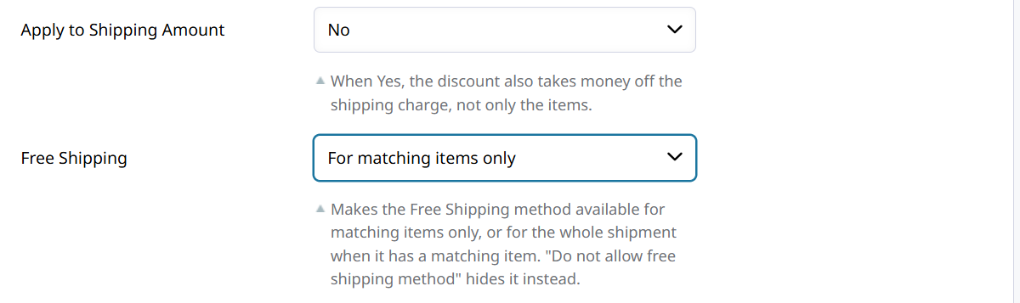
The Free Shipping options on a Discount Rule
- No: the rule doesn't change shipping.
- For matching items only: only the items that match the rule's Actions conditions ship free. See Free Shipping for Specific Products.
- For shipment with matching items (Entire Cart): the whole order ships free when the rule applies.
- Do not allow free shipping method: removes Free Shipping. See Stop Free Shipping When a Discount Applies.
Which shipping methods go to $0
| Shipping method | What a free-shipping Discount Rule does |
|---|---|
| Free Shipping method | Shows at checkout when the rule applies. Set its Minimum Order Amount very high so only the rule unlocks it. |
| Table Rate | For shipment with matching items (Entire Cart): the rate becomes $0. For matching items only: matching items are left out of the rate's count, and the rate is $0 when every item matches. |
| Flat Rate | Becomes $0 (or leaves out the matching items, for a per-item price) only when that Flat Rate's Allow Discount Rules with Free Shipping to Set Price to $0 setting is Yes. |
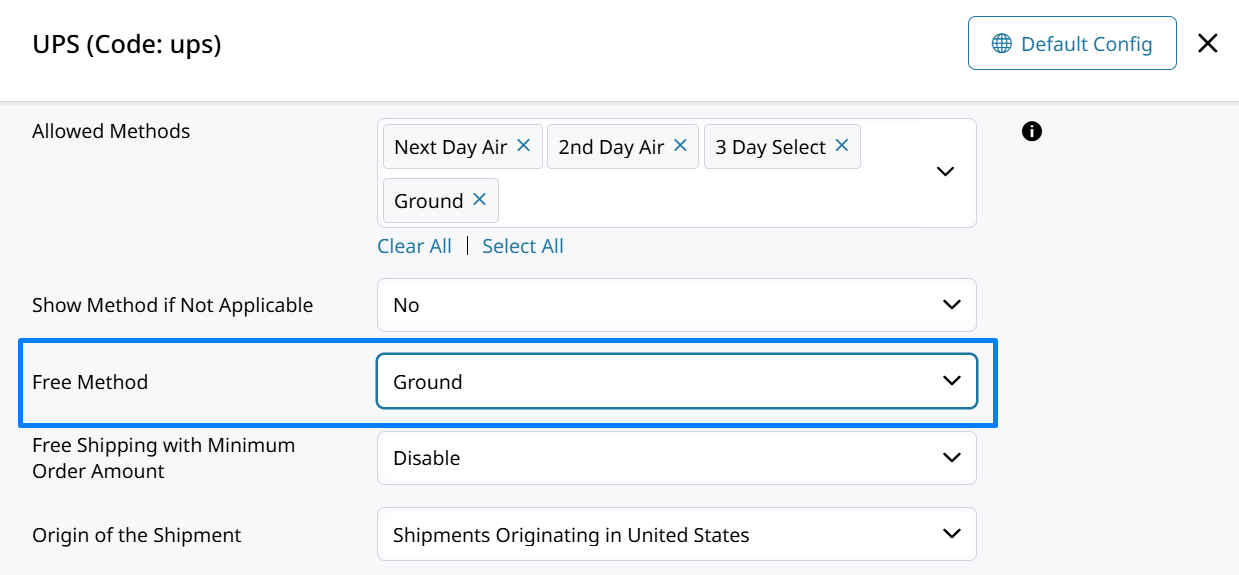
| UPS, FedEx, USPS (live rates) | Never $0 from the rule. With For matching items only, matching items are left out of the quote for the one service you pick as the carrier's Free Method. |
Free shipping for some customer groups without a couponYou can also create a Flat Rate method named "Free Shipping" with a price of
0, limited to specific Customer Groups and a minimum order amount.
Free Shipping for Specific Products
Mark products with a Free Shipping attribute, then use a Discount Rule to make those items ship free.
Step 1: Create a Free Shipping attribute
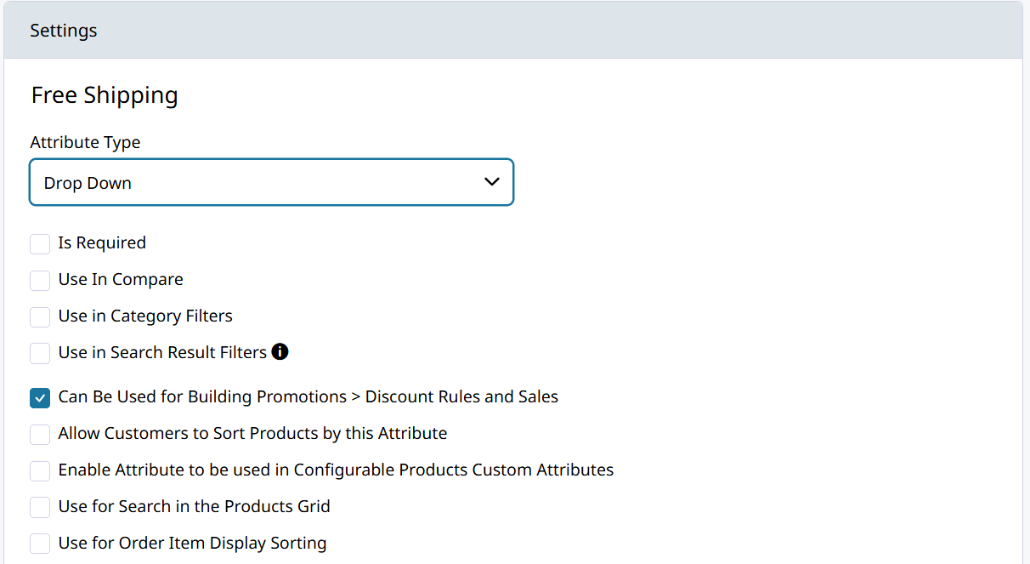
- Go to Products > Attributes and click Create New Attribute.
- Set Attribute Name to Free Shipping and Attribute Type to Drop Down.
- Check Can Be Used for Building Promotions > Discount Rules and Sales.
- Click Save.
- Under Values, click Add First Value, enter Yes, and save the attribute.
Step 2: Create the Discount Rule
- Create the rule as in Free Shipping with a Discount Rule or Promo Code, with Coupon set to No Coupon.
- On the Actions tab, set Free Shipping to For matching items only.
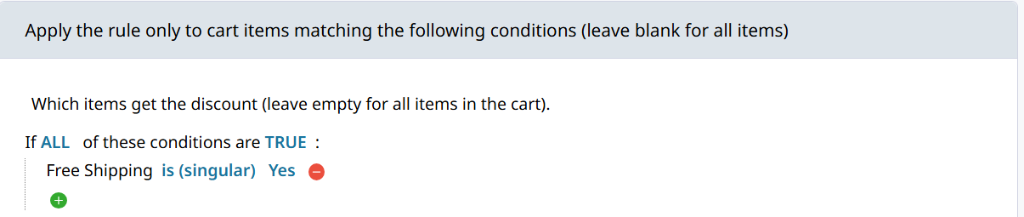
- Under Apply the rule only to cart items matching the following conditions, keep If ALL of these conditions are TRUE, click the plus sign, choose Free Shipping under Product Attribute, and set it to is Yes.
- Save the rule.
Step 3: Make the Free Shipping method rule-only
Set the Free Shipping method's Minimum Order Amount to 9999999999, as in Step 1 above.
Step 4: Tag your products
- Open the product in Products.
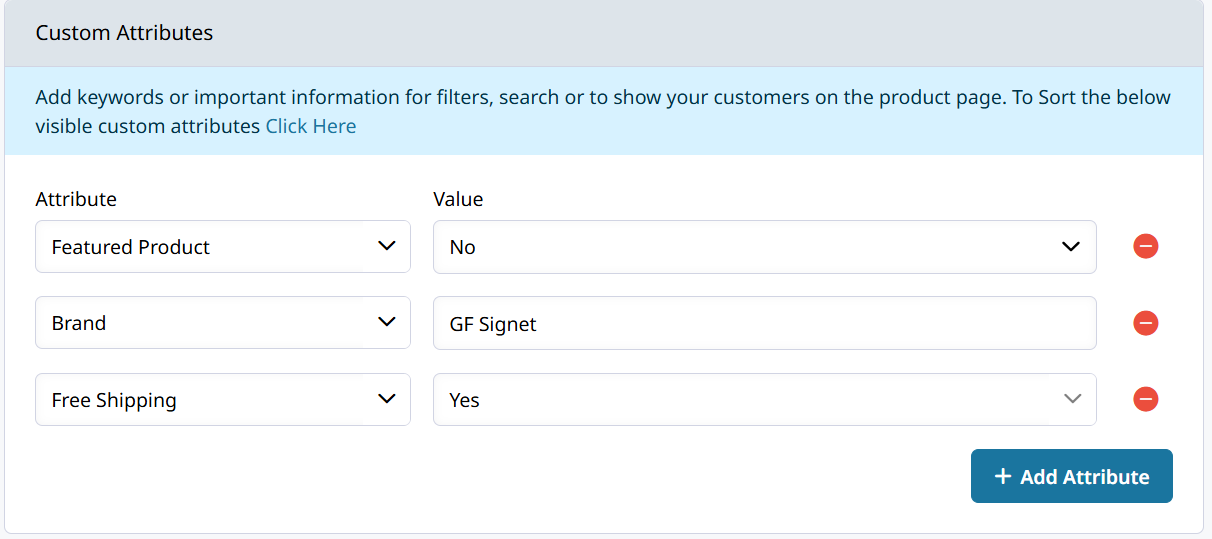
- Under Custom Attributes, click Add Attribute, choose Free Shipping, and set it to Yes.
- Save the product.
What the customer sees:
- When every item in the cart has free shipping, the Free Shipping method shows at checkout.
- When the cart mixes free-shipping and regular items, Free Shipping doesn't show. Carrier rates (UPS, FedEx, USPS) can leave the free items out of the quote for the service you pick as the carrier's Free Method.
Stop Free Shipping When a Discount Applies
Use this so a promotion and free shipping can't be combined. When the rule applies to the cart, the Free Shipping method is removed.
- Go to Promotions > Discount Rules and open (or create) the rule.
- On the Actions tab, set Free Shipping to Do not allow free shipping method.
- Save the rule.

Check the Free Shipping method's Hide all other shipping methods if Free Shipping is eligible setting. If it's Yes, this rule can leave the customer with no shipping methods.
Related Articles
Updated 1 day ago