
Lots and Serial Numbers for Shipped Items
Attach a Lot and Serial Number for each item in a Shipment to include that information to your customers.
Recording Lots and Serial Numbers on Shipments
Zoey Lot and Serial Numbers feature lets you record identifying information for products as they are shipped. This can help your business trace inventory, manage warranties, and keep more detailed fulfillment records.
Enable Lot and Serial Numbers
Adding a Lot or Serial Numbers to shipment items is disabled by default. To use the feature, go to Orders > Settings > Lot/Serial Numbers and set Enable Lot/Serial Numbers to Yes.
The Lot and Serial Number fields are enabled together. After enabling the feature, you can enter a lot number, a serial number, or both for each item in a shipment.
How lot and serial numbers work
Lot and serial numbers can be added to each line item in a shipment. Customers see these identifiers in their PDFs, emails, and on the customer portal for warranty support and product tracking.
- A lot number identifies a group or batch of products.
- A serial number identifies a specific product or unit.
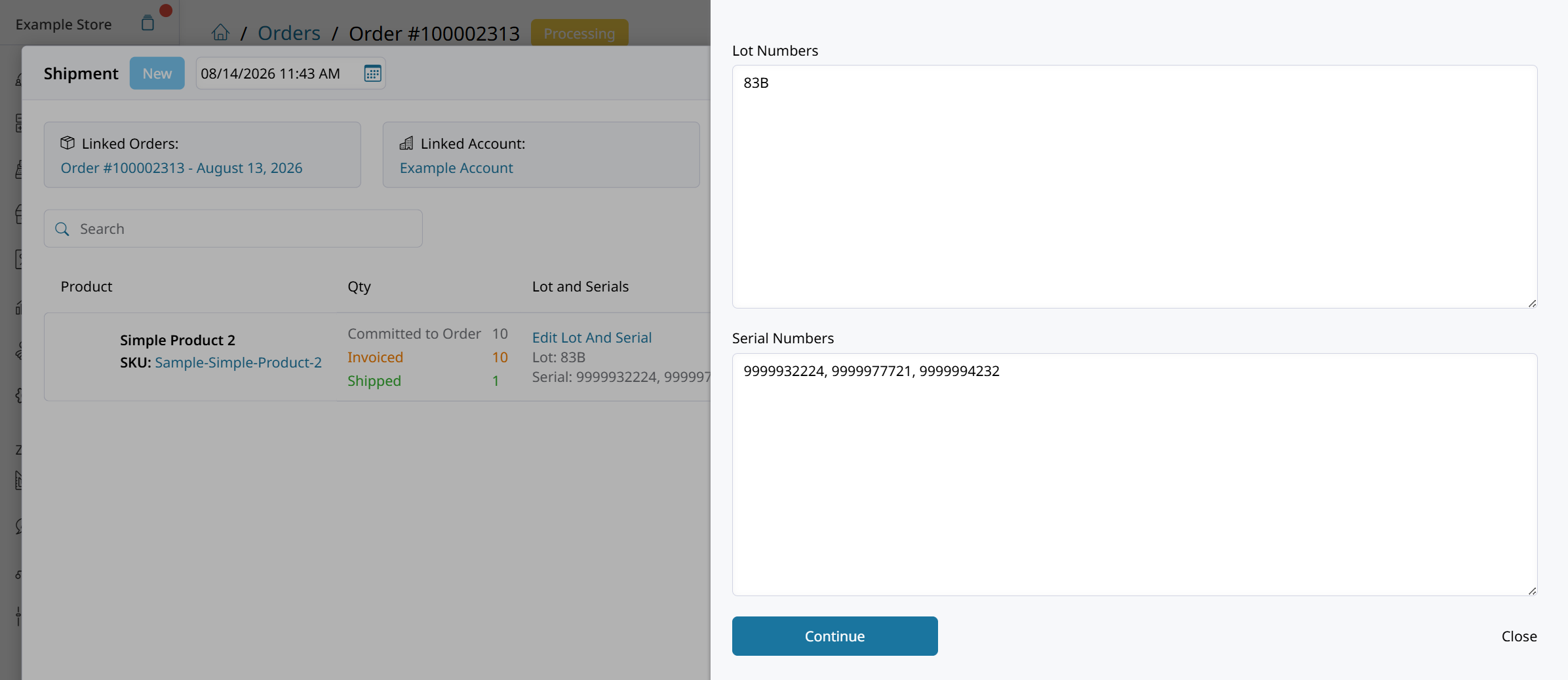
- Both fields accept free-text entries.
- Lot and serial number values are independent and are not linked to one another.
- Zoey does not validate quantities or formatting, or prevent duplicate values.
Because the values are not validated, review each entry carefully and follow your organization's preferred format.
Add lot and serial numbers to a shipment
- In the Zoey Admin, open the order you want to ship.
- Click Ship.
- Select the products and quantities to include in the shipment.
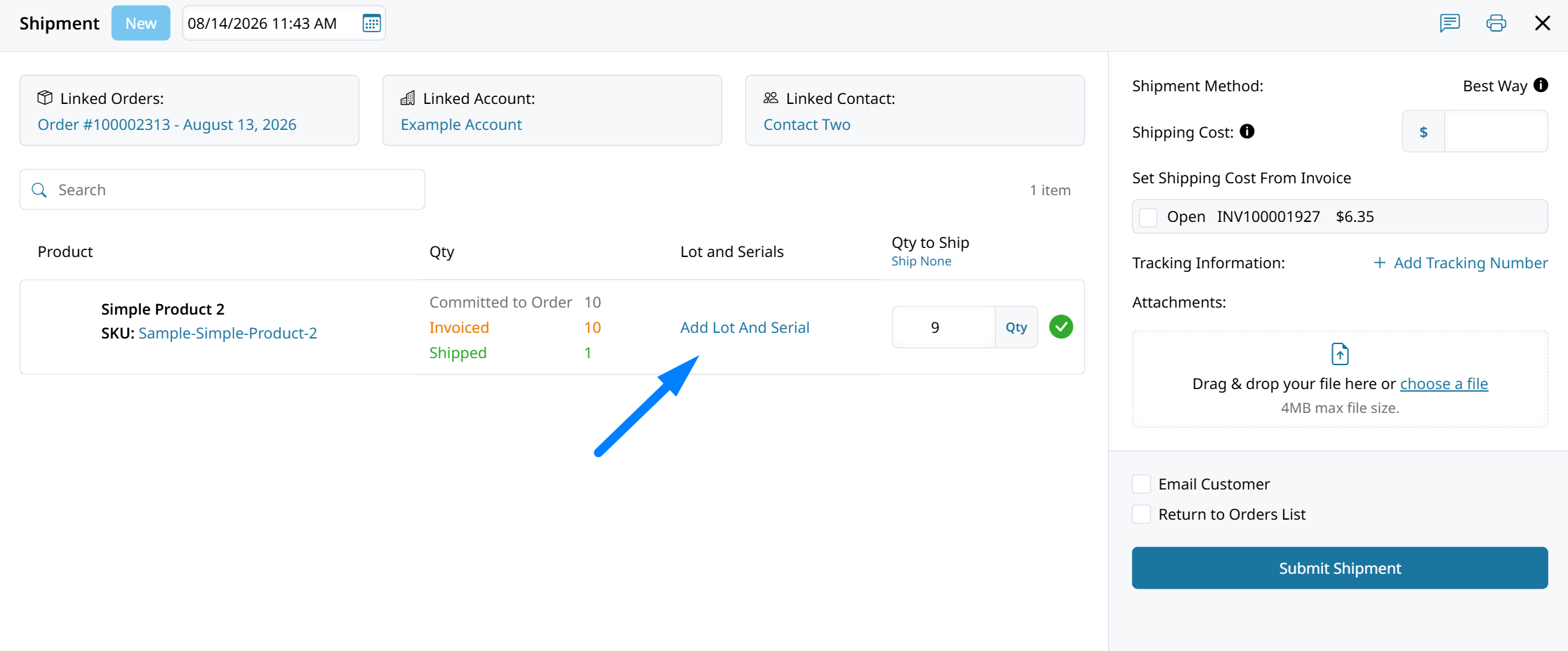
- Click Add Lot And Serial.
- Enter the applicable lot number, serial number, and quantity for each shipment line item. You can enter a lot number, a serial number, or both.
- Click Continue.
- Review the shipment details.
- Click Submit to create the shipment.
The values are saved with the applicable shipment line item.

View or edit lot and serial numbers
You can review and edit lot and serial numbers after a shipment has been saved.
- Open the applicable order in the Zoey Admin.
- Open the shipment you want to review.
- Find the applicable shipment line item.
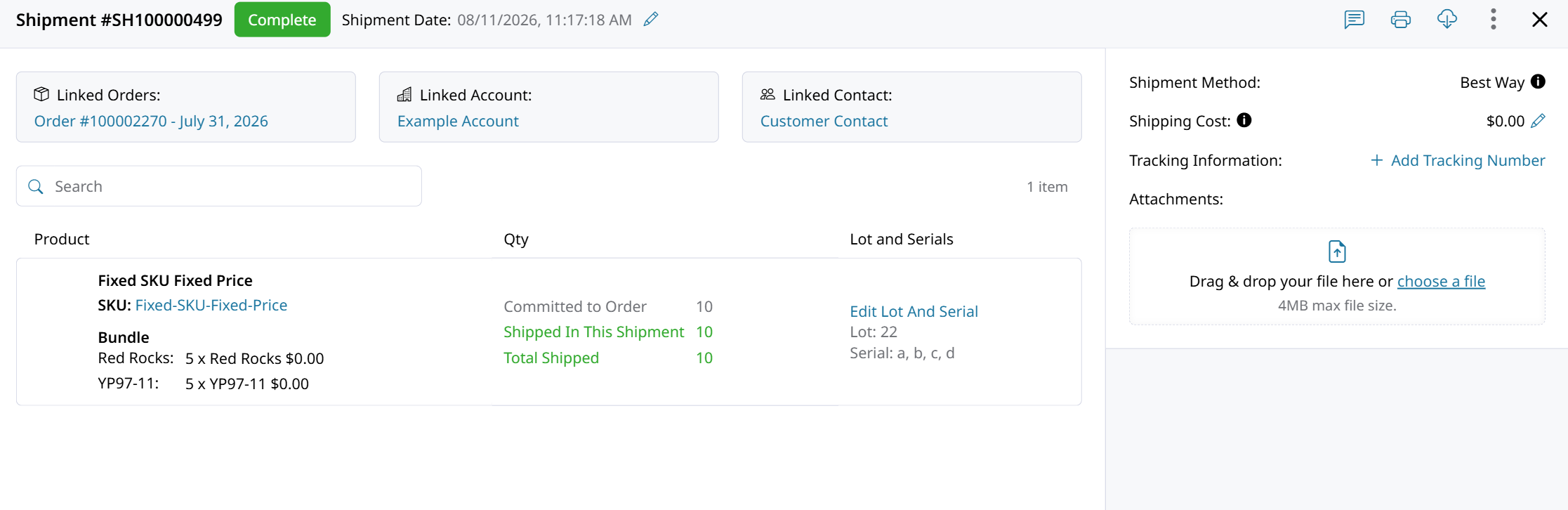
- Review the saved lot and serial number information.
- To make a change, click Edit Lot And Serial next to the item.
- Update the applicable values and save your changes.
There is no separate permission for lot and serial numbers. Any Admin user who is allowed to create shipments can view and edit these values.
Partial and multiple shipments
Lot and serial numbers are assigned to the items in a Shipment rather than directly to the original order item.
The Lot or Serial Numbers can be seen under the Order Items through the Zoey Admin or customer My Order page.
You can enter multiple lot or serial numbers for an item in an individual shipment, such as when products come from mixed production runs. You can also create separate shipments by batch to associate a specific lot or serial number with the products being shipped.
Zoey does not compare or validate values across shipments. The same or different lot and serial numbers can be entered on multiple shipments.
Searching Orders and Invoices by Lot or Serial Number
Use Advanced Search in the Zoey Admin to find orders or invoices associated with a specific lot or serial number.
Search by lot or serial number
- In the Zoey Admin, open Orders or Invoices.
- Click the Advanced Search filter icon next to the search field.
- Select Lot Numbers or Serial Numbers as the attribute.
- Select Contains as the search condition.
- Enter all or part of the lot or serial number.
- Click Apply Filter.
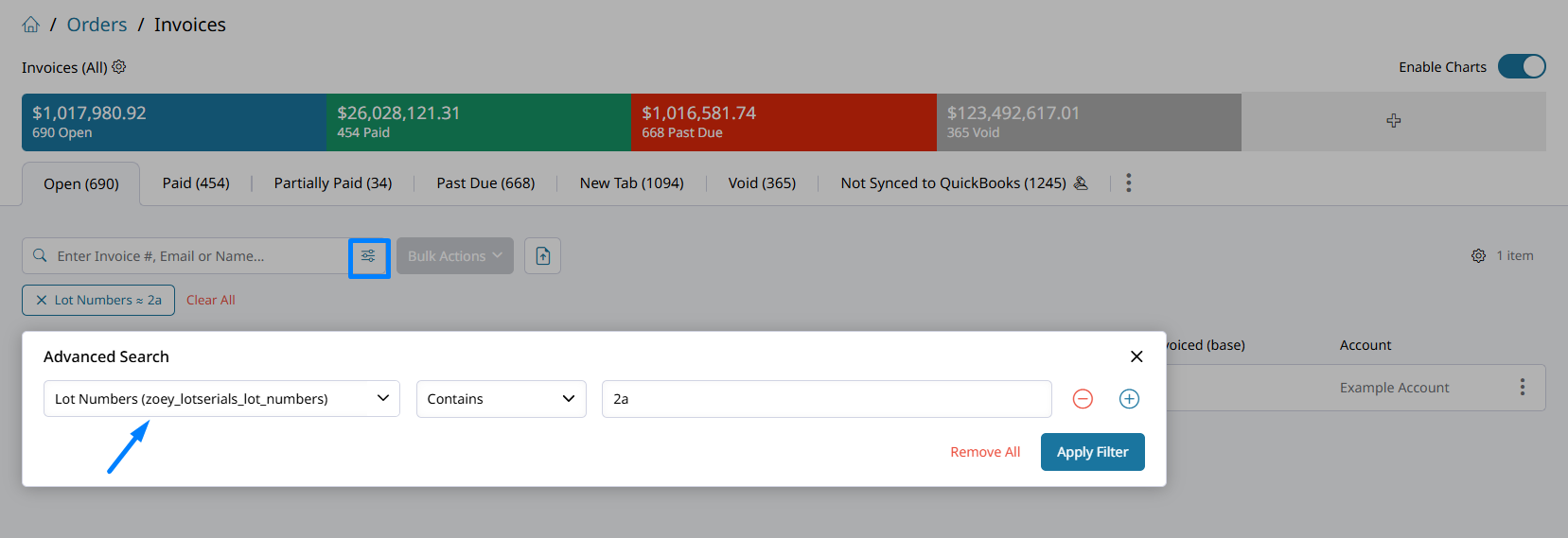
The list displays orders or invoices containing a matching value. Because Contains supports partial matches, you do not need to enter the entire lot or serial number.
To search for the other identifier, change the attribute to Lot Numbers or Serial Numbers and apply the filter again.
To return to the full list, remove the filter or click Clear All.
Display lot and serial numbers on PDFs
Lot and serial numbers can be displayed on Order, Invoice, and Shipment PDFs. Each PDF has its own setting.
-
In the Zoey Admin, go to Orders > PDF Settings.
-
Open the settings for the applicable PDF:
- Payment & Order Settings for Order PDFs
- Invoice Settings for Invoice PDFs
- Shipment Settings for Shipment PDFs and packing slips
-
Set Show Lot/Serial Numbers to Yes.
-
Save the settings.
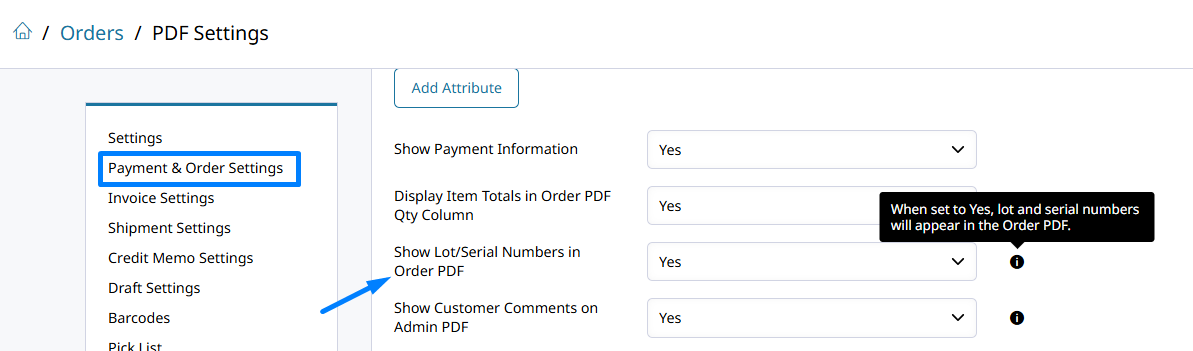
Lot and serial numbers appear in the same order in which they are recorded on the shipment. If they do not appear after the setting is enabled, your store may use a customized PDF template. Revert the applicable template to its original version to incorporate the updated template changes.
Import Shipment with Lot and Serial Numbers
When importing shipment lot and serial number data, use these column headers:
- Lot Numbers
- Serial Numbers
Zoey does not validate the formatting, quantity, or uniqueness of imported lot and serial number values. Review imported data carefully before processing it.
These identifiers can also be recorded automatically through the Shipment Import and in a Data Mapper!
Click here for more details about the Shipment & Tracking Number Import.
Best practices
Follow these general guidelines to ensure success in tracking product serialization and lot relationships.
- Establish a consistent format for your lot and serial numbers.
- Review all entries carefully because they are not validated by their format, quantity, or uniqueness.
- Enter only the values that apply to the individual shipment line item.
If you do not see Add Lot And Serial when creating a shipment, confirm that Lot and Serial Numbers are enabled under Orders > Settings.
Updated about 1 month ago