
Shipping and Payment Method Troubleshooting
Are no methods available for your customer to choose during checkout? Is there a method that should be available but does not appear as an option? Follow the steps in this guide to help troubleshoot shipping or payment method availability issues.
Overview
Which shipping and payment methods are available to your customers during checkout is determined by a hierarchy of settings we call Method Restrictions (also known as Allowed Methods).
Because shipping and payment methods have multiple levels of qualifications, it can sometimes be difficult to identify precisely why a method does not appear during checkout for a specific customer. This troubleshooting guide will help by providing the settings to check and explanations for them.
Missing Shipping or Payment Method in Checkout Troubleshooting
To find out why a method isn't available for a specific customer, you'll need to know a few things:
- Account
- Customer Group
- Shipping and Billing Address
- Shipping and Payment Method that should be available to them
Step 1. Check the Account's Allowed Methods
Open the Account, navigate to the Settings tab, and then scroll down to find Account Options. That section contains the account-specific Payment Methods, Invoice Payment Methods, and Shipping Methods.
Payment Methods are the ones that customers can select during checkout. Invoice Payment Methods are online methods customers can use to pay an invoice.
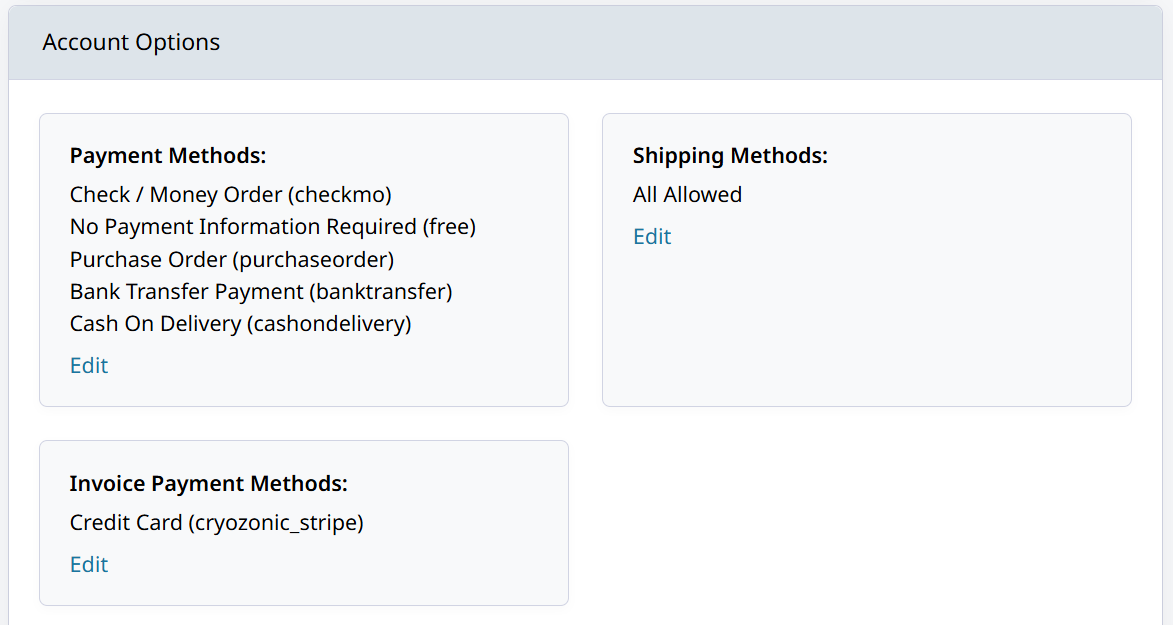
When it says "All Allowed," it means that the Account has access to the methods allowed through the Global Method Restrictions.
If Allow all Methods for this Account is set to No, the customers at this Account will only be able to check out using the methods that are checked off and have Access: All.
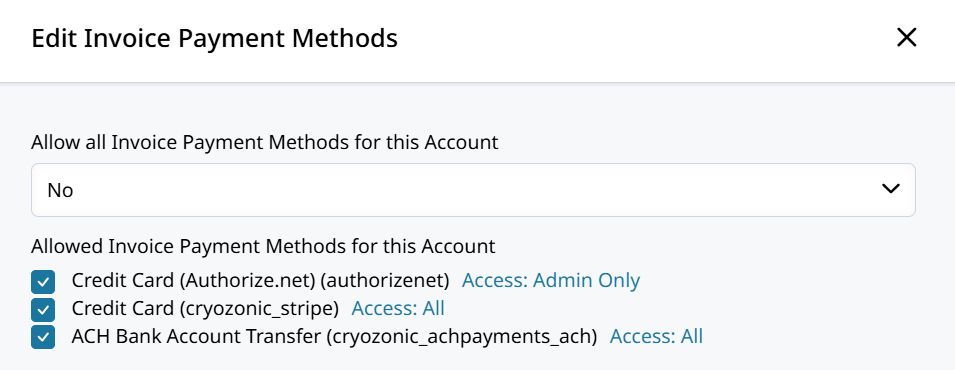
Methods can be allowed to an Account, but restricted to Admin Only. This lets you provide a backup methods for Admins to place the order while still restricting the customer's available methods.
The Account Options are the best place to check first to make sure the Account is allowed to use a certain payment or shipping method.
Step 2. Check the Account Location's Allowed Methods
Account Locations (also known as Ship To Locations) can also have specific methods allowed. This lets you restrict or allow certain payment and shipping methods when customers from that Account Location are checking out.
Open the Account and navigate to the Ship To tab. Click on the Location row displayed above the addresses.
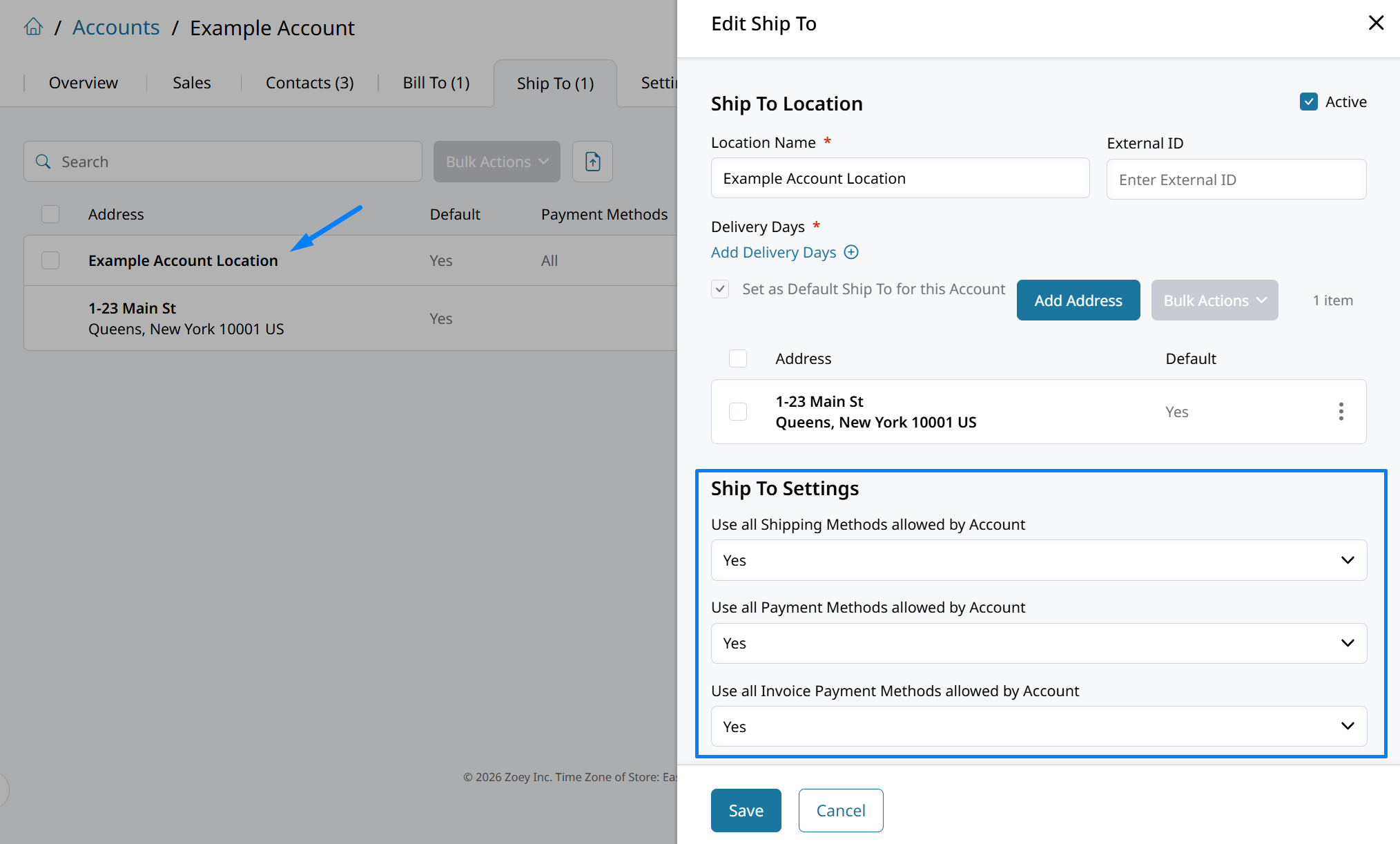
Under Ship To Settings, you'll find the same three settings as in the Account Options. This time, you're checking that the specific Location at the Account has access to all the methods or whether there are restrictions for this Location.
If there is more than one Location for the Account, be sure to check and modify the methods for the Location your customer is ordering from.
If you get through all the troubleshooting steps and the method is still not available during checkout, please double-check the Account Location's allowed methods.
Step 3. Check the Global Method Restrictions
If the Account and its Location are both configured to allow all methods, then the Global Method Restrictions determine which methods they are allowed to use.
Go to Settings > Method Restrictions to see the global defaults for what methods are allowed and to whom.
A detailed guide for Method Restrictions is available here.
There are sections to set up the restrictions for Shipping Methods, Payment Methods, and Invoice Payment Methods. If they are not enabled or no option is selected for the specific method, then it is not restricted from anyone.
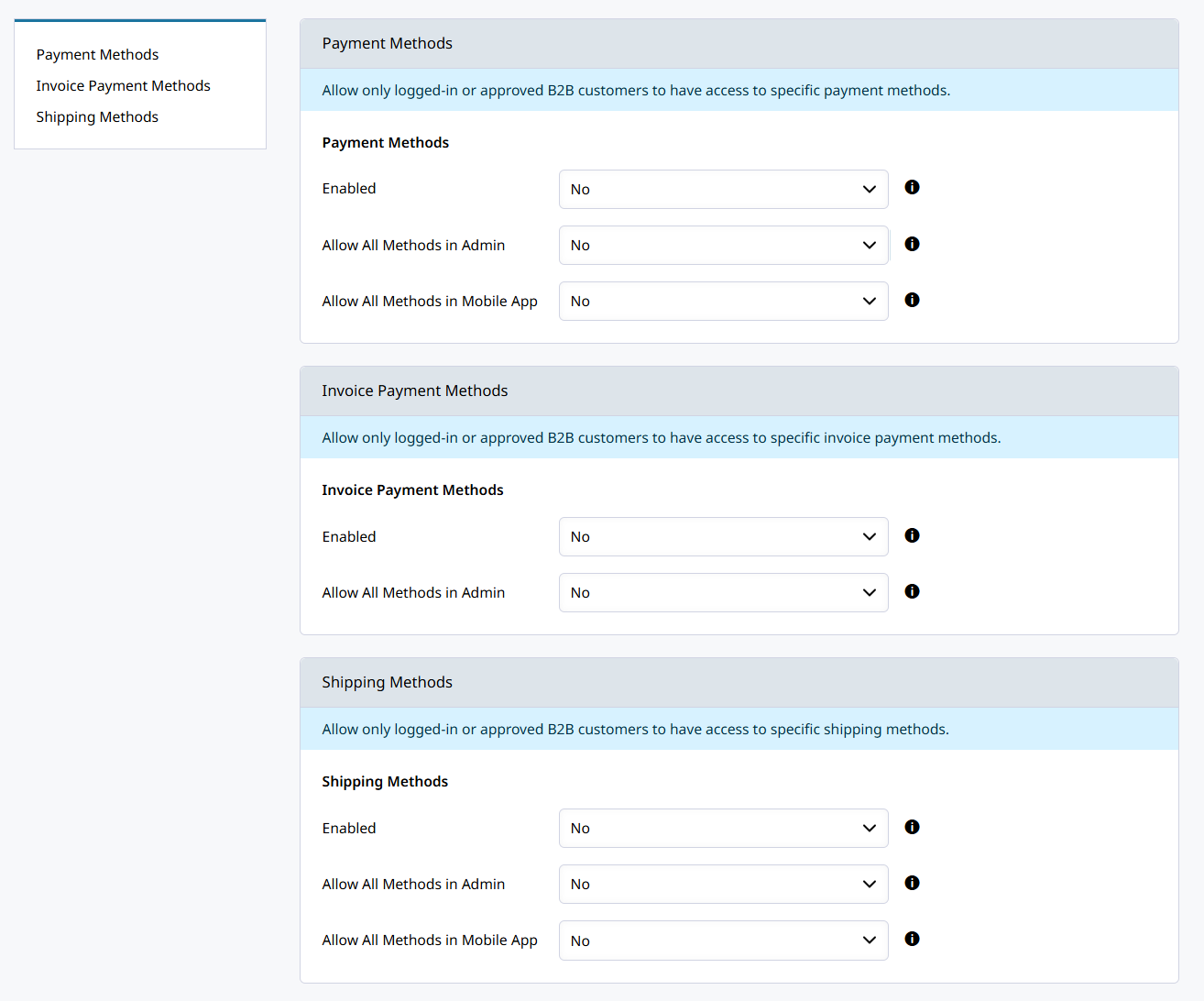
If there is a method that is restricted to "Admin / Mobile Only" or "By Customer Group" and the customer's group is not listed, that is the reason the method does not appear during customer checkout.
If a method is still not available after confirming that the Account is allowed to use it, the problem must be in the settings for that method.
Step 4. Check the Method's Settings
Navigate to Settings > Payment Methods or Shipping Methods to find the settings for each method. Click on Manage to open the settings for the method you're troubleshooting.
Each type of shipping and payment method has different settings, but there are a few consistent options to explore below:
Shipping Methods
Here are the important settings for a Shipping Method that determine whether it will be an option during checkout:
- Minimum / Maximum Order Amount - Qualifies the Order for the method based on its Grand Total.
- Maximum Weight - The method is only available when the total weight of all products is less than the specified limit.
- Hide all other shipping methods if this is eligible - This setting hides all the other methods if this one is available and could be responsible for hiding the method that the customer expects to use.
- Enable for Specific Countries & Enable for Specific Regions/States - Check the countries and states for which the method is available based on the Order Shipping Address.
- Hide Method if SKU not in cart - If set to Yes, the method will only appear when a SKU from the list is in the customer's cart.
Shipping Methods like UPS, USPS, and FedEx fetch rates through the carrier's API.If those methods aren't working and all settings are correct, there may be a limitation on the shipper's end for certain services. For example, UPS Ground has a maximum shipment weight of 150 lbs. There could be an issue with the connection to their API or an issue with your account with the carrier.
Payment Methods
Payment Methods have fewer settings in Zoey to determine if the method is allowed to be used by a customer to pay their Order or Invoice.
- Payment Applicable From - Lets you select which countries to allow the payment method for based on the Billing Address.
- Minimum / Maximum Order Amount - Qualifies the Order for the method based on its Grand Total.
In following these steps you should come across the problem preventing a method from being available for a customer to select during checkout.
How to Check the Methods Available for Your Customer's Order During Checkout
As a Zoey Admin, you can log in as the customer and test checkout with their draft or cart. To find the customer's draft, open the Account and click on the Sales tab. Then click Drafts in the top-right tile.
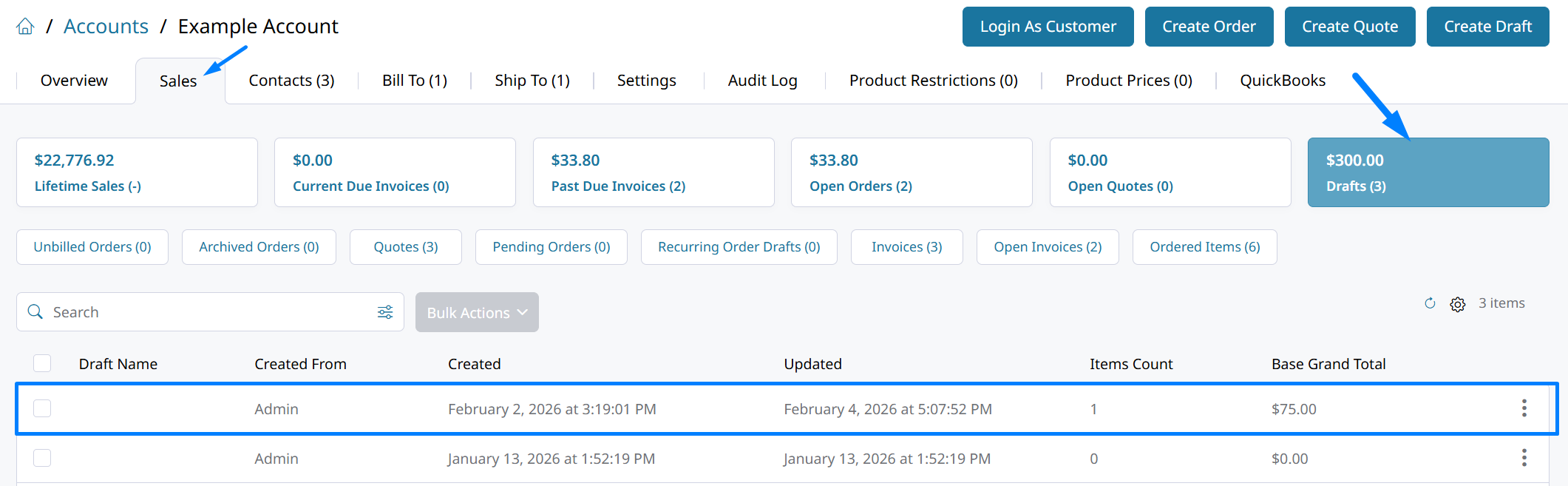
Your customer's open carts are saved as Drafts and listed here. Click on one to open it up.
The methods you're able to select in the Admin aren't always the same options the customer has while checking out in the storefront.
In the Draft, click on View As Customer in the top-right. This will log you into the customer's Account and bring you to the cart summary.

Once viewing the draft as the customer, you can click Checkout to proceed to shipping method selection. The methods you see here are the ones your customer can choose from.
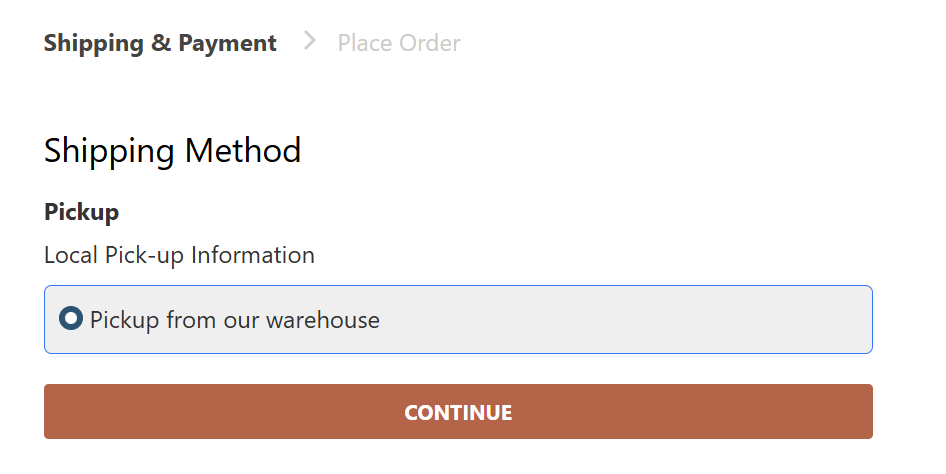
This is the only Shipping Method available because Pickup has "Hide all other shipping methods if this is eligible" set to Yes.
Clicking on Continue will then bring you to the Payment Methods, where you can see which options are available for this Order.
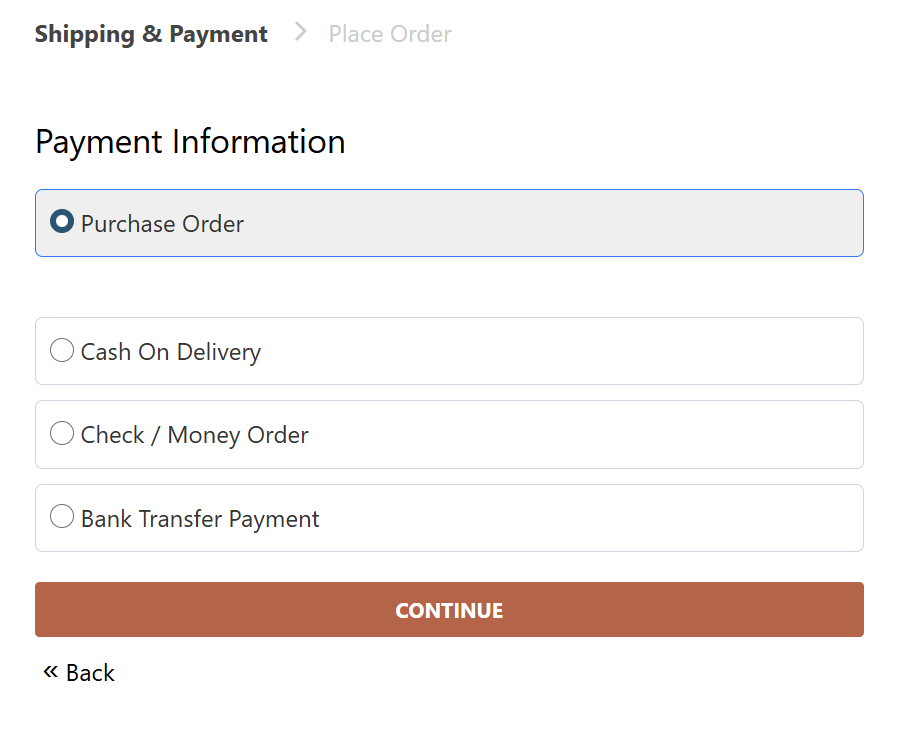
Viewing the draft and checking the available methods during storefront checkout is the best way to see which methods are actually available for your customer to place the Order.
Updated 8 months ago