
Leads and Opportunities
Manage leads and opportunities and their progress through your sales pipeline with Zoey.
Tracking Leads and Opportunities in Zoey
Opportunities and Leads allow you to manage incoming account requests or outbound sales leads. A Status bar allows you to track your progress toward qualifying and winning a new account. The Dashboard's Notes feature provides quick access to any details captured during sales calls, meetings or emails. Leads and Opportunities can be marked as Disqualified/Lost, or Won - at which point you are prompted to "Convert to Account". All the sales data will then be available on the Account and you can choose to allow the account to log in to their customer portal.
Convert a Lead or Opportunity to an Account
- Open the Lead or Opportunity record in the CRM.
- Use the Status bar to move the record through your sales prospect pipeline.
- Mark the record as Won when the prospect is ready to become an Account.
- Select Convert to Account when prompted.
- Review the sales data on the new Account and choose whether to allow the account to log in to the customer portal.
If the Lead or Opportunity is not moving forward, mark it as Disqualified/Lost instead and enter the reason when prompted.
Leads
Leads are potential customers who may or may not be interested in your products or services. A Lead is typically an unqualified contact at the top of your sales funnel. Once you've gathered more information, you can qualify the lead and convert to an Account, or mark as disqualified.

The CRM’s Sales Flow function empowers your sales team enter and manage outbound sales prospects as leads, and convert them into Accounts. Predefined lead statuses allow sales reps to qualify leads, taking them through the closing and winning process. If you lose an opportunity or lead, they can be marked as disqualified and will be prompted to enter a reason why.
Opportunities
Opportunities are typically qualified leads that have a high probability of making a sale.
Registration requests received through Zoey’s Storefront are automatically populated into the CRM as Opportunities. New Opportunity notifications allow users to contact the prospect and begin the sales cycle.
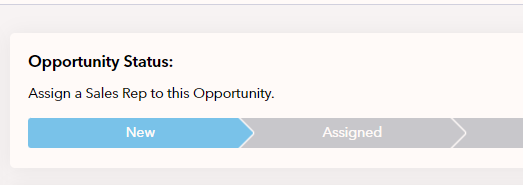
Customize Lead or Opportunity Statuses
The status labels that make up the sales prospect pipeline can be edited to more closely reflect and track the stages of developing a new customer.
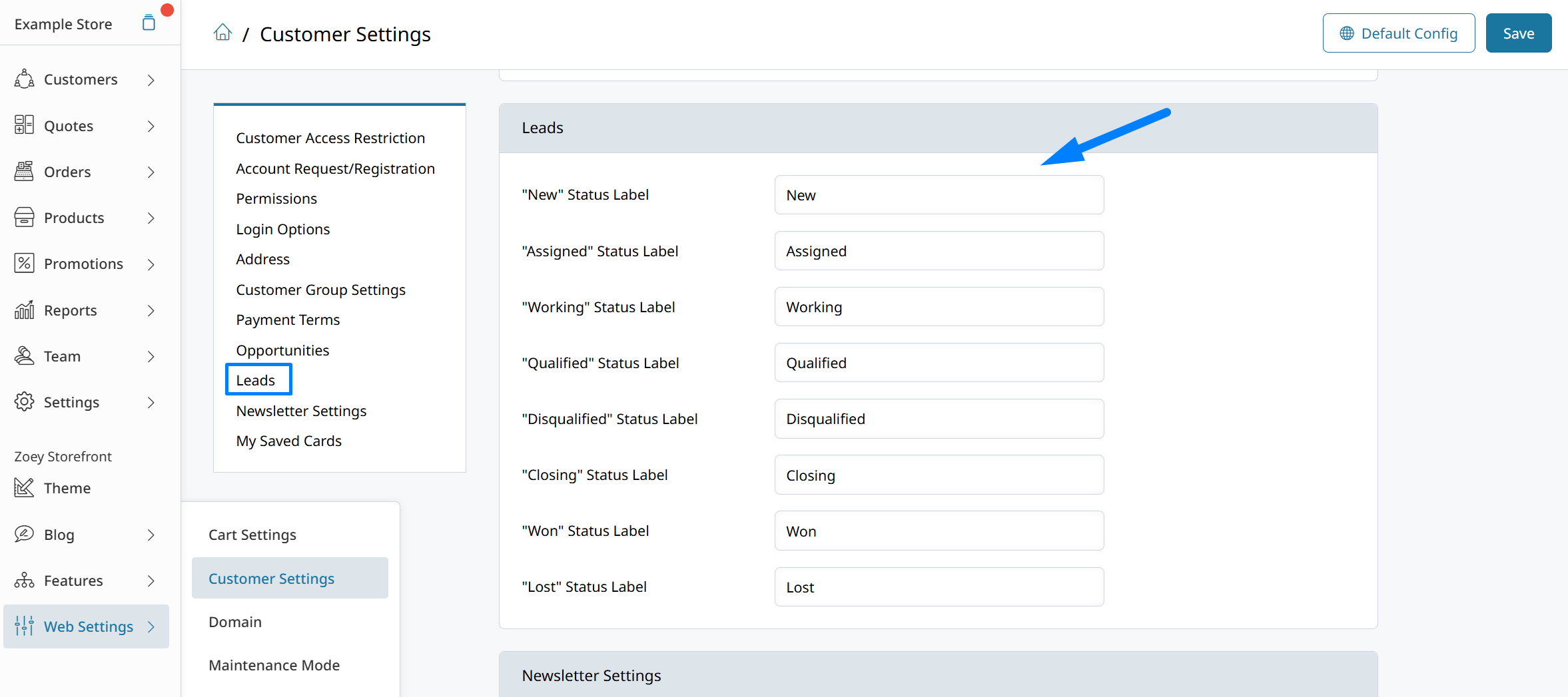
Go to Web Settings > Customer Settings > Leads to change the labels to better reflect the stages of your sales prospecting process.
Log Activity to Leads and Opportunities
Activity logs can be recorded on Leads, Opportunities, and generic Accounts to track details of conversations or other activity with the customer.
An email can be sent to the sales rep to notify them of new activity being logged to one of their accounts or leads.
Updated 5 months ago