
Edit Order through CSV Import
Zoey enables store administrators to update existing orders in bulk through the Order Editing API, or an Order Edit CSV import. You can add new products, edit item quantities and prices, or change the shipping method and shipping total on existing orders. After making changes, Zoey can automatically recalculate taxes, shipping, discounts, and subtotals so the order totals accurately reflect the updated items. Only items that have not already been invoiced or shipped can be modified.
Order Editing by CSV
Order Editing by CSV allows you to make bulk changes to existing orders by importing a spreadsheet. Instead of updating one order at a time, you can edit multiple orders in a single import.
The importer automatically determines whether each row should add, edit, remove, or skip an order item based on the values provided in the CSV.
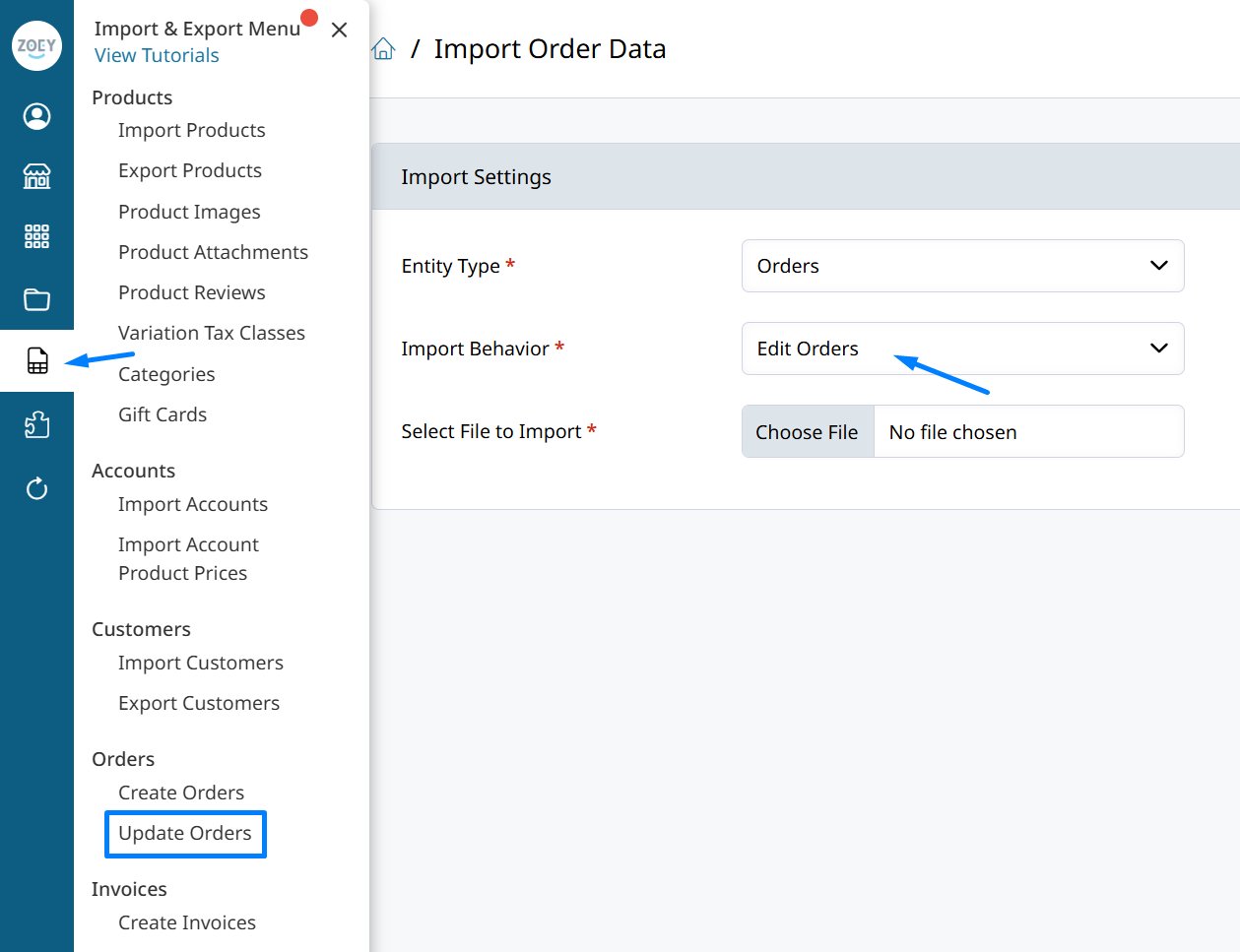
Edit existing Orders through either:
- Import/Export Menu → Import Order Data
- Automatic DataMapper using the Order Edit mapper template
What can be changed?
Order Editing by CSV supports:
- Adding products to orders
- Editing product quantities
- Editing product prices
- Removing products from orders
- Editing multiple items on the same order
- Updating multiple orders in a single import
- Tax, shipping, discount, and subtotal recalculation
- Configurable product variations
- Product customizations
- Creating separate line items for duplicate SKUs
- Apply or remove discount from item(s)
How it works
Each row in the CSV represents a single order item.
Rows are grouped together by Order Number (increment_id). All rows belonging to the same order are processed together.
The importer automatically determines the operation for each row:
| If the row contains... | The importer will... |
|---|---|
item_id with a change to quantity, price, customizations etc. | Edit the item |
item_id with item_qty_ordered = 0 | Remove the item |
Blank item_id with a valid item_sku | Add a new item |
item_id with no changes | Skip the row |
For each order, operations are processed in this order:
- Remove items
- Edit existing items
- Add new items
Edit Order Items Template & Guide
The column headers and how they're used to edit items on an order is described in the guide, and below.
Order Edit CSV Columns
The following table describes every column supported by the Order Edit CSV import.
| Column | Used For | Description |
|---|---|---|
| increment_id | All | The Zoey Order Number. This column groups rows together by order and is required for every row. |
| item_id | Edit, Remove, Skip | The existing Order Item ID. Required when editing or removing an item. Leave blank when adding a new product. |
| item_sku | Add | The product SKU to add to the order. The SKU must already exist in the product catalog. Required for add operations. |
| item_qty_ordered | Add, Edit, Remove | The desired item quantity. Set to 0 to remove the item. When adding a product, the quantity defaults to 1 if left blank. |
| item_price | Add, Edit | The price per unit for the item. If left blank when adding a product, Zoey uses the product's current catalog price. |
| item_variation_id | Add | The child product ID for configurable products. Required when adding configurable products. |
| item_unique_in_quote | Add | Controls whether an added SKU creates a new line item or merges with an existing one. Set to 1 to always create a separate line item or 0 to merge when possible. |
| item_comment | Add | An optional comment that is saved on the order item. |
| item_use_discount | Add | Controls whether discounts are applied to the added item. 1 enables discounts (default), 0 disables them. |
| item_uses_markdown | Add | Controls markdown pricing. Set to 1 to treat the entered price as a markdown price or 0 for standard pricing. |
customization_<Label> | Add | One or more columns used to populate configurable product options or customizations. Replace <Label> with the customization label, such as customization_Color or customization_Name. |
Edit the Shipping Method or Amount
Click here for more information about changing the Shipping Method or Amount on an Order.
| Column | Used For | Description |
|---|---|---|
| shipping_method | Edit | Change the shipping method on the order by providing Label of the method being set. The label should exactly match the combined carrier and method title, such as Free Shipping - Free. Or Table Rate - Best WayWhen only the method is provided, Zoey uses the rate returned by that shipping method. |
| shipping_amount | Edit | The shipping amount to set on the Order. Enter 0 for free shipping. |
Order-Level Options
The following settings apply to the entire order and are read only from the first row for each Order Number.
| Column | Description |
|---|---|
| recollect_tax | Recalculates order tax after the edit. Set to 1 to recalculate or 0 to keep the existing tax amount. |
| recollect_shipping | Recalculates shipping charges after the edit. Set to 1 to recalculate or 0 to keep the existing shipping amount. |
| recollect_discount | Recalculates order discounts after the edit. Set to 1 to recalculate or 0 to keep the existing discounts. |
| recollect_subtotal | Recalculates the order subtotal after the edit. Set to 1 to recalculate or 0 to leave the subtotal unchanged. |
| ignore_backorder_check | Allows items to be added or updated even if sufficient inventory is not available. Set to 1 to bypass the backorder check. |
| ignore_auth_check | Bypasses payment authorization validation while processing the order edit. Set to 1 to skip the authorization check. |
| remove_additional_items | During remove operations, automatically removes any items which were added through editing. Set to 1 for all products that were added to this order to be removed. |
Only Include the Columns You NeedYour import file only needs to include the columns required for the changes you want to make. Any columns that are not being used should be removed from the CSV. This makes the file easier to read and helps prevent unintended changes.
For example, if you're only updating item quantities, your file may only need the Order Number, Item ID, and Item Qty Ordered columns. This is shown through the Order Editing Action Guides below.
Before you begin
Before importing an Order Edit CSV, make sure:
- The orders already exist in Zoey.
- You have the correct Order Number and Item ID values.
- Any products being added already exist in your catalog.
- The orders are not Canceled, Complete, Closed, On Hold, or in Payment Review.
The easiest way to obtain the required Order Numbers and Item IDs is by exporting the orders from Zoey. Item IDs can also be found in the Order Items section.

Order Editing Action Guides
Consult the guides below to learn how to perform specific Order Edit actions:
Editing Item Quantities
Use Order Editing to increase or decrease the quantity of an existing order item.
To edit a quantity:
- Enter the Order Number.
- Enter the Item ID of the existing order item.
- Set Item Qty Ordered to the new total quantity.
- Import the CSV.
Setting the quantity to 0 removes the item.
increment_id,item_id,item_qty_ordered
100002116,5231,5
In this example, item 5231 on order 100002116 is updated to a total quantity of 5.
Editing Item Prices
Use Order Editing to change the price of an existing order item.
To edit a price:
- Enter the Order Number.
- Enter the Item ID.
- Enter the new Item Price.
- Import the CSV.
The quantity remains unchanged when Item Qty Ordered column is left blank, or excluded.
increment_id,item_id,item_price
100002116,5231,24.95
In this example, the price of item 5231 is changed to $24.95.
Adding Products
Add a product to an existing order by leaving Item ID blank.
To add a product:
- Enter the Order Number.
- Leave Item ID blank.
- Enter the Item SKU.
- Enter the desired quantity.
- Optionally enter a custom price.
- Import the CSV.
increment_id,item_id,item_sku,item_qty_ordered,item_price
100002116,,ABC-100,2,19.95
In this example, two units of SKU ABC-100 are added to the order at a price of $19.95 each.
Adding a duplicate SKU as a separate item
Use Item Unique In Quote when the same SKU should be added as a separate order line instead of being combined with an existing item.
increment_id,item_id,item_sku,item_qty_ordered,item_unique_in_quote
100002116,,ABC-100,1,1
Removing Products
Remove an existing order item by setting its quantity to 0.
Its recommended to Cancel Items when possible to retain the history of what the customer originally ordered.
To remove a product:
- Enter the Order Number.
- Enter the Item ID.
- Set Item Qty Ordered to
0. - Import the CSV.
increment_id,item_id,item_qty_ordered
100002116,5231,0
In this example, item 5231 is removed from order 100002116.
Items that are not included in the CSV will remain unchanged on the order.
Using Configurable Products
Configurable products can be added or edited by identifying the parent product and the selected variation.
To add a configurable product:
- Leave Item ID blank.
- Enter the configurable product's Item SKU.
- Enter the selected Item Variation ID.
- Enter the quantity.
- Include any required customization columns.
- Import the CSV.
increment_id,item_id,item_sku,item_qty_ordered,item_variation_id
100002116,,TSHIRT-100,2,874
In this example, variation 874 of configurable product TSHIRT-100 is added to the order.
The variation ID is the internal ID (product_id of the simple product. That ID is displayed in the Product's settings, and on CSV exports.
Edit a configurable product's price or quantity follow by following the same steps as a simple product.
Editing product customizations
Customization column names must begin with customization_ followed by the customization label.
When imported for a product on the order its customizations will be updated. Add columns for each customization that's being added or updated.
increment_id,item_id,item_sku,item_qty_ordered,item_variation_id,customization_Name
100002116,,TSHIRT-100,1,874,Name for Customization
Recalculate Order Totals
Choose whether order totals like Discount, Shipping, Tax and Subtotal get recalculated after the items are changed.
These all default to 1, meaning the order totals are recalculated unless you explicitly disable them.
The columns for those options are:
recollect_taxrecollect_shippingrecollect_discountrecollect_subtotal
Set an option to 1 to recalculate that value. When left
increment_id,item_id,item_qty_ordered,recollect_tax,recollect_shipping,recollect_discount,recollect_subtotal
100002116,5231,5,1,1,1,1
In this example, Zoey updates the item quantity and recalculates the subtotal, discounts, tax, and shipping.
These order-level settings should be entered on the first row for each order.
Recalculating selected totals only
increment_id,item_id,item_price,recollect_tax,recollect_shipping,recollect_discount,recollect_subtotal
100002116,5231,24.95,1,0,0,1
In this example, only the subtotal and tax are recalculated.
Advanced Order Options
Advanced options control how Zoey validates and processes the order edit.
These settings should be entered once on just the first row for each order.
These all default to 0, meaning the special behavior is disabled unless you explicitly enable it.
Ignore Backorder Check
Set ignore_backorder_check to 1 to allow the edit to proceed without applying the standard backorder validation.
increment_id,item_id,item_qty_ordered,ignore_backorder_check
100002116,5231,25,1
Ignore Authorization Check
Set ignore_auth_check to 1 to bypass the payment authorization check while editing the order.
increment_id,item_id,item_price,ignore_auth_check
100002116,5231,29.95,1
Remove Additional Items
Set remove_additional_items to 1 when removing an item should also remove its related additional items.
increment_id,item_id,item_qty_ordered,remove_additional_items
100002116,5231,0,1
Combining advanced options
increment_id,item_id,item_qty_ordered,ignore_backorder_check,ignore_auth_check,remove_additional_items
100002116,5231,0,1,1,1
In this example, Zoey bypasses the backorder and authorization checks and removes related additional items along with item 5231.
Limitations
Order Editing by CSV is designed for bulk order maintenance and has a few limitations:
- Maximum of 50 orders per import.
- Existing items must be edited using Item ID.
- Orders in unsupported states cannot be edited.
- Item cancellation is not supported through this importer.
- Version history and rollback are available through the Order Editing API, but not through CSV imports.
Auditing Edits
Every Order Edit import records the changes made to the order in the Order History. For each item that is added, edited, or removed, Zoey logs both the previous value and the new value, making it easy to review exactly what changed. The audit log includes details such as quantity and price changes, along with the user and timestamp of the edit, providing a complete history of modifications made through the CSV import.
Updated about 1 month ago