
Single-Use Codes for an Event
Give every attendee their own coupon code that works once.
Give every attendee their own coupon code that works once. Example: 200 codes for a trade show, $50 off each.
Use it to:
- Hand out codes at a trade show, event or mailing without one code being shared around.
- See which codes were used, and what the event cost in discounts.
Don't share one code with Uses per Coupon = 1One shared code with Uses per Coupon set to 1 stops after the first order, for everyone. Zoey warns you when you save a rule like that. Generate one code per person instead.
1. Create the Rule
In the Zoey Admin, go to Promotions > Discount Rules and click Create a Discount Rule.
On Discount Information:
| Field | Set it to |
|---|---|
| Discount Name | A name your team recognizes, for example "Trade Show 2027 – $50 off". Customers don't see it. |
| Status | Inactive for now. |
| Customer Groups | The groups attendees will order as. Include NOT LOGGED IN if they can check out as guests. |
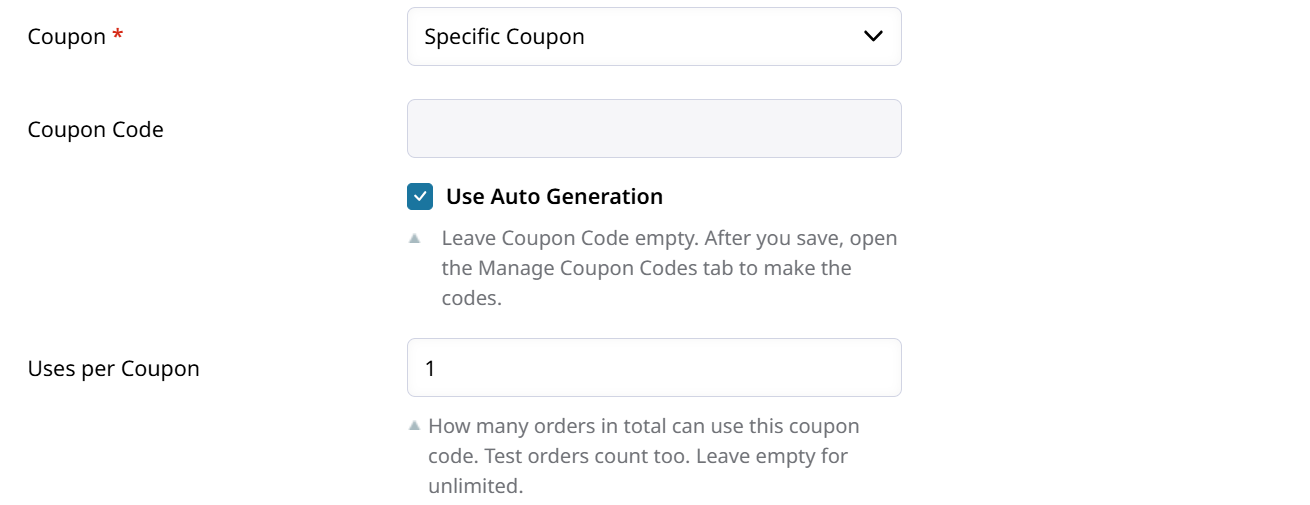
| Coupon | Specific Coupon. |
| Use Auto Generation | Ticked. Leave Coupon Code empty: it isn't required while Use Auto Generation is ticked. After you save, open the Manage Coupon Codes tab to make the codes. |
| Uses per Coupon | 1. Each generated code works once. |
| Uses per Customer | 1 if one person shouldn't use two codes. This only counts logged-in Contacts. |
| From Date / To Date | The offer period. |
On Conditions: add a minimum if you want one, for example Cart Attribute > Subtotal equals or greater than 250.
On Actions, under Discount Options:
- Discount Type: Fixed amount discount for whole cart.
- Discount Amount: 50.
On Labels: add a label, for example "Trade Show discount". Customers see it in the cart.
Click Save and Continue Edit. You must save the rule before you can make codes.
2. Generate the Codes
Open Manage Coupon Codes on the same rule.
| Field | Example | Notes |
|---|---|---|
| Coupon Qty | 200 | How many codes to make. |
| Code Length | 8 | Not counting the prefix, suffix and dashes. |
| Code Format | Alphanumeric | Hardest to guess. Alphabetical and Numeric are also available. |
| Code Prefix | TS27- | Lets your staff recognize the codes. |
| Dash Every X Characters | 4 | Makes codes easier to type. |
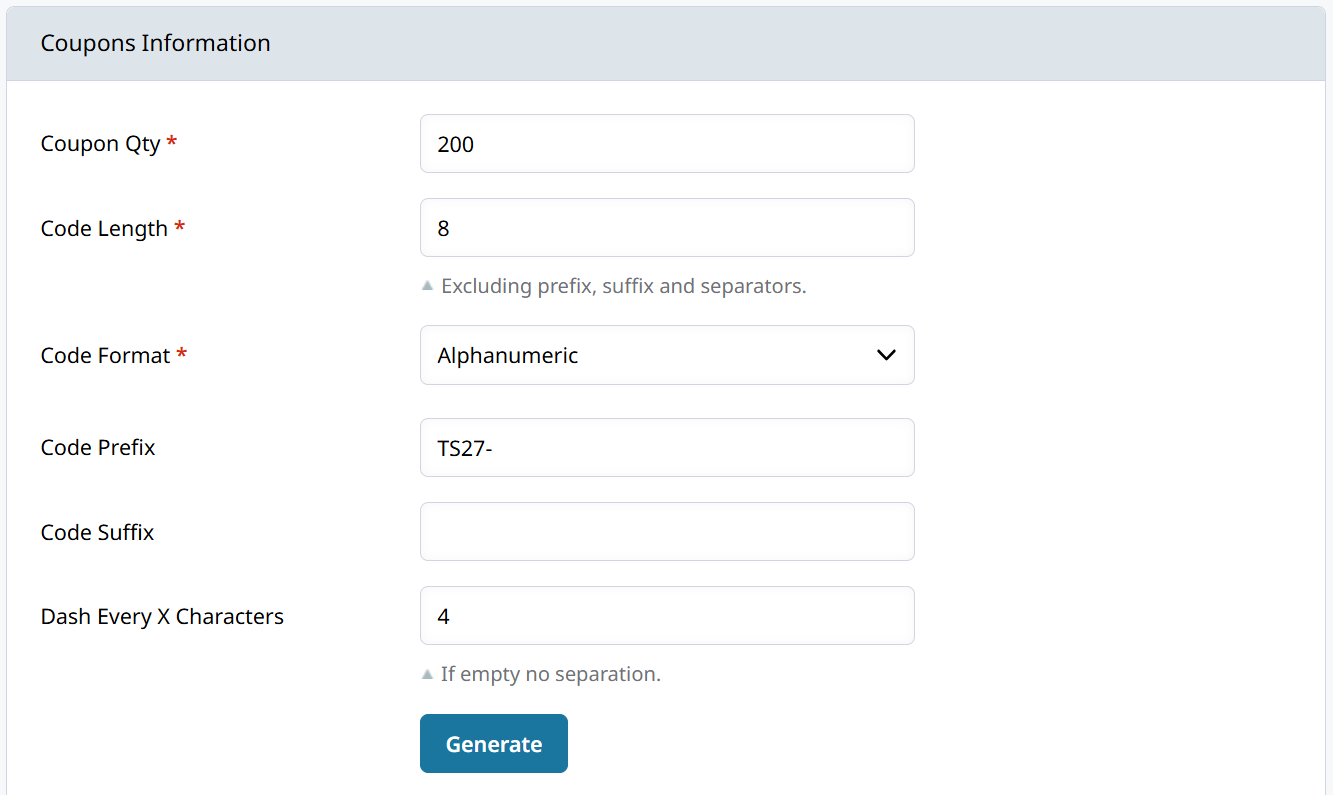
Click Generate. Need more later? Generate again. Codes you already made keep working.
3. Export and Hand Out
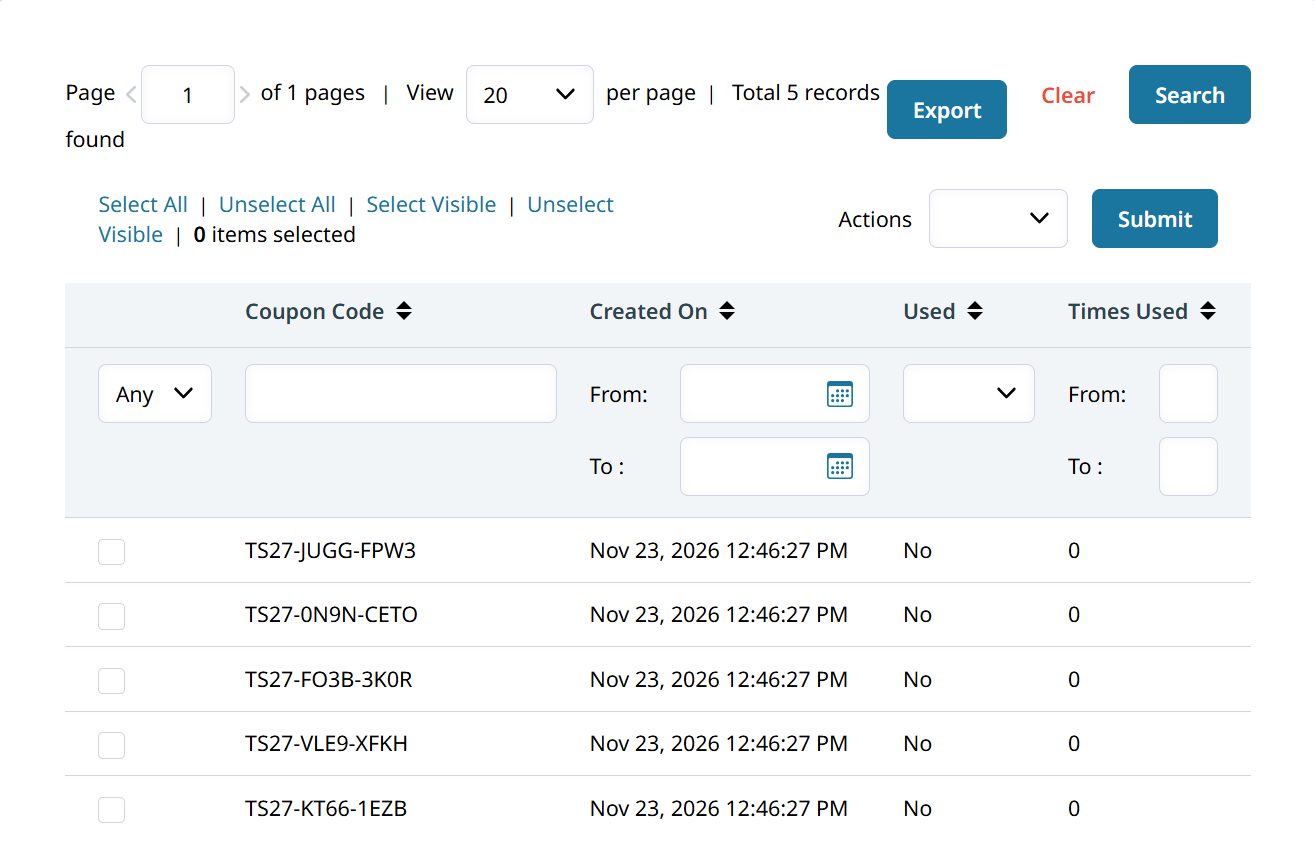
The codes list below the form shows each code and whether it's been used. Click Export to download them, then send the codes from your email tool or print them on cards.
4. Test, Then Turn It On
- Set Admin Only to Yes and Status to Active, then click Save and Continue Edit.
- In the Zoey Admin, create a draft order, click Apply Discount / Markdown, enter one code in Discount Code and click Save. The Promotions Applied list under the totals shows the rule and the code.
- Enter the same code on another draft. Zoey refuses it as used up and says why, in red under Apply Discount / Markdown.
- Delete the test code from the codes list, or generate one extra code for testing.
- Set Admin Only back to No and save.
5. Track It
- The codes list shows which codes were used.
- The Coupons report shows uses and total discount. Filter it by this Discount Rule.
- The order grid's Sales Rule Applied column shows the rule name on each order.
What Customers See When a Code Fails
| Customer sees | Why |
|---|---|
| Coupon code "X" has expired. | After the To Date. |
| Coupon code "X" has already been used the maximum number of times. | That code was already used. |
| Coupon code "X" is not available for your account. | Wrong Customer Group or Account. Guests are asked to sign in and try again. |
| Coupon code "X" requires a subtotal of $250.00. | The minimum isn't met. |
Full list: Discount Rules > When a Coupon Code Is Refused.
Related Articles
Updated 41 minutes ago