
Account Audit Log
See who changed what on your B2B Accounts, and when, in one place or per Account, and export the changes to CSV.
The Account Audit Log keeps the change history for your B2B Accounts: who changed what on each Account, when, and where the change came from. You can see one Account's history or every Account's changes in one place.
Use it to:
- Find out who changed an Account's Bill To or Ship To address, and when.
- See which changes customers made themselves in My Account.
- Check when a Sales Rep, payment method, shipping method or Net Terms setting changed.
- Confirm that an invitation, approval or statement email went out.
- Export changes to CSV, with the old and new value of every changed field.
Open the Audit Log
All Accounts
- In the Zoey Admin, go to Customers > Accounts.
- Click View Audit Log at the top of the page.
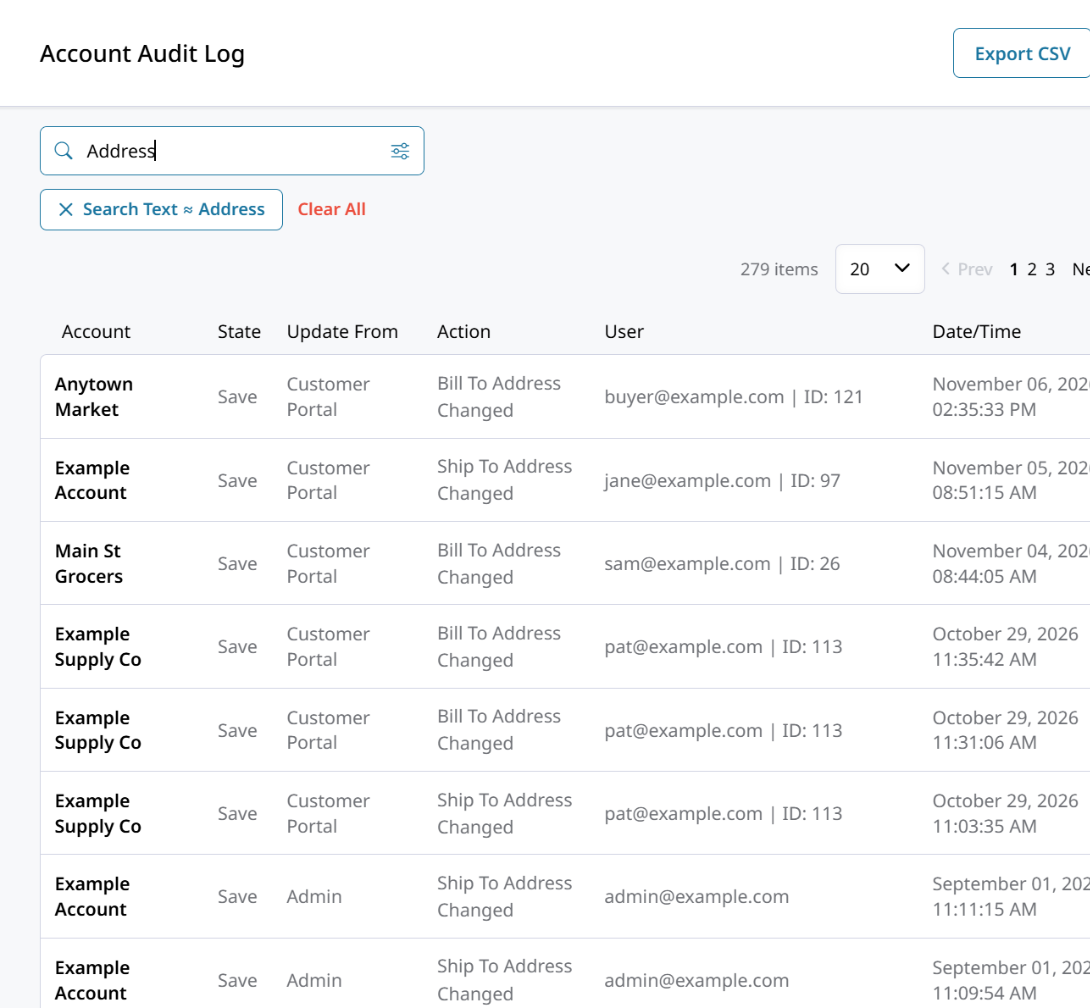
- The Account Audit Log opens with every Account's changes, newest first. When one save made several changes, click View More in the row to list them all.
- Click a row to see what changed.
One Account
- In the Zoey Admin, go to Customers > Accounts.
- Open the Account.
- Click the Audit Log tab.
One row per saveEach row is one save of one Account. If someone changes several things in one save, all of those changes appear in the same row. Click the row to see each change with its old and new value.
Filters
Type in the Enter Action... box to search the log, for example Address. Click the filter icon next to the box for these filters:
| Filter | What it does |
|---|---|
| Action | Shows only the actions you choose, such as Bill To Address Changed and Ship To Address Changed. Each row then shows only those actions. |
| Update From | Shows only changes from one source, such as Admin, Customer Portal, API or Zoey AI |
| User | Shows only changes made by the user you choose |
| State | Shows only rows of one type: Save, Action, Email, PDF or View |
| Date/Time | Shows only changes in the dates you choose |
Find address changesTo list only address changes across all Accounts, set Action to Bill To Address Changed and Ship To Address Changed. Add Update From = Customer Portal to see only the changes customers made in My Account.
Columns
| Column | What it shows |
|---|---|
| Account | The Account that changed. Shown in the all-Accounts log only. |
| ID | The audit entry's ID. Shown on an Account's Audit Log tab only. |
| State | The type of entry, such as Save or Email |
| Update From | Where the change came from (see below) |
| Action | What changed, such as Sales Rep Changed |
| User | Who made the change |
| Date/Time | When the change was made |
The all-Accounts log always lists the newest changes first and can't be sorted by column. Page links and rows per page show above and below the list.
Update From
| Value | Where the change came from |
|---|---|
| Admin | A user in the Zoey Admin |
| Admin (CSV) | An admin CSV import |
| Customer Portal | A customer in My Account on your storefront |
| API | An integration using the Zoey API |
| Zoey AI | A change made through Ask Zoey |
| System | Zoey itself, for example an automatic process |
Other values, such as Admin (Order) or Customer (Order), mean the change was made while placing an order. In the details panel, click View Details next to Update From for more about the request.
Details panel
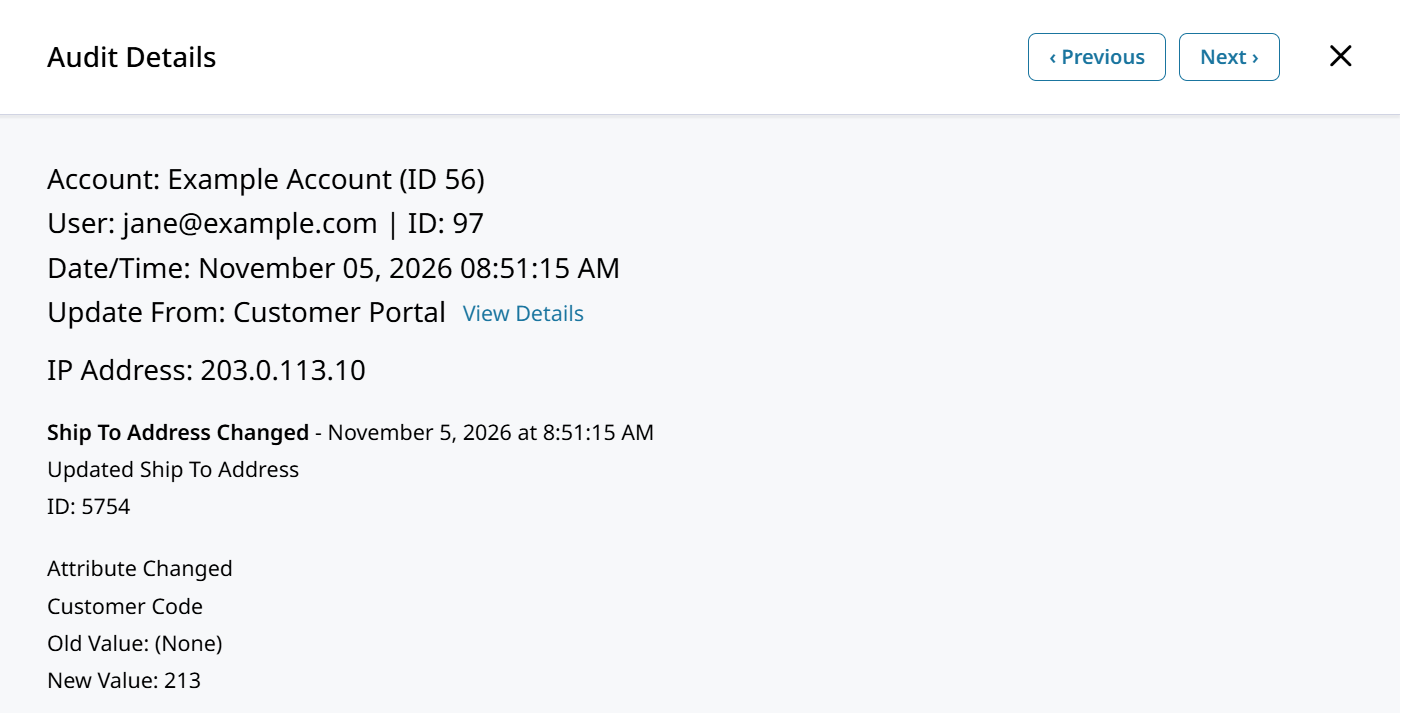
Click a row to open Audit Details. It shows the Account (name and ID), User, Date/Time, Update From and, when recorded, the IP Address. Below that, each action is listed:
- Field changes, such as Attribute Changed, show the field with its Old Value and New Value.
- Address and Ship To changes name the record and its ID, for example Updated Ship To Address, ID: 5754. Use Export CSV to see each changed field.
Use Previous and Next to step through rows.
Export to CSV
- Open the all-Accounts Account Audit Log and set your filters.
- Click Export CSV.
The file includes every change that matches your filters, not only the page on screen. Each line is one changed field, newest first, with these columns: Date/Time, Account ID, Account, Update From, User, Action, Record, Field, Old Value, New Value and Details.
- Record names the address, contact or other record that changed, for example Updated Ship To Address #812.
- Details holds anything that isn't a field change, such as the email address an invitation went to, or the full address of an added or removed address.
50,000-line limitThe export holds up to 50,000 lines, newest first. If you reach the limit, Zoey shows a warning. Narrow the filters, for example the Date/Time range, and export again to get the rest.
What Gets Logged
| Action | Logged when |
|---|---|
| Attribute Changed | An Account field or attribute changes |
| Contact Changed | A Contact on the Account is added, changed or removed |
| Created From Contact | The Account is created from an existing Contact |
| Bill To Address Changed | A Bill To address is added, changed or removed |
| Ship To Changed | A Ship To (Location) is added, changed or deleted |
| Ship To Address Changed | A Ship To address is added, changed or removed |
| Payment Method Changed | The Account's allowed payment methods change |
| Invoice Payment Method Changed | The Account's allowed invoice payment methods change |
| Shipping Method Changed | The Account's allowed shipping methods change |
| Net Terms Changed | The Account's Net Terms change |
| Payment Terms Changed | The Account's payment terms change |
| Store Credit Changed | The Account's store credit changes |
| Sales Rep Changed | A Sales Rep is added to or removed from the Account |
| Note Changed | An Account note changes |
| Account Product Prices Changed | The Account's product prices change |
| Wishlist Changed | The Account's wishlist changes |
| AutoPay Captured / AutoPay Capture Failed | An AutoPay payment is captured or fails |
| Invite Email Sent | An invitation email goes to a Contact |
| Approved Email Sent | An approval email goes out |
| Account Converted Email Sent | An account converted email goes out |
| Activity Notification Email Sent | An activity notification email goes out |
| Statement Email Sent | A statement email goes out |
| Deleted | The Account is deleted. Shown in the all-Accounts log only. |
FAQs
Can I see deleted Accounts?
Yes. The all-Accounts log lists deleted Accounts too, with the name the Account had when it was deleted. Filter Action = Deleted to list them.
What happens when I remove a Sales Rep from my team?
When you remove an admin user and hand their Accounts to another Sales Rep, each Account gets a Sales Rep Changed entry showing who was removed and who was added.
Why don't I see every Account's changes?
Admin users who can see only some Accounts (for example, Accounts assigned to them) see only those Accounts' changes, in the list and in the export. They also don't see deleted Accounts.
How do I see changes customers made themselves?
Filter Update From = Customer Portal. Those are changes made in My Account on your storefront, such as a new Ship To address.
Can I export one Account's history?
Export CSV is in the all-Accounts log only, and the log has no Account filter. Export with the filters you need, then filter the file on the Account or Account ID column in your spreadsheet app.
Related Articles
Updated 19 minutes ago