
Import Bill To addresses by CSV
Add or update an Account's Bill To addresses in bulk from a CSV, set the default Bill To and choose which Locations can use each one.
Add or update an Account's Bill To addresses in bulk by importing a CSV file, from the Account's Bill To tab or for many Accounts at once from the Accounts list.
Use it to:
- Load every billing address for an Account when you set it up.
- Choose which Bill To is the default, and which Locations can use each Bill To.
- Update billing addresses in bulk, such as a new accounts payable address.
Where to find it: In the Zoey Admin, go to Customers > Accounts, open the Account and click the Bill To tab. The import icon is next to Bulk Actions.
Get the template
The template has two tabs: Guide explains each column, and Blank Template has only the column headers.
Save your file as CSV (Comma delimited) (*.csv). In Google Sheets, use Comma Separated Values (.csv).
Columns
| Column | Required | What to enter |
|---|---|---|
account_id | Only in the Accounts list import | The Account's ID. Not needed on the Account's own Bill To tab. Also required when two Accounts have the same name. |
account_name | Yes | The Account's name, exactly as it is in Zoey. |
bill_to_id | To change an existing address | The address ID. Leave it blank to add a new address. |
bill_to_company | No | Company name on the address. |
bill_to_firstname, bill_to_lastname | No | Contact name on the address. |
bill_to_street (or bill_to_street1 and bill_to_street2) | For a new address | Street address. |
bill_to_city | For a new address | City. |
bill_to_region | Where the country uses states | State or province, for example Maryland. |
bill_to_postcode | Where the country uses postal codes | ZIP or postal code. Format the column as text so leading zeros stay. |
bill_to_country_id | For a new address | Two-letter country code, for example US. See Country codes. |
bill_to_telephone | If your store requires it | Phone number. |
bill_to_vat_id | No | VAT number. |
bill_to_is_default | No | 1 makes this the Account's default Bill To. |
bill_to_allowed_locations | No | The name of a Location that can use this Bill To. For more Locations, add another row with only account_name, bill_to_allowed_locations and bill_to_is_default_for_location filled in, right below the address row. |
bill_to_is_default_for_location | No | 1 makes this Bill To the default for the Location in bill_to_allowed_locations when an order is written. |
Import the file
- In the Zoey Admin, go to Customers > Accounts and open the Account.
- Click the Bill To tab, then click the import icon next to Bulk Actions.
The Import Bill Tos window opens.
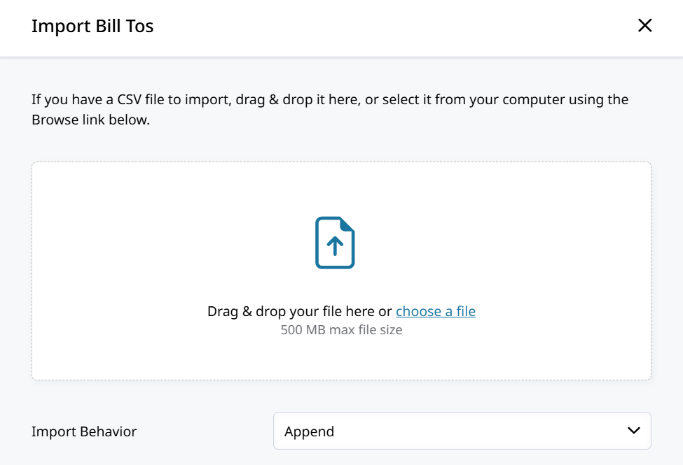
- Choose your CSV file and pick the Import Behavior. Import Behavior starts on Append.
- If Zoey lists errors, fix those rows in your file and upload it again.
- When there are no errors, click Import.
To import Bill Tos for many Accounts in one file, include account_id and import from the Customers > Accounts list. See Import accounts and contacts.
| Import Behavior | What it does |
|---|---|
| Append | Adds rows without a bill_to_id as new addresses and updates the addresses whose ID is in the file. Other addresses stay as they are. |
| Replace | Makes the file the Account's full list of Bill Tos. Bill Tos that aren't in the file are deleted. |
Include the IDs when you updateWith Append, a row without
bill_to_idalways adds a new address, so re-importing a file without IDs creates duplicates. To get the IDs, tick the Accounts in Customers > Accounts, then choose Bulk Actions > Export > Export Account Bill To Data.
Ask Zoey AIAsk, for example: "How do I import Bill To addresses for an account?" or "How do I make one Bill To the default for a location?"
Related articles
Updated 38 minutes ago