
Test and run a Data Mapper
Preview a sample export, run a Data Mapper now, reset its Last Run Time and check the file before turning on the schedule.
Test a Data Mapper before you turn on its schedule. Preview creates a sample file from records you choose, and Run sends a real file through the Data Mapper's Connection.
Use it to:
- Check a new or changed export before another system imports it.
- Send a file now instead of waiting for the schedule.
- Export older records again after changing the Last Run Time.
The Data Mapper menu
In the Zoey Admin, go to Integrations > Zoey Data Mappers and click the 3-dot menu at the end of a Data Mapper's row.
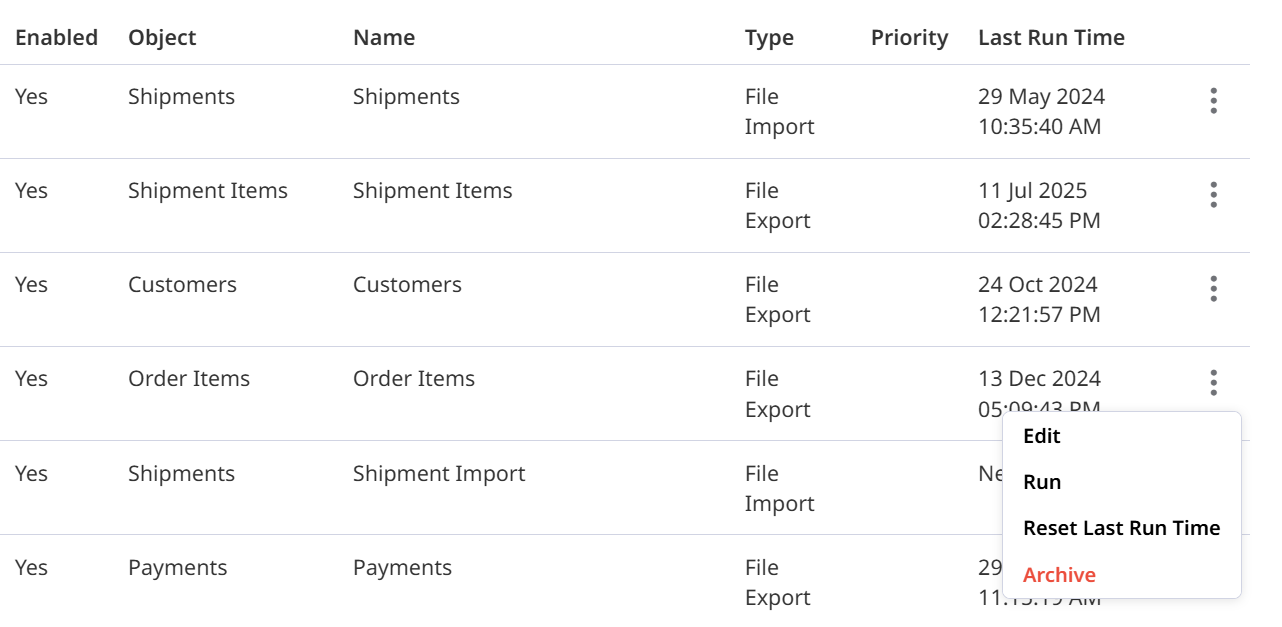
| Option | What it does |
|---|---|
| Edit | Opens the Data Mapper's settings. |
| Run | Runs the Data Mapper now and sends the file through its Connection, the same as a scheduled run. |
| Reset Last Run Time | Changes the Last Run Time. Most exports send records created or updated after this time on the next run. |
| Archive | Archives the Data Mapper. See Archive a Data Mapper. |
Run sends real dataRun uploads the file to the Connection, where the other system can import it. To check a file first, use Preview with Direct Download.
Preview an export
Preview builds a file from the records you pick, using the Data Mapper's saved settings. It is available on saved File Export Data Mappers for these Zoey Objects:
- Orders and Order Items
- Quotes and Quote Items
- Shipments and Shipment Items
- Invoices and Invoice Items
- Credit Memos and Credit Memo Items
Products, Accounts, Contacts, Transactions and imports don't have Preview.
-
Open the Data Mapper with Edit and click Save if you changed anything. Unsaved changes don't appear in the Preview.
-
Click Preview at the bottom of the Data Mapper.

-
In Orders to Export (or Quotes, Shipments, Invoices or Credit Memos), type a number and select each record to include. Select All adds every record in the list, and Clear All removes them.
-
Check Data Mapper shows the Data Mapper you're testing.
-
Choose the Export Type:
- Direct Download downloads the file to your computer.
- Send Email emails the file to the addresses you enter.
- Data Mapper Connection uploads the file to the Data Mapper's Connection, where the other system can import it.
-
Click Export, then open the file and check it.
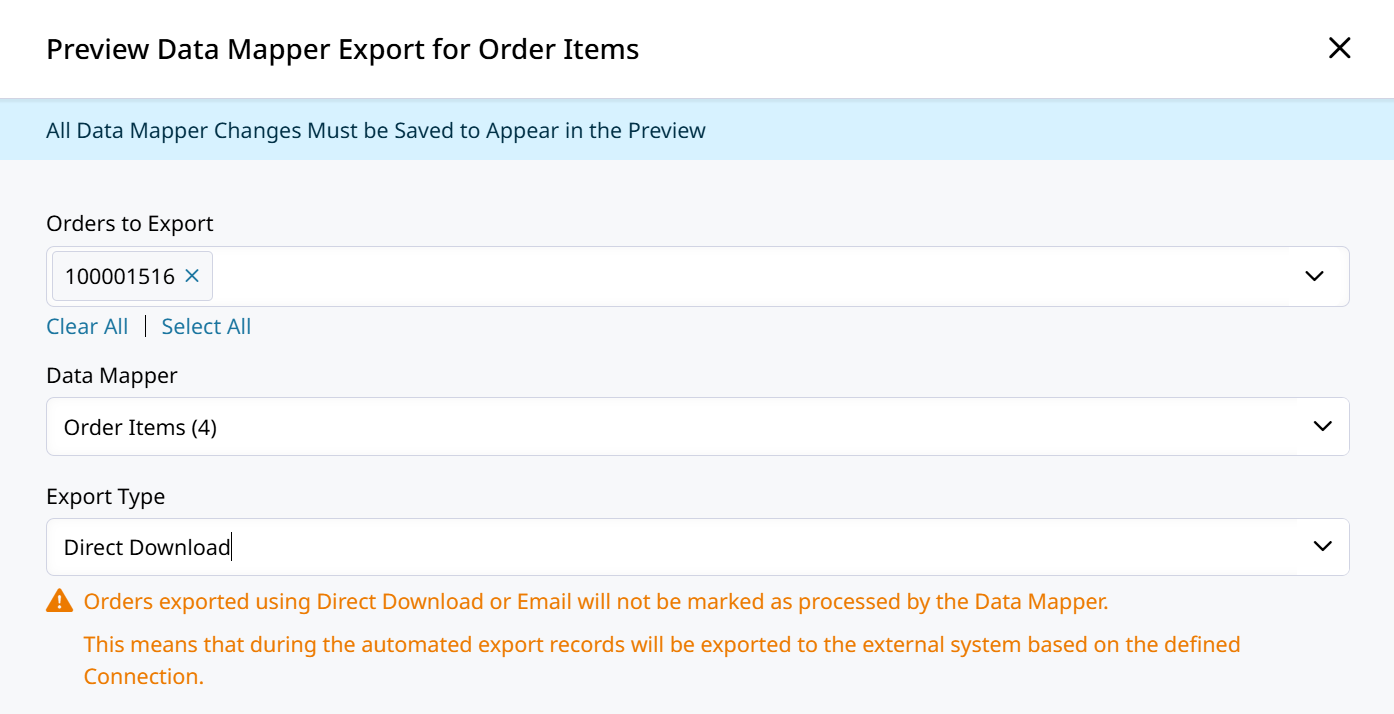
Previewed records still export on scheduleRecords exported with Direct Download or Send Email are not marked as processed, so the next scheduled run still sends them through the Connection. Preview also ignores Apply Advanced Filters Only Once.
Test checklist
Preview a few records that cover the cases your business uses, such as a simple product, a variation of a configurable product, a bundle, a tax-exempt Account and an order with shipping. In the file, check that:
- The column headers and their order match what the other system expects.
- Required columns have a value in every row.
- SKUs match the SKUs on the orders. See Which SKU to export.
- Mapped values, such as
TRUEandFALSE, come out as expected. - Custom Rows appear where expected.
- No placeholder values such as
TBDare left.
When the file is right, set Enabled and Use Schedule to Yes, and check the Data Mapper Audit Log after the first runs.
Test imports with a copy of the fileImports don't have Preview. Put one small test file in the File Import Folder, click Run, then check the record in Zoey and the Audit Log. Check that the file moved to the folder set in File Folder After Processing.
Send records again
- Most exports: use Reset Last Run Time and choose an earlier time. The next run sends records created or updated after it.
- Order Items exports: each order is sent once, so changing the Last Run Time doesn't send it again. Select the orders in the Orders list, open Bulk Actions, and click Data Mapper Templates. See Exporting Orders Manually using a Data Mapper.
Ask Zoey AITry asking: "Why did my Data Mapper finish with no data?" or "How do I send an order to my Data Mapper again?"
Related articles
Updated 14 minutes ago