
Work in the Zoey Admin
Find your way around the Zoey Admin: menus, Search anything, lists, filters, columns, Bulk Actions, exports, saving, audit logs and getting more done with Ask Zoey.
The Zoey Admin is where you run your store. Every task follows the same pattern: open a menu, find the record in a list, open it, change it and click Save. Ask Zoey and Search anything get you there faster.
Use it to:
- Find any menu, list or setting.
- Find an order, Account or product in seconds.
- Work through lists: search, filter, choose columns, use Bulk Actions and export.
- Get answers and small changes done with Ask Zoey.
What do you want to do?
| Task | How | Article |
|---|---|---|
| Jump to a record or setting | Press Ctrl K (Cmd K on Mac) and type | Search Everything from One Bar (Global Search) |
| Ask a question or how to do something | Press Ctrl + J (Cmd + J on Mac) | Ask Zoey (AI Assistant) |
| Work with orders | Orders > Orders List | Use the Orders list |
| Work with products | Products > Products List | Use the Products list |
| Work with Accounts | Customers | Accounts |
| Change many records at once | Tick them in a list > Bulk Actions | Use Bulk Actions |
| Download a list as a CSV | Bulk Actions > Export > Export Current Grid | Export a custom report from any list |
| See who changed a record | The record's Audit Log | See who changed something |
| Find out why a screen looks different | The card in the bottom-right corner | Change Notices |
Find Your Way Around
The menu on the left is grouped by job:
| Menu | What's in it |
|---|---|
| Customers | The Accounts list, contacts, customer groups and customer attributes |
| Quotes | Quotes List and quote settings |
| Orders | Orders List, Drafts List, shipments, invoices, transactions, credit memos, statements and order settings |
| Products | Products List, Create New Product, categories, attributes, inventory and product settings |
| Promotions | Discount Rules, Sales and promotion settings |
| Reports | Sales, product, customer and accounting reports |
| Team | Admin users, sales reps and roles (what each user can do) |
| Settings | Store settings: payments, shipping, tax, emails, integrations and more |
| Theme, Blog, Features, Web Settings | Your storefront: design, pages, blog and storefront settings (under Zoey Storefront) |
- Hover over or click a menu to see its pages. The breadcrumb at the top of each page (for example Products / Attributes / Size) shows where you are; click a part of it to go back up.
- The store name at the top of the menu switches between your stores. See Switch between stores.
- Need Help? at the bottom of the menu shows your Zoey version.
Two places called SettingsStore-wide settings are under Settings. Settings for one area sit in that area's menu: Orders > Settings, Quotes > Settings, Products > Settings. Storefront options are under Web Settings. When you're not sure, press Ctrl K (Cmd K) and type the setting's name: Search anything finds settings pages too.
Find a Record
- From anywhere: press Ctrl K (Cmd K on Mac), or press / when you aren't typing in a field, and type an order number, invoice number, name, email or SKU. Press Enter to open the result. See Search Everything from One Bar.
- In a list: type in the list's search bar, or click a tab (such as Open orders or Low Stock products).
Work in a List
Every list (Orders, Products, Accounts, Quotes, Invoices and more) works the same way:
| To... | Do this |
|---|---|
| Search | Type in the search bar at the top of the list |
| Filter | Click the filter icon or Filters next to the search bar, pick a field, a rule and a value. Combine filters with AND / OR |
| Save a filter | Save it as a tab with the 3-dot menu next to the tabs > Add new Tab. Tabs can be private or shared with your team |
| Show other information | Click the gear icon and tick the columns you want. Drag column headers to reorder them |
| Sort | Click a column header |
| Page through | Use the arrows and page number at the top, and choose how many rows to show |
| Open a record | Click its row or name |
Guides for each list: Use the Orders list, Filter the Orders list, Create Orders list tabs, Use the Products list, Search and filter the Products list, Create Accounts list tabs, Shipments, Invoices, and Transactions Grids.
Use Bulk Actions
Bulk Actions change, print or export many records at once.
- In the list, tick the box next to each record. Tick the box in the header to select every row on the page.
- Click Bulk Actions. It stays greyed out until at least one row is ticked.
- Choose an action. Actions are grouped, for example Manage (change, hold, archive), Print, Download and Export.
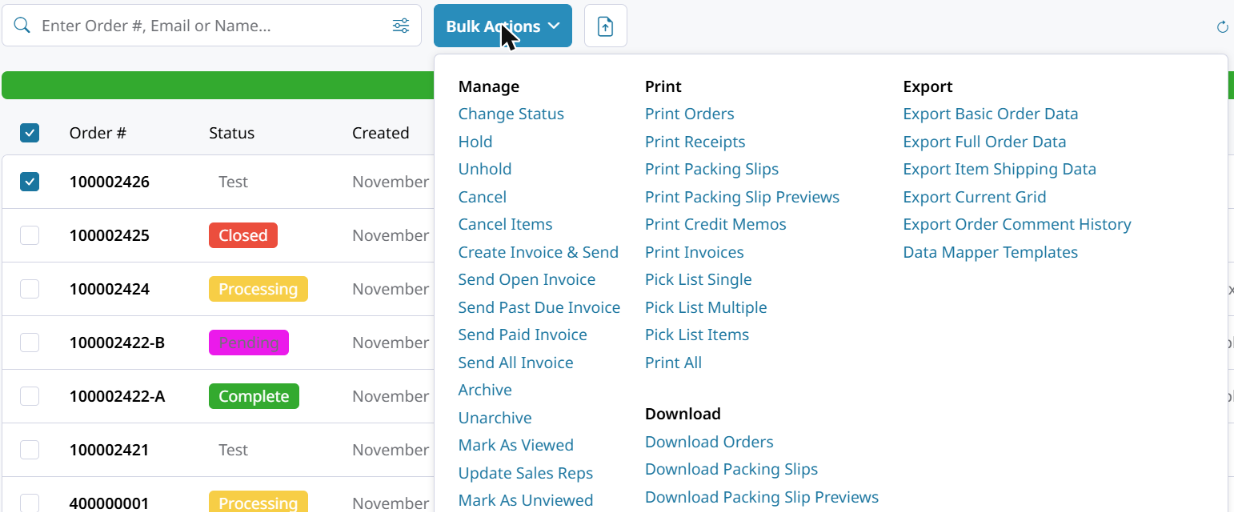
- Answer the confirmation or the window that opens, if there is one.
What each list offers: Orders, Products, order statuses. Some actions only show when your admin role has permission for them; see Manage your team.
To download a list exactly as you see it, set up its filters and columns, select the rows, then choose Bulk Actions > Export > Export Current Grid. See Export a custom report from any list.
Save Your Changes
- Most record pages (a product, an Account, an attribute) have a Save button at the top right. Changes aren't kept until you click it.
- If Zoey can't save, a message at the top of the page says why, for example Please fill out the required fields. Fix the field it names and save again.
See Who Changed Something
Many records keep an Audit Log with what changed, who changed it and when: products, Accounts, attributes, Data Mappers and deleted orders, for example. Open the record and look for the Audit Log tab or section. See Product Audit Log and Account Audit Log. Changes made by Ask Zoey show the user Zoey AI.
Get More Done with Ask Zoey
Ask Zoey is an AI assistant on every admin page. Open it with Ask Zoey in the bottom-right corner, or Ctrl + J (Cmd + J on Mac). It knows which page you're on, answers from your live store data, and links the records and support articles it used.
| Instead of... | Ask Zoey |
|---|---|
| Building a report for one number | "How much did we sell last month, by Customer Group?" |
| Filtering a list to find a few records | "Which Accounts are more than 60 days past due?" |
| Searching the help site | "How do I set up a tier price?" |
| Opening 20 products to turn them off | "Disable these SKUs: …" (up to 50 at a time; you confirm first) |
| Opening a product to change one value | "Set the special price of ABC-100 to 19.99." |
| Opening an order to leave a note | "Add a note to order 100123: customer called about delivery." |
| Re-sending an expired invite | "Resend Jane Example's invite, her link expired." |
| Undoing credit applied to the wrong invoice | "Remove credit 100000034 from invoice Inv00027140." |
Nothing changes until you click Confirm on the card Ask Zoey shows. Answers with a table have Download CSV. Ask Zoey uses your admin role's permissions, so it only shows what you can see. It doesn't take payments, refund, edit orders or invoices, or change settings; ask it how and it gives you the steps. See Ask Zoey (AI Assistant) and Run reports and ask Zoey AI.
Related articles
Updated 5 minutes ago