
Undo a credit memo or credit applied by mistake
Credit on the wrong invoice? Void the credit transaction to unapply it, cancel an unused credit memo, then apply the credit to the right invoice.
Credit that went to the wrong invoice comes off by voiding the credit transaction that applied it. Voiding reverses the credit application: the invoice gets its balance back, and the amount returns to the account as available credit, ready to apply to the right invoice. Canceling the credit memo is a different action. It removes the credit itself, and you can only do it while none of the memo's credit has been used.
Use it to:
- Unapply credit that applied itself to the wrong invoice or order.
- Move credit from one invoice to another.
- Remove a credit memo created for the wrong account, the wrong amount, or twice.
- Take back credit that was applied or refunded by mistake, so the credit memo can be canceled.
Which Action to Use
| What went wrong | What to do |
|---|---|
| The credit was applied to the wrong invoice | Void the credit transaction, then apply the credit to the right invoice. |
| The credit memo shouldn't exist, and none of its credit has been used (status Unapplied) | Cancel the credit memo. |
| The credit memo shouldn't exist, but some or all of its credit was applied (status Partially Applied or Applied) | Void each of its credit transactions, then cancel the credit memo. |
| You want to keep what's applied and only remove the unused balance | Use Refund Remaining Balance with an offline refund. See Reduce or Remove Credit on an Account. |
| An offline refund was recorded from the credit memo by mistake | Void the refund to return its amount to the credit memo. |
Cancel vs. void
| Cancel the credit memo | Void the credit transaction | |
|---|---|---|
| What it undoes | The credit memo and all of its credit | One application of credit to one or more invoices |
| Where | The credit memo's three-dot menu | The credit transaction's three-dot menu |
| Invoice | No change (an unapplied memo isn't on any invoice) | The credit comes off and the invoice balance goes back up |
| Account credit | Goes down by the memo's amount | Goes up by the voided amount |
| Credit memo | Status becomes Canceled, which is final | The amount is available again on the memo |
| When it's not possible | Any credit from the memo is applied or refunded | The transaction is already voided, or you don't have permission to collect payment |
There's no Void on the credit memo itselfA credit memo is canceled, not voided. What you void is the Credit transaction that applied the memo to an invoice. Credit transactions are listed on the credit memo under Linked Transactions.
Void the Credit Transaction
Each time credit is applied to invoices, Zoey records a Credit transaction. Voiding it unapplies that credit from the invoices it paid.
- In the Zoey Admin, go to Orders > Credit Memos and open the credit memo.
- Under Linked Transactions, find the Credit row whose Applied To column shows the wrong invoice, and click it to open the transaction.

- Click the 3-dots in the top-right corner of the transaction and select Void.
- Confirm the prompt Are you sure you want to void this transaction?
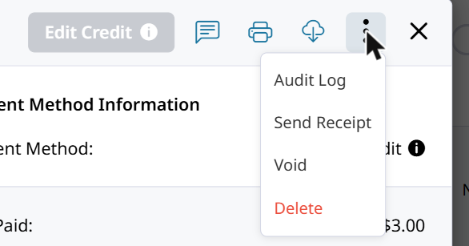
You can also open the credit transaction from the invoice's Linked Transactions, from the order's Transactions list, or from the Credits tab in Orders > Transactions.
What voiding changes
- Invoice: the credit amount goes back onto the invoice's balance. An invoice that this credit paid in full goes back to Open and unpaid.
- Order: the order's paid total goes down by the credit and the order history gets the comment The Credit #… has been void. The order's status doesn't change: an order that moved to Processing when the credit paid it stays in Processing.
- Credit memo: the voided amount is available again. The memo goes back to Unapplied, or Partially Applied if other credit from it is still applied. You can apply it to another invoice right away (see below).
- Account: the account's available credit goes up by the voided amount.
- The transaction: stays in the history, marked as void, so you can see what happened.
One transaction can cover several invoicesWhen credit is applied to several invoices in one step, Zoey records a single credit transaction for all of them. Voiding it removes the credit from every one of those invoices. Reapply the credit to the invoices that were right.
Void or delete?Delete in the same menu also removes the credit from the invoice and returns it to the account, but it removes the transaction record from the order history. Use Void so the history shows the reversal. See Void or delete a payment, deposit or refund.
When you can't void a credit transaction
- The transaction is already voided. A void can't be undone. To put the credit back on that invoice, apply it again.
- You don't have permission to collect payment. Voiding and deleting transactions need the same permission as collecting payment. Ask your site administrator.
Apply the Credit to the Right Invoice
After the void, the credit is available on the account. Apply it to the invoice it was meant for:
- Open the credit memo, click the 3-dots in the top right and select Apply Credits. You can also click Apply Credits on the account's page or on an open invoice when the account has a credit balance.
- In the Apply Credit window, under Select Open Invoices to Apply Credit, tick the invoice. Zoey may already have ticked an invoice and filled in the available credit: untick any invoice that isn't the right one.
- Enter the amount in the Applying column. Switch the unit to % to apply a percentage of the invoice balance instead.
- Check Available Credit and Total Applied at the bottom.
- Send Receipt Email is ticked by default. Untick it if you don't want to email the customer.
- Click Apply Credit.
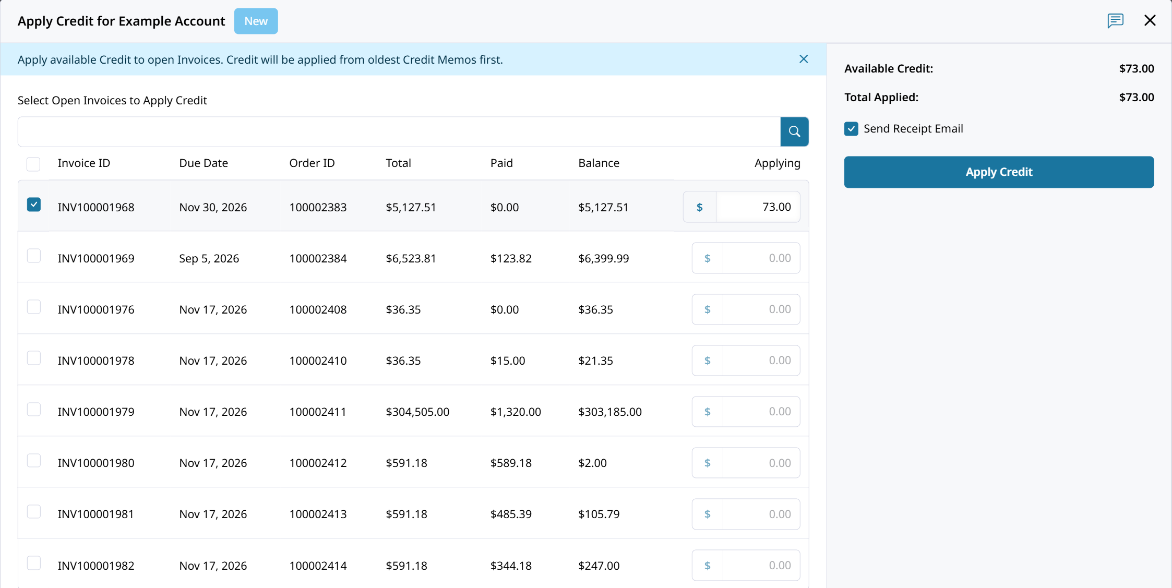
The invoice balance and the account's available credit go down by the amount applied, and Zoey records a new credit transaction.
Credit comes from the account, oldest memo firstApply Credits uses the account's available credit, which pools all of the customer's and their company's credit memos. The oldest credit memo is used first, even when you start from a different memo.
Apply the credit right awayUntil you apply it, the freed credit can be picked up the next time credit is applied automatically, for example when the customer pays an invoice, a new invoice is created, or a statement is generated, depending on your settings in Orders > Settings > Credit Memos. That can put it back on the invoice you just took it off. See How Credit Is Applied Automatically.
Example
A $150 credit memo applied itself to Invoice #301 ($150 due), but it was meant for Invoice #305 ($200 due).
- Void the credit transaction on Invoice #301. Invoice #301 is back to $150 due, and the account has $150 of available credit.
- Apply $150 to Invoice #305. Invoice #305 now has $50 due, and the account's available credit is $0.
Cancel the Credit Memo
Cancel a credit memo to remove it and all of its credit, for example when it was created for the wrong account, for the wrong amount, or twice. You can cancel a credit memo only while its status is Unapplied.
- In the Zoey Admin, go to Orders > Credit Memos and open the credit memo.
- Click the 3-dots in the top right and select Cancel. The option only appears while the memo is Unapplied.
- Confirm the prompt Are you sure you want to cancel this credit memo?
What canceling changes
- Status: the credit memo becomes Canceled. This is final and can't be undone. To issue the credit again, create a new credit memo.
- Account credit: the memo's credit is removed from the account. Credit the memo had reserved for an open order or quote is released, and Zoey reserves credit from the account's other credit memos where it can.
- Order and items: the credited quantities on the order's items are reversed. Items that were returned to stock with Return to Stock are taken back out of stock.
- Invoices: no change, because none of the memo's credit was applied.
- Customer email: Zoey emails the customer the Credit Memo Cancel notice. You can edit or turn off that email in Settings > Emails.
To reissue the credit correctly, create a replacement. See Create a credit memo or refund.
Why can't I cancel this credit memo?
The Cancel option is missing when any of the memo's credit has been used. Free it up first:
| Credit memo status or history | Why it can't be canceled | What to do |
|---|---|---|
| Partially Applied or Applied | Credit from the memo is applied to an invoice | Void each of its credit transactions (see Void the Credit Transaction), then cancel. To keep what's applied and only remove the rest, use Refund Remaining Balance instead. |
| Has an offline refund (Record an Offline Refund or Refund Remaining Balance) | The refund used up the memo's credit | Void the refund, then cancel. |
| Refunded with Refund to Original Payment | The money already went back through your payment processor, and online refunds can't be voided | The memo can't be canceled. |
| Canceled | Canceled is a final status | Create a new credit memo if you need the credit back. |
Void an Offline Refund from a Credit Memo
An offline refund recorded from a credit memo, with Record an Offline Refund or Refund Remaining Balance, can be voided. Voiding it returns the refunded amount to the credit memo as available credit.
- Open the credit memo and click the Refund row under Linked Transactions.
- Click the 3-dots in the top-right corner and select Void.
- Confirm the prompt.
The refund stays in the history, marked as void, and the order history gets the comment The Refund #… has been void. A refund linked to a credit memo can't be deleted, and an online refund can't be voided.
If the Invoice Itself Is Wrong
To undo an invoice that shouldn't exist, void the invoice instead. Voiding an invoice that isn't fully paid also takes off any credit applied to it and returns that credit to the account. An invoice that is fully paid, even by credit alone, can't be voided: void its credit transaction first, then void the invoice.
Stores connected to QuickBooks Online or NetSuiteAfter you void a credit transaction or cancel a credit memo, check the credit memo and the invoices in your accounting system. If the credit is still applied to the wrong invoice there, correct it in that system too. See Syncing Credit Memos.
Related Articles
Updated 21 minutes ago