
Product Attachments Import
You can manage your Product Attachments via CSV from Import & Export > Product Attachments
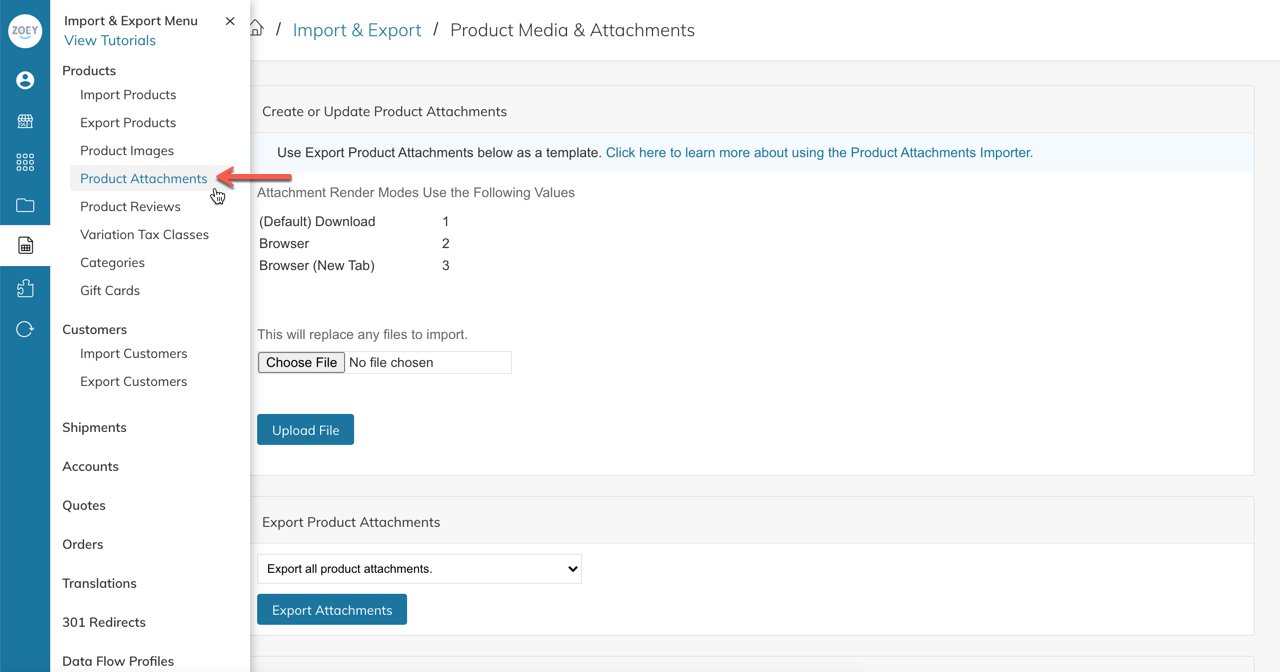
To add attachments to Products via CSV import, you'll first need to upload the files to your File Manager. Then export the names of those files by following these steps.You can then copy the file name to your import sheet to associate it with a SKU.
Importing
Adding New Attachments To Products
1. Create CSV
To add new attachments to products you will need to create a CSV with the below columns:
- sku - *REQUIRED: SKU of product to attach file
- _attachment_file_name -*REQUIRED: a Filename that exists in your File Manager Data (see Exporting File Manager Data above)
- _attachment_label - The label you would like customers to see when clicking the link to download (leave blank to use filename as label)
- _attachment_customer_group_id - Restrict the attachment to specific customer groups. List the groups who can have access.
- _attachment_is_logged_in -Require the customer to be logged in to view the attachment. 0=No, 1=Yes
Note: You do not have to specify the attachment URL. This will be done automatically from the file-name.
Example:
| sku | _attachment_file_name | _attachment_label | _attachment_customer_group_id | _attachment_is_logged_in | _attachment_sort_order |
|---|---|---|---|---|---|
| Product-1 | TestPDF1.pdf | User Manual | 1 | 2 | |
| Product-1 | TestPDF1a.pdf | Warranty Info | 0 | 1 | |
| Product-2 | TestPDF2.pdf | User Manual | 1 |
Multiple attachments can be set to one Product by listing the same SKU repeatedly.Use
_attachment_sort_orderto determine the order of the attachments on a Product.

2. Upload CSV
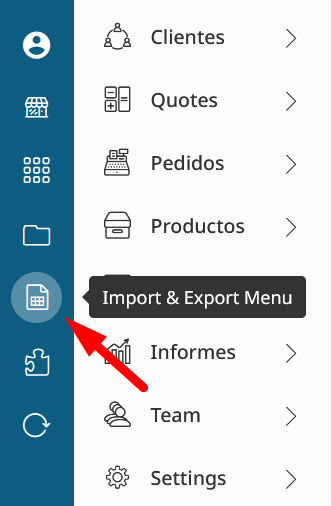
In Import & Export > Product Attachments in the "Create or Update Product Attachments" section, choose your file and click to Upload.
block:image
</block:image>
3. Import
Once your file has been uploaded you can click to import the file in Products > Importer.
4. Test
Now you can verify that your product attachments have imported correctly by checking one of the products you have imported.
Updating
To update existing attachments, follow the same steps as above, but be sure the "attachment_id" column has the attachment you would like to update.
Changing a File
You can change the File for an attachment simply by changing the "filename" column. You do not need to include the attachment_url column as it will be updated automatically by the filename. Be sure the new file already exists and has been uploaded into your File Manager.
Deleting an Attachment
You can delete an attachment ID by putting the value "1" into the "_delete_attachment" column.
Exporting Product Attachments
If you are looking to get a report of, or to manage your product attachments, you can use the "Export Product Attachments" section of the Import/Export tool.
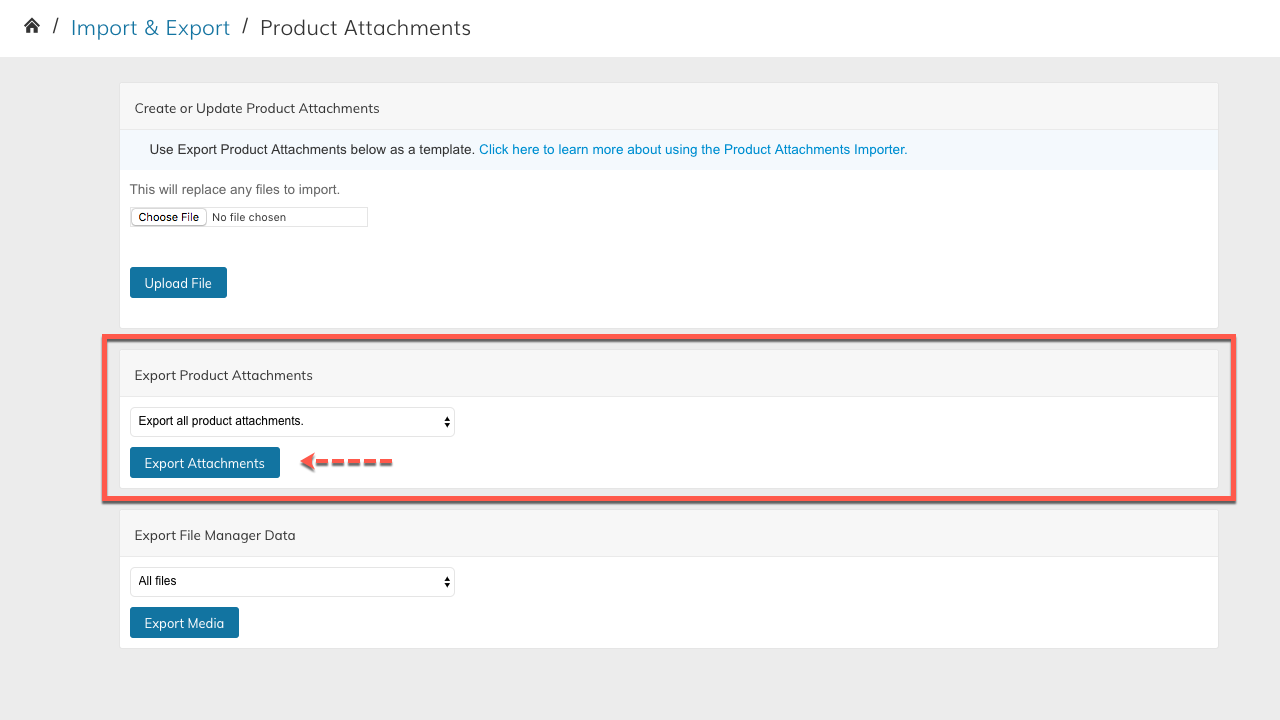
All export fields can be used in your import.
The Export will provide you with the following data:
| Column | Description |
|---|---|
| attachment_id | This is the unique ID for the attachment. This is used for making edits to the attachment during import. |
| sku | This is the SKU of the product the attachment is associated with. |
| \_attachment_file_name | This is the Filename of the Attachment |
| \_attachment_render_mode | How the file renders when clicked on. 1 = Download 2 = Browser 3 = Browser (New Tab) |
| \_attachment_store | Which store scope the file is available to. |
| \_attachment_label | This is the Label used on the store front-end for the customer to click to download. |
| \_attachment_customer_group_id | Restrict the attachment to specific customer groups. List the groups who can have access. |
| \_attachment_is_logged_in | Require the customer to be logged in to view the attachment. 0 = No 1 = Yes |
| \_attachment_url | Not needed for import. This is the full URL where the file can be found/downloaded. |
| \_attachment_disabled | Whether the attachment is Disabled. 0 = No 1 = Yes |
| \_attachment_sort_order | Sort order for the attachments. |
| \_attachment_delete | This field is used during import to determine if the attachment should be deleted or not. |
</block:parameters>
Exporting File Manager Data
If you have imported your files to the File Manager and are looking for a list of all available files, you can use this export tool. You can select to download a report of all files, image files only, or non-image files only.
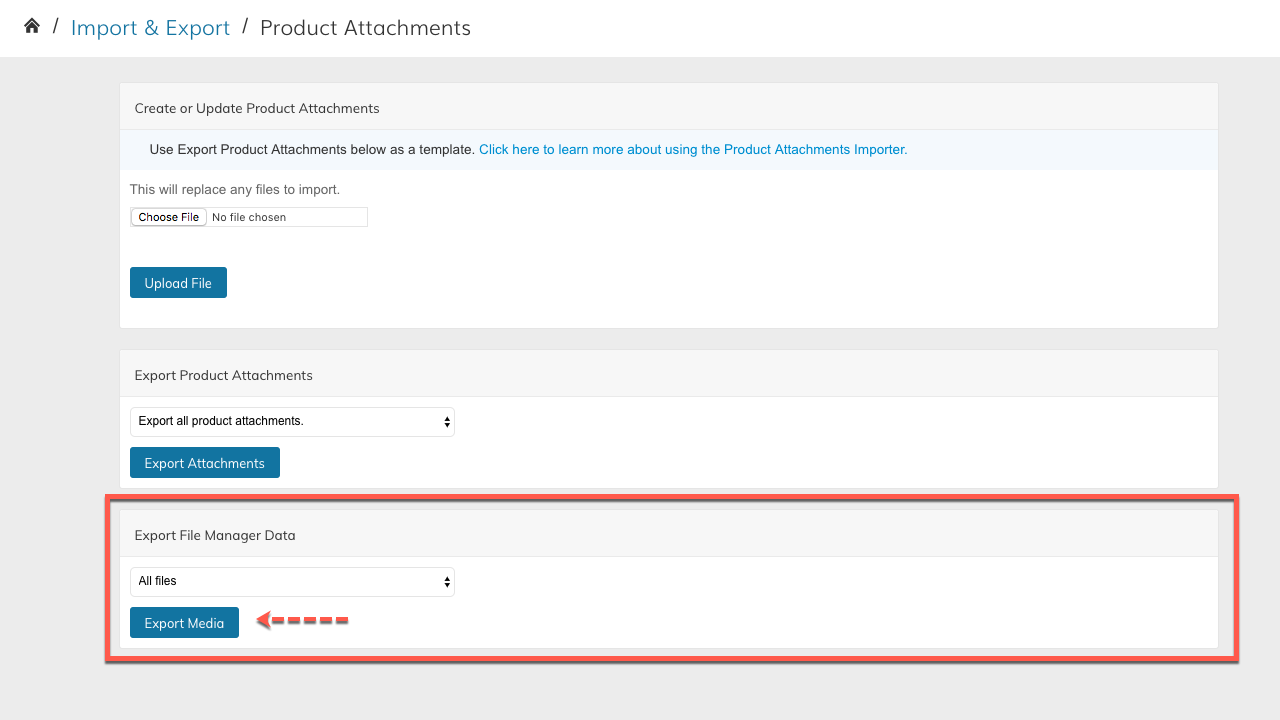
The Export will provide you with a CSV that looks like this:
