---
updatedAt: 2026-10-08T15:57:11.000Z
agentTools:
projectIndex: https://support.zoey.com/llms.txt
---
# Slideshows
## Add Slideshow
Slideshows allow you to add a carousel of Images, Images & Text, or Multiple Images (Brand Slider) to your page. Click or drag & drop to add Slideshows from the +Add Menu.
Utilizing the **Image Only Slideshow** is highly recommended as it let's you set special slides to display on Mobile.
Other slideshows let you add text on top of the slides, but have a tough time shrinking to display well on Mobile. Please edit your images to include the text and then use an Image Only Slideshow.
[Click here for an Image Only Slideshow guide.](https://support.zoey.com/docs/adding-a-resizable-image-banner-slideshow#creating-a-mobile-image-slideshow)
### Types of Slide Shows
There are a few types of slideshows you can add to your store. They are:
* **Image Slideshows** provide a default configuration of the image and text placement for the slideshow. You can change the images, texts, and buttons of each slide by editing. These slideshows will **automatically resize** for mobile.
* **Brand Slideshows** can display multiple slides at once. Rotating through them at the set intervals. You must set how many slides to display on tablet and mobile to display properly on those devices.
* **Image Only Slideshow** can only contain images. But it also enables you to set slides as **mobile only** so that only pictures intended for that size display. The slides can still redirect visitors when clicked. [Here is an article](https://support.zoey.com/docs/adding-a-resizable-image-banner-slideshow#creating-a-mobile-image-slideshow) on adding a mobile only slide to your show.
### An Image Only Slideshow is the best choice!
The image only slideshow lets you set specific slides and images for Mobile. Other slideshows will have a tough time displaying their large slides and text for mobile devices.
[Click here for an Image Only Slideshow guide.](https://support.zoey.com/docs/adding-a-resizable-image-banner-slideshow#creating-a-mobile-image-slideshow)
* **Content Slideshows** let you add any element to a slide of the show. You'll also need to set the mobile formatting for each slide. This type of slideshow is the **most customizable**. You can even add newsletter sign-up!
Content Slideshows don't scale well for Mobile devices.
## Edit Slideshow
There are multiple options for editing Slideshows
## Edit Slides & Slideshow settings
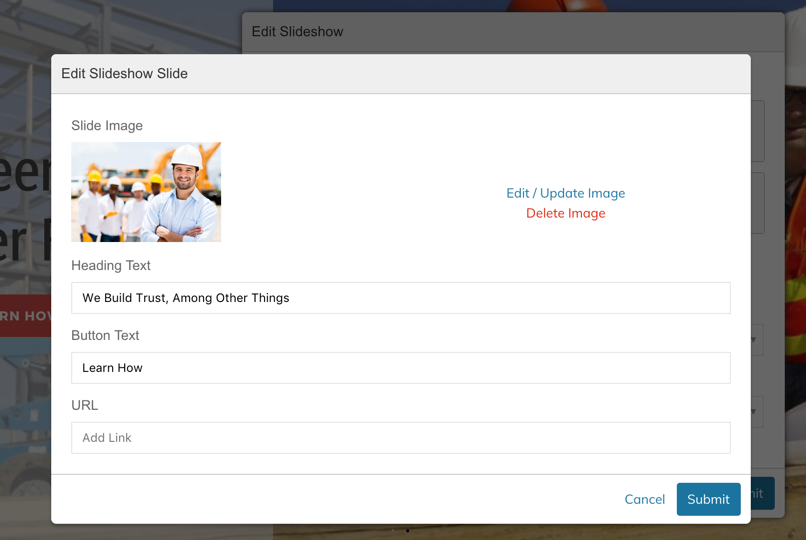
To edit a Slide or Slideshow Setting, double-click or click the Edit Slideshow quick-action button.
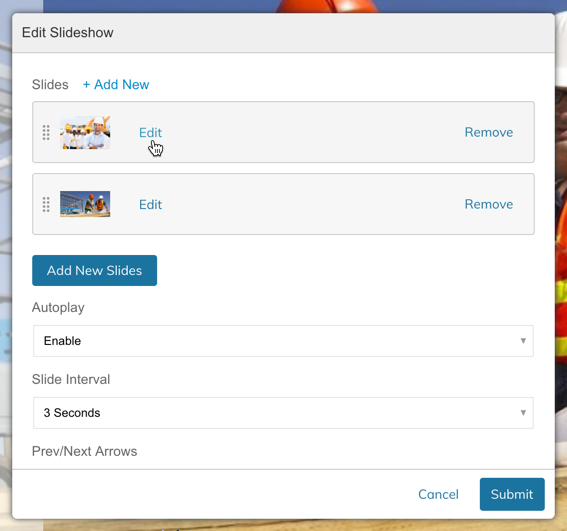
Within the Content Editor (CMS) you can edit existing slides:
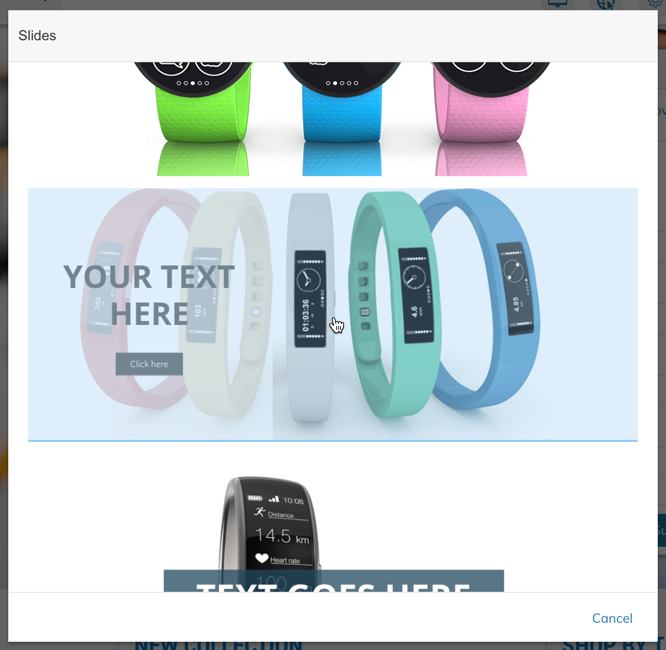
Or add new slides from the provided slide templates:
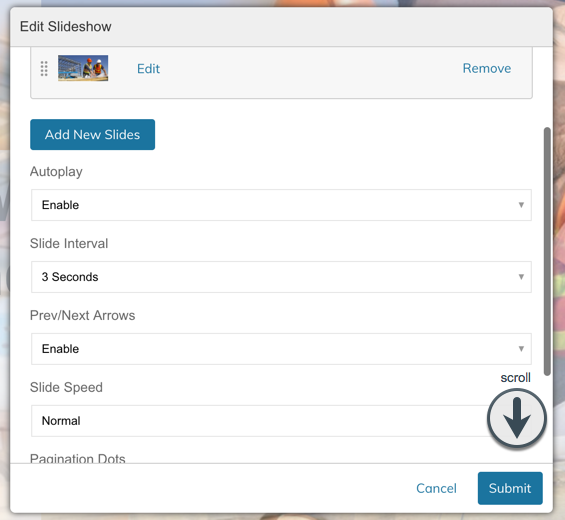
You can also manage Slider settings such as slide speed and slide animation type:
## Customizing Slides
You can customize the fonts and colors of each individual slide. This lets you change the text color of each slide and make other slide specific changes.
### Change Text Color and Spacing
First, if the slideshow has multiple slides, click the **Stop Slideshow** button.
Next, after stopping the slideshow you will see a button called **Design Active Slide**. Click that button to access that slide's design settings. You can also set the Active Slide by clicking the **Set Active Slide** button.
When designing a specific slide the font color, size, and style can be controlled for the Heading and Sub-Title.